In the world of professional peripherals, the Logitech MX Master series has long been the “S-Class” of mice. It’s the default choice for anyone who spends eight hours a day staring at a timeline or a spreadsheet. But with the new MX Master 4, priced at a hefty Rs 15,995 in India, Logitech is pushing the envelope into a territory that feels less like a tool and more like a complex piece of industrial machinery.
Here’s the thing: after a week of testing, my feelings are decidedly mixed. It is arguably the most capable mouse ever made, but it’s also the first time an input device has made me feel like I need a weekend seminar just to map my clicks.
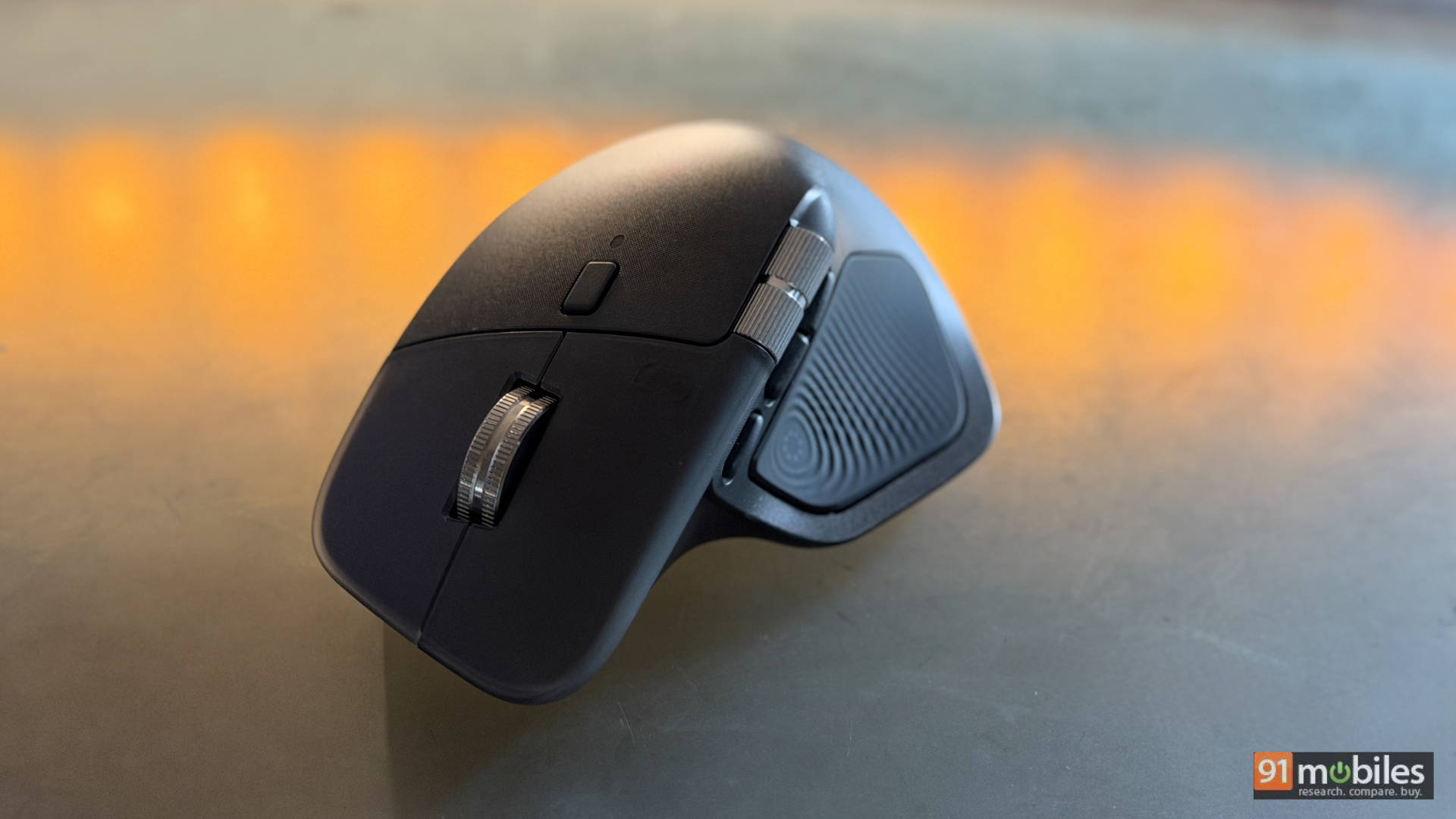
Table of Contents
Design and Ergonomics: The Heavyweight Champ
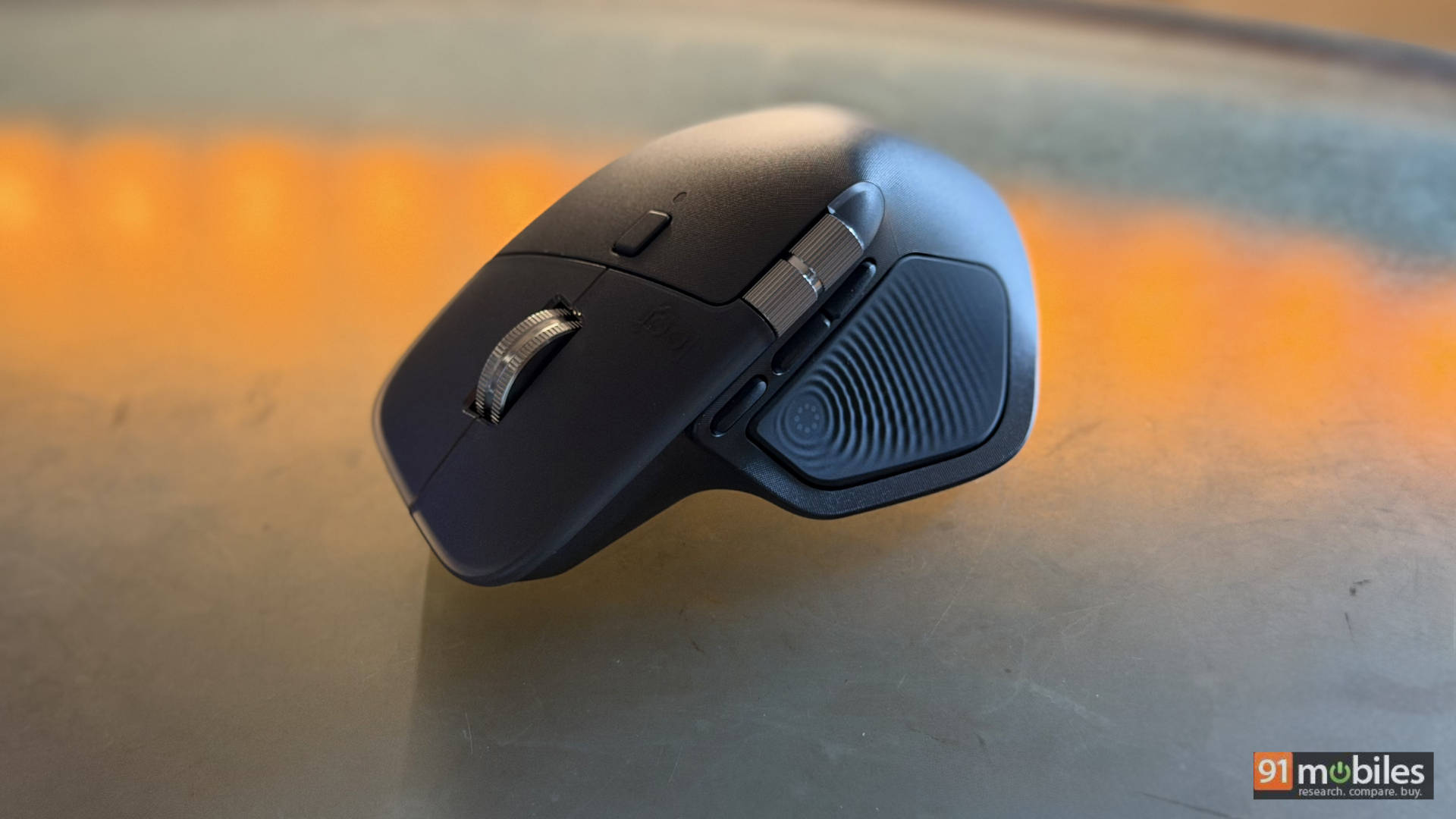
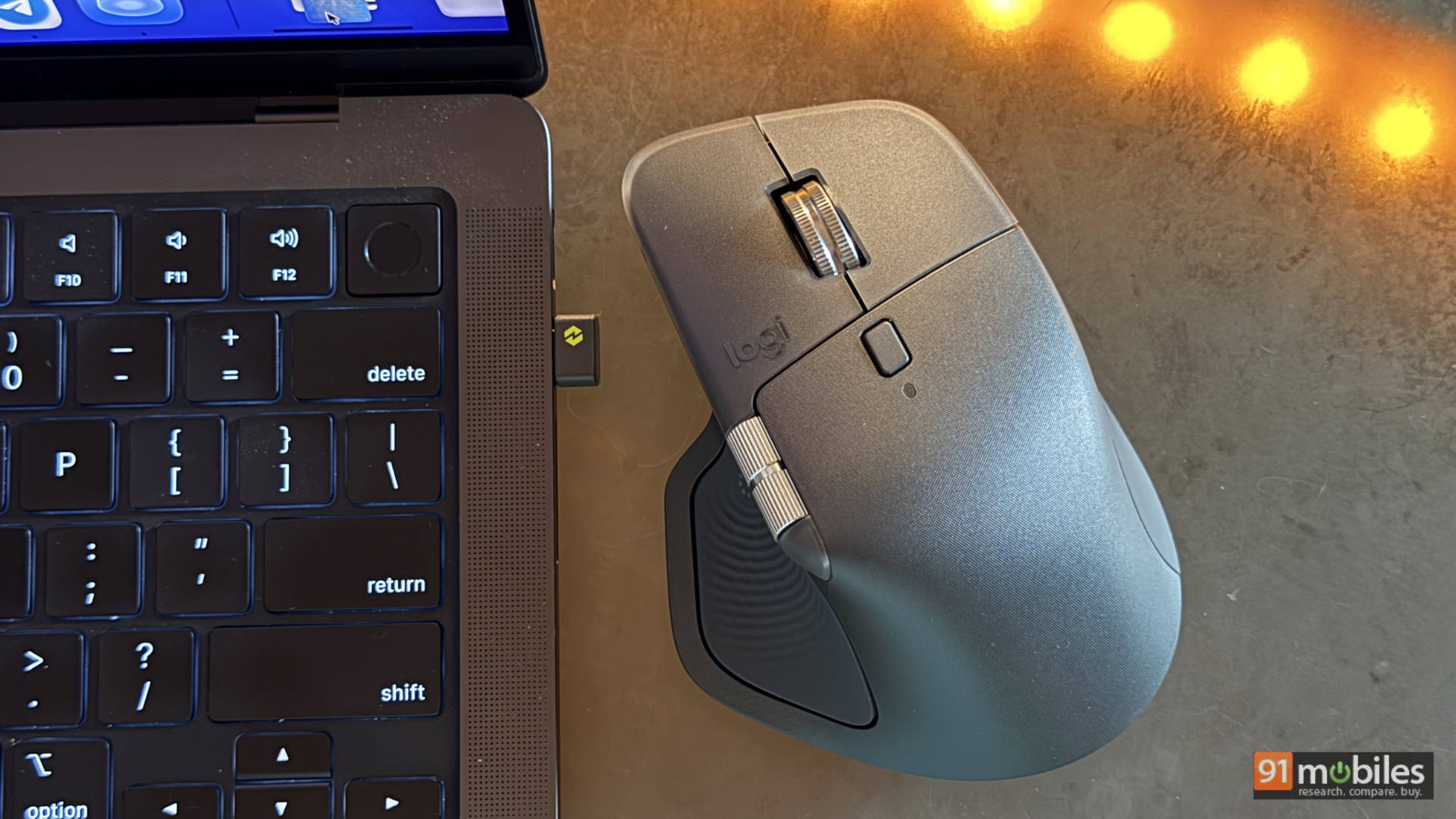
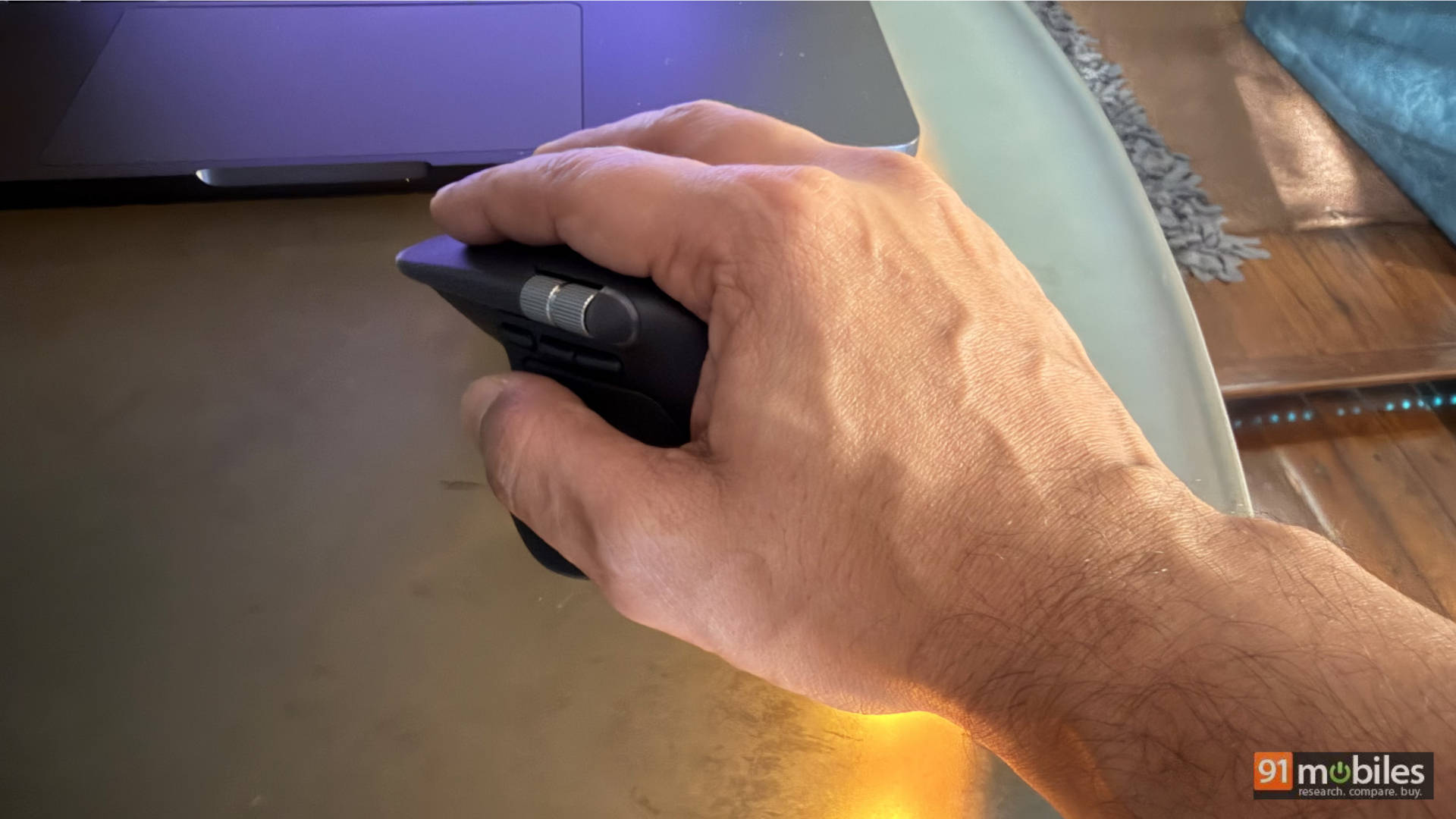
Logitech has clearly decided that the MX Master formula works, so the overall design philosophy hasn’t been radically altered. This is still a large, sculpted mouse designed to cradle your hand rather than disappear under it. If you’re coming from an Apple Magic Mouse or even a MacBook Pro trackpad, the MX Master 4 feels like a tank. Weighing in at 150g, it has a presence. The ergonomics are top-tier with the “optimised tilt” and deep thumb rest, which are designed for all-day comfort. Logitech has moved to more sustainable materials here, using 48% post-consumer recycled plastic and a silky silicone for the side panels, which should also be harder wearing than the rubberised material that users complain of peeling off on the last generation.
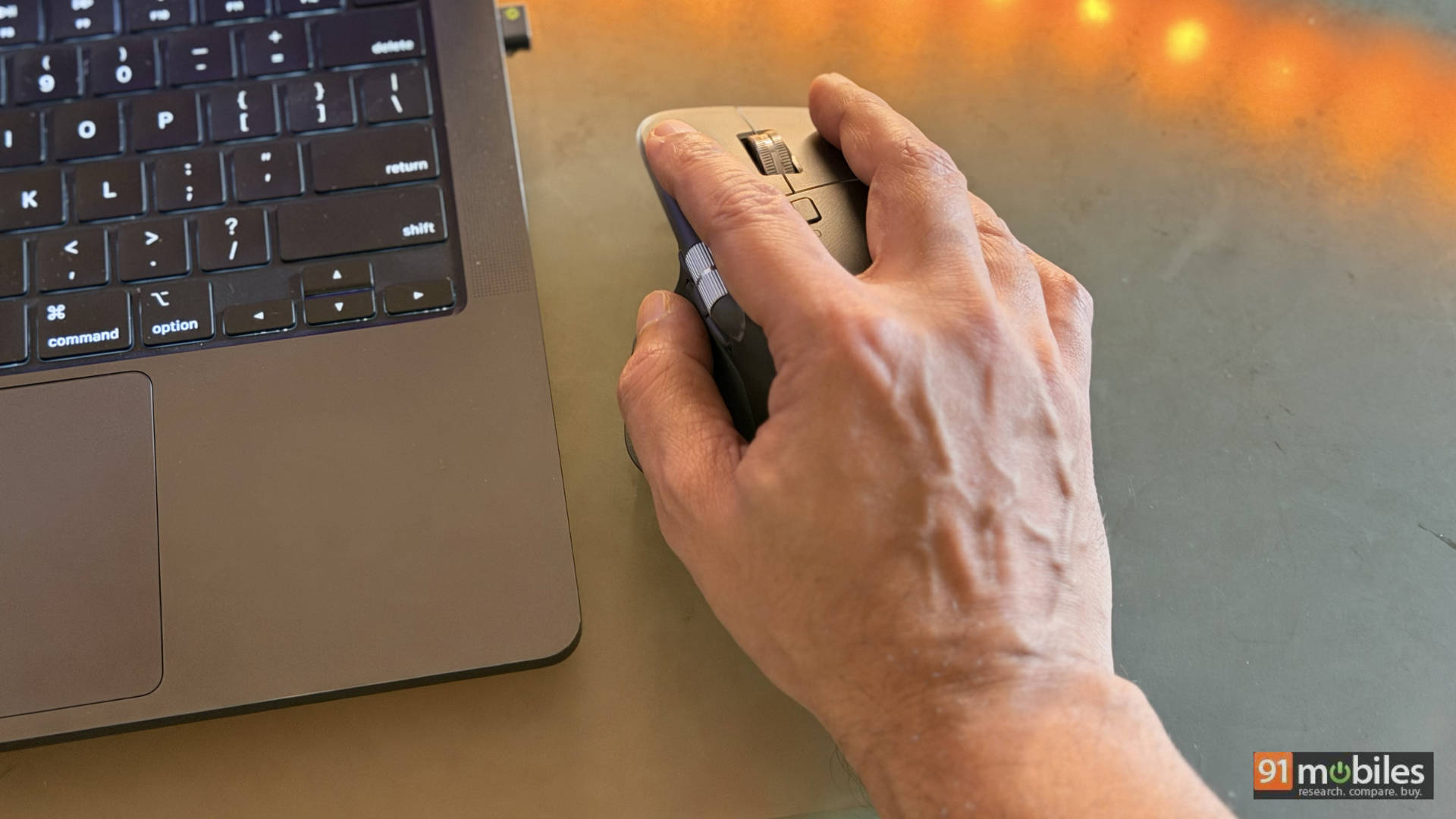
However, for those accustomed to the flighty, weightless nature of Apple’s peripherals, the MX Master 4 can feel like overkill. It’s “heavy” in a way that provides stability for pixel-perfect work but can feel cumbersome for general navigation.
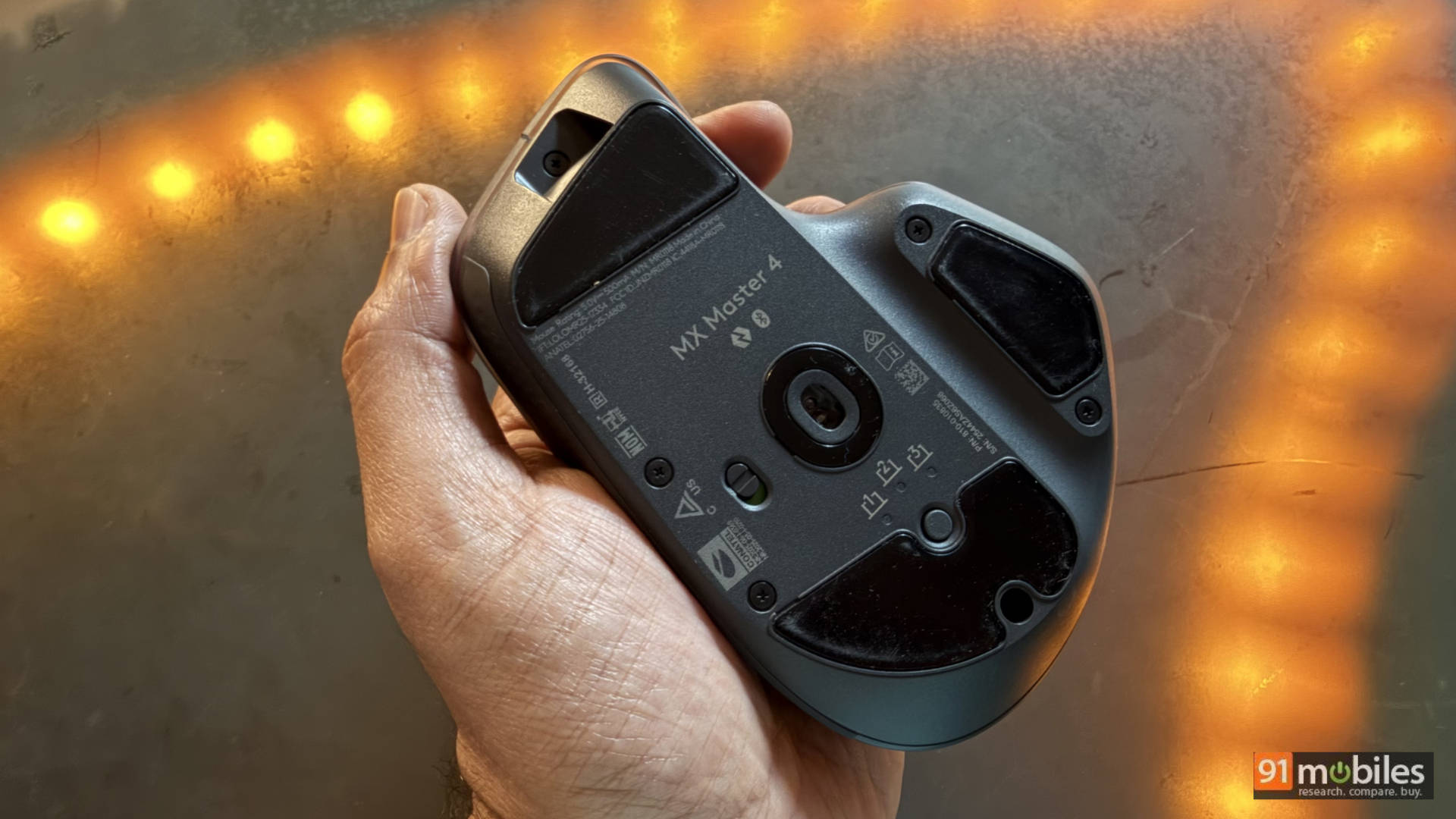
Another minor inconvenience could be the lack of any storage slot for the tiny USB-C dongle that manages syncing of all the customisation possible on the MX Master 4. Sure, you could just use the USB-C charging port on the MX Master 4 itself to store the dongle when not being used, or even just leave it be on your computer’s port. You will certainly be able to use the MX Master 4 if you happen to lose this appendage, but then you’d just be using the world’s most expensive Bluetooth mouse and not get anything more out of it.
The Tech: Haptics and the “Actions Ring”
The Logitech MX Master 4 is meticulously designed for advanced productivity, incorporating a sophisticated array of controls. Central to its functionality is the primary MagSpeed scroll wheel, which offers incredibly fast, precise, and silent scrolling capabilities, seamlessly transitioning between ratchet and free-spin modes.
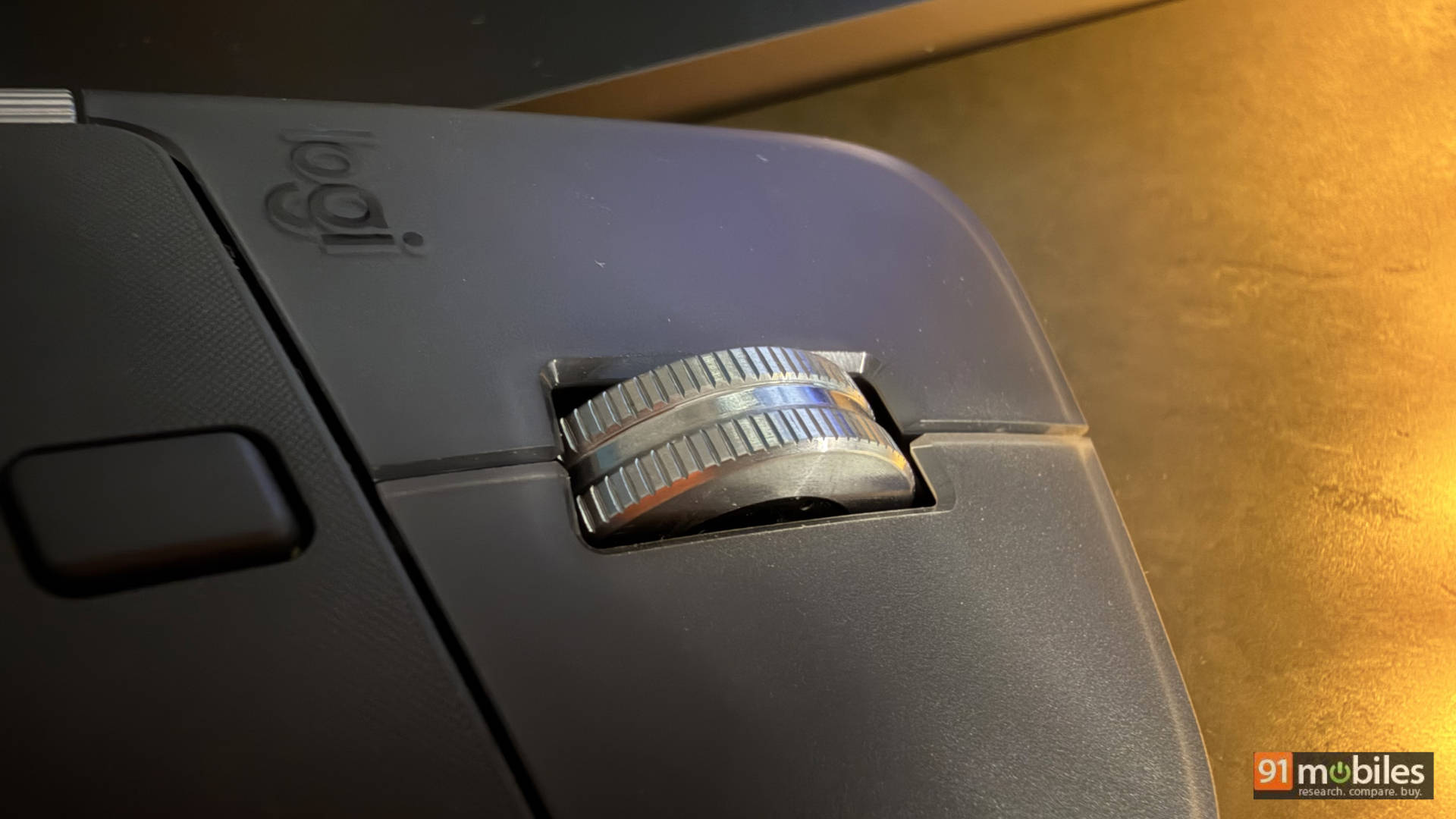
But the standout feature here is unquestionably the main scroll wheel. Logitech’s MagSpeed wheel continues to be one of the best implementations of scrolling hardware I’ve ever used. In ratchet mode, it delivers precise tactile steps that are perfect for navigating timelines or documents. Flick it harder, and it seamlessly switches into free-spin mode, blasting through thousands of lines in seconds. It’s ridiculously smooth and doubles up as a fantastic fidget spinner during breaks! For video editing, large spreadsheets, or long web pages, this alone makes the MX Master series hard to beat.
Then there’s the horizontal scroll wheel. If you work with editing timelines, design canvases, or even just browser tabs, this becomes addictive very quickly. Scrubbing across a Premiere Pro timeline or switching between tabs feels almost natural once your muscle memory kicks in. Though the headline feature this year is the Haptic Sense Panel. For the first time, Logitech has introduced customisable haptic feedback. You feel a subtle “click” or vibration when you snap an object to a grid in Photoshop or reach the end of a page. It’s well-judged and tactile, adding a layer of physical confirmation to digital actions.
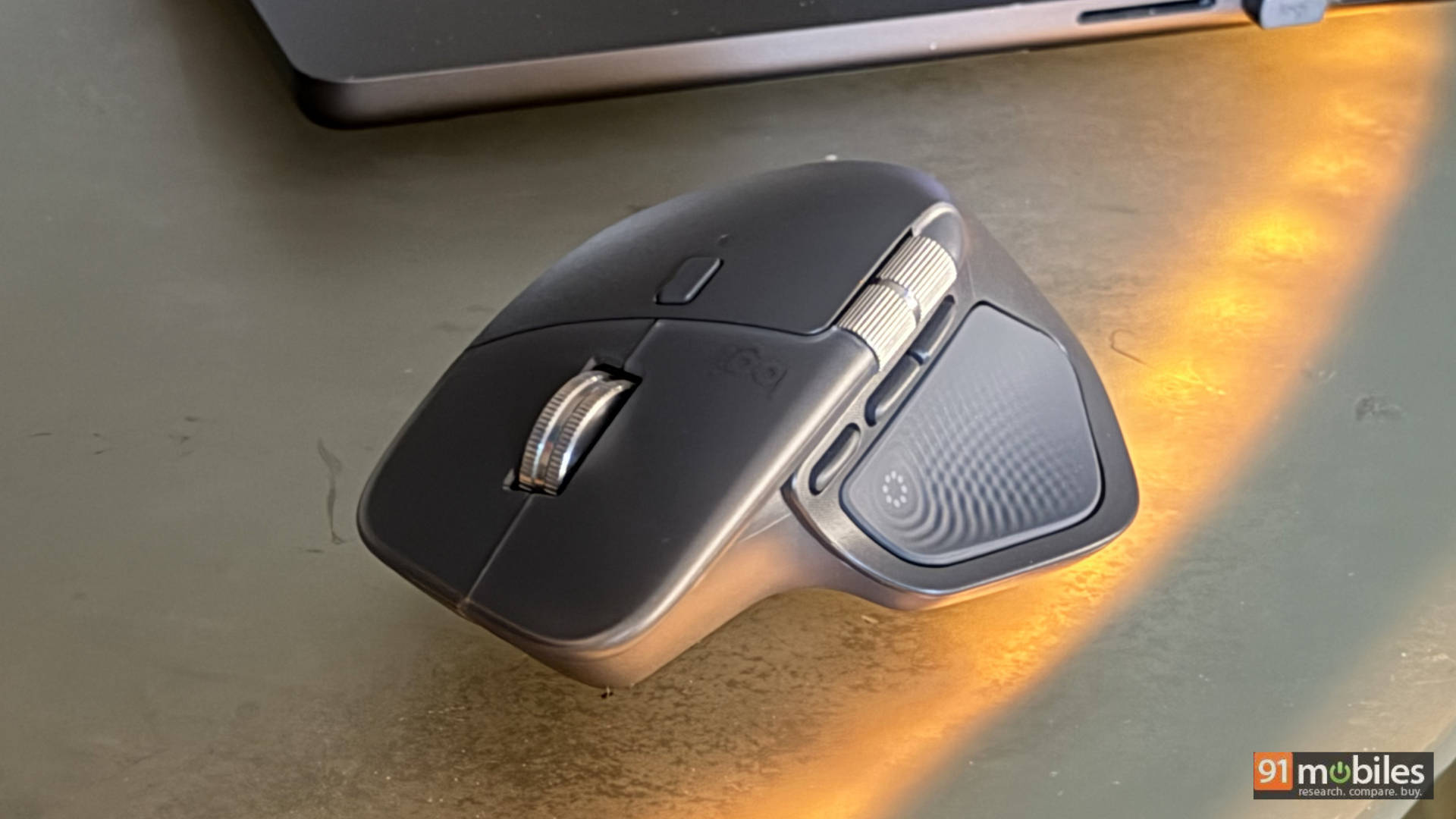
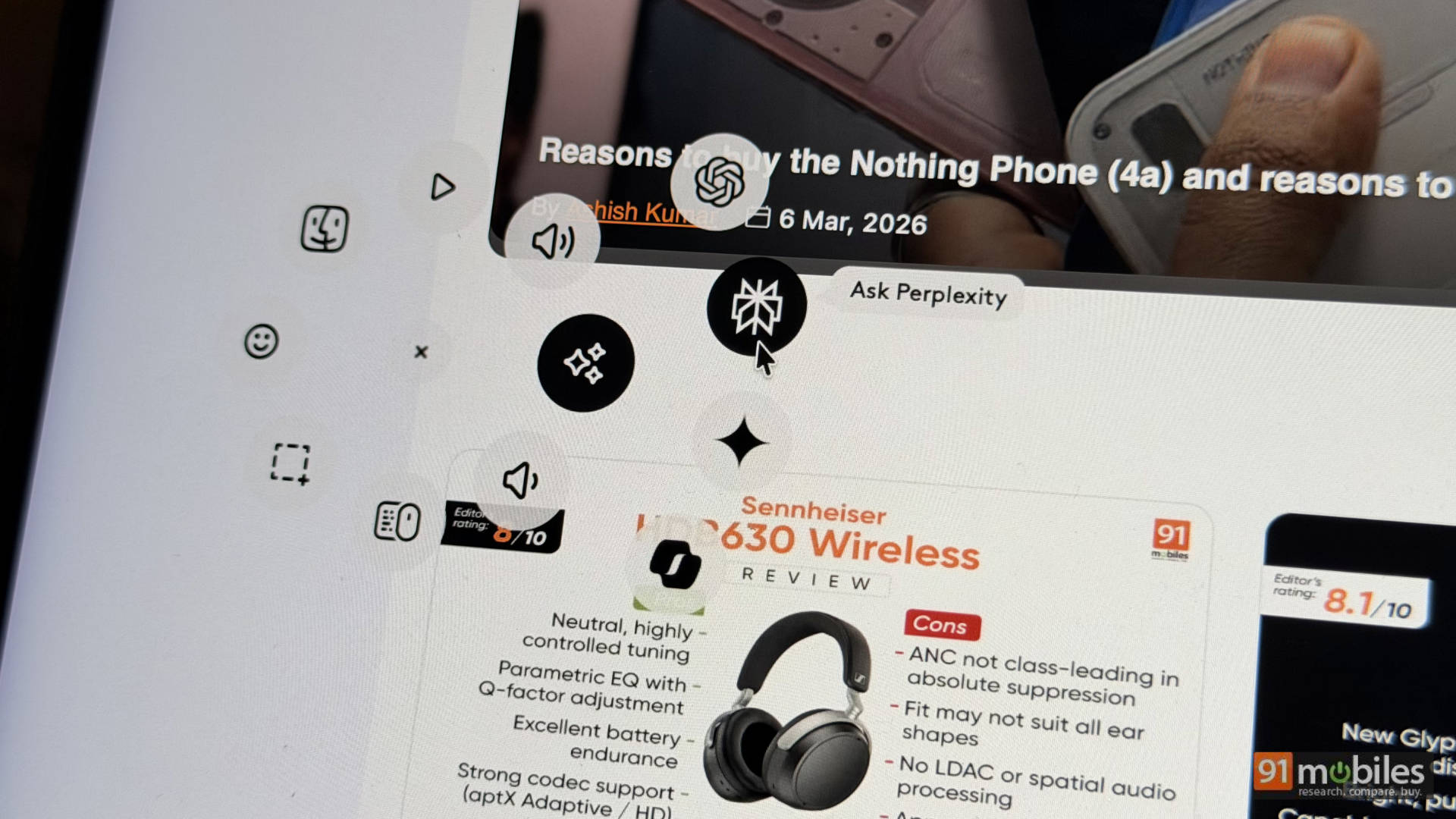
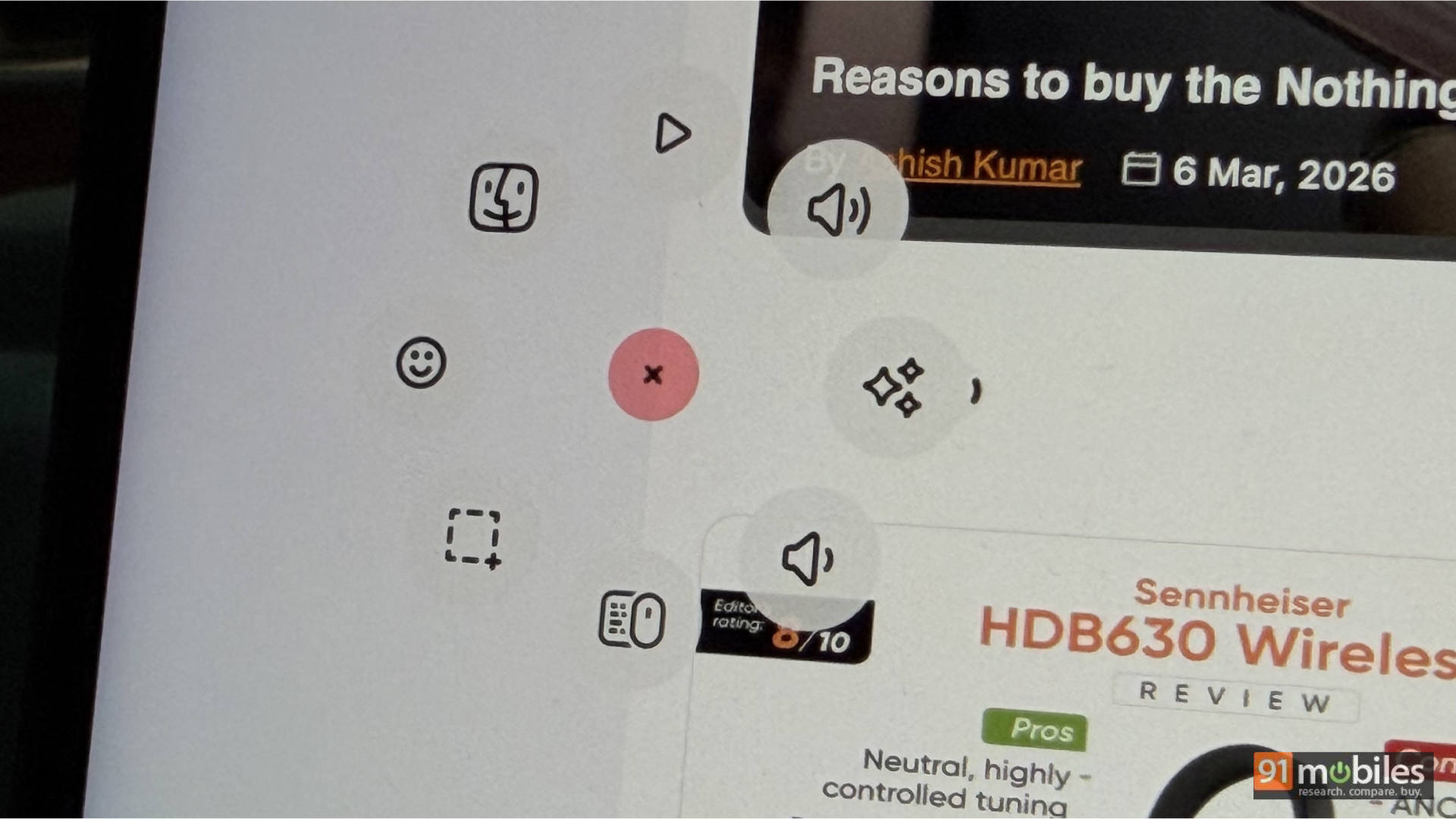
Then there is the Actions Ring. By clicking the gesture button, a digital overlay appears on your screen, allowing you to access app-specific shortcuts. In Adobe Premiere Pro, using the horizontal scroll wheel to move through a timeline while the haptics pulse under your thumb is a revelation! It significantly reduces the “travel time” of your hand across the desk.
The Software Paradox: Logi Options+
Logitech claims the MX Master 4 can save you 33% of your time. That might be true, but it doesn’t account for the hours you’ll spend in the Logi Options+ app. The level of granularity is staggering. You can set the mouse to behave differently in Chrome, Excel, Zoom, and Final Cut Pro.
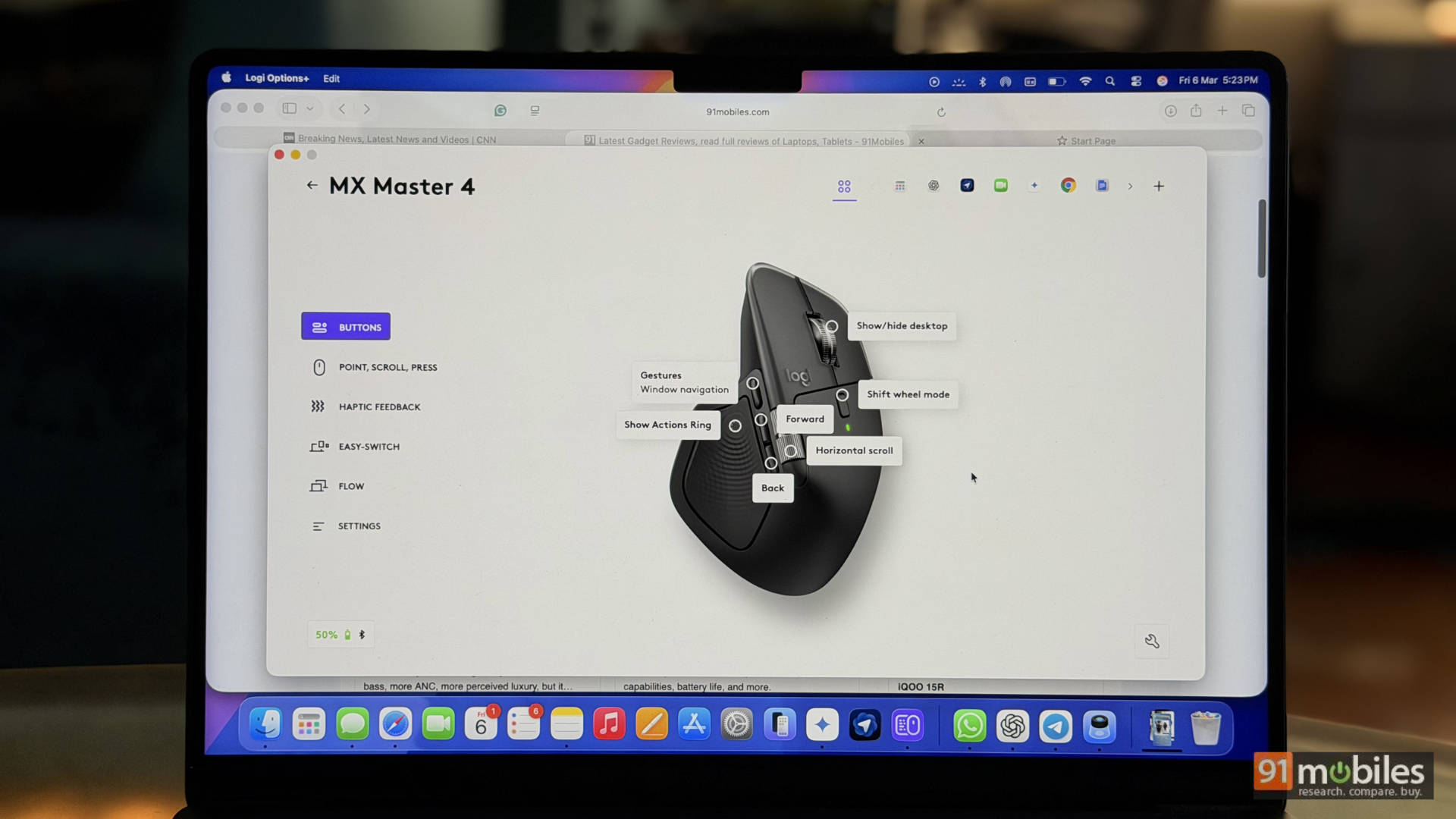
By holding the gesture button on the thumb rest, the mouse can trigger a radial command menu or activate gesture-based controls depending on how you move it. Logitech adds subtle haptic feedback here, which helps confirm actions without needing to look at the screen. When configured well, this can dramatically reduce the number of keyboard shortcuts you need. Switch desktops. Launch apps. Control media. Zoom timelines. It’s essentially a macro system disguised as mouse gestures. Again though, the theme repeats itself. The potential is huge, but it requires effort to unlock.
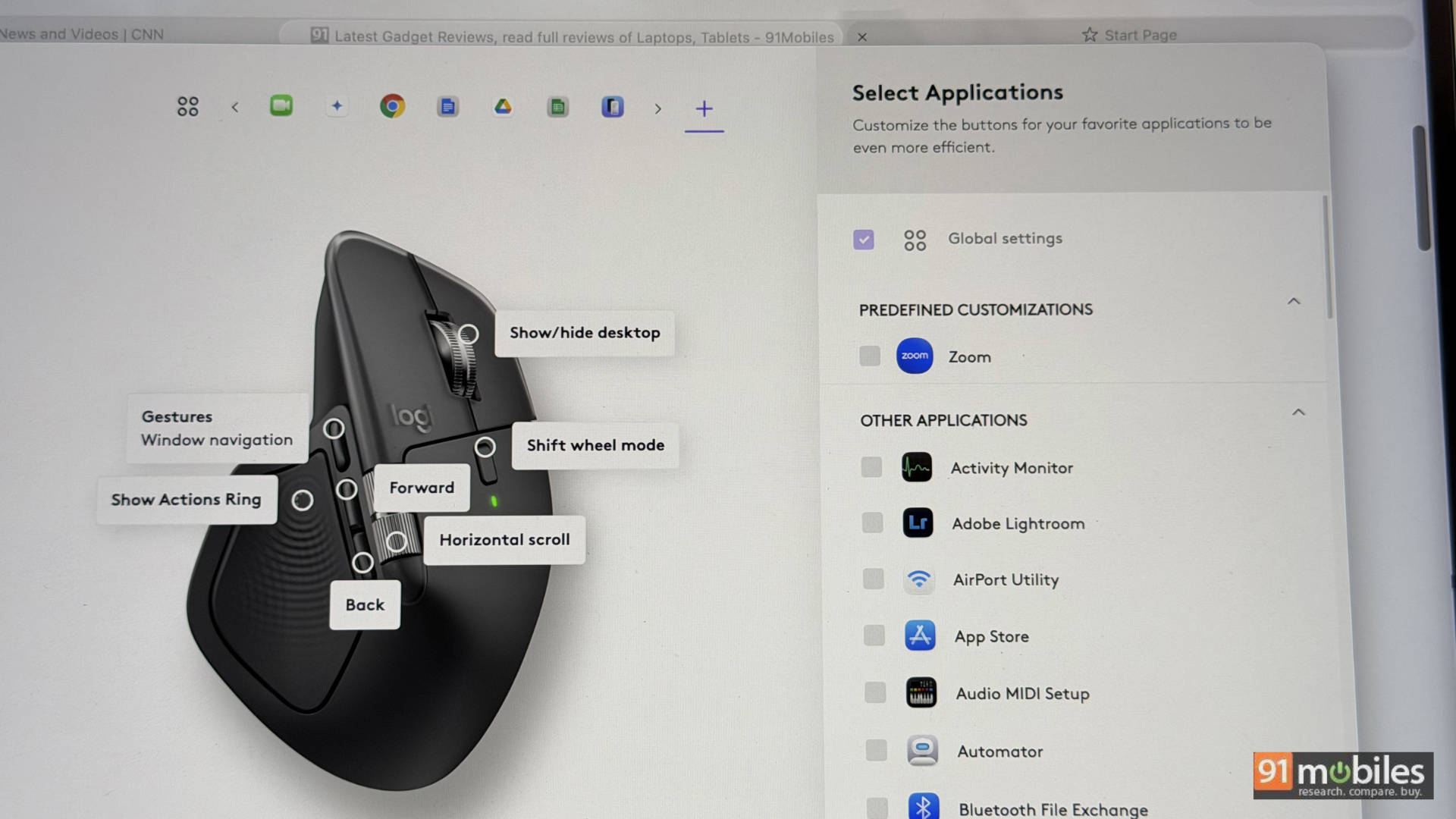
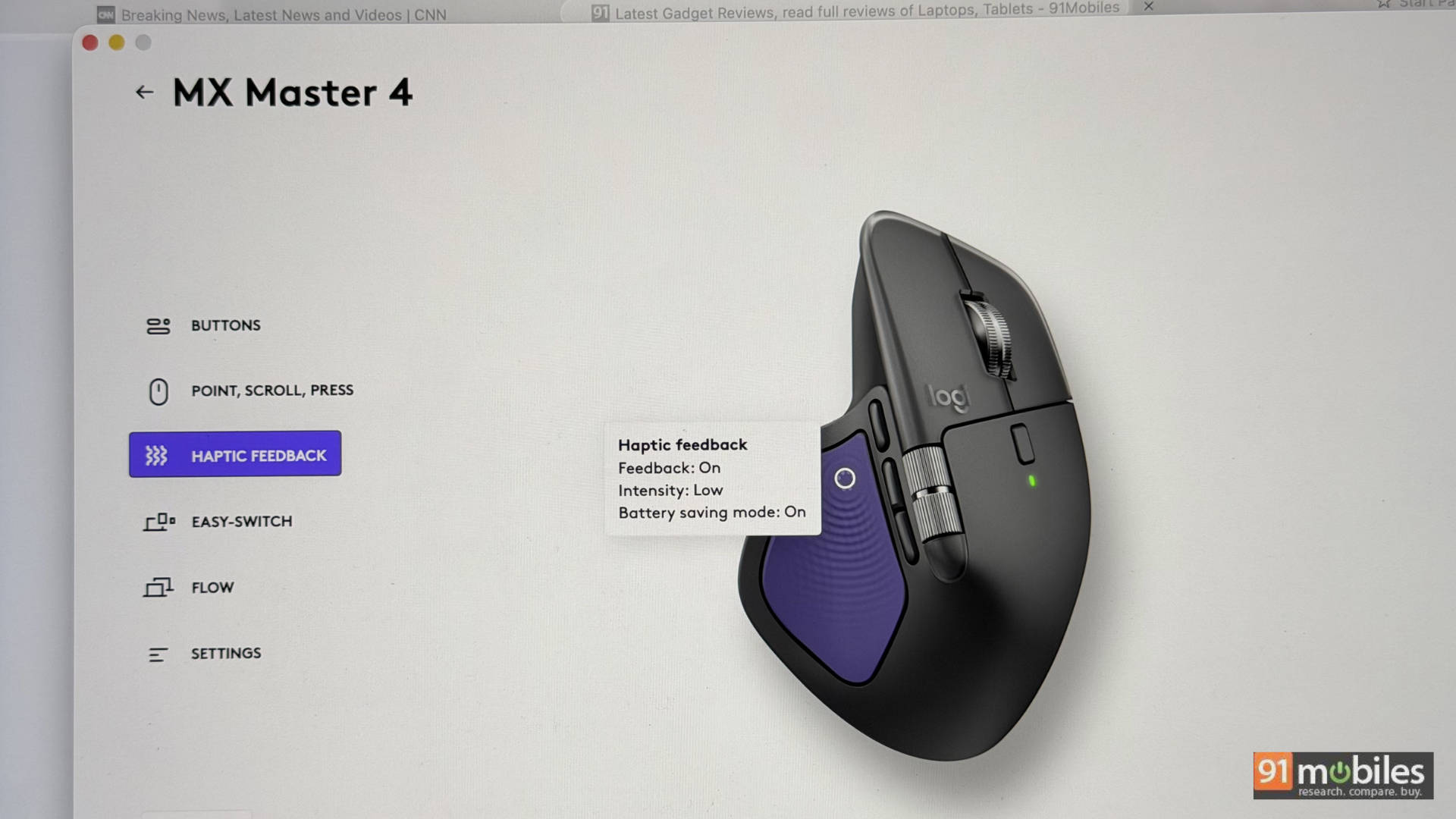
AI apps are a big part of the shortcut integration, and a gentle nudge on the haptic panel brings up the Action Ring with a dedicated bubble that includes sub-bubbles for Perpexity, ChatGPT, Rephrase with Gemini and MS Copilot options. You guessed it, these can be customised too. But here’s the rub: it becomes overwhelming very quickly. I found myself spending half a day just tweaking the haptic intensity and the Actions Ring bubbles. For a professional whose workflow is set in stone, this is a dream. For the average user, it’s a rabbit hole of over-complication.
Performance: Built to outperform
In terms of basic pointing performance, the MX Master 4 is excellent. Tracking is precise and stable across most surfaces, and the sensor handles everything from a desk mat to a wooden table without complaint. Logitech clearly prioritises productivity workflows over gaming specs, so while the polling rates and DPI won’t excite esports players, they’re more than adequate for professional work.
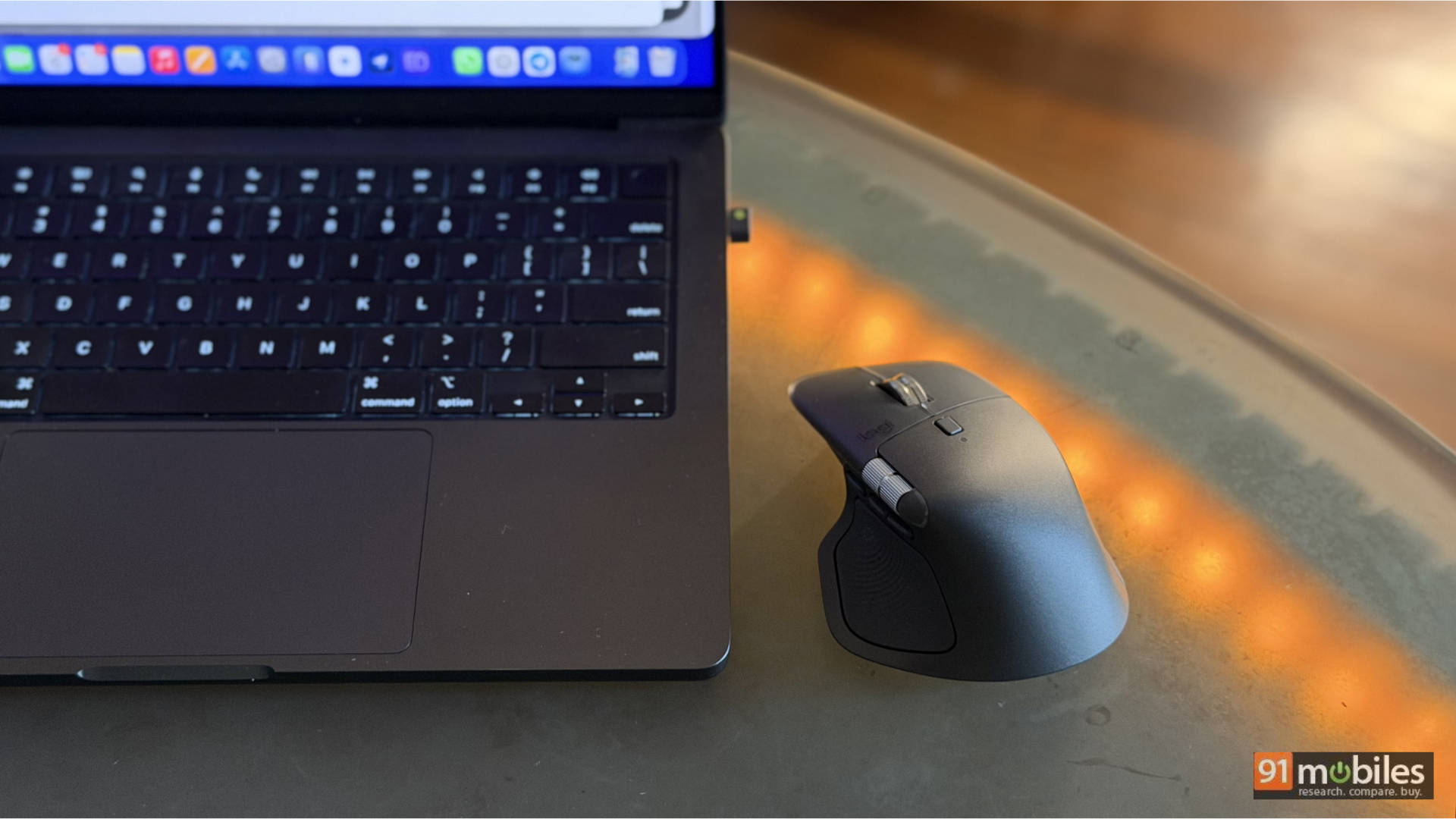
For editing, browsing, and multitasking, the mouse feels responsive and reliable. But this brings up the elephant in the room. If your workflow is heavily trackpad-driven, like many MacBook users, the MX Master 4 can feel unnecessary or overkill. Apple’s trackpad gestures are incredibly efficient, and if you’ve built your muscle memory around them, the MX Master 4 sometimes feels like adding complexity instead of removing it. That doesn’t mean it’s worse, just that the workflow philosophy is different.
The Verdict: 8/10
The Logitech MX Master 4 is a fantastic productivity mouse with an absurd amount of flexibility. Its 8000 DPI Darkfield sensor tracks on glass, its MagSpeed wheel is still the best in the business, and the horizontal wheel is genuinely useful once your muscle memory kicks in. The new haptics are a genuine innovation, too. But to fully unlock what this mouse can do, you need to invest time into learning and configuring it. If your workflow is already built around something simple like Apple’s trackpad ecosystem, the MX Master 4 can feel unnecessarily complicated. For power users, though, it’s one of the most capable productivity tools you can buy.
Editor’s Rating: 8/10
Pros
- Exceptional MagSpeed scroll wheel and smooth horizontal scrolling
- Deep customisation with powerful app-specific controls
- Excellent ergonomics for long productivity sessions
Cons
- Overwhelming configuration in Logi Options+ software
- Heavy and bulky compared to minimalist mice
- Overkill for trackpad-centric workflows