
Asus Zenfone Max ZC550KL
+ Compare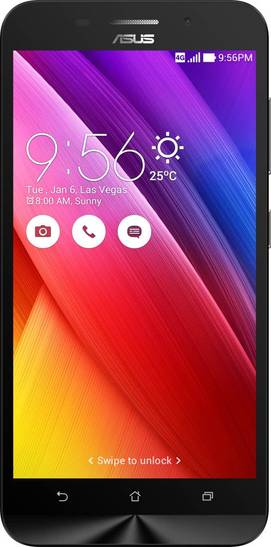

-
Design8

-
Rear Camera8

-
360° View

-
UI Screenshot16
![UI Screenshot]()
-
Benchmarks10
![Benchmarks]()
-
Videos2
![Videos]()



Key Specs
Performance
-
Qualcomm Snapdragon 410 -
Quad Core, 1 GHz -
2 GB RAM, LPDDR3
Display
-
5.5 inches (13.97 cm); IPS LCD -
720x1280 px (HD) -
Gorilla Glass 4 Protection
Rear Camera
-
Single Camera Setup - 13 MP Primary Camera
-
Dual-color LED Flash -
FHD @30 fps Video Recording
Front Camera
-
5 MP
Battery
-
5000 mAh, Li-Polymer
General
-
SIM1: Micro, SIM2: Micro -
5G Not Supported -
16 GB internal storage, Expandable upto 64 GB
Asus Zenfone Max ZC550KL Prices in India
 Flipkart
Asus Zenfone Max ZC550KL Compare Camera Samples








Asus Zenfone Max ZC550KL Expert Review Summary
Expert Rating:
![Deeksha Koli]()
Verdict
The ASUS ZenFone Max pretty much justifies what we said about it in our first impressions… it`s potent enough to be mainstream despite being battery-focussed. Yet, let`s first talk about the competition it faces. The Lenovo Vibe P1m (first impressions) and the Acer Liquid Z630Sboth feature smaller 4,000mAh batteries, and are priced in the same range. While the ZenFone Max beats the Vibe P1m in almost all specs, the Acer Liquid Z630S boasts a better processor and RAM on paper. Nonetheless, the ZenFone Max is hands down the best battery-centric smartphone you can get under Rs 10,000. If you`re...
Read Full Verdict
Pros
- Amazing battery life
- Decent cameras
- Customisable UI
Cons
- Too heavy
- Average display
- Lot of bloatware
Specs At A Glance
+
Display
Read More
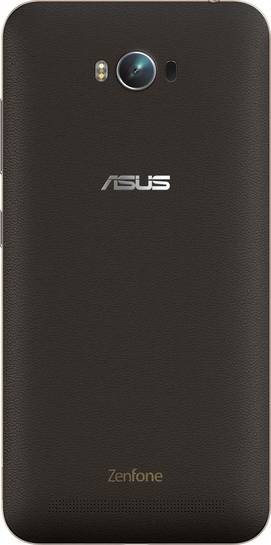
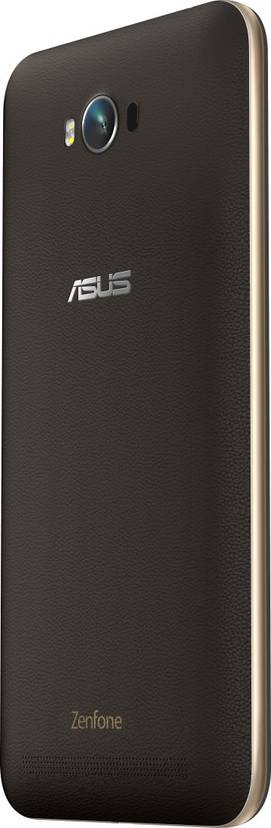
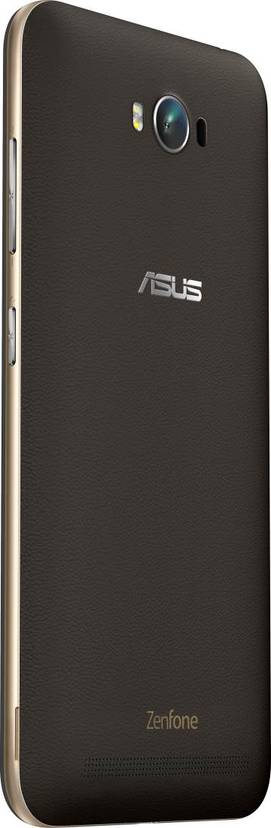
Design: same old ASUS, just heavier
+
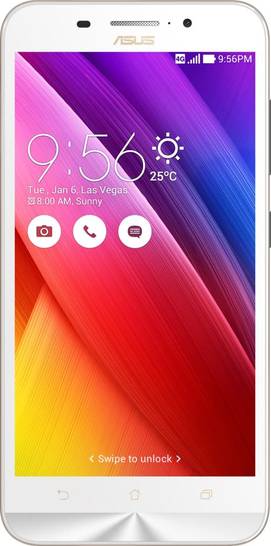
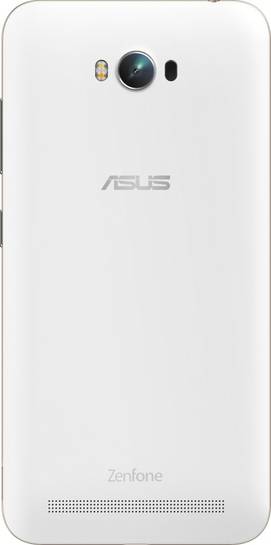
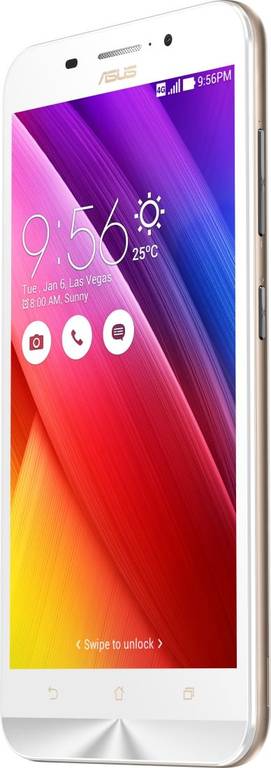
Dimensions: 156 x 77.5 x 10.5 mmWeight: 202 gramsASUS likes to play it safe when it comes the design ethos of its ZenFones. So predictably, the ZenFone Max is no different and looks like any other Zenfone you can find in the market. It’s got the signature concentric circular ridges on the bottom bezel and the buttons, and is bulky. Too bulky, to be honest. As a matter of fact, the Lenovo Vibe P1 and the Gionee Marathon M4, both of which sport 5,000mAh batteries, just like the ZenFone Max, weigh 20-30 grams less than the ZenFone Max, which tips the scales at 200g. To compensate for the hefty build, the back panel is slightly curved. But alas, that doesn’t do it. The ASUS ZenFone Max is too heavy, and its weight, combined with a large 5.5-inch screen simply makes it tough for you to use the phone with one hand. Our demo model was white, with champagne gold trims. So there’s nothing new about that too, since the colour combination is becoming clichéd by the day. Probably, the only thing that looks nice are the metal buttons, and other than that, the design of the phone is…well…meh. If you looked at the spec table above, you might have noticed how the specs are exactly similar to those of the ZenFone Laser. But the company hasn’t messed up the port placement like it did with the Laser. Consequently, you will find both the power button and the volume rocker on the right edge. The audio jack finds its way to the top, while you will find the micro-USB port and the primary microphone on the bottom edge. The display comes flanked by the usual assortment of the sensors, earpiece, notification LED and the front camera, from above. Below the screen you get a row of capacitive navigation keys. The back panel on the white variant features a smooth matte finish, and comes adorned by a primary camera module, a loudspeaker grille and minimal ASUS branding. While the back panel is removable, the battery isn’t. Snapping the back cover off you get access to two micro-SIM slots and a microSD card slot.As we said earlier, there’s nothing special about the design of the ASUS ZenFone Max, and hence, we do not have too much to say about it. The white variant might leave you struggling with a lot of smudges on the back panel, while the black variant, which sports a faux leather back panel might fare better. Now we’re not completely dismissing the look of the phone, and the weight is explained by the humungous 5,000mAh battery, but let’s just say… if someone tried to mug you while you carried the ASUS ZenFone Max, just throw the phone (try aiming for the face), and you shall be saved. Which also reminds us, the ASUS ZenFone max offers solid build quality.
Read More
Display: not the best in class
+
Size: 5.5 InchResolution: HD (720 x 1280 pixels)Display Type: IPS LCDPixel Density: 267 ppiWhile the sub-Rs 10,ooo segment has the likes of Lenovo K3 Note, MEIZU m2 note and the YU Yureka Plus, all sporting full HD displays, ASUS decided to resort to a 720p screen on the ZenFone Max. The screen on the device is definitely not the sharpest we’ve seen lately. That said, the screen brightness, colours, and viewing angles are pretty impressive.Since the screen is not very reflective, sunlight legibility is not an issue with the ZenFone Max. Under the display settings, you get the option to customise the screen colours or choose from a couple of presets to tune the display to your needs. The only issue with the Max’s screen we have is that it doesn’t respond as well to touch as we would have liked. Combine that with the keyboard you get with the ZenUI and you get a typing experience as annoying as Candy Crush Saga requests. Overall, the display on the ASUS ZenFone Max is decent and you shouldn’t have any issues while reading or watching movies.
Read More
Camera: a night owl
+
Primary camera: 13 MPFlash: Dual-color LED FlashSecondary camera: 5 MPThe megapixel count on the ASUS ZenFone Max’s camera matches what’s trending. A 13MP primary sensor and a 5MP front cam. But results vary, as they do on most smartphones.The default camera app is loaded with options. While the viewfinder itself is pretty much filled with toggles, diving deeper into menus reveals a plethora of options that might leave you confused. There are shooting modes like HDR, Super Resolution, Depth of Field, Low Light, Night, Slow Motion, Time Lapse and Smart Remove. Quick toggles include switching to the front camera, manual or video mode, turning on the flash, accessing shooting modes and camera settings. The settings include options to control the ISO, white balance, exposure value, and other features like Anti-Shake Enhancement.The ASUS ZenFone Max’s camera focuses in a jiffy but the shutter speed in not as impressive. The first thing we notice while testing the shooters is that the camera blows out whites, making many shots look over-exposed. While the camera captures good detail with macro shots, it struggles with depth of field when there's a lot of white area in the scene you’re trying to shoot. The long shots we took looked sharp on the phone’s screen, but appeared pixelated the moment they were zoomed in. The colours captured, were however, pretty accurate. Interestingly, where most phone cameras fail, the ASUS ZenFone Max does well during low light and night photography. Using the flash where the light is scarce, and using the Night or Low Light mode if you’re out and about at night, will make sure you click decent-looking pictures. The HDR mode works just as well and does not result in artificial looking images. Selfies turn out fine too, as the 5MP front cam captures enough detail and accurate colours.Here are a few images taken with the rear camera of the ASUS ZenFone Max. Open the thumbnails in a new tab to view them in their full resolution.
Read More
Software: A not-so Zen UI
+
Operating System: AndroidOS Version: 5.0, LollipopIf you’ve used ZenUI before you’d know it looks colourful and a tad gimmicky. The same is the case with the ZenFone Max’s UI. Moreover, ASUS seems to be on its way to the make the ZenUI the next Touchwiz, with a bunch of pre-loaded first-party apps that are more annoying than useful. We do hope the brand gives the software a refreshing whirl sometime soon in the future, just like Samsung did. The lock screen gives you three shortcuts viz. camera, dialler and messages. Although you see as many as three folders with assorted apps on the primary homescreen after unlocking the phone, its only when you dive into the app drawer, that you realise the bloatware the ASUS ZenFone Max ships with. To give you an idea, the first party apps include ASUS Mobile Manager, ASUS Support, AudioWizard, Auto-start Manager, Do It Later, MiniMovie, PhotoCollage, Laser Ruler, MyASUS, Share Link, Splendid, Weather, WebStorage, ZenCircle, and ZenTalk. The ASUS Mobile Manager is nothing but the company’s own Clean Master. The app boosts and optimises RAM and battery using various functions. Within the app you get an option of one-touch Power & Boost, shortcuts to the phone’s Power saver menu, Auto-start manager, along with other settings like data usage and notifications. Interestingly, the Auto-start manager is a separate app itself as well, as mentioned earlier, and can be accessed from the quick settings. The one-touch Power & Boost button is placed on the primary homescreen too, along with getting an icon on the quick settings menu. Even the Power saver is provided as a separate app, and can be accessed from the Power Management as well as Battery options in the phone settings menu as well. So basically, the app features a lot of redundancy, making it somewhat useless, not to forget that the company hasn’t refrained from pre-loading the device with the third-party app Clean Master, which is absolutely pointless. Fortunately, the third-party app can be uninstalled.ASUS Support provides basic assistance a user might need regarding the device by offering FAQs, along with notifications about the ZenUI. The AudioWizard tweaks the sound settings based on the current media playing on the device. The Auto-start Manager takes care of apps which start on their own and run in the background, using up the RAM and the battery. Do It Later is another to-do-list app, you can use to keep a track of your tasks. The app can be synced with Google Tasks as well. MiniMovie and PhotoCollage are simple media editing apps. While the former lets you adds effects to pictures and make collages, the latter lets you create quick slideshows and movies with a bunch of preset themes and effects.Laser Ruler is an interesting app which can gauge distances up to 50cm using the laser autofocus mechanism on the phone. While Share Link, Weather, and WebStorage are pretty self-explanatory, Splendid is basically a shortcut for the screen colour mode option you get under the display settings. MyASUS is a virtual support centre for users with 24/7 assistance over chat, ZenCircle is ASUS’ own Instagram, while the ZenTalk is essentially Quora for ZenUI users.Talking about third party apps, along with Clean Master, the ZenFone Max comes with Dr. Safety and Amazon Kindle. Snapdeal, TripAdvisor, TrueCaller, Newshunt and some other apps come as suggestions, but are downloaded against your will as soon as you finish setting up the device. In terms of customisation, ASUS’s Themes app can be used to completely change the look of the UI. The app drawer can be arranged by customising the grid size and sorting the apps as per your preference. An option called Smart Group gathers all the similar apps up in folders. Swiping up from the bottom of the display reveals the Manage Home menu, which lets you take control over the apps and widgets on the homescreens, the wallpapers, icons and scroll effects, allowing you to customise the phone one more way. The ASUS ZenFone Max supports gestures as well. Along with the usual double-tap wake up or turning off the display, you can draw various letters on the screen to launch apps from standby. While W launches the browser, e launches email. C can be draw to launch the rear camera, while S opens the front cam. You can draw Z for the one-touch Boost or V to launch the dialler. However, there is no option to customise the gestures. You can flip the device over to mute a call. You can also take a screenshot while using any app by shaking the phone, and it gets added in the Do It Later app as a new task which can be edited later. However, the ZenFone Max needs to be shaken pretty wildly to do that successfully. Other features include Screen pinning. The option can be accessed from the recent screens key. It lets you pin any currently opened app to the display, and you can navigate out of the app afterwards.
Read More
Performance: smooth enough
+
CPU: Quad core, 1 GHz, Snapdragon 410GPU: Adreno 306RAM: 2 GBMemory: 16 GB + Up to 64 GBSIM Slots: Dual SIM , GSM+GSMWhile the Snapdragon 410 chip in the ASUS ZenFone Max takes all the initial usage pretty well, after a while of heavy usage, you start encountering a few lags on the phone. However, the lags are negligible and more often than not, regular processing won’t be an issue with the phone.At any given time, the CPU makes use of all the four cores, varying the clock speed depending upon the usage. We tried our hands on games like Beach Buggy, Riptide GP2, and Asphalt Nitro as well. The phone stutters a little while the games load, and the loading itself takes a lot of time, but the gaming sessions were pretty smooth later on. The rendering of the graphics was decent as well. The ASUS ZenFone Max does not heat up even after long hours of heavy usage. Overall, the processing can be regarded as above average.In terms of storage, the phone gets 16GB of built in memory, out of which about 10GB is available for your use. You can use either a microSD card of up to 64GB capacity, or a USB OTG flash drive to expand the storage.The call quality and network reception is somewhat of an issue with the ASUS ZenFone Max. Calls made on the same network, standing in the same place, but using another device were much clearer, but with the ZenFone Max, the call audio seemed muffled. Additionally, the loudspeaker offers rich sound quality, but volume levels are low.
Read More
Battery: the best feature
+
The highlight of the ZenFone Max is its 5,000mAh battery. Phone batteries these days have conditioned users to believe that a day’s worth of usage is ideal and nightly charging, plus using a powerbank on-the-go is justifiable. Only after using the ZenFone Max were we reminded of the substantive yet unrecognised contribution a phone’s battery makes to the whole experience. In our standard battery test, where we run an HD video on loop, at 50 percent brightness and volume, till the phone’s battery drains completely, the ASUS ZenFone Max lasted for 24 hours and 30 minutes, which is beyond impressive. With our regular usage, including 4G data usage, playing games, using WhatsApp and Instagram, and making calls, the phone easily lasted almost two days.
Read More
Read full Review

Verdict
The ASUS ZenFone Max pretty much justifies what we said about it in our first impressions… it`s potent enough to be mainstream despite being battery-focussed. Yet, let`s first talk about the competition it faces. The Lenovo Vibe P1m (first impressions) and the Acer Liquid Z630Sboth feature smaller 4,000mAh batteries, and are priced in the same range. While the ZenFone Max beats the Vibe P1m in almost all specs, the Acer Liquid Z630S boasts a better processor and RAM on paper. Nonetheless, the ZenFone Max is hands down the best battery-centric smartphone you can get under Rs 10,000. If you`re... Read Full Verdict
- Amazing battery life
- Decent cameras
- Customisable UI
Pros
- Too heavy
- Average display
- Lot of bloatware
Cons
Specs At A Glance
+Display
Read MoreDesign: same old ASUS, just heavier
+Dimensions: 156 x 77.5 x 10.5 mmWeight: 202 gramsASUS likes to play it safe when it comes the design ethos of its ZenFones. So predictably, the ZenFone Max is no different and looks like any other Zenfone you can find in the market. It’s got the signature concentric circular ridges on the bottom bezel and the buttons, and is bulky. Too bulky, to be honest. As a matter of fact, the Lenovo Vibe P1 and the Gionee Marathon M4, both of which sport 5,000mAh batteries, just like the ZenFone Max, weigh 20-30 grams less than the ZenFone Max, which tips the scales at 200g. To compensate for the hefty build, the back panel is slightly curved. But alas, that doesn’t do it. The ASUS ZenFone Max is too heavy, and its weight, combined with a large 5.5-inch screen simply makes it tough for you to use the phone with one hand. Our demo model was white, with champagne gold trims. So there’s nothing new about that too, since the colour combination is becoming clichéd by the day. Probably, the only thing that looks nice are the metal buttons, and other than that, the design of the phone is…well…meh. If you looked at the spec table above, you might have noticed how the specs are exactly similar to those of the ZenFone Laser. But the company hasn’t messed up the port placement like it did with the Laser. Consequently, you will find both the power button and the volume rocker on the right edge. The audio jack finds its way to the top, while you will find the micro-USB port and the primary microphone on the bottom edge. The display comes flanked by the usual assortment of the sensors, earpiece, notification LED and the front camera, from above. Below the screen you get a row of capacitive navigation keys. The back panel on the white variant features a smooth matte finish, and comes adorned by a primary camera module, a loudspeaker grille and minimal ASUS branding. While the back panel is removable, the battery isn’t. Snapping the back cover off you get access to two micro-SIM slots and a microSD card slot.As we said earlier, there’s nothing special about the design of the ASUS ZenFone Max, and hence, we do not have too much to say about it. The white variant might leave you struggling with a lot of smudges on the back panel, while the black variant, which sports a faux leather back panel might fare better. Now we’re not completely dismissing the look of the phone, and the weight is explained by the humungous 5,000mAh battery, but let’s just say… if someone tried to mug you while you carried the ASUS ZenFone Max, just throw the phone (try aiming for the face), and you shall be saved. Which also reminds us, the ASUS ZenFone max offers solid build quality.
Read MoreDisplay: not the best in class
+Size: 5.5 InchResolution: HD (720 x 1280 pixels)Display Type: IPS LCDPixel Density: 267 ppiWhile the sub-Rs 10,ooo segment has the likes of Lenovo K3 Note, MEIZU m2 note and the YU Yureka Plus, all sporting full HD displays, ASUS decided to resort to a 720p screen on the ZenFone Max. The screen on the device is definitely not the sharpest we’ve seen lately. That said, the screen brightness, colours, and viewing angles are pretty impressive.Since the screen is not very reflective, sunlight legibility is not an issue with the ZenFone Max. Under the display settings, you get the option to customise the screen colours or choose from a couple of presets to tune the display to your needs. The only issue with the Max’s screen we have is that it doesn’t respond as well to touch as we would have liked. Combine that with the keyboard you get with the ZenUI and you get a typing experience as annoying as Candy Crush Saga requests. Overall, the display on the ASUS ZenFone Max is decent and you shouldn’t have any issues while reading or watching movies.
Read MoreCamera: a night owl
+Primary camera: 13 MPFlash: Dual-color LED FlashSecondary camera: 5 MPThe megapixel count on the ASUS ZenFone Max’s camera matches what’s trending. A 13MP primary sensor and a 5MP front cam. But results vary, as they do on most smartphones.The default camera app is loaded with options. While the viewfinder itself is pretty much filled with toggles, diving deeper into menus reveals a plethora of options that might leave you confused. There are shooting modes like HDR, Super Resolution, Depth of Field, Low Light, Night, Slow Motion, Time Lapse and Smart Remove. Quick toggles include switching to the front camera, manual or video mode, turning on the flash, accessing shooting modes and camera settings. The settings include options to control the ISO, white balance, exposure value, and other features like Anti-Shake Enhancement.The ASUS ZenFone Max’s camera focuses in a jiffy but the shutter speed in not as impressive. The first thing we notice while testing the shooters is that the camera blows out whites, making many shots look over-exposed. While the camera captures good detail with macro shots, it struggles with depth of field when there's a lot of white area in the scene you’re trying to shoot. The long shots we took looked sharp on the phone’s screen, but appeared pixelated the moment they were zoomed in. The colours captured, were however, pretty accurate. Interestingly, where most phone cameras fail, the ASUS ZenFone Max does well during low light and night photography. Using the flash where the light is scarce, and using the Night or Low Light mode if you’re out and about at night, will make sure you click decent-looking pictures. The HDR mode works just as well and does not result in artificial looking images. Selfies turn out fine too, as the 5MP front cam captures enough detail and accurate colours.Here are a few images taken with the rear camera of the ASUS ZenFone Max. Open the thumbnails in a new tab to view them in their full resolution.
Read MoreSoftware: A not-so Zen UI
+Operating System: AndroidOS Version: 5.0, LollipopIf you’ve used ZenUI before you’d know it looks colourful and a tad gimmicky. The same is the case with the ZenFone Max’s UI. Moreover, ASUS seems to be on its way to the make the ZenUI the next Touchwiz, with a bunch of pre-loaded first-party apps that are more annoying than useful. We do hope the brand gives the software a refreshing whirl sometime soon in the future, just like Samsung did. The lock screen gives you three shortcuts viz. camera, dialler and messages. Although you see as many as three folders with assorted apps on the primary homescreen after unlocking the phone, its only when you dive into the app drawer, that you realise the bloatware the ASUS ZenFone Max ships with. To give you an idea, the first party apps include ASUS Mobile Manager, ASUS Support, AudioWizard, Auto-start Manager, Do It Later, MiniMovie, PhotoCollage, Laser Ruler, MyASUS, Share Link, Splendid, Weather, WebStorage, ZenCircle, and ZenTalk. The ASUS Mobile Manager is nothing but the company’s own Clean Master. The app boosts and optimises RAM and battery using various functions. Within the app you get an option of one-touch Power & Boost, shortcuts to the phone’s Power saver menu, Auto-start manager, along with other settings like data usage and notifications. Interestingly, the Auto-start manager is a separate app itself as well, as mentioned earlier, and can be accessed from the quick settings. The one-touch Power & Boost button is placed on the primary homescreen too, along with getting an icon on the quick settings menu. Even the Power saver is provided as a separate app, and can be accessed from the Power Management as well as Battery options in the phone settings menu as well. So basically, the app features a lot of redundancy, making it somewhat useless, not to forget that the company hasn’t refrained from pre-loading the device with the third-party app Clean Master, which is absolutely pointless. Fortunately, the third-party app can be uninstalled.ASUS Support provides basic assistance a user might need regarding the device by offering FAQs, along with notifications about the ZenUI. The AudioWizard tweaks the sound settings based on the current media playing on the device. The Auto-start Manager takes care of apps which start on their own and run in the background, using up the RAM and the battery. Do It Later is another to-do-list app, you can use to keep a track of your tasks. The app can be synced with Google Tasks as well. MiniMovie and PhotoCollage are simple media editing apps. While the former lets you adds effects to pictures and make collages, the latter lets you create quick slideshows and movies with a bunch of preset themes and effects.Laser Ruler is an interesting app which can gauge distances up to 50cm using the laser autofocus mechanism on the phone. While Share Link, Weather, and WebStorage are pretty self-explanatory, Splendid is basically a shortcut for the screen colour mode option you get under the display settings. MyASUS is a virtual support centre for users with 24/7 assistance over chat, ZenCircle is ASUS’ own Instagram, while the ZenTalk is essentially Quora for ZenUI users.Talking about third party apps, along with Clean Master, the ZenFone Max comes with Dr. Safety and Amazon Kindle. Snapdeal, TripAdvisor, TrueCaller, Newshunt and some other apps come as suggestions, but are downloaded against your will as soon as you finish setting up the device. In terms of customisation, ASUS’s Themes app can be used to completely change the look of the UI. The app drawer can be arranged by customising the grid size and sorting the apps as per your preference. An option called Smart Group gathers all the similar apps up in folders. Swiping up from the bottom of the display reveals the Manage Home menu, which lets you take control over the apps and widgets on the homescreens, the wallpapers, icons and scroll effects, allowing you to customise the phone one more way. The ASUS ZenFone Max supports gestures as well. Along with the usual double-tap wake up or turning off the display, you can draw various letters on the screen to launch apps from standby. While W launches the browser, e launches email. C can be draw to launch the rear camera, while S opens the front cam. You can draw Z for the one-touch Boost or V to launch the dialler. However, there is no option to customise the gestures. You can flip the device over to mute a call. You can also take a screenshot while using any app by shaking the phone, and it gets added in the Do It Later app as a new task which can be edited later. However, the ZenFone Max needs to be shaken pretty wildly to do that successfully. Other features include Screen pinning. The option can be accessed from the recent screens key. It lets you pin any currently opened app to the display, and you can navigate out of the app afterwards.
Read MorePerformance: smooth enough
+CPU: Quad core, 1 GHz, Snapdragon 410GPU: Adreno 306RAM: 2 GBMemory: 16 GB + Up to 64 GBSIM Slots: Dual SIM , GSM+GSMWhile the Snapdragon 410 chip in the ASUS ZenFone Max takes all the initial usage pretty well, after a while of heavy usage, you start encountering a few lags on the phone. However, the lags are negligible and more often than not, regular processing won’t be an issue with the phone.At any given time, the CPU makes use of all the four cores, varying the clock speed depending upon the usage. We tried our hands on games like Beach Buggy, Riptide GP2, and Asphalt Nitro as well. The phone stutters a little while the games load, and the loading itself takes a lot of time, but the gaming sessions were pretty smooth later on. The rendering of the graphics was decent as well. The ASUS ZenFone Max does not heat up even after long hours of heavy usage. Overall, the processing can be regarded as above average.In terms of storage, the phone gets 16GB of built in memory, out of which about 10GB is available for your use. You can use either a microSD card of up to 64GB capacity, or a USB OTG flash drive to expand the storage.The call quality and network reception is somewhat of an issue with the ASUS ZenFone Max. Calls made on the same network, standing in the same place, but using another device were much clearer, but with the ZenFone Max, the call audio seemed muffled. Additionally, the loudspeaker offers rich sound quality, but volume levels are low.
Read MoreBattery: the best feature
+The highlight of the ZenFone Max is its 5,000mAh battery. Phone batteries these days have conditioned users to believe that a day’s worth of usage is ideal and nightly charging, plus using a powerbank on-the-go is justifiable. Only after using the ZenFone Max were we reminded of the substantive yet unrecognised contribution a phone’s battery makes to the whole experience. In our standard battery test, where we run an HD video on loop, at 50 percent brightness and volume, till the phone’s battery drains completely, the ASUS ZenFone Max lasted for 24 hours and 30 minutes, which is beyond impressive. With our regular usage, including 4G data usage, playing games, using WhatsApp and Instagram, and making calls, the phone easily lasted almost two days.
Read MoreCompetitors For Asus Zenfone Max ZC550KL
View Alternatives
Popular Comparisons
 Asus Zenfone Max ZC550KL
 Lenovo K4 Note
Asus Zenfone Max ZC550KL
 LeEco Le 1s Eco
Asus Zenfone Max ZC550KL
 Asus Zenfone 3 Max ZC553KL
Asus Zenfone Max ZC550KL
 Panasonic P55 Max
Asus Zenfone Max ZC550KL
 Asus Zenfone Max 2016 2GB RAM
Asus Zenfone Max ZC550KL
 Asus Zenfone 2 Laser ZE550KL

Asus Zenfone Max ZC550KL Specifications
General |
|
|---|---|
| Launch Date | January 15, 2016 (Official) |
| Operating System | Android v5.0 (Lollipop) |
| Custom UI | Zen UI |
Performance
(Avg)
|
|
|---|---|
| Chipset | Qualcomm Snapdragon 410 MSM8916 |
| Processor | Quad core, 1 GHz, Cortex A53 |
| Architecture | 64 bit |
| Graphics (GPU) | Adreno 306 |
| RAM | 2 GB |
| RAM Type | LPDDR3 |
Benchmark Screenshots
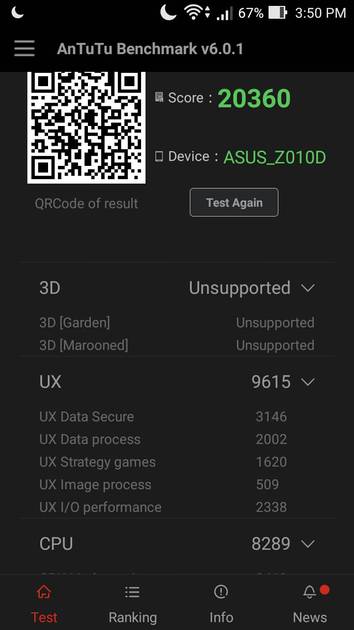
AnTuTu Benchmark
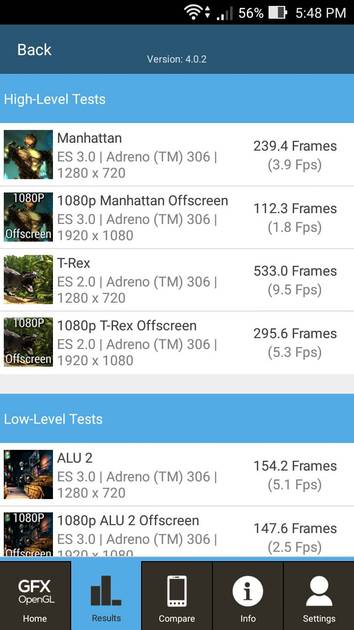
Graphics Benchmark
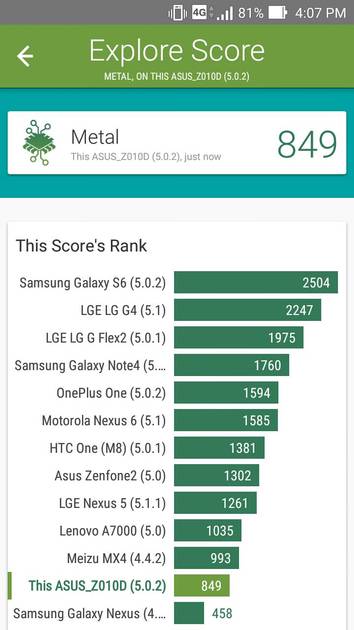
Vellamo Metal Benchmark
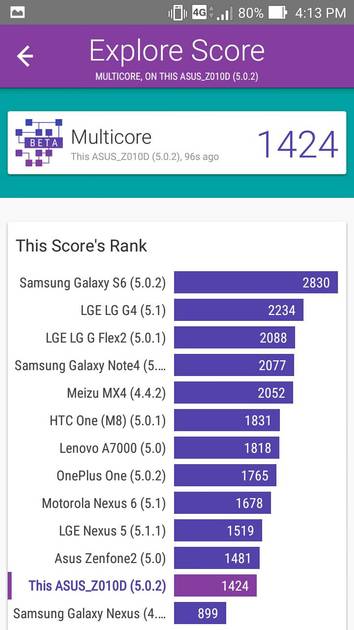
Vellamo Multicore Benchmark
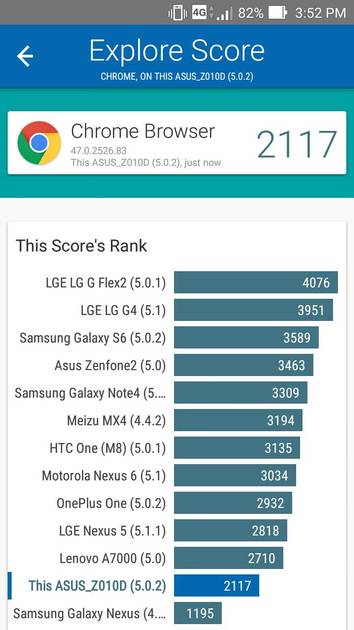
Vellamo Browser Benchmark
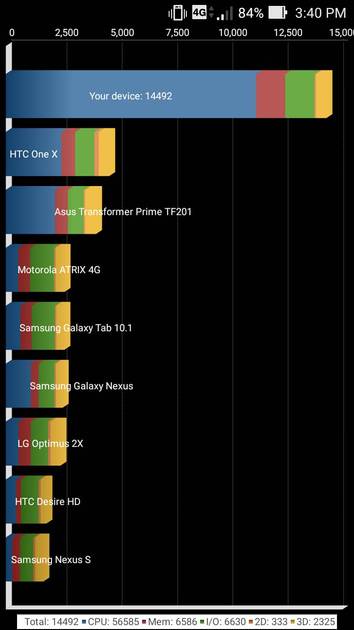
Quadrant Benchmark
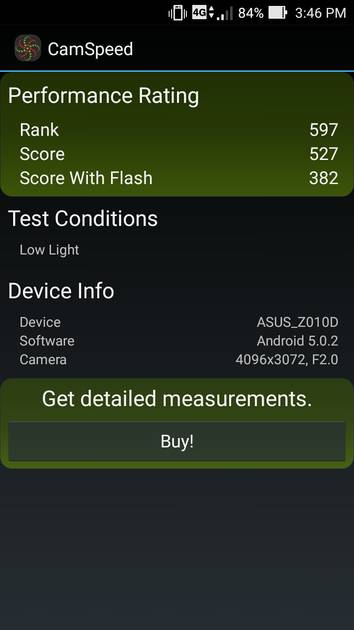
Camera Speed Benchmark
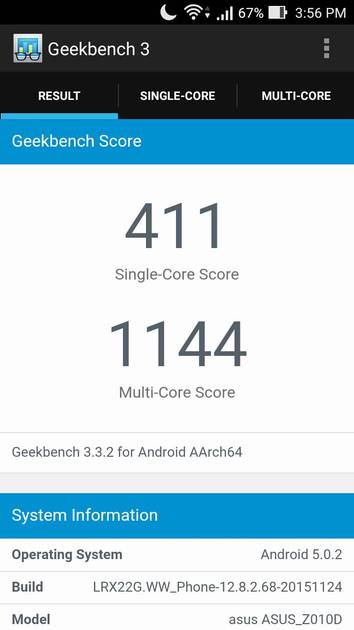
Geekbench3 Benchmark
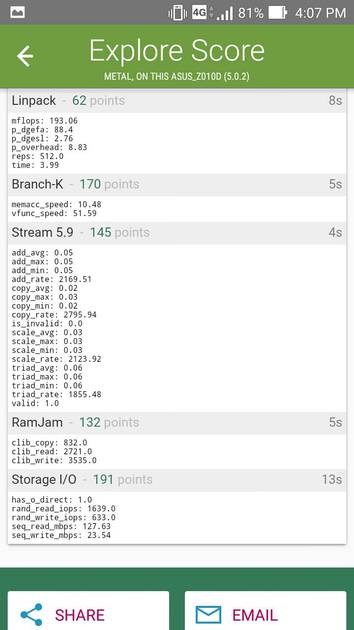
Linpack Benchmark
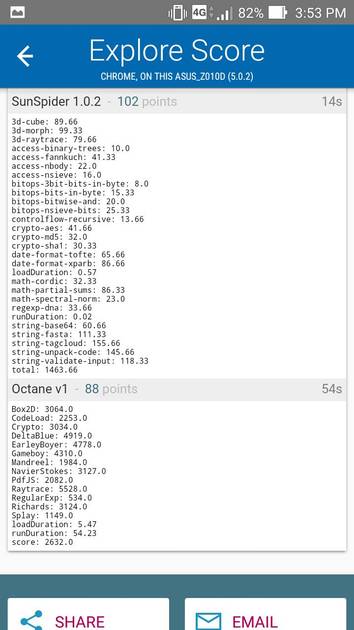
Sunspider Benchmark
|
Display
(Excellent)
|
|
|---|---|
| Display Type | IPS LCD |
| Screen Size | 5.5 inches (13.97 cm) |
| Resolution | 720x1280 px (HD) |
| Pixel Density | 267 ppi |
| Screen to Body Ratio (calculated) | 68.82 % |
| Screen Protection | Corning Gorilla |
UI Screenshots
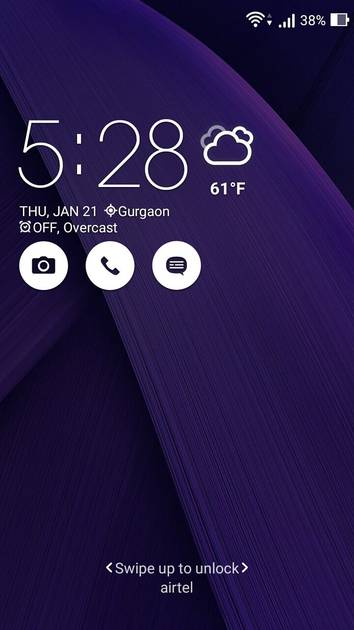
Lock Screen
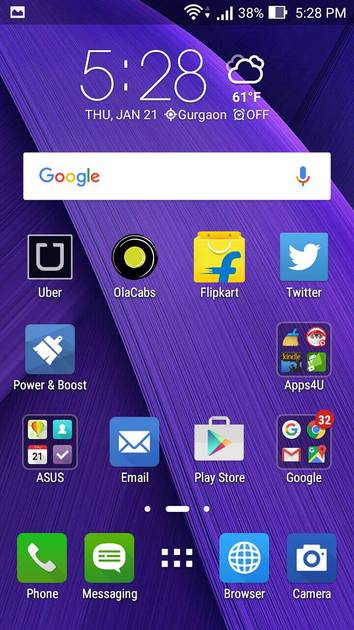
Home Screen
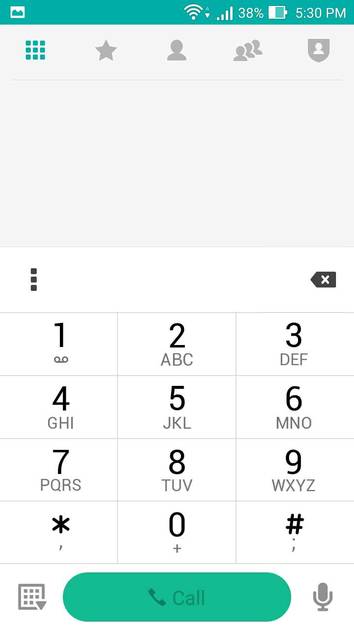
Dialer Screen
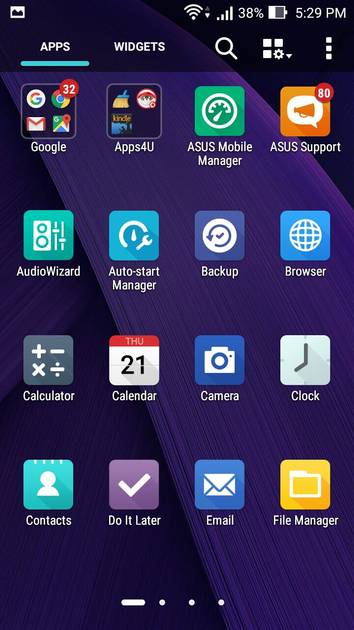
App Drawer
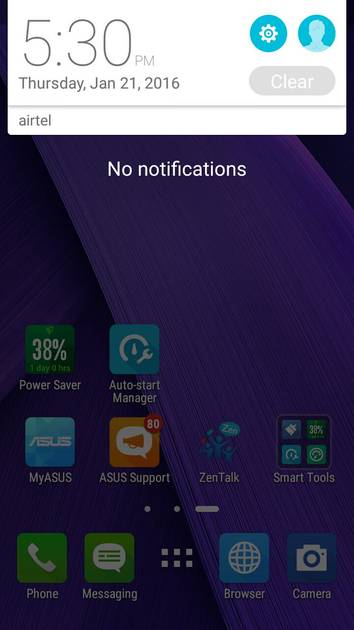
Notification Panel
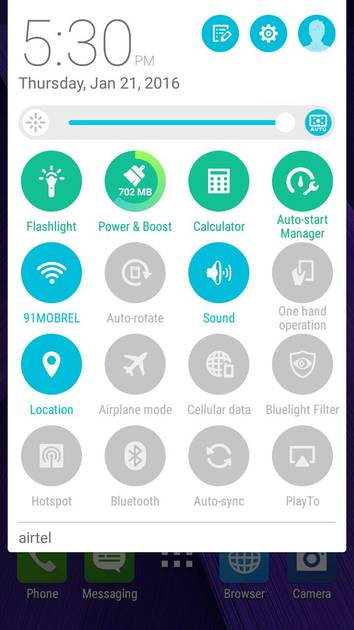
Quick Settings Panel
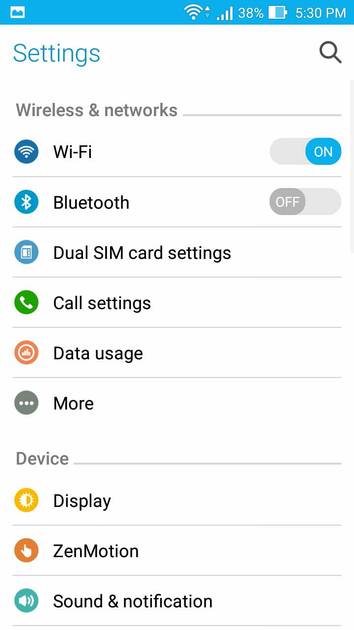
Settings Screen
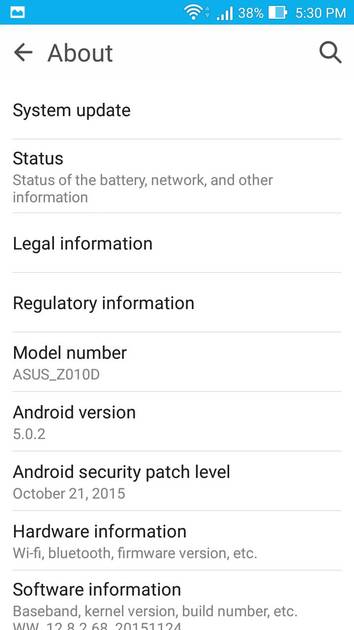
OS Version
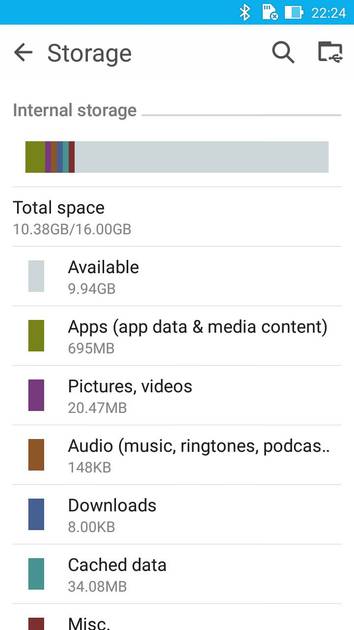
Storage
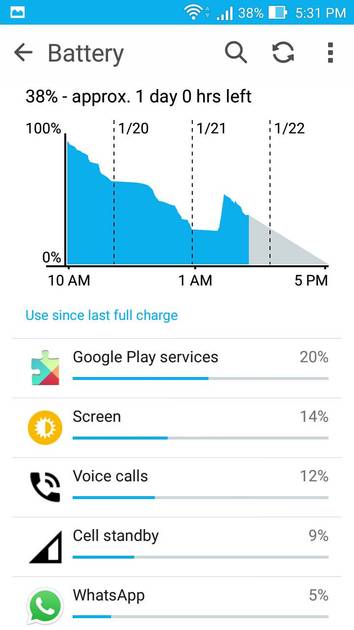
Battery
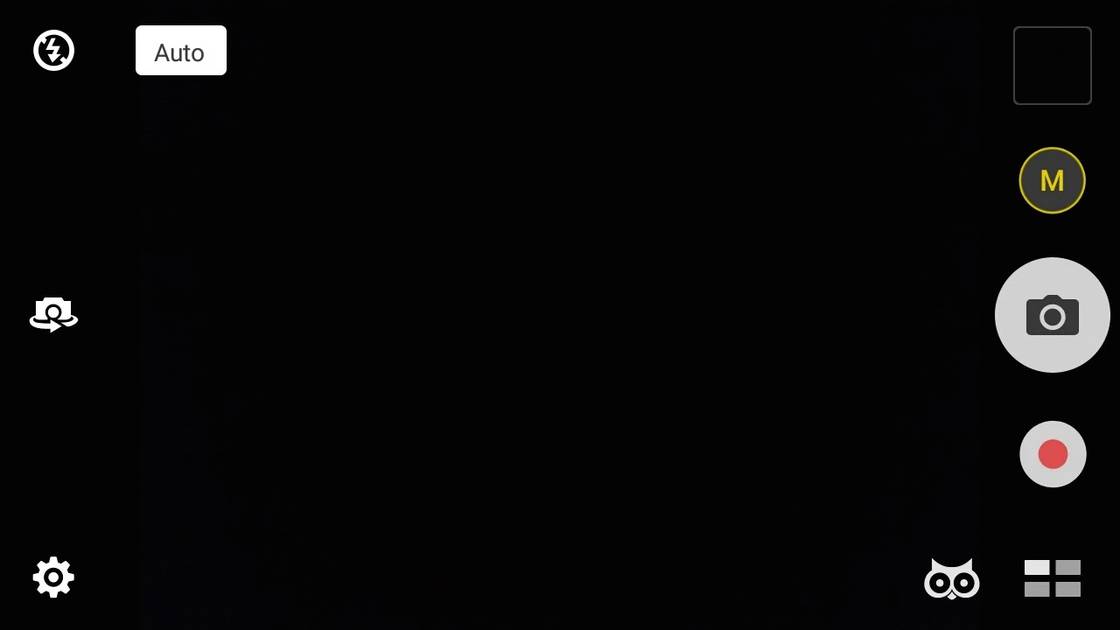
Camera On
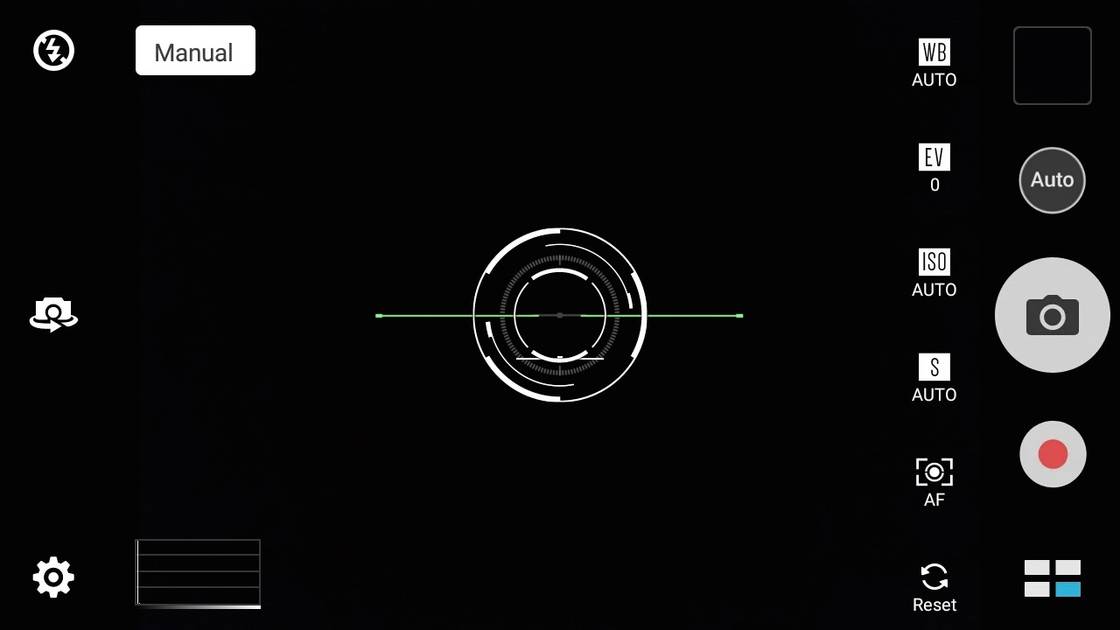
Camera Options
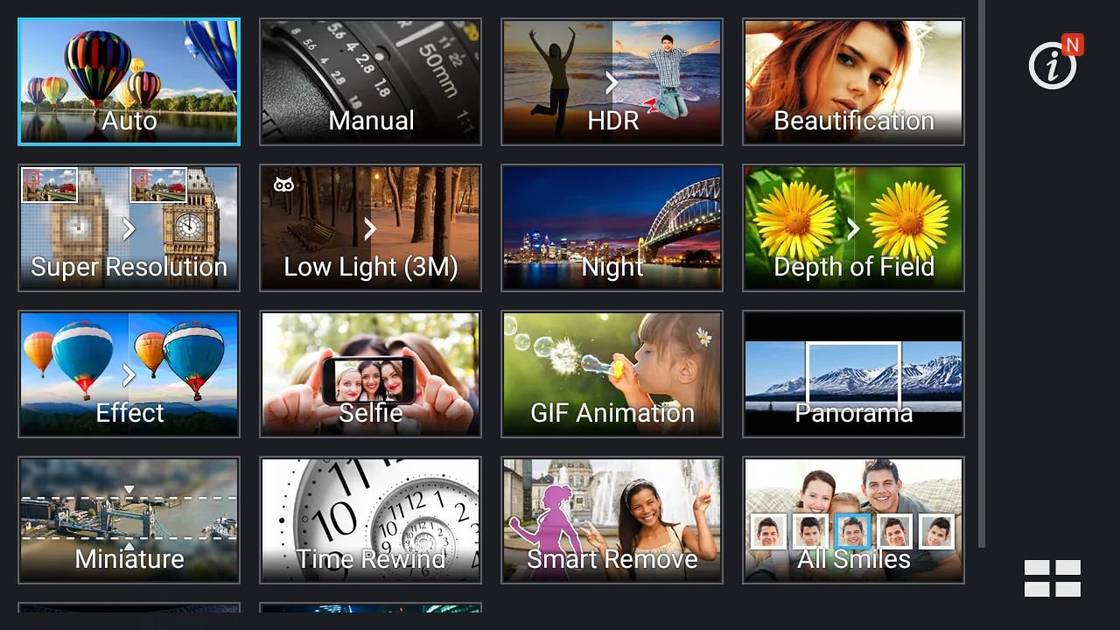
Camera Modes
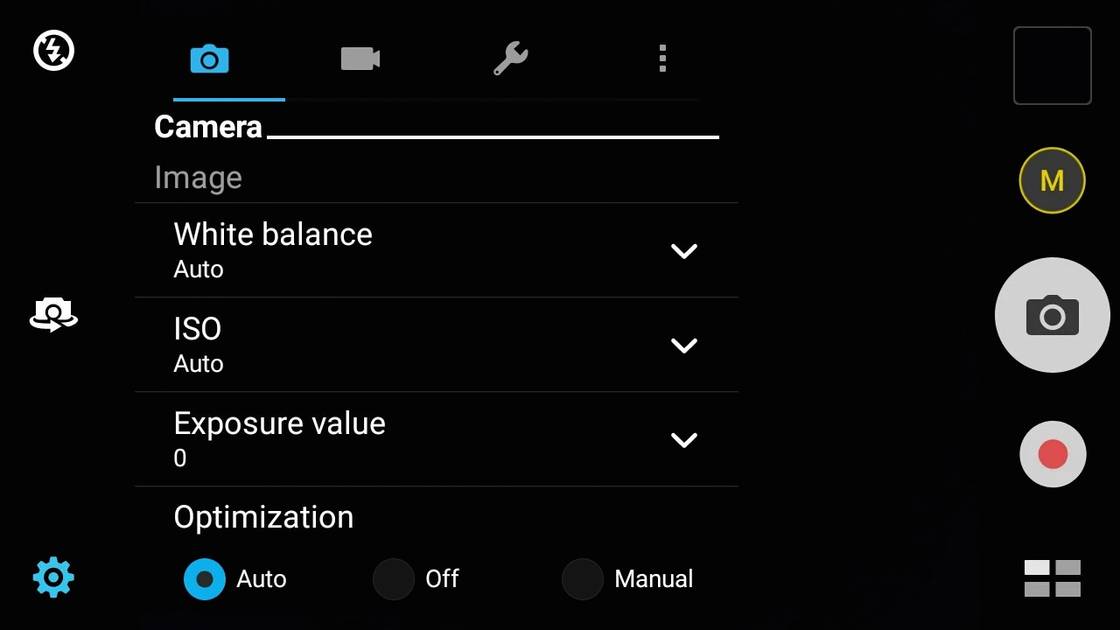
Camera Settings
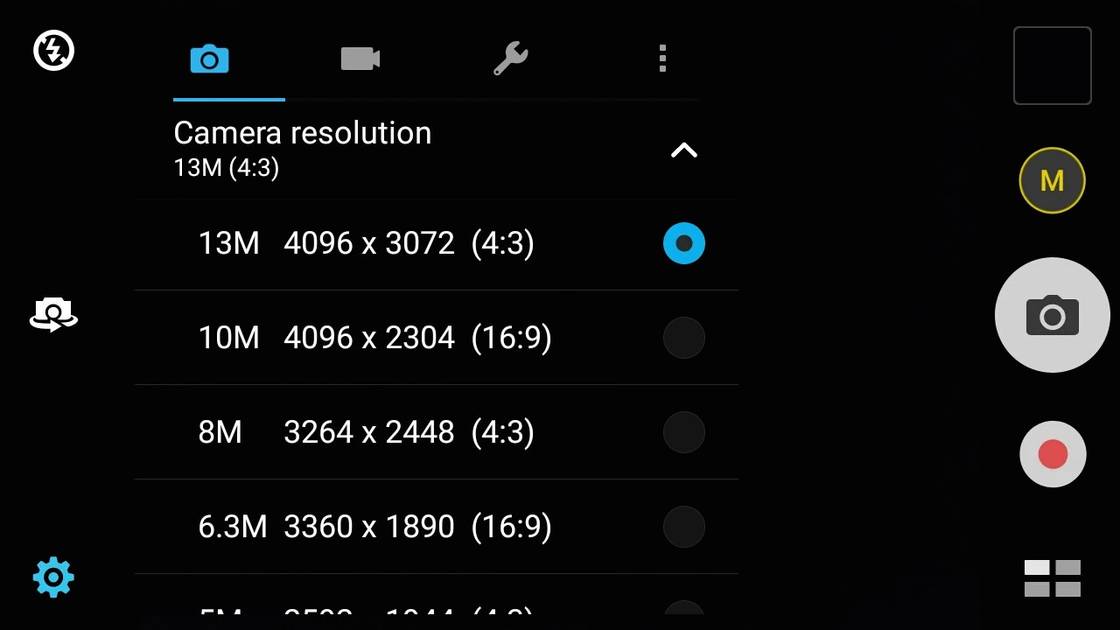
Picture Size Options
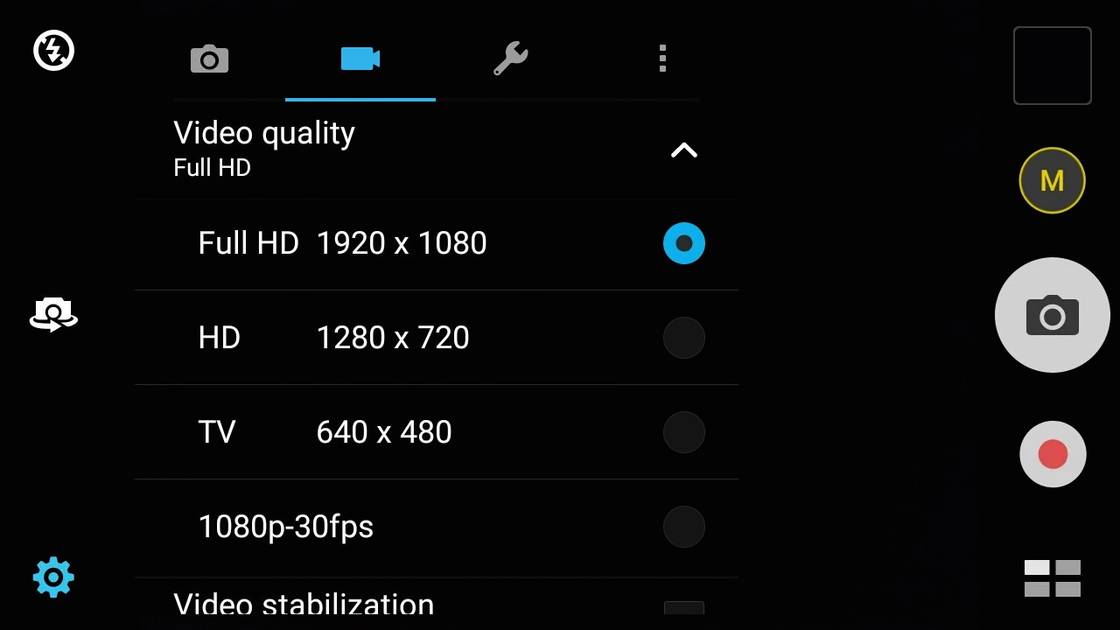
Video Size Options
|
Design |
|
|---|---|
| Height | 156 mm |
| Width | 77.5 mm |
| Thickness | 10.5 mm |
| Weight | 202 grams |
|
Click to View

|
Rear Camera
(Good)
|
||||||
|---|---|---|---|---|---|---|
| Resolution | ||||||
|
||||||
| Autofocus | Yes, Laser Autofocus | |||||
| OIS | No | |||||
| Flash | Yes, Dual-color LED Flash | |||||
| Image Resolution | 4128 x 3096 Pixels | |||||
| Settings | Exposure compensation | |||||
| Shooting Modes |
Continuous Shooting High Dynamic Range mode (HDR) |
|||||
| Camera Features |
Digital Zoom Auto Flash Digital image stabilization Face detection Touch to focus |
|||||
| Video Recording | FHD @30 fps | |||||
Rear Camera Samples

Close Up

Low Light

Low Light With Flash
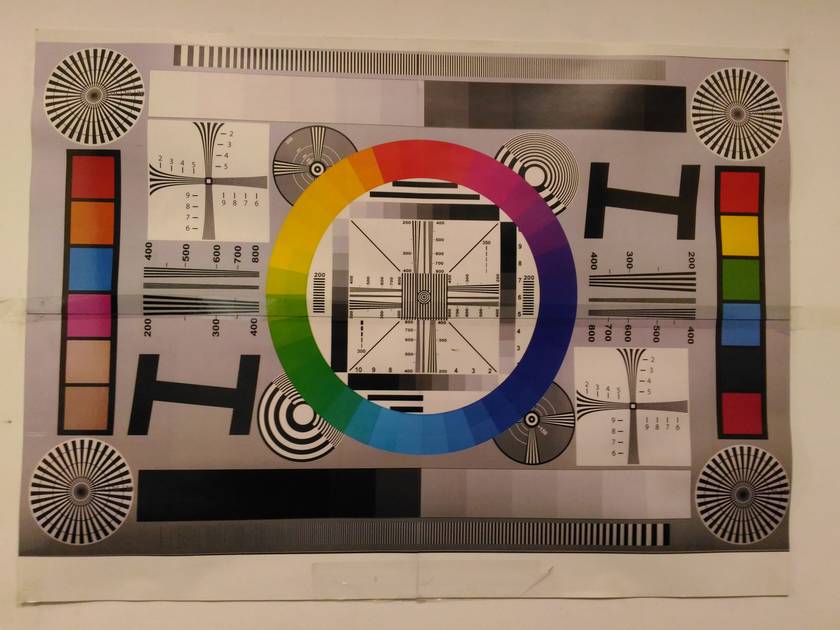
Colour Variance
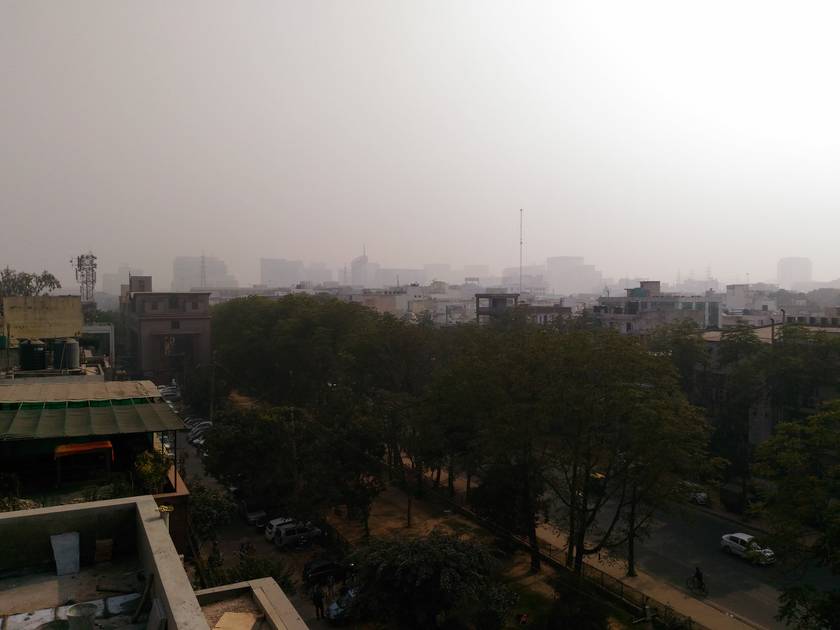
Long Shot
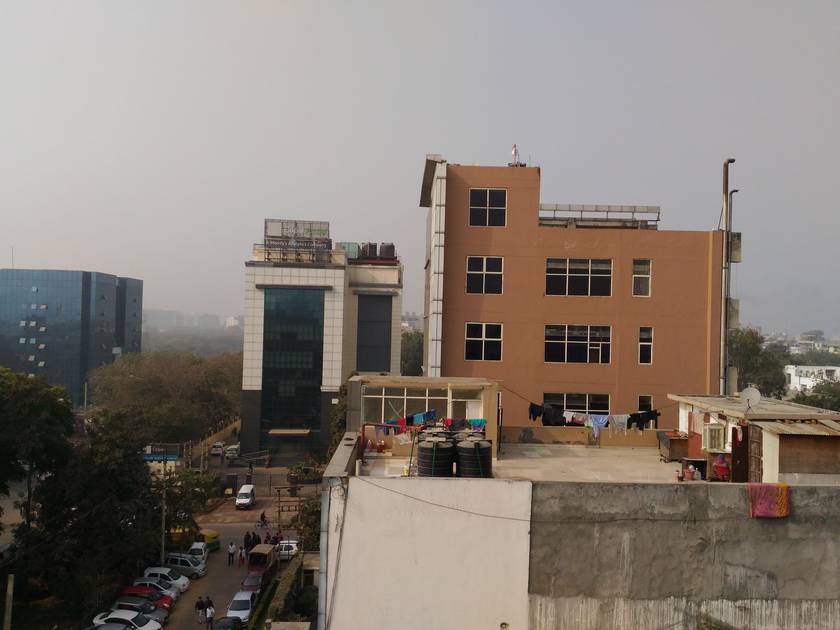
HDR Off
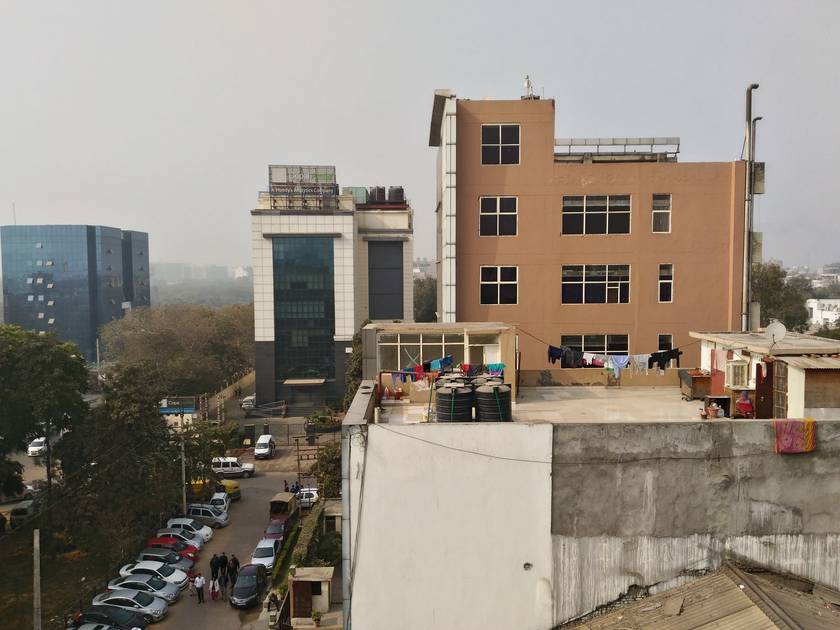
HDR On
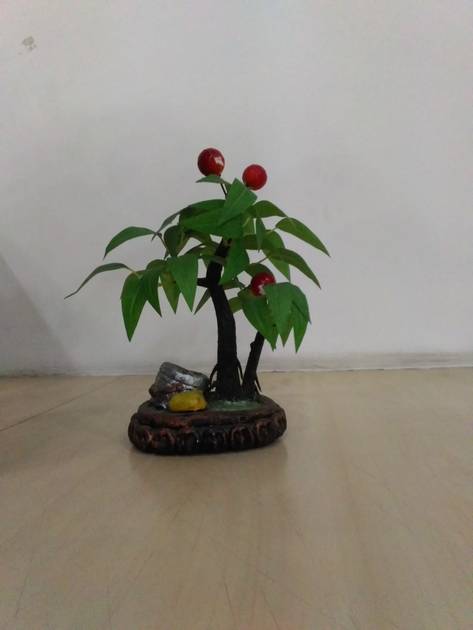
Front Shot
|
Front Camera
(Very Good)
|
||||||
|---|---|---|---|---|---|---|
| Resolution | ||||||
|
||||||
| Autofocus | Yes | |||||
| Flash | No | |||||
| Camera Features | Wide Angle Selfie |
Battery
(Very Good)
|
|
|---|---|
| Capacity | 5000 mAh |
| Battery Type | Li-Polymer |
| TalkTime | Up to 37 Hours(3G) |
Storage |
|
|---|---|
| Internal Storage | 16 GB |
| Expandable Storage | Yes, Up to 64 GB |
Network & Connectivity |
|
|---|---|
| SIM Slot(s) | Dual SIM |
| SIM Type | SIM1: Micro, SIM2: Micro |
| Network Support | 5G Not Supported, 4G |
| VoLTE | Yes |
| SIM 1 |
4G bands, 4G Speed
Expand
|
| Wi-Fi | Yes, Wi-Fi 4 (802.11 b/g/n) |
| Wi-Fi Features | Mobile Hotspot |
| Bluetooth | Yes, v4.0 |
| GPS | Yes with A-GPS, Glonass |
| NFC | No |
Multimedia |
|
|---|---|
| Audio Jack | 3.5 mm |
Sensors |
|
|---|---|
| Fingerprint Sensor | No |
| Other Sensors | Light sensor, Proximity sensor, Accelerometer, Compass |
Asus Zenfone Max ZC550KL User Reviews
Asus Zenfone Max ZC550KL Key Highlights
| Processor | Qualcomm Snapdragon 410 MSM8916 |
| RAM & Storage | 2 GB + 16 GB |
| Display | 5.5", 720 x 1280 Resolution |
| Rear Camera | 13 MP |
| Front Camera | 5 MP |
| Battery | 5000 mAh |























Asus Zenfone Max ZC550KL Price In India
| Product Name | Store | Price |
|---|---|---|
| Asus Zenfone Max ZC550KL (2 GB + 16 GB) | Flipkart | ₹9,999 |
Popular Links
- All Upcoming Phones
- OPPO Find X10 Pro Max
- OPPO Find X10
- Infinix GT 50 Pro
- Motorola Edge 70 Neo 5G
- Nothing Phone 4a
- Samsung Mobiles
- Motorola Mobiles
- vivo Mobiles
- OPPO Mobiles
- Tecno Mobiles
- realme Mobiles
- OnePlus Mobiles