
Samsung Galaxy Note Edge
+ Compare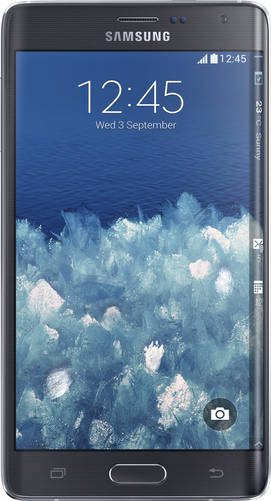




-
Design8

-
360° View

-
UI Screenshot21

-
Benchmarks11
![Benchmarks]()
-
Videos3
![Videos]()

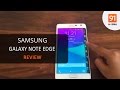
Key Specs
Performance
-
Qualcomm Snapdragon 805 -
Quad Core, 2.7 GHz -
3 GB RAM
Display
-
5.6 inches (14.22 cm); Super AMOLED -
1440x2560 px (QHD (2k)) -
Gorilla Glass 3 Protection
Rear Camera
-
Single Camera Setup - 16 MP Primary Camera
-
LED Flash -
4k @30fps Video Recording
Front Camera
-
3.7 MP
Battery
-
3000 mAh
General
-
SIM1: Micro -
5G Not Supported -
32 GB internal storage, Expandable upto 128 GB
Samsung Galaxy Note Edge Expert Review Summary

Verdict
After extensively using the Samsung Galaxy Note Edge, many of the fears we admittedly had about this unique device dissolved into nothing. When we first saw images of the smartphone, we thought the curved display would be cumbersome to use, becoming accidentally activated when held in the hand. But instead, we were pleasantly surprised. The Note Edge delivers the same Note 4 experience, while adding another layer of functionality. Admittedly, at this stage, the edge screen is still in its nascen
- Edge screen adds several interesting features
- Same Note 4 performance
- Great pair of cameras
- Excellent battery life
Pros
- Edge screen functionality is still limited
- Large size makes it cumbersome for single-handed use
- Expensive
Cons
Specs At A Glance
+5.6-inch, 2,560 x 1,660 pixel Super AMOLED display (524ppi)2.7GHz quad-core Snapdragon 805 SoC16-megapixel primary camera, 3.7MP front32GB storage (expandable by 128GB)USB OTG, 4G, dual-band Wi-Fi 802.11 a/b/g/n/ac, Bluetooth 4.1, A-GPS, Wi-Fi Direct, Wi-Fi Hotspot, wireless display mirroring, NFC, IR, USB 2.0, MHLAndroid KitKat 4.4.4 with Touchwiz3,000mAh batteryFingerprint scanner, heart rate monitor
Read MoreA curve like no other
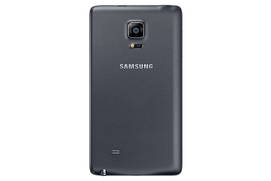
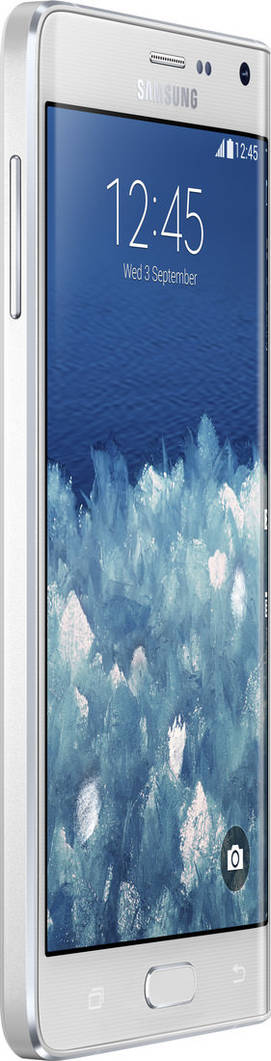
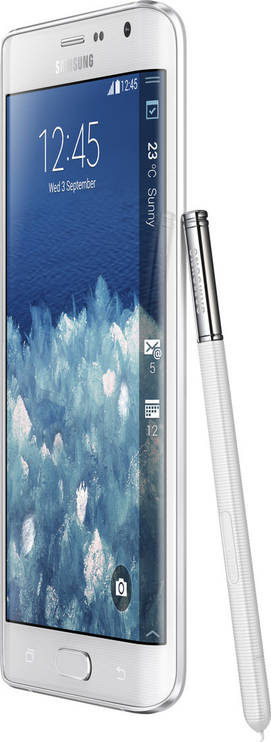
+We’re always complaining that smartphone manufacturers don’t do enough to innovate when it comes to design, but the Note Edge doesn’t have that problem. When viewed from the top, the front of the Note Edge appears to be a single large screen cascading down gently to the right, almost creating an infinity pool effect. Apart from this one distinguishing feature though, the Note Edge is the Note 4’s (almost) identical twin. Above the screen, you’ll find the earpiece, Samsung branding, notification LED, front camera and sensors. The standard Samsung home button is located at the centre of the chin, and also integrates a fingerprint sensor. On either side of this are located backlit Android capacitive keys. The power button has been evicted from its usual position on the right, and now accompanies the audio jack, IR blaster and noise-cancelling microphone on the top edge. At the bottom you’ll find the micro-USB port, two microphones and a slot for the S Pen. The left side has only the volume rocker for company.
Read MoreDazzling display
+Displays have always been Samsung's forte, and the Note Edge is no exception. Like the Note 4, it gets a dazzling 2K resolution, but is marginally smaller at 5.6-inches (the Note 4 has a 5.7-inch display). The edge screen features a resolution of 160 x 2,560 pixels. Protecting the displays is a layer of Corning Gorilla Glass 3. Since Samsung uses Super AMOLED panels, the displays are expectedly vibrant and bright, with colours bordering on oversaturation. Sharpness and clarity are excellent, and the display is legible even outdoors. We didn’t have any complaints with regard to responsiveness either, and this goes for the edge screen as well. In settings, you can enable Samsung’s Smart Stay feature which keeps the screen on for as long as you’re looking at it. There’s also a glove mode for extra sensitivity.
Read MoreEdgy software
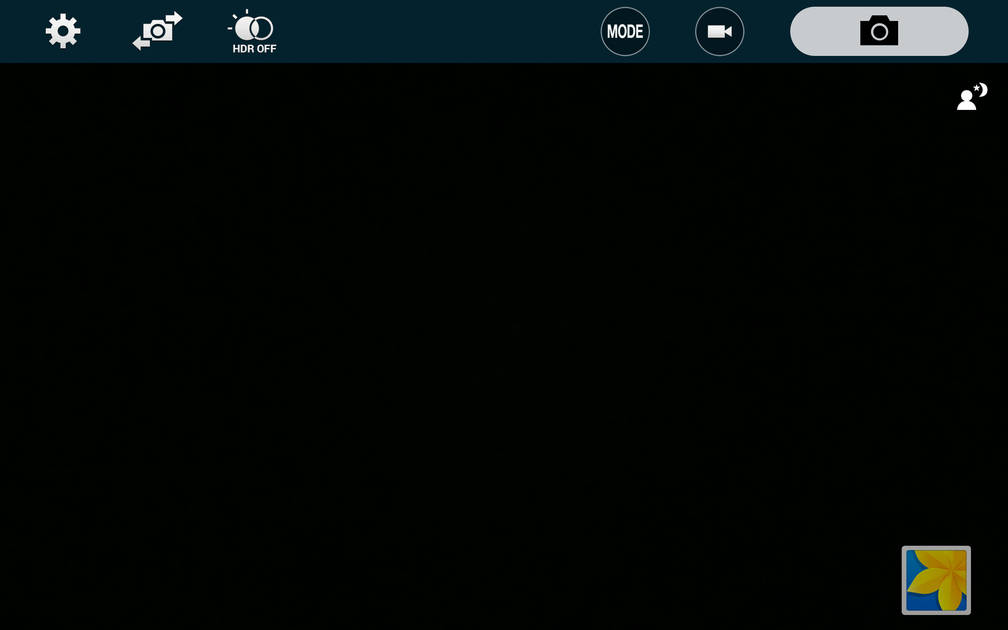
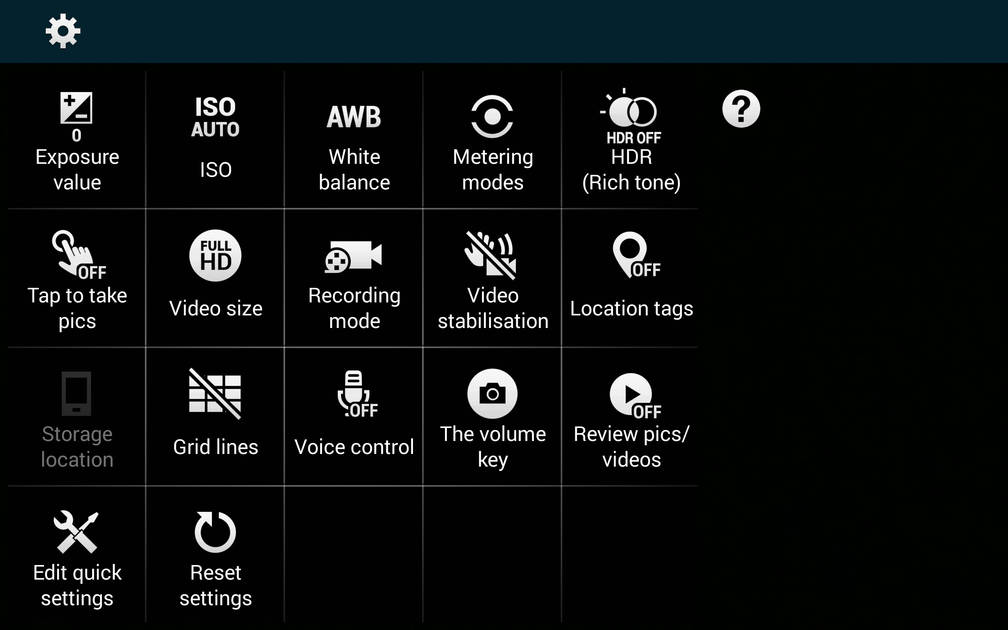
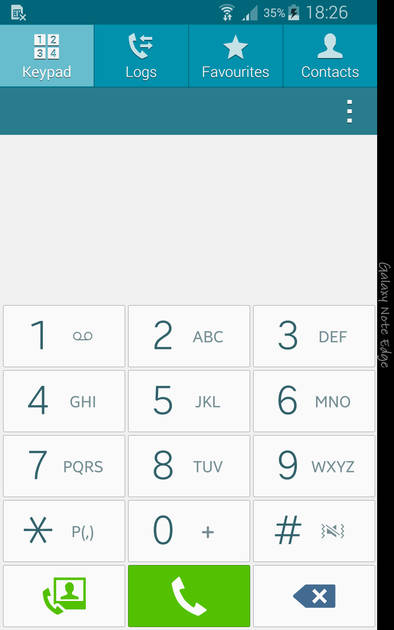
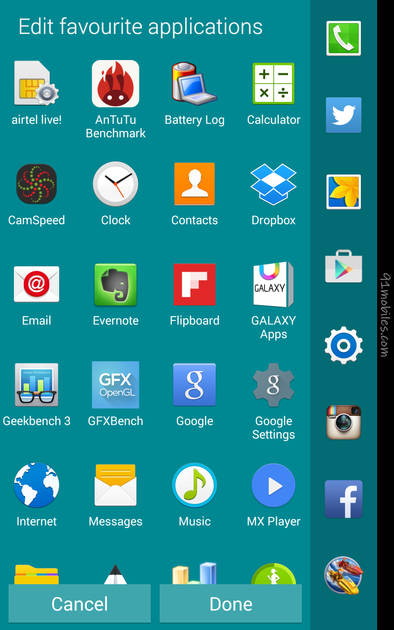
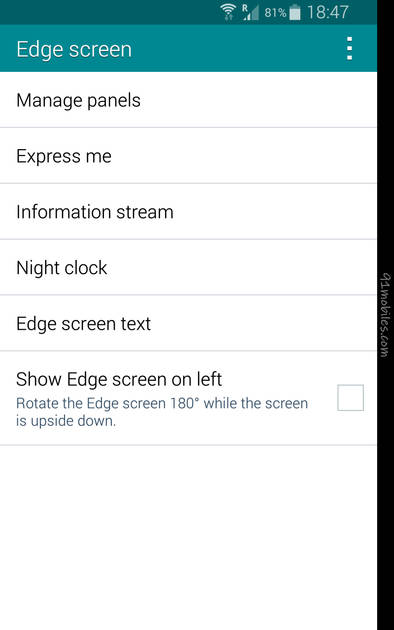
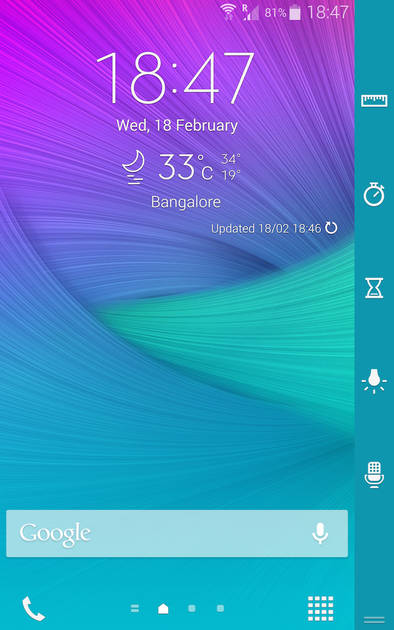
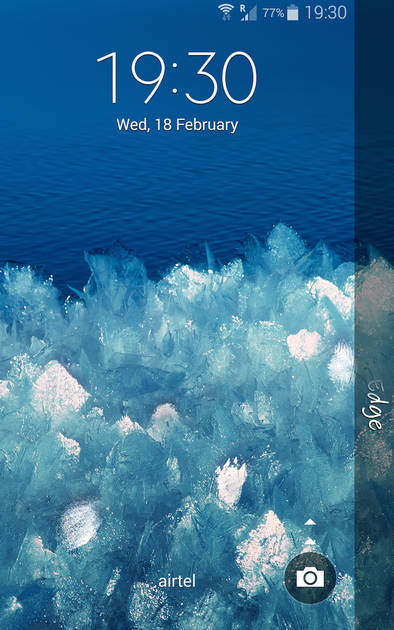
+The Note Edge runs the Android KitKat-based TouchWiz, just like the Note 4, but a Lollipop update has already started rolling out in some regions. By now, we’re very familiar with TouchWiz and the smorgasbord of features it brings. Apart from the usual Multi Window, Easy Mode, Blocking Mode, Private Mode and the host of S Pen additions, there’s also the new dynamic wallpapers that we saw on the Note 4. The fingerprint sensor isn’t really a new addition, and works well enough, although the swipe mechanism requires a few tries sometimes. The Note Edge also offers a bunch of health-related features that we saw with the Note 4, including the pedometer, heart rate, SpO2 and UV sensor which display data in the S Health app. We’ve discussed these software additions in detail in our Note 4 review, so we’re going to avoid repeating them here. Instead, we’ll concentrate on the new features the edge screen brings to the smartphone.The edge screen is undoubtedly the star of the show, and Samsung has packed in tons of cool features to justify the Note Edge’s inflated cost. Navigation works by both horizontal and vertical swipes. The curved display features several panels, which you can scroll through by swiping from the left or right. By default, the first panel you see is the favourites bar. This panel has shortcuts to all your favourite apps, and you can pick and choose which ones you’d like to have displayed here by going into settings and dragging and dropping them in or out of the bar. We found the favourites panel to be one of the most useful features of the edge screen, because it not only declutters your homescreen, but it also makes it easy to multi-task and access frequently used apps from anywhere. By swiping left, the next panel you see displays notifications and the weather at a glance. By swiping up from the bottom, you can delve into the edge screen settings. From here, you can manage panels by adding, removing and organising the order of panels displayed. Apart from a bunch of pre-installed edge panels, there are also a few others you can download from Samsung Apps, although we didn’t find any of these particularly useful. In settings, you’ll also find an ‘Express Me’ option which lets you customise the look of the edge screen when the screen is locked. An interesting feature of the edge screen is the Night clock, which turns your Note Edge into a bedside alarm clock. When enabled, this option dims the edge screen, leaving only the date and time glowing faintly. It’s an interesting use-case idea, and you can specify the hours during which Night clock is activated. Of course, this could take a toll on your battery so you might want to keep your phone fully charged if you intend to use this feature.Apart from the aforementioned panels, you can swipe down from the top to bring up a utility bar, which provides shortcuts to a stopwatch, a timer, a torch, a recorder and even a virtual ruler. The last option is pretty neat, letting you switch between cm and inches, although you may not have many occasions to use it. While the edge screen is a permanent fixture on the homescreens, it discreetly slides out of view when you’re using an app, and stays hidden unless you choose to bring it back up with a simple swipe. For when it’s recessed, you can customize some text to be displayed, or choose to remove it altogether. One of our favourite features of the Note Edge is how it handles incoming calls and notifications. When the phone is in use, incoming calls flash on the edge screen, and you can swipe to dismiss or answer them without interrupting what you're currently doing. New text messages appear the same way, although they disappear after a few seconds.Tap-to-wake the display is a pretty common feature on smartphones, and Samsung has incorporated this into the edge screen as well. When the screen is asleep, you can swipe your finger along the length of the curve to wake it up. It displays the time and date by default, but you can also swipe through the other panels to check notifications, quick access your favourite apps and more.Apart from its standalone functions, Samsung has made use of the edge screen in some of its native apps as well. In the camera app for instance, the edge screen is home to all the controls, with the shutter button appearing on the right corner. This is actually a pretty useful arrangement, because it comes right in line with your index finger, but due to the size of the Note Edge, we often found ourselves unable to reach the shutter button with one hand. Those with bigger hands might find it easier to use it though. You’ll find a similar arrangement of controls in the native video and S Note apps.There’s no doubt that Samsung has put in a great deal of effort into equipping the edge screen with several features. Some of these are useful, and some of them not, but we expect we’ll see a lot of progress over the next few months, especially if the rumoured Galaxy S6 Edge is released.
Read MoreShooting star
+Handling the photography on the Note Edge are the same pair of snappers seen on the Note 4 – a 16MP primary camera capable of 4K video recording, and a 3.7MP front shooter. Like the Note 4, the cameras on the Note Edge deliver some great results, both in daylight and in low light. We’ve already covered the details surrounding the camera app and various modes in our Note 4 review, so we’re just going to show you some image samples captured with the primary camera.
Read MoreFull throttle ahead
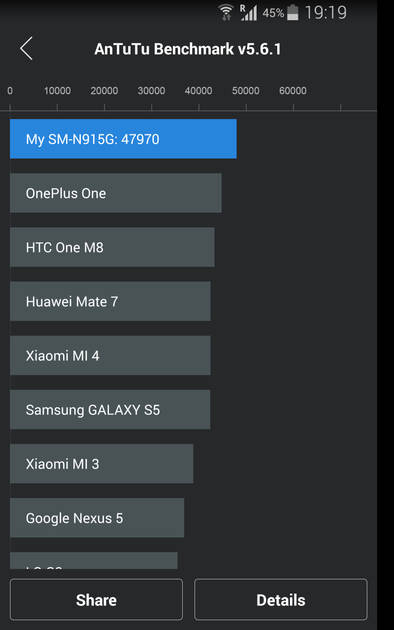
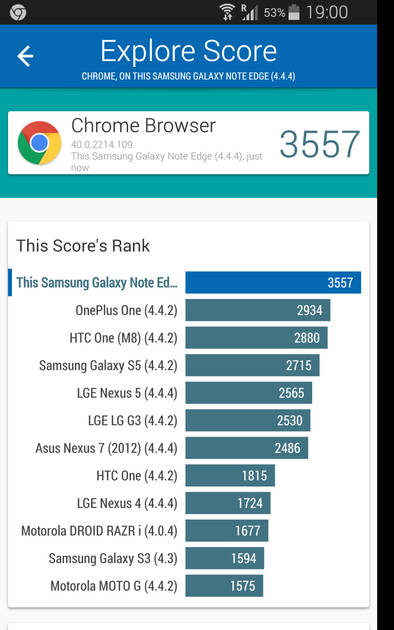
+Powering the Note Edge’s internals are the same combination of a quad-core Snapdragon 805 chip clocked at 2.7GHz, an Adreno 420 GPU and 3GB of RAM. Specs like this don’t just look good on paper, they translate into some impressive real life performance too. Multi-tasking, intensive games and even benchmarks blow away most of the competition, and won’t leave you disappointed. We did notice some heating issues though, both while playing games and using the camera for extended periods, but nothing that gave us much cause for concern. In the storage department, the Note Edge gets a generous 32GB of storage, out of which around 24.4GB is available to use. If you need to expand the storage further, you can use the microSD card slot to add an additional 128GB of memory.The Note Edge is equipped with a 3,000mAh battery, slightly downsized from the 3,220mAh unit on the Note 4. Even so, it delivers stellar performance, easily lasting us until the end of the day and into the next morning with regular usage. The Note Edge also scored well on our video loop battery drain test, lasting for exactly 13 hours before giving up. The bundled 2-pin charger supports fast charging, and the Ultra Power Saving Mode helps you prolong the juice in extreme situations.As if the internals weren’t loaded enough, the Note Edge boasts an array of connectivity options that would put the competition to shame. There’s dual-band Wi-Fi 802.11ac, Bluetooth 4.1, NFC, A-GPS MHL 3.0, infrared and USB OTG, not to mention support for India’s 4G networks.
Read MorePopular Comparisons
Samsung Galaxy Note Edge Specifications
General |
|
|---|---|
| Operating System | Android v4.4.4 (Kitkat) |
Performance
(Avg)
|
|
|---|---|
| Chipset | Qualcomm Snapdragon 805 APQ8084 |
| Processor | Quad core, 2.7 GHz, Krait 450 |
| Graphics (GPU) | Adreno 420 |
| RAM | 3 GB |
Benchmark Screenshots
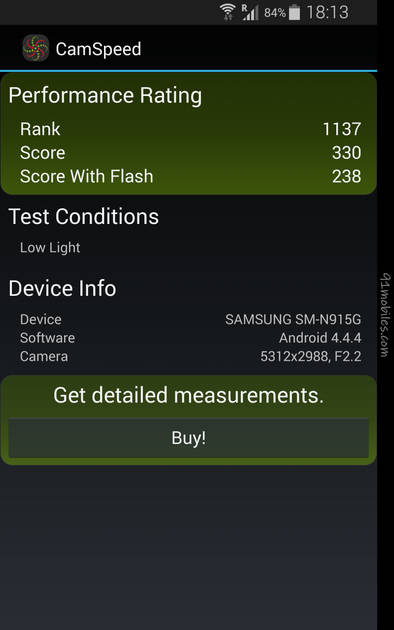
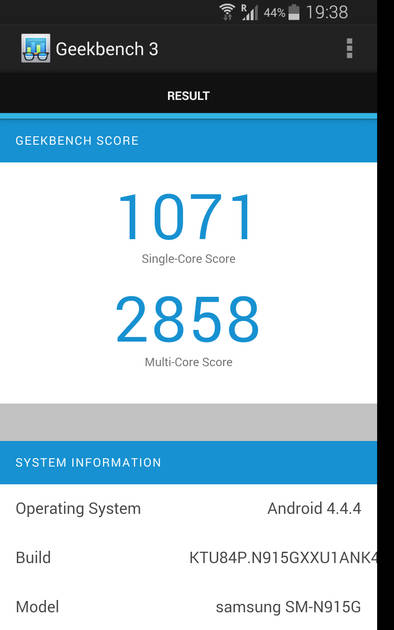
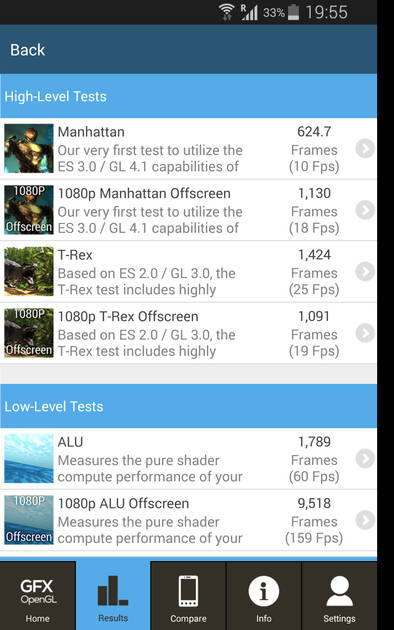
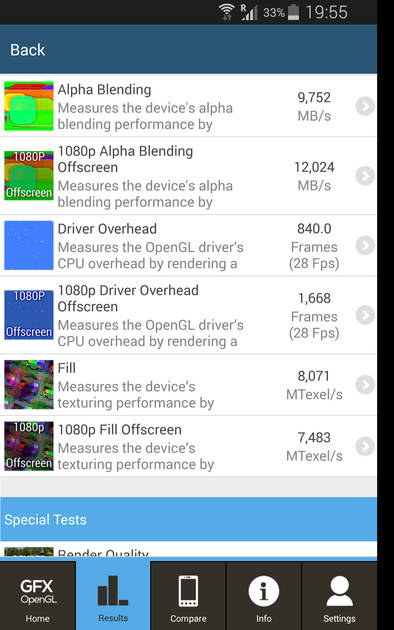
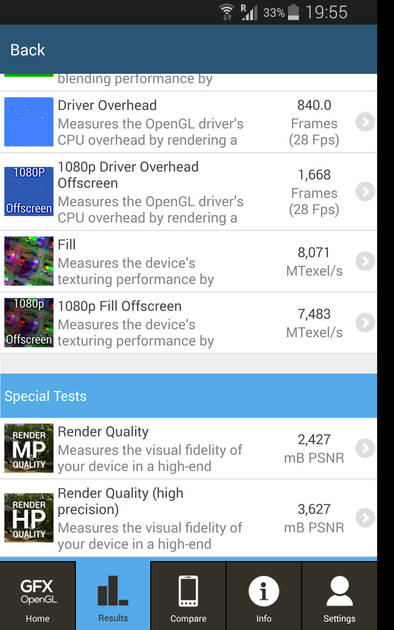
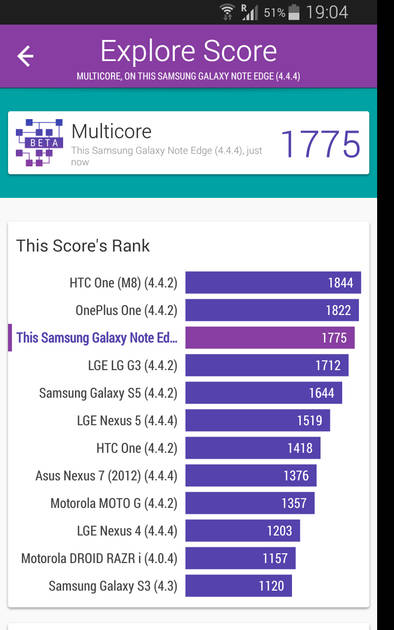
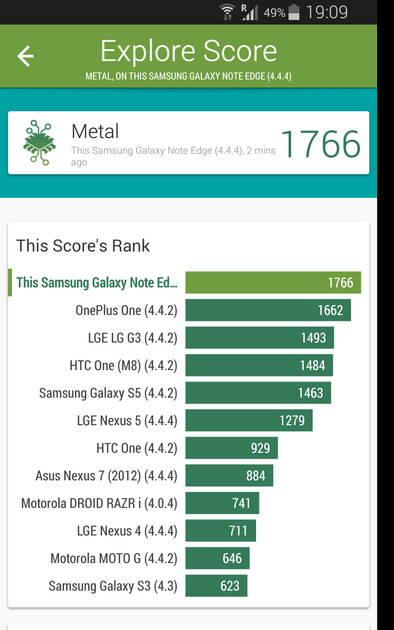

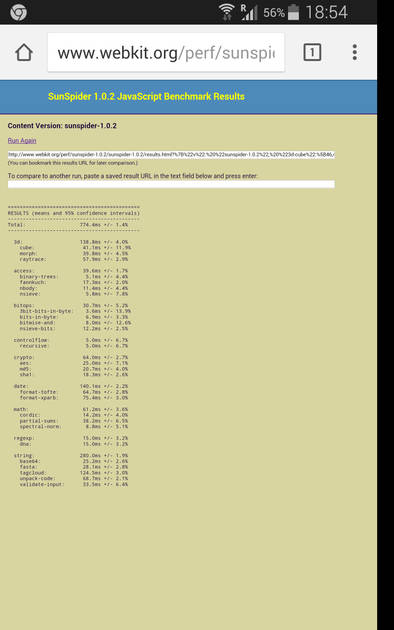
|
Display
(Best In Class)
|
|
|---|---|
| Display Type | Super AMOLED |
| Screen Size | 5.6 inches (14.22 cm) |
| Resolution | 1440x2560 px (QHD (2k)) |
| Pixel Density | 525 ppi |
| Screen to Body Ratio (calculated) | 69.18 % |
| Screen Protection | Corning Gorilla Glass v3 |
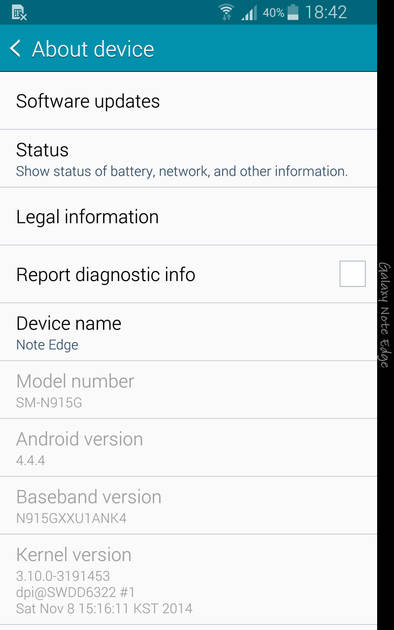
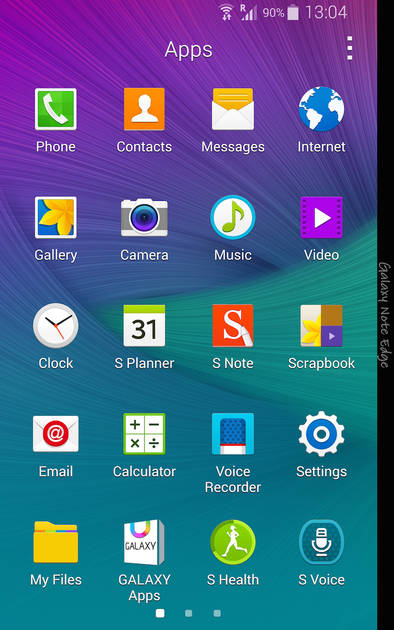
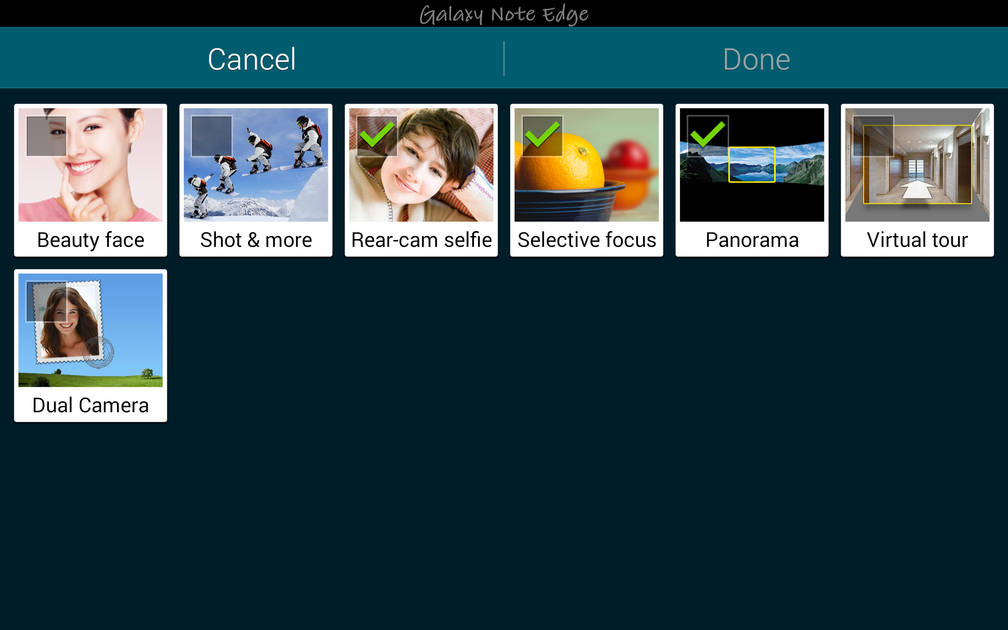
UI Screenshots
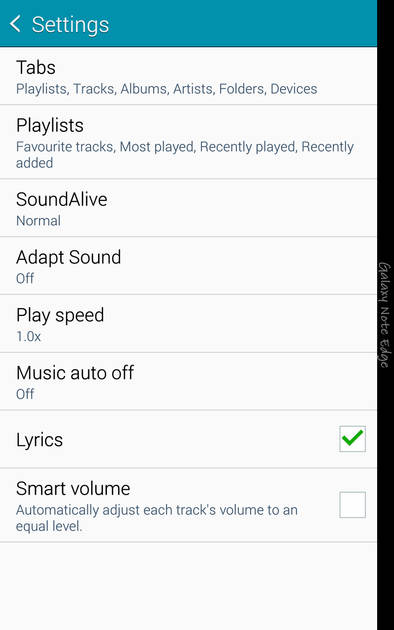
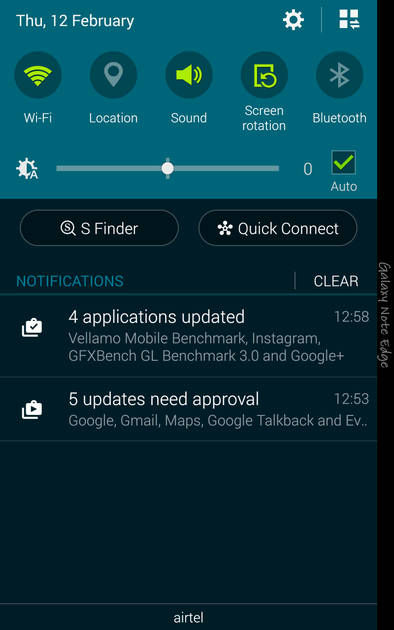
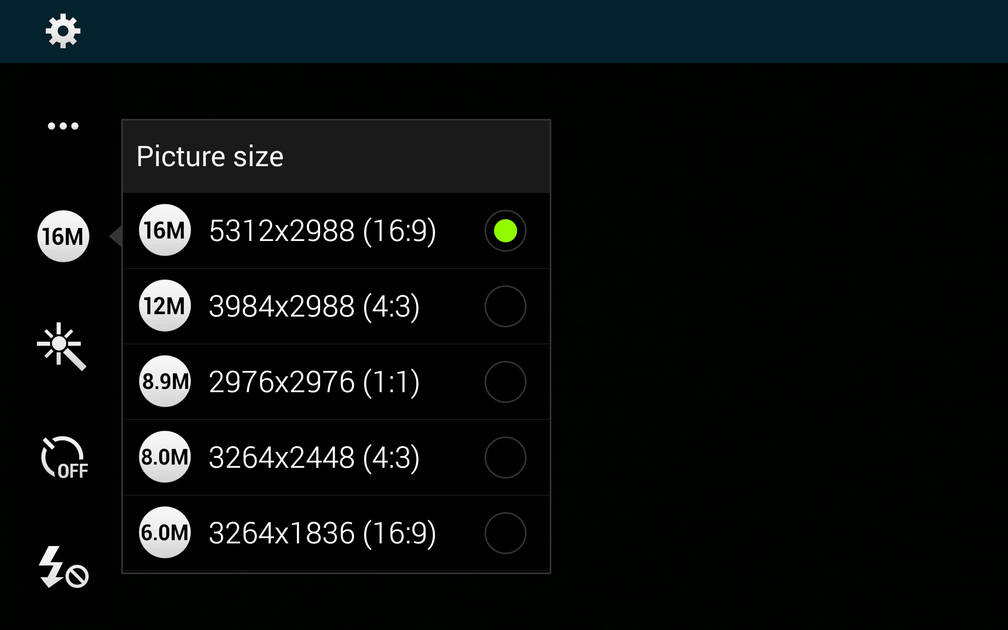
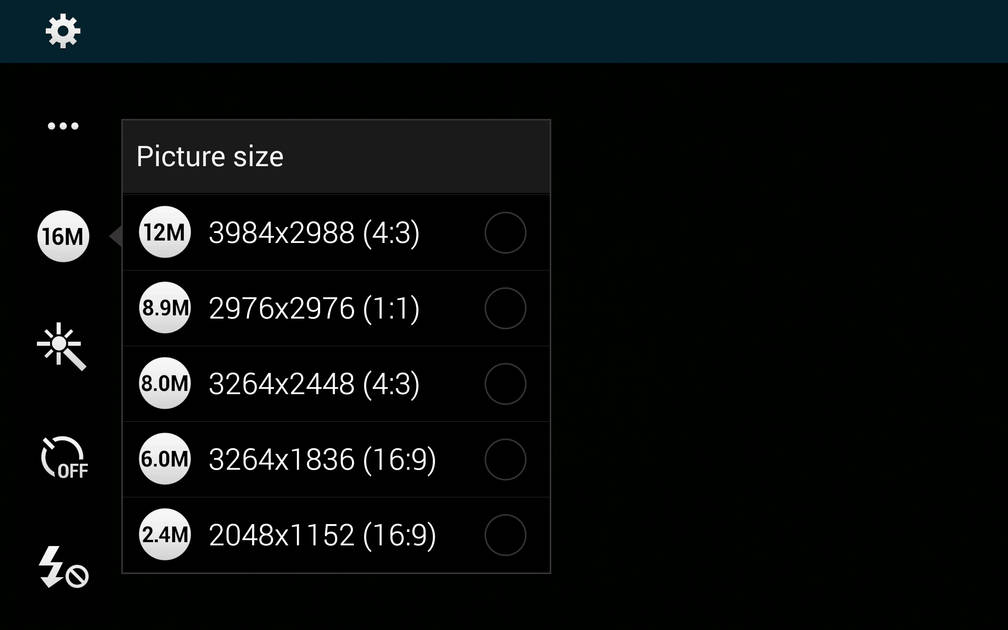
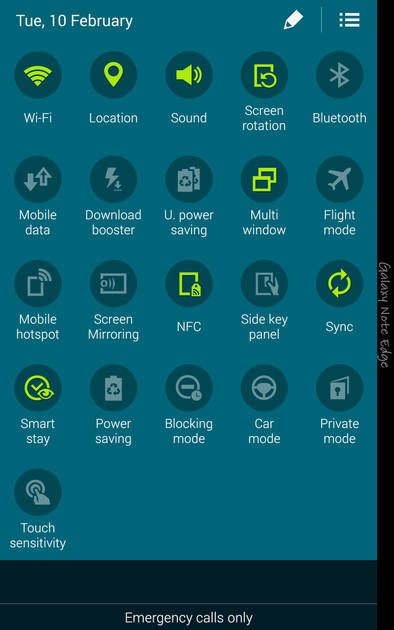
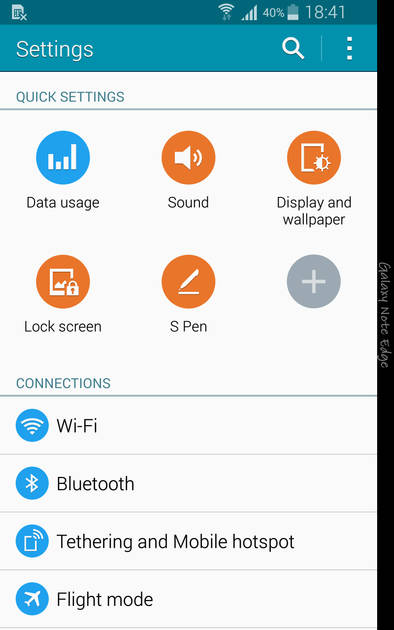
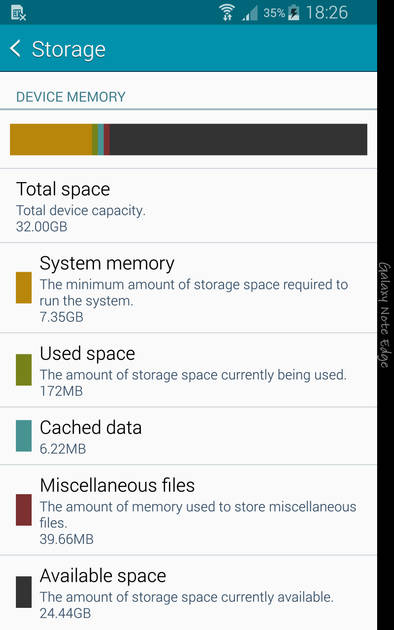
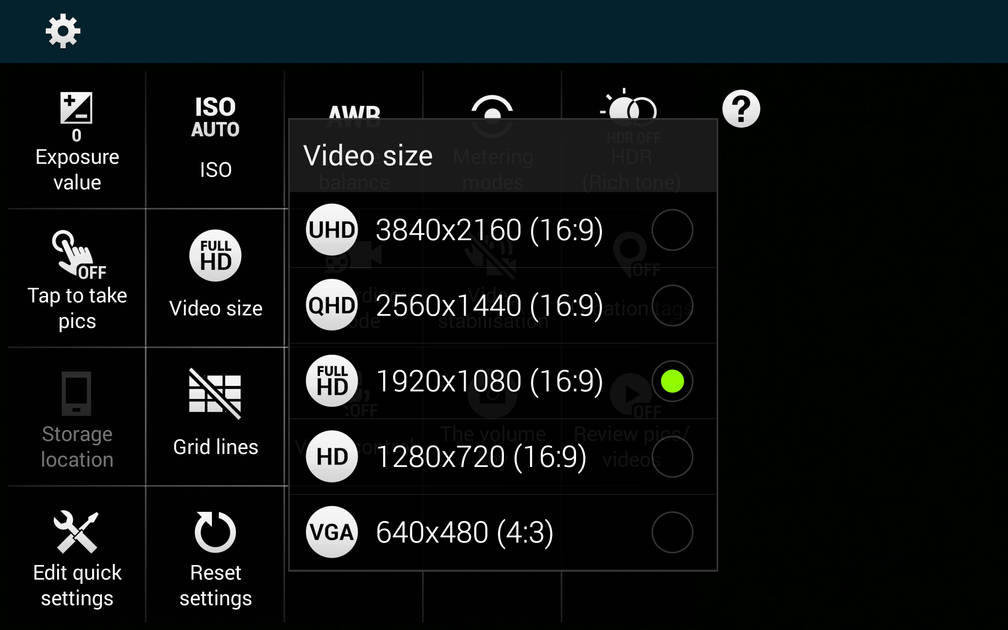
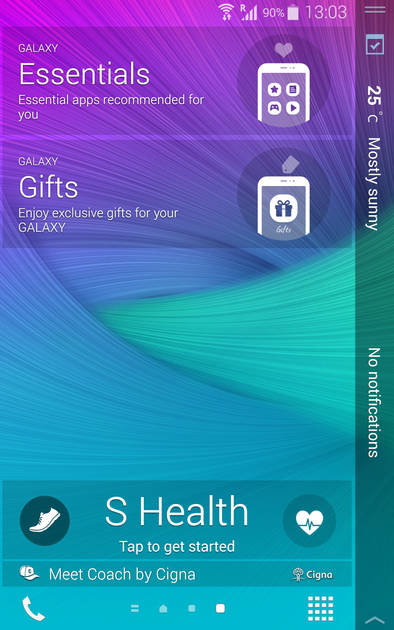
|
Design |
|
|---|---|
| Height | 151.3 mm |
| Width | 82.4 mm |
| Thickness | 8.3 mm |
| Weight | 174 grams |
|
Click to View

|
Rear Camera
(Very Good)
|
||||||
|---|---|---|---|---|---|---|
| Resolution | ||||||
|
||||||
| Autofocus | Yes | |||||
| OIS | Yes | |||||
| Flash | Yes, LED Flash | |||||
| Image Resolution | 4616 x 3464 Pixels | |||||
| Settings | Exposure compensation, ISO control | |||||
| Shooting Modes |
Continuous Shooting High Dynamic Range mode (HDR) |
|||||
| Camera Features |
Digital Zoom Face detection Simultaneous HD video and image recording Touch to focus |
|||||
| Video Recording |
3840x2160 @ 30 fps 1920x1080 @ 60 fps |
|||||
| Video Recording Features | Dual Video Recording |
Front Camera
(Good)
|
||||||
|---|---|---|---|---|---|---|
| Resolution | ||||||
|
||||||
| Flash | No |
Battery
(Very Good)
|
|
|---|---|
| Capacity | 3000 mAh |
| Battery Type | Li-ion |
Storage |
|
|---|---|
| Internal Storage | 32 GB |
| Expandable Storage | Yes, Up to 128 GB |
Network & Connectivity |
|
|---|---|
| SIM Slot(s) | Single SIM |
| SIM Type | SIM1: Micro |
| Network Support | 5G Not Supported, 4G |
| SIM 1 |
4G bands, 4G Speed
Expand
|
| Wi-Fi | Yes, Wi-Fi 5 (802.11 a/b/g/n/ac) 5GHz |
| Bluetooth | Yes, v4.0 |
| GPS | Yes with A-GPS, Glonass |
| NFC | Yes |
Multimedia |
|
|---|---|
| Audio Jack | 3.5 mm |
Sensors |
|
|---|---|
| Fingerprint Sensor | Yes |
| Fingerprint Sensor Position | Front |
| Infrared Sensor | Yes |
| Heart Rate Monitor | Yes |
| Other Sensors | Proximity sensor, Accelerometer, Barometer, Gyroscope |
Samsung Galaxy Note Edge User Reviews
Samsung Galaxy Note Edge Key Highlights
| Processor | Qualcomm Snapdragon 805 APQ8084 |
| RAM & Storage | 3 GB + 32 GB |
| Display | 5.6", 1440 x 2560 Resolution |
| Rear Camera | 16 MP |
| Front Camera | 3.7 MP |
| Battery | 3000 mAh |





Popular Links
- All Upcoming Phones
- Upcoming Samsung Phones
- Samsung phones under 10k
- Samsung phones under 20k
- vivo V80 5G
- OPPO K14 Plus 5G
- Xiaomi Redmi Note 17 Pro 5G
- Lava Virat Curve 5G
- OPPO F35 Pro
- Samsung Mobiles
- Motorola Mobiles
- vivo Mobiles
- OPPO Mobiles
- Tecno Mobiles
- realme Mobiles
- Xiaomi Mobiles