Best Creative Tablets for Beginners in 2026: Galaxy Tab vs iPad


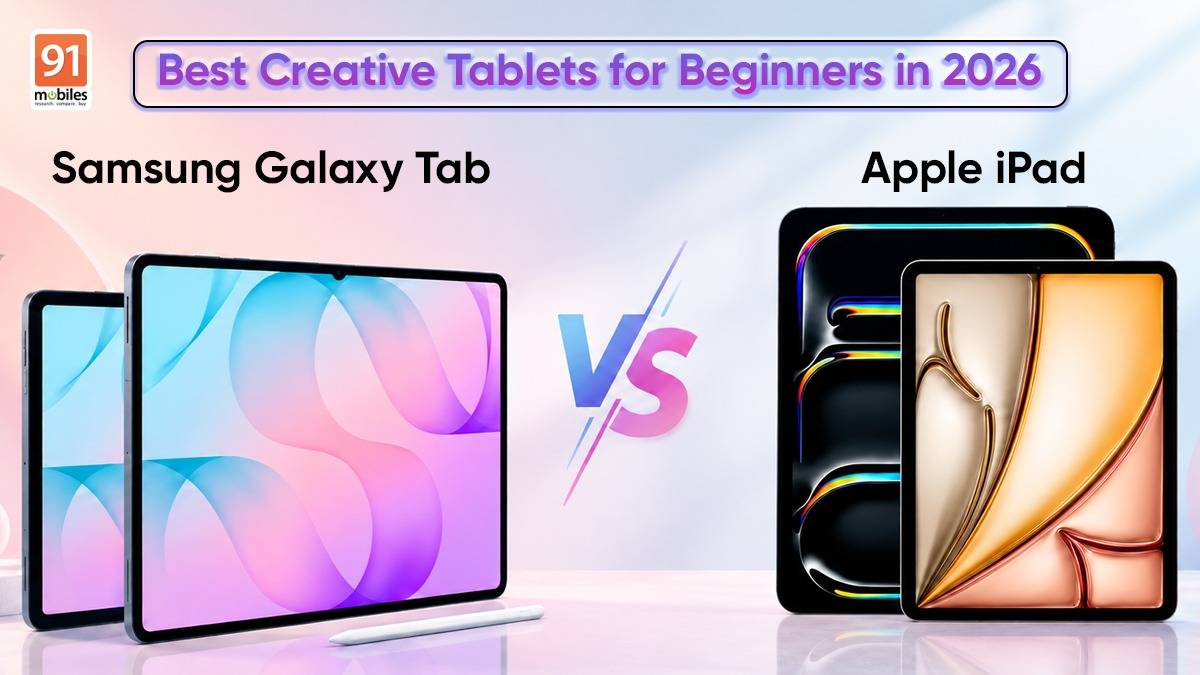
The best creative tools are the ones an artist stops noticing. For anyone who draws, paints, or edits, a line should follow the hand without hesitation, a colour should look exactly as it was imagined, and an idea should reach the canvas while it is still fresh. When the tools respond that naturally, the work feels effortless. When they do not, every stroke becomes a compromise. That is why choosing tools that let creativity come through is one of the most important decisions a creative person makes.
For a beginner in these sorts of fields, that decision starts with the first creative tablet, which shapes everything that follows. The tablet decides how the pen feels on the glass, how true the colours look, which apps can be installed, how long a project lasts on battery, and how much more has to be spent before the first line is drawn.
In 2026, the choice comes down to two camps. Samsung’s Galaxy Tab S12 series ships with the S Pen in the box, an open Android app ecosystem, and Galaxy AI. Apple’s iPad Air and iPad Pro bring M-series chips and a respectable range of creative apps, though the Apple Pencil is sold separately. On paper, the differences look clear. Knowing which of them matter for someone starting out is harder, and this guide settles it by answering one question: which tablet should a beginner buy for drawing, photo editing, and video editing?
Table of Contents
Best Creative Tablets for Beginners in 2026
Quick verdict: Samsung for S Pen, iPad for exclusive apps
Buy a Galaxy Tab S12 if you want a complete creative kit from day one. The S Pen is included, storage expands by up to 2TB with a microSD card, the AMOLED screens are large and bright, and both models are IP68-rated. The Galaxy Tab S12 Ultra offers the biggest canvas in this comparison. The Galaxy Tab S12+ is the one you will be able to carry everywhere.
Buy an iPad if your must-have apps live on iPadOS. Procreate and Final Cut Pro for iPad are not offered on Android, and Apple’s creative app library make a strong argument. Only go for this choice if you’re okay with keeping additional budget for the Apple Pencil, because it is not included in the box.
What we will cover in this comparison
We’re going to put up the Galaxy Tab S12 Ultra and Galaxy Tab S12+ against the iPad Air with M4 and iPad Pro with M5, with the Galaxy Tab S10 series as a lower-cost Android option. Then come the stylus and drawing tools that matter, the best drawing apps for Galaxy tablets, the essentials of photo and video editing (display colour quality, storage, performance, and battery), and a buying guide by budget and skill level.
How the Galaxy Tab S12 Ultra Compares With iPads
| Galaxy Tab S12+ | Galaxy Tab S12 Ultra | iPad Air (M4) | iPad Pro (M5) |
Starting price (Wi-Fi) | ₹1,29,999 (12GB, 256GB) | ₹1,49,999 (12GB, 256GB) | ₹89,900 (11-inch, 128GB) | ₹1,39,900 (11-inch, 256GB) |
Display | 12.6-inch Dynamic AMOLED 2X, 120Hz | 14.6-inch Dynamic AMOLED 2X, 120Hz | 11-inch or 13-inch Liquid Retina (LCD) | 11-inch or 13-inch Ultra Retina XDR (tandem OLED), up to 120Hz |
Processor | MediaTek Dimensity 9500 | MediaTek Dimensity 9500 | Apple M4 | Apple M5 |
Pen | S Pen in the box | S Pen in the box | Sold separately: Apple Pencil Pro ₹11,900, Apple Pencil (USB-C) ₹7,900 | Sold separately: Apple Pencil Pro ₹11,900, Apple Pencil (USB-C) ₹7,900 |
Expandable storage | microSD up to 2TB | microSD up to 2TB | No | No |
Battery (maker’s claim) | Up to 21 hours of video playback | Up to 23 hours of video playback | Up to 10 hours of web or video | Up to 10 hours of web or video |
Thickness and weight (Wi-Fi) | 5.3mm, 553g | 5.1mm, 692g | 6.1mm, 464g (11-inch) | 5.3mm, 444g (11-inch) |
Water and dust resistance | IP68 | IP68 | No IP rating listed | No IP rating listed |
Software support | Up to seven OS upgrades and security updates | Up to seven OS upgrades and security updates | No fixed number published | No fixed number published |
Galaxy Tab S12 Ultra specifications and drawing experience
The Galaxy Tab S12 Ultra is built around its screen. The 14.6-inch Dynamic AMOLED 2X display runs at 2960 x 1848 with a 120Hz refresh rate and 1,600 nits of peak brightness, and Vision Booster adjusts brightness, contrast, and colour to your surroundings. A reference image, a tool panel, and your artwork fit on screen together, yet the body is just 5.1mm thin, which Samsung says makes it the thinnest Galaxy Tab yet.
The S Pen comes in the box and carries its own IP68 rating. Samsung says it supports ultra-low latency for precise input and a natural writing feel, but the brand hasn’t shared a latency figure. For a beginner, the more useful fact, which we have mentioned several times by now, is simpler: there is no extra pen to buy.
What sets the Galaxy Tab S12 series apart is the workflow, from idea to finished piece. The six-month Google AI Pro trial includes Gemini Notebook, which brings notes, images, recordings, and files into one workspace, a natural home for a moodboard or storyboard brief. 3-way Multi-Window keeps your references, an AI assistant, and the canvas visible at once. Sketch and annotate with the S Pen, refine in Photoshop or Clip Studio Paint, and use Samsung’s Creative Studio to turn a rough S Pen drawing into a finished image, sticker, or invitation. The connected Galaxy experience then moves the result to your Galaxy phone for sharing.
The software bundle lowers the cost of starting out. Adobe Photoshop comes pre-loaded with four months of the premium mobile plan, which Samsung describes as a first for Android tablets, and it brings Adobe’s Generative Fill and Image to Video tools. Clip Studio Paint comes with a six-month trial and 20 per cent off the first subscription, and LumaFusion, a multitrack video editor, is 66 per cent off through the Galaxy Store. Once the offers end, these third-party apps move to their own paid plans.


The 3nm MediaTek Dimensity 9500 is paired with a new 3D Vapor Chamber that Samsung says cools faster and more efficiently than the flat vapour chamber in earlier models, so performance holds up through long editing sessions. Samsung DeX turns the Ultra into a PC-like desktop with up to four workspaces. The 11,600mAh battery is rated for up to 23 hours of video playback, and IP68 protection means a spilled coffee is not a disaster.
The Galaxy Tab S12+ shares the Ultra’s chip, S Pen, and software, but its 12.6-inch screen makes the tablet easier to carry between classes or use on a commute. A larger screen gives beginners more room to draw while keeping references and editing panels visible; choose the Tab S12 Ultra for that extra workspace. If portability and comfortable one-handed handling matter more, the Plus is the better fit.
Galaxy Tab S10 series: a discounted alternative
The Galaxy Tab S10 series, made up of the Galaxy Tab S10+ and Galaxy Tab S10 Ultra, is two years old, but it still covers the essentials. Both have Dynamic AMOLED 2X displays at up to 120Hz with anti-reflective technology, measuring 12.4 inches on the Tab S10+ and 14.6 inches on the Ultra, along with the MediaTek Dimensity 9300+ chip, an IP68-rated S Pen in the box, IP68 protection, and microSD expansion up to 1.5TB. Samsung launched the series as its first AI-ready tablet, with Galaxy AI tools such as Note Assist, Drawing Assist, and Circle to Search. At a steep discount, either model remains a capable way into Android drawing.


There are a few catches. Both run on an older chip than the Tab S12 series, and both are a little heavier and thicker than their newer counterparts: the Tab S10 Ultra weighs 718g and measures 5.4mm, against 692g and 5.1mm for the Tab S12 Ultra. Software support also ends sooner. Samsung India lists security updates for the Tab S10 Ultra until October 2031, while the Tab S12 series gets up to seven OS upgrades and security updates from its 2026 launch. Compare actual sale prices: if the gap to the Galaxy Tab S12+ is small, the newer tablet is the better long-term buy.
iPad Air vs iPad Pro for editing and illustration
Apple’s line-up splits cleanly. The iPad Air with M4 starts at ₹89,900 for the 11-inch, 128GB model and uses a Liquid Retina LCD panel. It is the cheaper way into iPadOS, but Apple reserves its ProMotion display, with adaptive refresh rates up to 120Hz, for the iPad Pro.


The iPad Pro with M5 starts at ₹1,39,900 for the 11-inch, 256GB model. Its Ultra Retina XDR tandem OLED display reaches 1,000 nits in SDR and 1,600 nits peak for HDR content, which helps when you grade HDR video. The 13-inch model costs ₹1,99,900, which is ₹49,901 more than the Galaxy Tab S12 Ultra for a smaller screen.


Both iPads support the Apple Pencil Pro at ₹11,900, with pressure sensitivity, hover, squeeze, and barrel roll, and the Apple Pencil (USB-C) at ₹7,900, which lacks pressure sensitivity. For drawing, the Pencil Pro is the realistic choice, so add ₹11,900 to any iPad budget. Neither iPad takes a memory card, and Apple rates both for up to 10 hours of web browsing or video playback.
Stylus and Drawing Tools: S Pen vs Apple Pencil
A creative tablet is only as good as its pen. The stylus decides whether a line follows your hand or lags behind it, so judge it as carefully as the screen.
Check these five things in any stylus:
- Pressure sensitivity: press harder for a thicker or darker line. It is what makes sketching and shading feel natural.
- Tilt: lean the pen to change the brush angle, so you can shade with the side of the tip.
- Palm rejection: rest your hand on the glass without leaving stray marks.
- Latency: the gap between your hand moving and the line appearing. Samsung promises ultra-low latency but quotes no figure, so test the pen in a shop if you can.
Hover: the screen previews where your mark will land before the tip touches down, which helps with precise lines.
Here is how that plays out in this comparison. The S Pen is in the box with both Galaxy Tab S12 models, so your budget goes on the tablet. On an iPad, full pressure sensitivity needs the Apple Pencil Pro at ₹11,900, because the Apple Pencil (USB-C) at ₹7,900 lacks it.
The pen is only half the story. Your drawing app must read pressure, tilt, and palm rejection too, and it should offer the tools beginners lean on most: layers, a good brush library, and perspective guides. Layered PSD export keeps your work portable. The next section covers the apps worth installing first.
Best Drawing Apps for Samsung Galaxy Tabs
Android’s drawing apps cover every style and budget. Match the app to the work you want to make, not to the longest feature list.
- Clip Studio Paint is the pick for illustration, comics, and manga. On the Galaxy Tab S12 series, it comes pre-installed with up to six months of free use of Clip Studio Paint EX, followed by a monthly or yearly plan, and first-time subscribers get 20 per cent off. It exports PSD and PSB files, so your layers survive a move to Photoshop.
- Infinite Painter is built for painting. It supports full pressure and tilt, offers five perspective guides, and exports layered PSD files. The free version limits you to three layers, and a one-time purchase unlocks the full app after a seven-day trial.
- Krita is free and open source, with no features locked behind a paywall, and it supports PSD files. The Android version is still in beta, and its developers say it is not yet suitable for real work, so use it to learn rather than as your main tool.
Concepts works in vectors on an infinite canvas, which makes it ideal for design sketches, architectural ideas, and product concepts that need to scale cleanly. On Android, it supports pressure, tilt, and palm rejection, and exports SVG, PDF, DXF, and layered PSD files. The basics are free, with one-time or subscription upgrades for more tools.
ibis Paint X is an approachable first app. The free version is ad-supported and comes with a large library of brushes and fonts, paid options remove the ads and add features, and it imports and exports PSD files with layers intact.
PENUP is Samsung’s own free drawing app and community. It offers live drawing tutorials, photo drawing, and colouring, with more than 4,000 free designs and over 2,000 videos, making it a low-pressure way to build basic skills before you move to a professional app.
App costs, file formats, and stylus support
App | Best for | Cost | Formats and pen support |
Adobe Photoshop | Photo editing and compositing | Pre-loaded with four months of the premium mobile plan on the Galaxy Tab S12 series | PSD, TIFF, JPG, and PNG export with the paid plan |
LumaFusion | Video editing | 66 per cent off through the Galaxy Store on the Galaxy Tab S12 series | Six video and audio tracks plus six additional audio tracks |
Clip Studio Paint | Illustration, comics, and manga | Up to six months of Clip Studio Paint EX free on the Galaxy Tab S12 series, then a monthly or yearly plan | Exports PSD, PSB, PNG, JPEG, and TIFF |
Infinite Painter | Painting | Free version with three layers; one-time purchase after a seven-day trial | Layered PSD export; pressure and tilt support |
Krita | Painting (beta on Android) | Free and open source | Supports PSD |
Concepts | Vector sketching and design | Free basics; one-time or subscription upgrades | Exports SVG, PDF, DXF, and layered PSD; pressure, tilt, and palm rejection |
ibis Paint X | First steps in digital art | Free with ads; optional paid membership | Imports and exports PSD with layers preserved |
PENUP | Learning to draw | Free | Live drawing tutorials, colouring, and a community to share work |
Three rules keep beginners out of trouble. Check the price after the trial, because several of these apps move to a subscription. Favour apps that export layered PSD files, which open in Photoshop and most other editors, so your work is never locked into one app. And confirm the app supports the pen features you need, such as pressure and tilt. Prices and availability change, so check the Play Store or Galaxy Store before you commit.
Choosing a Tablet for Photo and Video Editing
Display quality, performance, storage, and battery
Three specs decide how well a tablet copes with editing: display colour quality, storage and performance, and battery life.
Display Colour Quality
Photo work needs accurate colour and enough brightness to judge highlights. Faithful colour matters more than a vivid-looking screen: oversaturated colours can make you tone down an image too far, so it looks dull on other screens or in print. The Galaxy Tab S12 series and iPad Pro use OLED screens with deep blacks, while the iPad Air uses an LCD. The 14.6-inch Tab S12 Ultra gives you the most room for a video timeline or a photo with editing panels beside it. Its quad speakers with 4-channel spatial audio also help you check sound while editing.
Panel type is only part of the picture. OLED’s deep blacks help you judge shadows, but accuracy depends on how well the screen is tuned and how you set it up. Brightness is a separate measure too. The Galaxy Tab S12 series peaks at 1,600 nits and the iPad Pro reaches the same figure for HDR content. That helps you judge highlights, but a brighter screen is not a more accurate one.
Settings matter as much as hardware. Follow these steps for the most faithful colour before you edit:
- Pick the right mode: on a Galaxy Tab, Natural is usually safer than Vivid, which boosts saturation for a punchier look. On an iPad Pro, turn on Reference Mode, which Apple built for colour-accurate work.
- Switch off automatic adjustments: Vision Booster and True Tone adapt the screen to your surroundings. They help in daily use but can change how colours look while you edit, so turn them off where your tablet allows. Reference Mode switches off True Tone for you.
- Keep the light steady: edit in consistent room lighting with brightness set to a fixed level, so you are not judging a moving target.
- Check a second screen: open the finished image on your phone or laptop before you share or print it.
Spec sheets rarely publish a colour accuracy score, so lean on reviews that measure it. Reviewers report accuracy as Delta E, and a lower number means the screen sits closer to true colour.
Storage and Performance
Storage decides how much work you can keep on the tablet. Performance decides how smoothly you can edit it. Check both before you buy, because you cannot swap the chip later and an iPad has no card slot.
Performance: quick photo edits and short clips are easy work for every tablet here. Sustained performance matters more for long exports and heavy layered files, which is where the Tab S12 series’ 3D Vapor Chamber is designed to help.
Sustained performance is a tablet’s ability to hold its speed through a long job instead of slowing as it heats up. Four things shape how fast a tablet feels on a big project:
- Chip: sets the ceiling for filters, exports, and big canvases. The Galaxy Tab S12 series uses the MediaTek Dimensity 9500, the iPad Air the Apple M4, and the iPad Pro the Apple M5.
- Memory: helps with large layered files and switching between apps. Both Galaxy Tab S12 models start with 12GB of RAM.
- Cooling: decides how long the chip holds full speed. Samsung says the Tab S12 series’ 3D Vapor Chamber cools faster than the flat one in earlier models.
- Free storage: a nearly full tablet has less room for temporary files and can slow down.
Storage and memory: Video footage, RAW photos, and layered projects can fill a tablet quickly. The Galaxy Tab S12 series starts at 256GB and supports microSD cards up to 2TB, giving you an affordable way to keep more files on hand. iPads cannot be expanded, so choose enough built-in storage for your apps and active projects; the iPad Air’s 128GB base model may feel limiting if you keep a large photo library or edit video regularly. For lighter edits, modest storage may be enough if you move finished work to cloud storage or an external drive. Larger RAW libraries and complex video timelines need more room for source files, exports, and temporary project data. RAM also affects how comfortably a tablet handles large files and multiple apps, but needs vary by software and workflow; check the app’s requirements and reviews for your intended projects rather than relying on a single universal minimum. More memory or storage alone does not guarantee faster editing, so consider sustained performance alongside your workload.
Battery Life
Samsung rates the Tab S12 Ultra for up to 23 hours of video playback and the Tab S12+ for up to 21 hours. Apple rates both iPads for up to 10 hours of web browsing or video. The tests differ, but the gap is wide enough to matter on a long shoot or a full day at college.
Creative software differences between Android and iPadOS
This is where the iPad leads. Procreate, a one-time purchase at ₹999, is not offered on Android, and nor are Procreate Dreams or Final Cut Pro for iPad, which is part of Apple Creator Studio at ₹399 a month or ₹3,999 a year. DaVinci Resolve for iPad is free, with a ₹9,900 Studio upgrade. If a course or a client depends on one of these apps, buy an iPad.
Android’s case rests on flexibility and value. The Galaxy Tab S12 series pairs Photoshop, Clip Studio Paint, and LumaFusion with Samsung’s own tools: Creative Studio for AI images from S Pen sketches, the Studio video editor in Gallery for quick multi-layer projects, and Samsung Notes for annotating references and storyboards. Keep the line between them clear, though. Adobe, Celsys, and LumaTouch features follow their own plans and terms, while Galaxy AI features come from Samsung.
Beginner workflows and when a laptop is still needed
A tablet now handles most beginner projects from start to finish:
- Illustration: gather references in Gemini Notebook, sketch in Clip Studio Paint with the references open in Multi-Window, then export a layered PSD.
- Photo editing: import photos from your phone or camera and start with Lightroom for basic adjustments; its free tier includes many editing tools, though some features require a subscription. Move to Photoshop when you need layers, compositing, or more advanced edits. For short videos, use LumaFusion for a multitrack timeline or Samsung’s Studio editor for quick projects. Check current app features and S Pen support on your device, as they can vary by app and version.
- Video editing: cut a reel or a short film in LumaFusion, which offers six video and audio tracks plus six additional audio tracks, or use Samsung’s Studio editor for something quicker.
- Storyboards and moodboards: sketch frames with the S Pen, annotate them, and keep the brief open beside your canvas.
A laptop still earns its place for long-form video with heavy effects, desktop-only plug-ins, and software that a course requires on Windows or macOS. If you are training for a career in professional video, 3D, or motion graphics, start on a tablet and plan for a computer later.
Which Creative Tablet Should You Buy?
Best fit by budget, app preference, and experience
- Tightest budget: the Galaxy Tab S10+ or Galaxy Tab S10 Ultra, if you find one at a steep discount and accept its shorter software support.
- Best all-rounder for beginners: the Galaxy Tab S12+ at ₹1,29,999, with the S Pen included, a 12.6-inch AMOLED screen, expandable storage, and IP68 protection.
- Largest canvas: the Galaxy Tab S12 Ultra at ₹1,49,999, for illustrators and editors who want every inch of a 14.6-inch display.
- Apple apps or nothing: the iPad Air from ₹89,900 or the iPad Pro from ₹1,39,900, plus ₹11,900 for the Apple Pencil Pro, if Procreate or Final Cut Pro is non-negotiable.
- Your other devices: a Galaxy Tab works most smoothly alongside a Galaxy phone, while iPhone and Mac owners will feel at home on an iPad.
- By experience: complete beginners should start with PENUP or ibis Paint X, growing illustrators should move to Clip Studio Paint, and photo and video beginners should begin with Photoshop, Lightroom, and LumaFusion.
For most beginners who want to draw, edit photos, and cut their first videos on one device, the Galaxy Tab S12 series is the more complete package: the pen is in the box, storage grows with your library, and the AI tools and app bundle take you from idea to finished work. Choose an iPad if your workflow is built on Apple-only apps.
Frequently asked questions
Which editing tablet is best for both video and photo work for a beginner?
The Galaxy Tab S12 series. The S Pen is included, Photoshop comes pre-loaded, LumaFusion is discounted, and storage expands to 2TB. Choose an iPad only if you depend on Procreate or Final Cut Pro for iPad.
What features should I look for in an editing tablet and its pen for editing photos and videos?
Look for pressure sensitivity and tilt support for expressive drawing: they let compatible apps vary brush size, opacity, or angle with your stroke. For precise retouching, a fine tip, low latency, and palm rejection help you place edits accurately without stray marks from your hand. Check that your drawing apps support the pen features you need, and confirm whether the stylus is included or sold separately. Also consider display quality, enough storage or a microSD slot, sustained performance for long exports, and battery life.
Why does colour accuracy matter more than a vibrant display?
Because you edit what you see. An accurate screen shows skin tones, shadows, and highlights as they really are, so your work looks right on other screens and in print. A vibrant display boosts saturation to look punchy, which can push you to tone an image down until it looks dull everywhere else. Use the most faithful colour setting when you edit, such as Natural on a Galaxy Tab or Reference Mode on an iPad Pro, and check the result on a second screen.
What is the best drawing app for the Galaxy Tab S12 Ultra?
Clip Studio Paint for illustration and comics, with up to six months of free use on the Galaxy Tab S12 series. Infinite Painter suits painting, Concepts suits vector design, and ibis Paint X or PENUP are easy places to start.
Which tablet is best for researching, sketching, and editing?
The Galaxy Tab S12 series. Gemini Notebook handles research, the S Pen handles sketching, and Photoshop or Clip Studio Paint handle editing, all on screen together in 3-way Multi-Window.
What should designers look for in a tablet and pen?
A large canvas, natural pen feel, app compatibility, multitasking, and sustained editing performance. The Galaxy Tab S12 Ultra’s 14.6-inch display and in-box S Pen address the first two from day one.