Lecture slides, research papers, meeting notes, and half-formed ideas pile up quickly, and a large tablet with a good pen can bring them all into one place. But the tablet is only half the decision: the note-taking app decides how notes are organised, found again, and synced to a phone or laptop. This guide covers the leading large-screen tablets for handwritten notes, the best apps for research and cross-device sync, and the AI features that turn a recorded lecture into usable notes.
Table of Contents
Best Large-Screen Tablets for Note-Taking in 2026
A 12 to 14-inch display gives far more room for handwritten notes, lecture slides, PDFs, and split-screen research than a regular tablet. Two pages of a paper fit side by side, a notes app can sit next to a lecture video, and handwriting does not feel cramped. The trade-off is size: larger tablets are harder to carry all day and to hold in one hand, so the right choice depends on how much work happens at a desk and how much on the move.
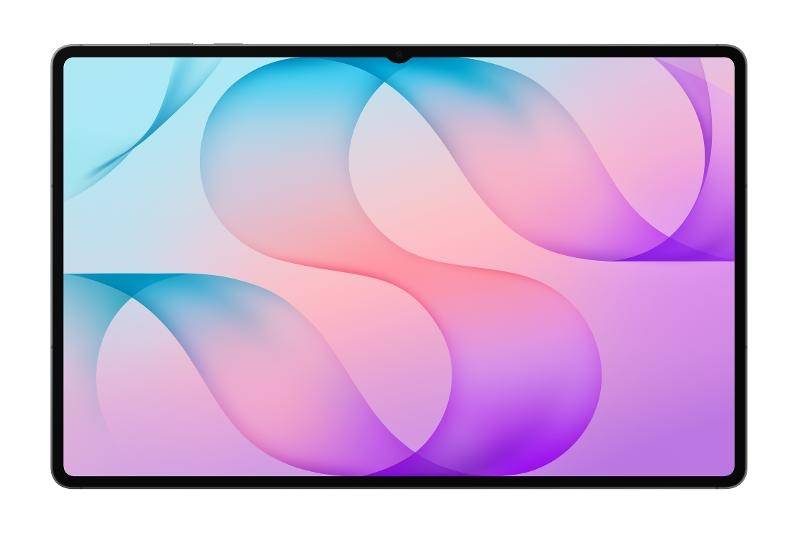
Quick picks for students, researchers, and multitaskers
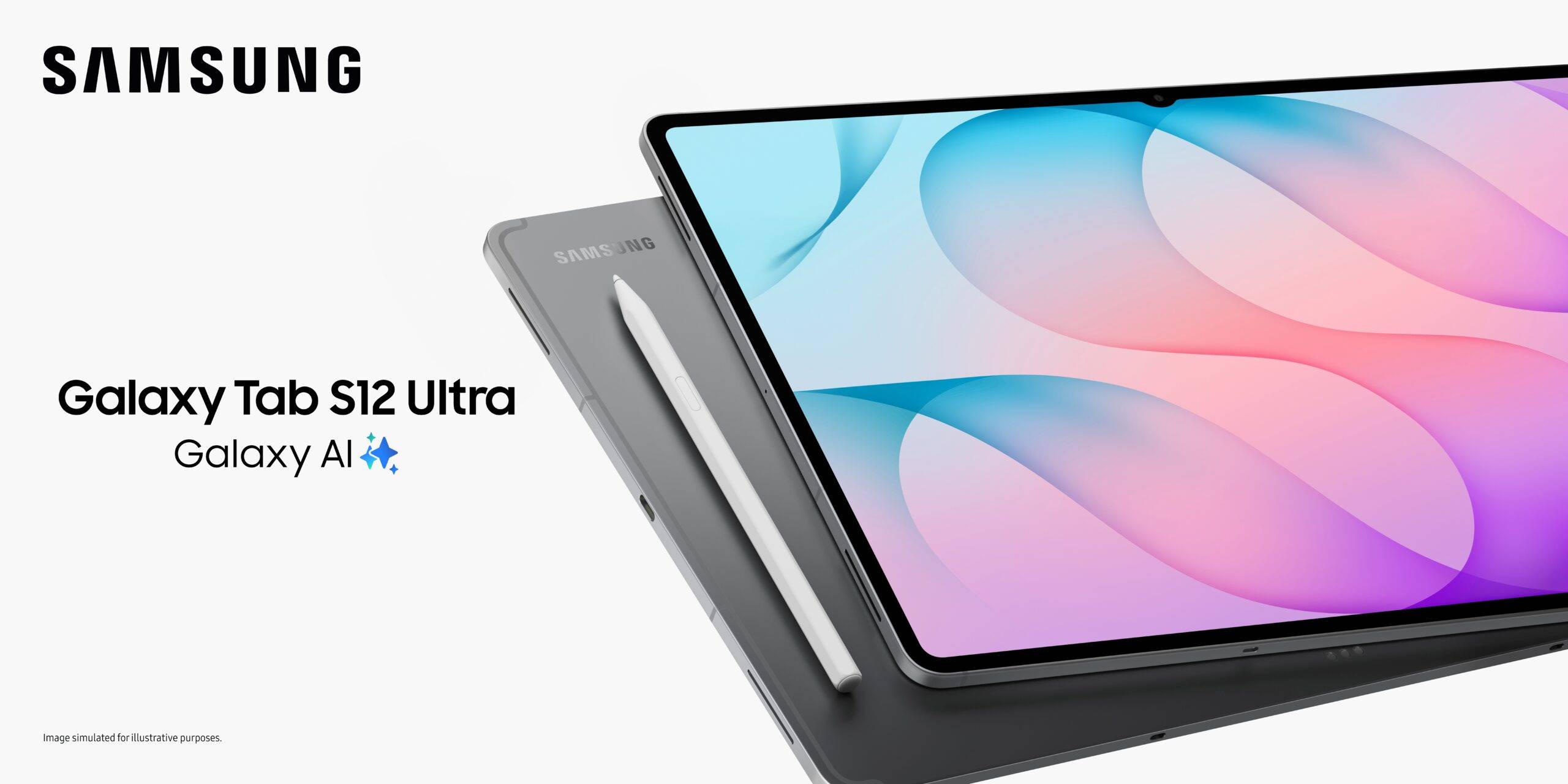
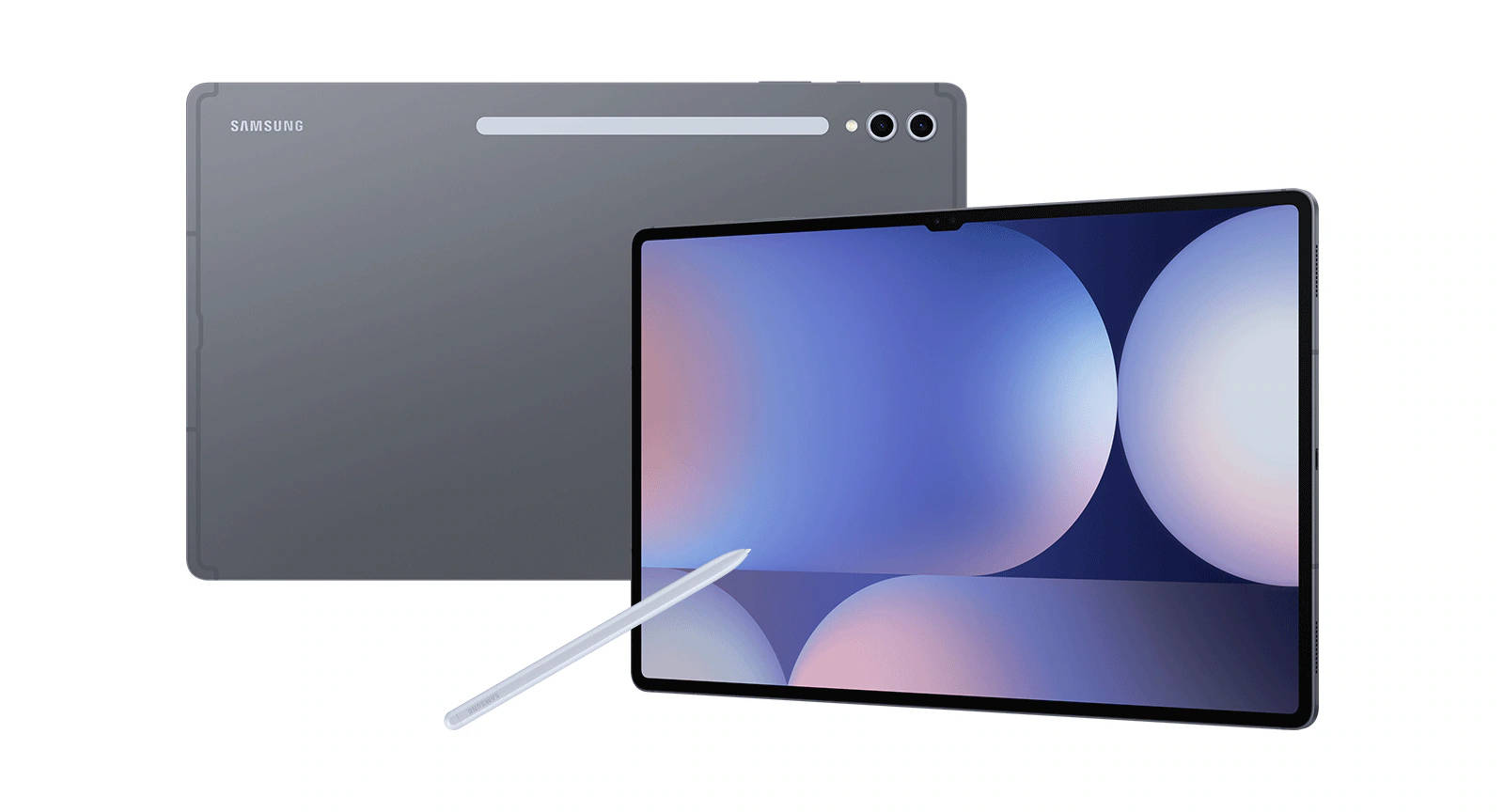
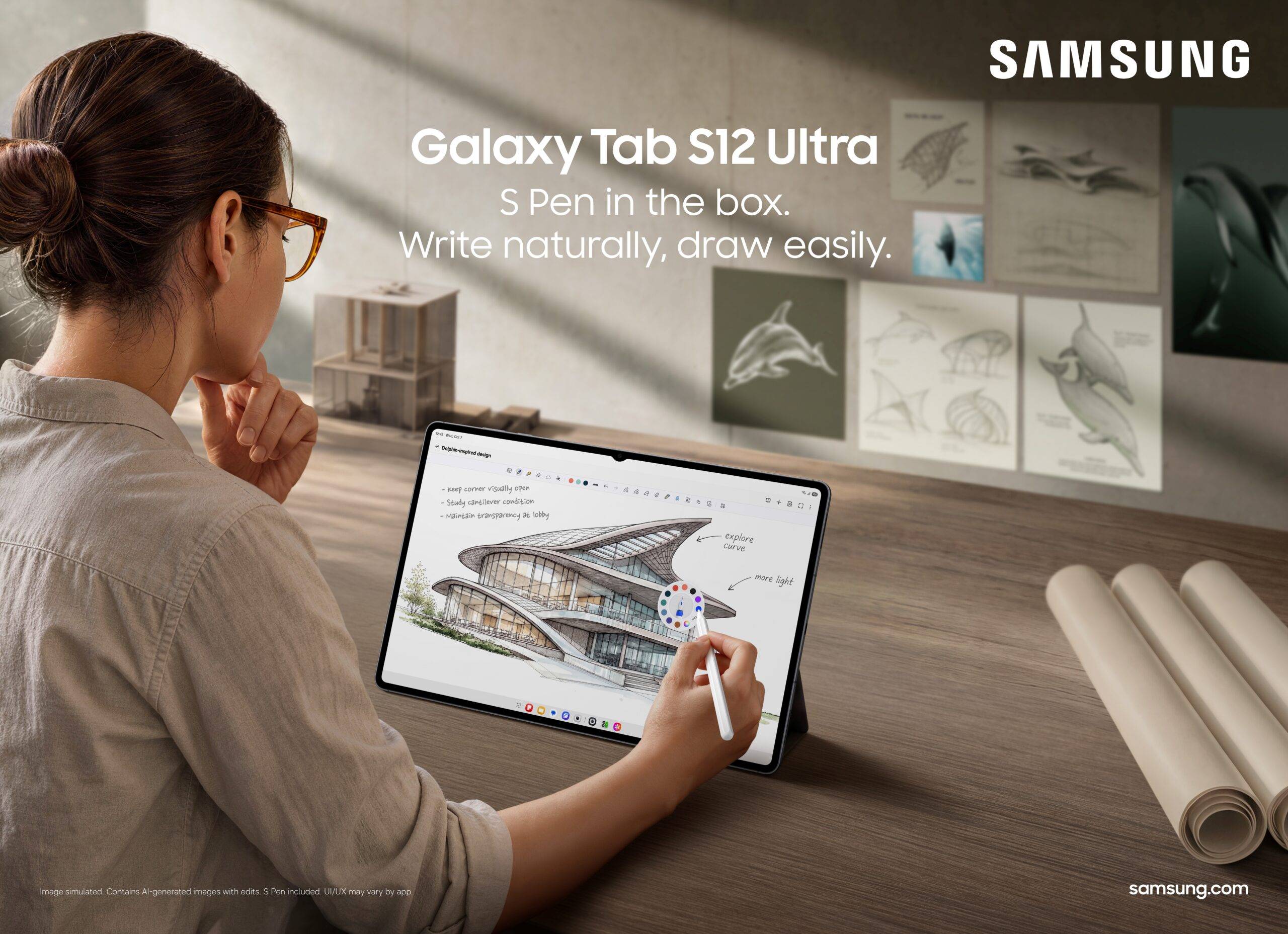
- Best overall for students and researchers: Samsung Galaxy Tab S12 Ultra: The 14.6-inch screen fits a PDF and a page of notes side by side, the S Pen is in the box, and Galaxy AI handles transcripts, summaries, and note formatting.
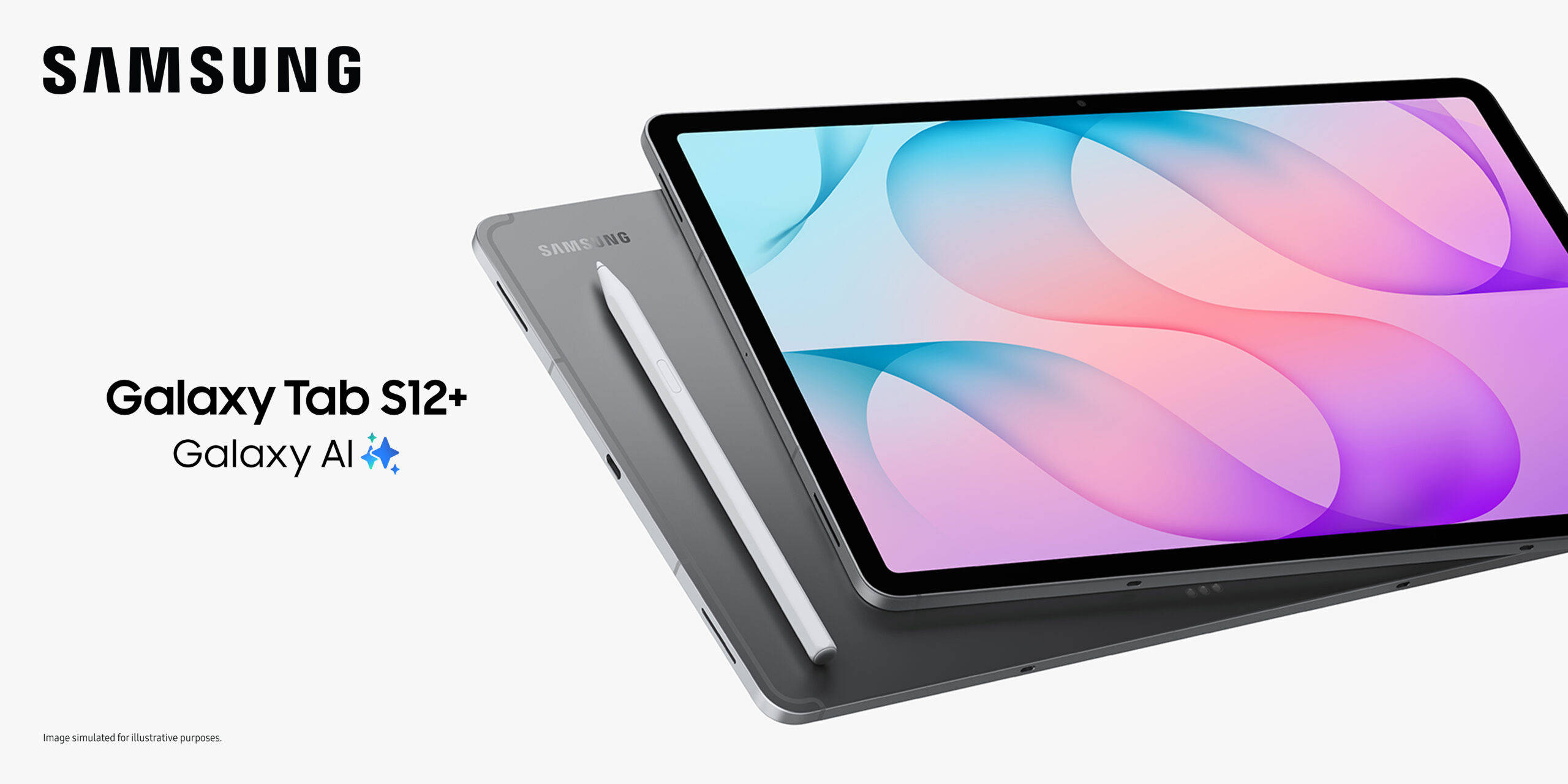
- Best for carrying to every class: Samsung Galaxy Tab S12+: It has a 12.6-inch AMOLED screen in a 553g body, with the same Dimensity 9500 chip and AI features as the Ultra.
- Best value large screen: Samsung Galaxy Tab S10 FE+: A 13.1-inch screen, an included S Pen, and IP68 protection at a much lower price than the flagship models.
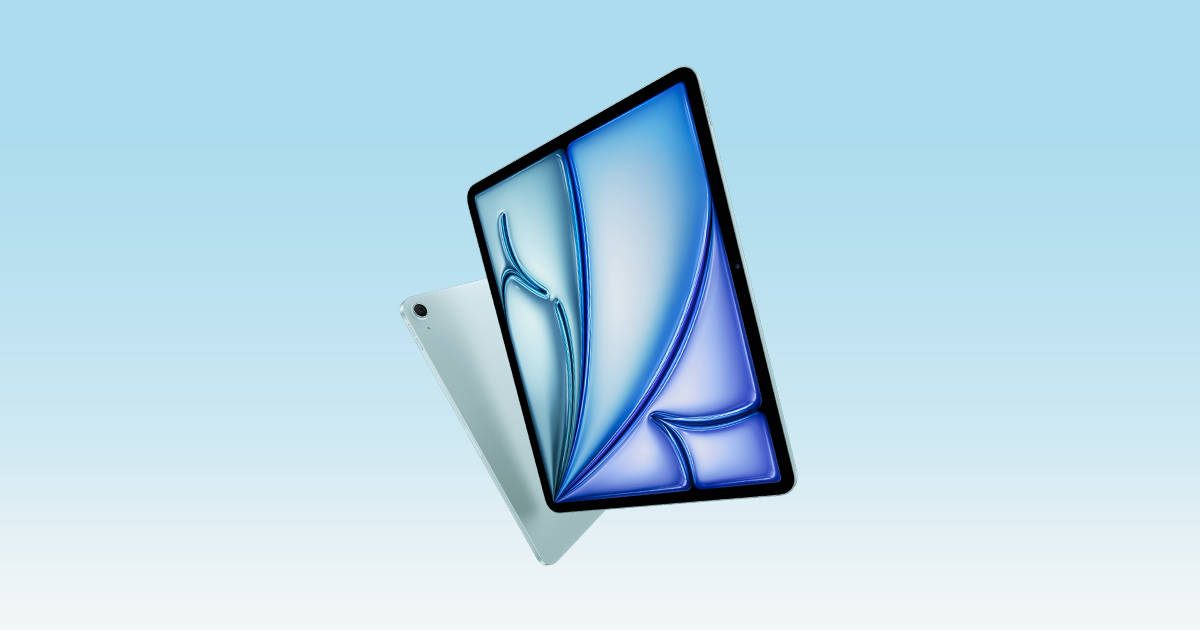
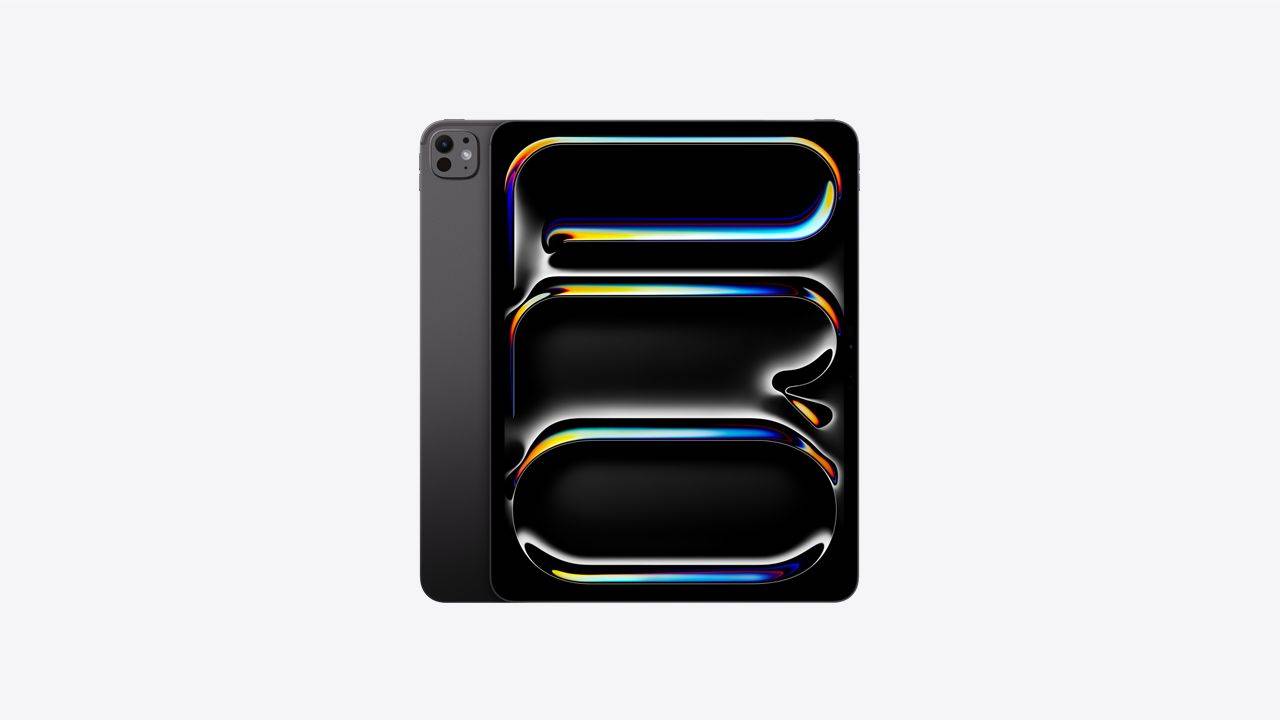
- Best for Apple users: iPad Air or iPad Pro (13-inch): Both work well for handwriting in Apple’s own and third-party apps, though the Apple Pencil is sold separately.
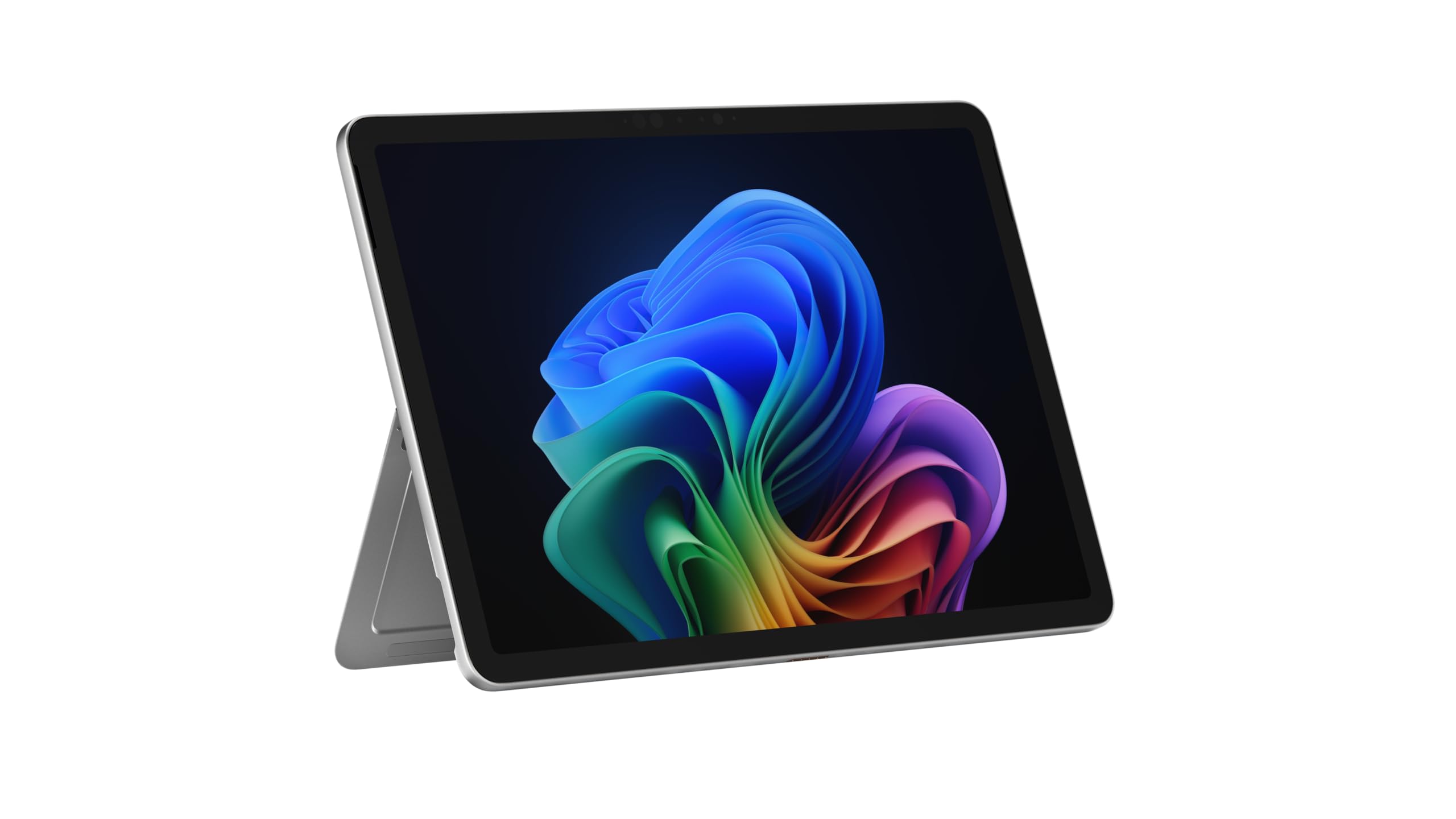
- Best for full Windows software: Microsoft Surface Pro: It suits laptop-style work in desktop apps, with the pen and keyboard bought separately.
Best apps: OneNote for broad device support, Notion for research databases and teamwork, Obsidian for linked notes stored as local files, and Evernote for web clipping, search, and archives.
How tablet choice and note-app choice work together
The tablet decides how notes go in: the pen, the screen size, and how many apps can sit side by side. The app decides what happens to them afterwards: how they are organised, searched, and synced to other devices. A great pen paired with an app that does not sync to a laptop, or a research app that cannot handle handwriting, will feel like a compromise every day.
A simple rule helps. If handwriting and PDF markup are central, choose the tablet first. If notes need to move between a Windows laptop, an Android phone, and a tablet, choose a cross-platform app first. Many AI features also work on typed text rather than ink: Note Assist, for example, works on text in Samsung Notes, so converting handwriting first makes the AI tools far more useful.
How the Leading Tablets Compare for Handwritten Notes
Tablet brands and models at a glance
Three brands lead this comparison, and each takes a different approach to note-taking:
- Samsung: Galaxy Tab S12 Ultra (14.6-inch), Galaxy Tab S12+ (12.6-inch), and Galaxy Tab S10 FE+ (13.1-inch), all running Android with the S Pen in the box.
- Apple: iPad Air (M4) and iPad Pro (M5) in their 13-inch versions, running iPadOS, with the Apple Pencil sold separately.
- Microsoft: Surface Pro in 12-inch and 13-inch sizes, running full Windows 11, with the pen and keyboard sold separately.
Samsung is the only one of the three to include a pen with every model, which makes a real difference to the total cost.
Samsung Galaxy Tab: S Pen, DeX, and multitasking
Samsung’s biggest advantage for note-takers starts in the box. Every Galaxy Tab in this guide, from the Galaxy Tab S10 FE+ to the Galaxy Tab S12 Ultra, includes the S Pen, so there is no extra pen to budget for. On the Galaxy Tab S12 series, Samsung says the S Pen supports ultra-low latency for precise input, which helps notes keep pace with a fast-talking lecturer. Samsung Notes is built around the pen, converting handwriting into typed text, supporting writing on imported PDFs, attaching voice recordings to notes, and solving handwritten or typed maths equations with its Maths solver.
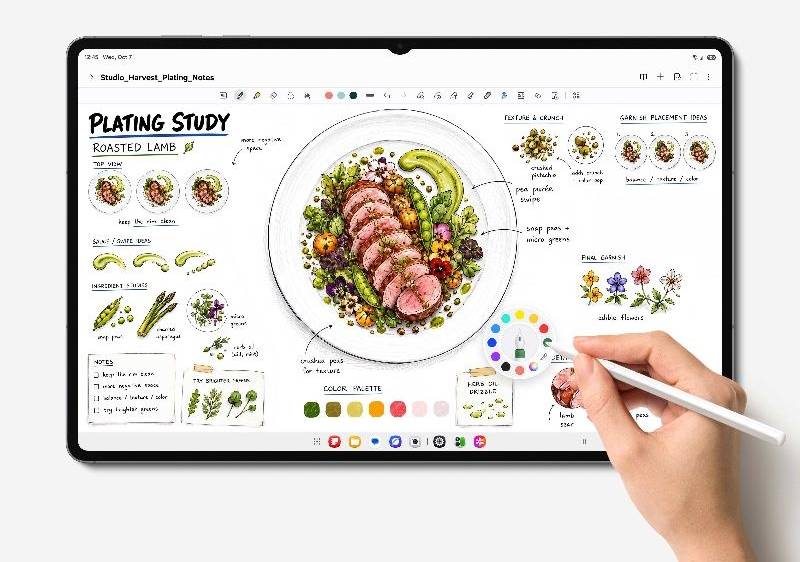
For a student who records a two-hour lecture, the Galaxy Tab S12 series does much of the tidying up afterwards. Transcript Assist turns the recording into text, and Note Assist formats, spell checks, translates, and summarises notes in Samsung Notes, both in Hindi and Gujarati as well as English. On the Galaxy Tab S10 FE+, Handwriting Help straightens out messy handwritten notes.
Multitasking is where the bigger screens earn their size. On the Galaxy Tab S12 series, Multi-Window splits the display into three sections, so a lecture video, the slides, and Samsung Notes all stay in view. For longer sessions, Samsung DeX turns the tablet into a PC-like desktop with up to four workspaces, Now Nudge suggests the next step based on what is on screen, and notes stay in sync with a Galaxy phone for revision on the commute.
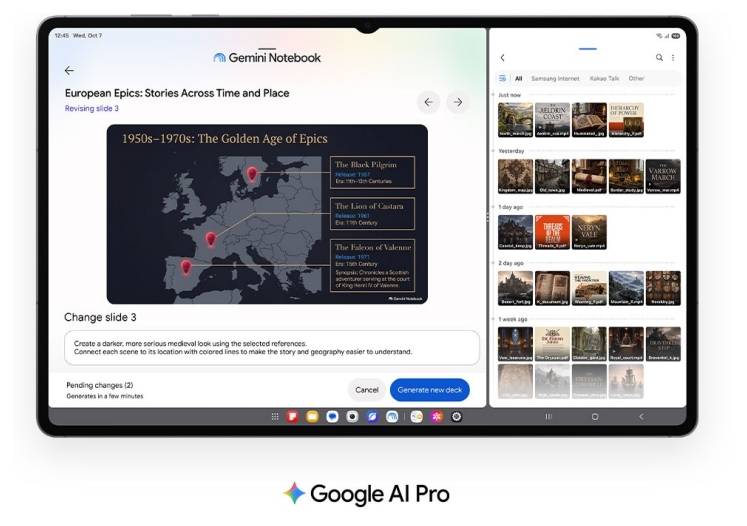
Gemini is built in for questions that come up mid-lecture, and Gemini Notebook turns notes, images, recordings, and files into summaries and quizzes for revision. Notability also comes pre-loaded for anyone who prefers a different style of handwritten notebook.
Choosing between the FE and Ultra models comes down to price, screen, performance, and portability:
Galaxy Tab S10 FE+ | Galaxy Tab S12+ | Galaxy Tab S12 Ultra | |
Starting price (Wi-Fi) | ₹52,780 | ₹1,94,999 | ₹2,24,999 |
Display | 13.1-inch LCD, 2880 x 1800, 90Hz | 12.6-inch Dynamic AMOLED 2X, 2800 x 1752, up to 120Hz | 14.6-inch Dynamic AMOLED 2X, 2960 x 1848, up to 120Hz |
Processor | Exynos 1580 | MediaTek Dimensity 9500 | MediaTek Dimensity 9500 |
Weight and thickness | 664g, 6.0mm | 553g, 5.3mm | 692g, 5.1mm |
Rated battery life | Up to 21 hours of video playback | Up to 21 hours of video playback | Up to 23 hours of video playback |
S Pen | Included | Included | Included |
Durability | IP68 | IP68 | IP68 |
The Galaxy Tab S10 FE+ is the most affordable of the three, and its 13.1-inch screen has plenty of room for notes and PDFs, though it uses a 90Hz LCD and a mid-range Exynos 1580 chip. The Galaxy Tab S12+ is the one to carry all day, at 553g and 5.3mm, while the Galaxy Tab S12 Ultra suits long research sessions, with its 14.6-inch AMOLED screen and the longest rated battery life of the three.
iPad Air and iPad Pro: Apple Pencil and note-taking apps
Apple’s strength for note-takers is its app library. Apple Notes is built in, and the App Store offers handwriting apps such as Goodnotes and Notability alongside OneNote, Notion, Obsidian, and Evernote. At 13 inches, there are two options: the iPad Air with the M4 chip and a Liquid Retina LCD, and the iPad Pro with the M5 chip and a tandem OLED Ultra Retina XDR display. The iPad Pro is also thinner and lighter, at 5.1mm and 579g against the iPad Air’s 6.1mm and 616g.
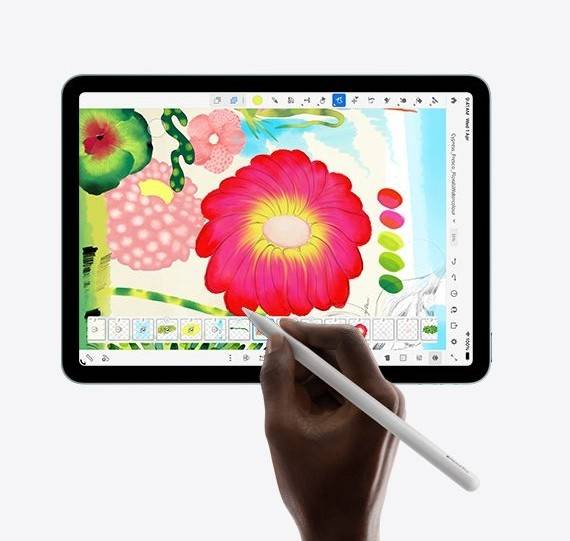
Both work with the Apple Pencil Pro, which supports pressure and tilt, ignores a palm resting on the screen, and adds useful extras: a squeeze for a tool palette, barrel roll for shaped pen and brush tools, haptic feedback, and hover to show where the tip will land. The cheaper Apple Pencil (USB-C) also works, but it lacks pressure sensitivity, so lines do not get thicker or thinner with writing pressure.
Apple Notes handles the basics well. Handwritten notes can be searched, Math Notes solves an equation once an equals sign is written after it, and handwriting can be refined automatically as it is written. Notes can also record and transcribe audio, and Apple Intelligence can summarise the transcript.
The catch is what is not in the box. Neither iPad includes an Apple Pencil, and the Magic Keyboard is also an extra purchase, so the real cost of an iPad note-taking setup is the tablet, a pencil, and often a keyboard, a key difference from a Galaxy Tab with the S Pen included. Apple Intelligence also does not support Hindi, so it offers less help with lectures that switch between Hindi and English.
Surface Pro: Windows software, pen, and laptop-style work
For some researchers and professionals, software decides. A thesis may depend on a particular reference manager, an office may run on Windows-only tools, or a course may need desktop software with no tablet version. The Surface Pro runs full Windows 11, so the same programs used on a Windows laptop can run on the tablet itself.
Microsoft’s current Surface Pro comes in 12-inch and 13-inch sizes, both with Snapdragon X2 chips. The 13-inch model offers OLED or LCD screens at 2880 x 1920 and 120Hz, and weighs 895g without a keyboard, noticeably more than the 692g Galaxy Tab S12 Ultra with its larger 14.6-inch screen. The 12-inch model weighs 686g with a 90Hz LCD, still more than the 553g Galaxy Tab S12+.
On Windows, handwriting is at its best in OneNote, where Ink to Text turns pen notes into typed text, and the pen can also write straight into text boxes across Windows. Microsoft’s Surface Slim Pen supports pressure and tilt with haptic feedback, and Live Captions can translate audio from more than 40 languages, including Hindi, into English captions, processed on the device itself.
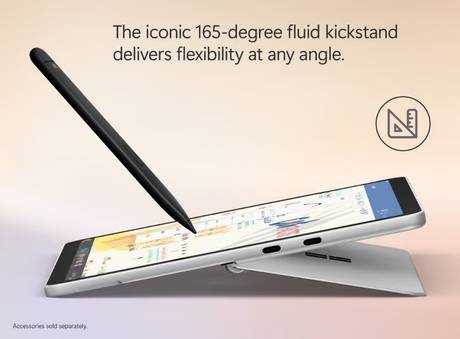
Cost and comfort are the main compromises. The pen and keyboard are sold separately, so both belong in any comparison with a Galaxy Tab that includes the S Pen. The Surface Pro is also happiest on a desk with its keyboard attached rather than held in one hand through a long lecture. And because its Snapdragon chips are Arm-based, apps not built for Arm run through emulation and hardware drivers must support Arm, so essential software and accessories are worth checking before buying.
Best Note-Taking Apps for Research and Cross-Device Sync
All four apps run on Android, iPadOS, and Windows, so they work on any tablet in this guide, but each suits a different way of working. On a Galaxy Tab, Samsung Notes remains the best home for handwriting and PDF markup, while these apps take over where research, sharing, and cross-platform sync matter more.
App | Best for | Handwriting | PDF markup | Sync |
Samsung Notes | Handwriting, PDFs, and lecture recordings on a Galaxy Tab | Built in, with handwriting to text | Built in | Across Galaxy phones and tablets |
OneNote | Flexible notebooks on every device | Built in; ink to text on Windows | PDF printouts on Windows and Mac | Free through OneDrive |
Notion | Research databases and group projects | Not ink-first | Upload and embed | Free cloud sync for personal use |
Obsidian | Linked research in local files | Through community plugins | Viewing only, for now | Paid Obsidian Sync or free third-party storage |
Evernote | Web clipping, search, and archives | Finds handwriting inside images | On iPhone and iPad | Free plan limited to one device |
OneNote for flexible notebooks and broad device support
OneNote suits anyone whose notes need to open everywhere. It is free on Windows, Mac, iPad, iPhone, Android, and the web, and notebooks sync through OneDrive, which includes 5GB of free storage with a Microsoft account. Notes are organised like a ring binder, into notebooks, sections, and pages, with each page a free-form canvas for typed text, handwriting, images, and recordings.
That flexibility makes it one of the better cross-platform apps for handwriting. Ink works across its apps, PDFs can be inserted as printouts and written on in the Windows and Mac apps, and in the Windows app, search can even find handwriting and words spoken in recordings once audio search is switched on. Notebooks stay available offline and can be shared with edit or view access. There are limits, though: OneNote for iPad does not convert handwriting to text, and for home users, Copilot in OneNote needs a Microsoft 365 subscription and works only on Windows.
Notion for research databases and collaboration
For a research project with many moving parts, Notion works more like a database than a notebook. Pages can sit inside databases with table, board, calendar, gallery, list, and chart views, so a literature review can track each paper’s status, authors, and key findings in one place, while backlinks show every page that links to the current one. It runs on the web, Windows, Mac, Android, and iOS, with offline use in the desktop and mobile apps.
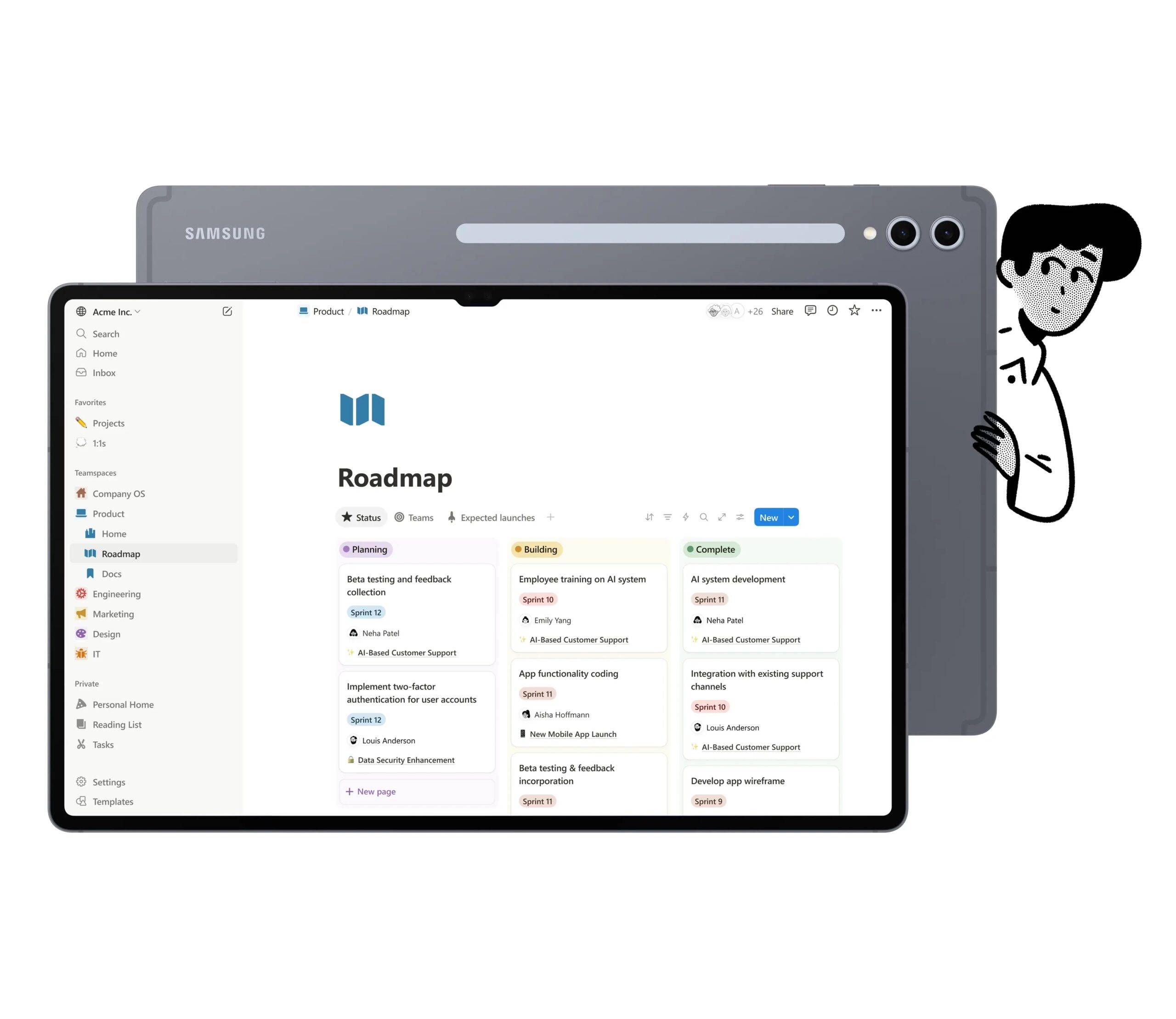
Collaboration is its biggest strength. Pages can be shared with full access, edit, comment, or view permissions, several people can work on the same page at once, and it is free for personal use. It is built around typed pages and databases, though, so handwritten notes are better kept in an ink-first app such as Samsung Notes, and Notion AI, including AI Meeting Notes, is limited to a trial on the Free and Plus plans, with full access on the Business and Enterprise plans.
Obsidian for linked research and local Markdown files
Obsidian is built for researchers who think in connections. Notes are saved as plain Markdown files in a folder on the device, called a vault, so they stay readable in any text editor for years, and no account is needed to start. Links create backlinks automatically, the graph view shows how ideas connect, Canvas lays notes out on an endless board, and Bases adds database-style views to the same files.
It is free for all uses, including work, and runs on Windows, Mac, Linux, Android, and iOS, though not on the web. Sync can go through Obsidian Sync, a paid add-on with end-to-end encryption, or free options such as OneDrive or Google Drive, and more than 4,000 community plugins and themes add tools such as handwriting and AI. There is no built-in handwriting, no PDF annotation yet, and no live co-editing on the same file, so Obsidian suits solo research more than group work.
Evernote for clipping, search, and archived material
Evernote is still one of the best tools for collecting material from the web and finding it again months later. Its free Web Clipper saves full articles, whole pages, selections, or screenshots from Chrome, Firefox, Edge, and Safari, and its search looks inside PDFs and images, including handwritten text. Notes are organised into notebooks, stacks, spaces, and tags across Windows, Mac, iPhone, iPad, Android, and the web, and on iPhone and iPad, it can also annotate images and PDFs.
The free plan is limited to 50 notes, one notebook, and one device, so regular use needs a paid Starter or Advanced plan, which also adds AI transcription and meeting notes.
AI Features, Buying Criteria, and Best-Fit Setups
AI study tablets: what they do and which ones lead
An AI study tablet does more than store notes. It can turn a lecture recording into text, summarise long notes, tidy handwriting, help with maths, and answer questions during revision, ideally in the languages used in class. In this guide, the Galaxy Tab S12 series does the most, with Transcript Assist and Note Assist working in Hindi and Gujarati as well as English, plus Gemini Notebook for revision. The Galaxy Tab S10 FE+ brings Solve Math, Handwriting Help, and Circle to Search for less. The iPads rely on Apple Intelligence, which does not support Hindi, while the Surface Pro leans on Live Captions and Copilot in OneNote.
Lecture transcription, summaries, handwriting search, and AI limits
- Lecture transcription: On the Galaxy Tab S12 series, Transcript Assist transcribes a recording and can summarise or translate it, with support for Hindi and Gujarati as well as English, and the transcript can also be viewed inside Samsung Notes. On the iPad, Apple Notes can record and transcribe audio, though not in Hindi. On the Surface Pro, Live Captions shows real-time English captions for audio in more than 40 languages, which helps students follow a lecture in another language.
- Summaries: Note Assist summarises notes in Samsung Notes in a Standard or Detailed style and reformats them into clean layouts, while Gemini Notebook turns notes, recordings, and files into summaries and quizzes for revision. Apple Intelligence can summarise a transcript in Apple Notes, and Copilot in OneNote can summarise notes in OneNote for Windows with an eligible Microsoft 365 subscription.
- Handwriting search: Search matters most when one equation has to be found in a semester of handwritten notes. OneNote on Windows and Apple Notes can search handwriting directly, and Evernote finds handwritten text inside images. In Samsung Notes, converting handwriting to typed text makes notes easy to search and ready for Note Assist.
- AI limits: These tools save time, but they are not perfect. Samsung advises checking AI results for accuracy, and that applies on every platform. Transcripts can trip over technical terms, names, and numbers, especially in a large hall or when the tablet is far from the lecturer, so it helps to sit closer and compare summaries with the slides. Many features also need an account and an internet connection: Note Assist needs both, while Handwriting Help and Solve Math on the Galaxy Tab S10 FE+ run on the device with just a Samsung account. Recording a lecture is not always allowed, so it is worth checking the college’s rules and asking the lecturer first.
Compare screen size, pen feel, portability, battery, and total cost
Every tablet here looks capable on paper, so it helps to compare what matters over a full semester.
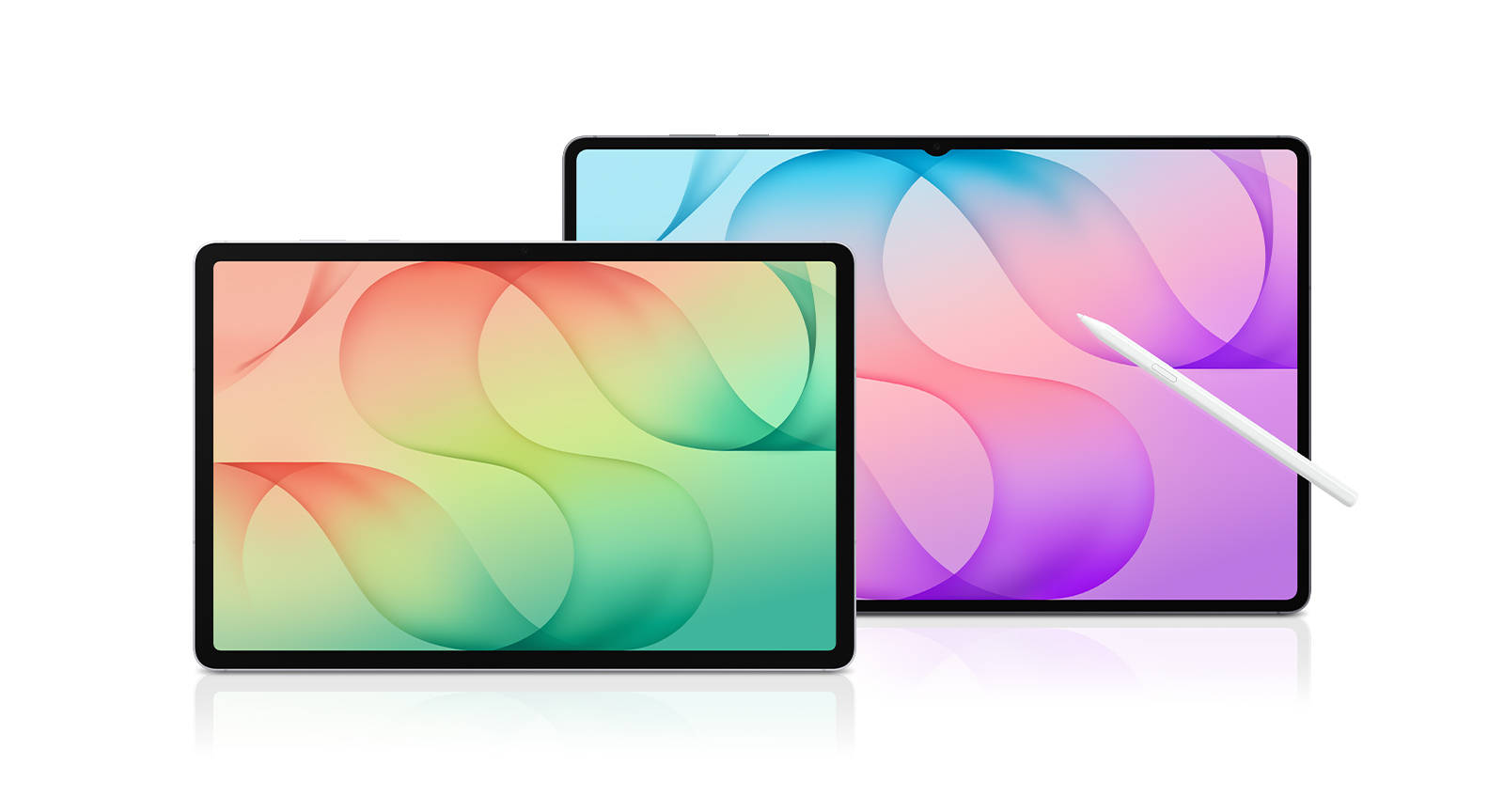
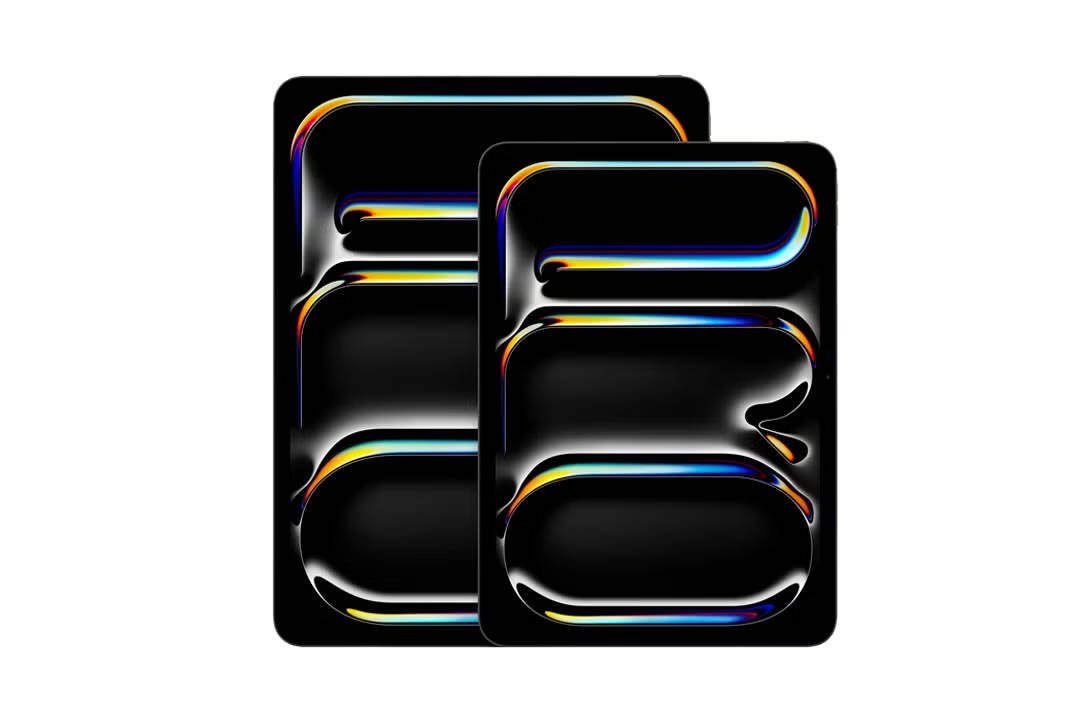
- Screen size: Around 12 to 13 inches suits most students, while 14 inches and above suits researchers who keep two documents open side by side.
- Pen feel: Writing latency, accuracy, palm rejection, pressure and tilt support, and the screen surface all shape how natural handwriting feels, and whether the pen comes in the box matters just as much for the budget.
- Portability: Weight and thickness matter more than they seem when a tablet goes to every class and every meeting.
- Battery: Rated figures come from each brand’s own tests, so high brightness, video calls, and heavy multitasking will shorten them in daily use.
- Total cost: The tablet price is only the start. The pen, a keyboard, and any app subscriptions decide what the full setup really costs.
Tablet | Screen | Weight | Rated battery life | Pen | Starting price |
Galaxy Tab S12 Ultra | 14.6-inch Dynamic AMOLED 2X | 692g | Up to 23 hours (video) | S Pen included | ₹2,24,999 |
Galaxy Tab S12+ | 12.6-inch Dynamic AMOLED 2X | 553g | Up to 21 hours (video) | S Pen included | ₹1,94,999 |
Galaxy Tab S10 FE+ | 13.1-inch LCD | 664g | Up to 21 hours (video) | S Pen included | ₹52,780 |
iPad Pro 13-inch (M5) | 13-inch Ultra Retina XDR (OLED) | 579g | Up to 10 hours (web or video) | Sold separately | ₹1,89,900 |
iPad Air 13-inch (M4) | 13-inch Liquid Retina (LCD) | 616g | Up to 10 hours (web or video) | Sold separately | ₹1,19,900 |
Surface Pro 13-inch | 13-inch OLED or LCD | 895g | Up to 15.5 hours (video) | Sold separately | ₹1,93,990 |
Which tablet-and-app combination fits each workflow?
- College student with a Galaxy phone: Galaxy Tab S12+ with Samsung Notes for lectures and PDFs, synced to the phone for revision on the go, and Notion for group projects.
- Researcher or postgraduate student: Galaxy Tab S12 Ultra with Samsung Notes for reading and annotating papers, Obsidian or Notion for building a linked research library, and DeX for writing sessions with a keyboard.
- Student on a budget: Galaxy Tab S10 FE+ with Samsung Notes for handwriting and PDFs, plus OneNote for notebooks that open on any laptop.
- Professional on a Windows laptop: Galaxy Tab S12 series with OneNote, which keeps notebooks in sync with the work PC through OneDrive, or a Surface Pro for full desktop apps on the go.
- Apple ecosystem user: iPad Air or iPad Pro with Apple Notes or GoodNotes, keeping in mind the extra cost of the Apple Pencil.
- Heavy web researcher: Any of these tablets with Evernote for clipping articles and searching an archive of saved material.
Frequently asked questions about tablets and note-taking apps
Which tablet has the best AI tools for lecture notes?
The Galaxy Tab S12 series offers the most complete set. Transcript Assist turns a lecture recording into a transcript that can be summarised and translated, and Note Assist formats and summarises notes, both in Hindi and Gujarati as well as English. With the S Pen in the box and Gemini Notebook for revision, everything from recording to study notes stays on one tablet.
Which tablet offers the best AI-powered learning experience?
For most students, the Galaxy Tab S12 Ultra. Its 14.6-inch screen shows a lecture, the slides, and Samsung Notes side by side, while Galaxy AI handles transcripts, summaries, and translations, Gemini answers questions as they come up, and Now Nudge suggests what to do next. The Galaxy Tab S12+ offers the same AI features in a lighter body.
What should students check before relying on AI lecture tools?
Accuracy comes first, as transcripts and summaries can miss technical terms, names, and numbers, so they should be checked against the slides or the textbook. Language support matters too: Galaxy AI’s Transcript Assist and Note Assist work in Hindi and Gujarati, while Apple Intelligence does not support Hindi. Students should also check account, internet, and paid-plan requirements, and whether lectures can be recorded.
How can students use split-screen multitasking and Samsung DeX?
On the Galaxy Tab S12 series, Multi-Window splits the screen into three sections, so a recorded lecture, the slides as a PDF, and Samsung Notes can run together. For essays and longer assignments, Samsung DeX switches to a PC-like desktop with up to four workspaces, and the optional Pro Keyboard Cover makes long typing sessions far more comfortable.
Which note-taking apps work best for handwriting and PDF annotation?
On a Galaxy Tab, Samsung Notes is the strongest all-rounder, with handwriting to text, PDF annotation, voice recordings, and Note Assist in one app. Notability, pre-loaded on the Galaxy Tab S12 series, and Goodnotes are strong alternatives for handwritten notebooks and PDFs. OneNote handles handwriting on every platform, while Notion and Obsidian suit typed research better than handwriting.
Which large-screen tablets support pen input and note-taking effectively?
The Galaxy Tab S12 Ultra, Galaxy Tab S12+, and Galaxy Tab S10 FE+ all include the S Pen in the box. The 13-inch iPad Air and iPad Pro support the Apple Pencil Pro and Apple Pencil (USB-C), and the Surface Pro works with the Surface Slim Pen, but both pens are sold separately.
Which notes app is best for organising research and syncing across devices?
It depends on the kind of research. Notion is best for structured projects and group work, with databases, shared pages, and apps for the web, Windows, Mac, Android, and iOS. Obsidian suits researchers who link ideas and want their notes stored as local files, with paid or free ways to sync them. OneNote is the simplest free option for notebooks that open everywhere, and on a Galaxy Tab, any of these works well alongside Samsung Notes for handwriting and PDFs.
Are there any Samsung tablets that are particularly good for note-taking and multitasking for students?
Yes. The Galaxy Tab S12+ and Galaxy Tab S12 Ultra are the strongest choices, with the S Pen in the box, three-way Multi-Window, Samsung DeX, Note Assist, and up to 21 and 23 hours of rated video playback respectively. For a lower budget, the Galaxy Tab S10 FE+ offers a 13.1-inch screen, an included S Pen, Solve Math, and Handwriting Help.
This is a promotional post done as part of a brand collaboration.