
Samsung Galaxy S7 Edge 64GB
+ Compare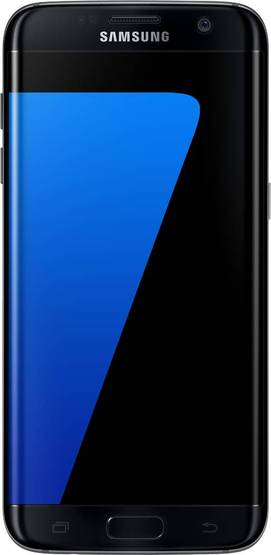

-
Design4

-
Rear Camera8

-
360° View

-
UI Screenshot17
![UI Screenshot]()
-
Benchmarks10
![Benchmarks]()
-
Videos12
![Videos]()


Key Specs
Performance
-
Samsung Exynos 8 Octa 8890 -
Octa core (2.3 GHz, Quad Core + 1.6 GHz, Quad core) -
4 GB RAM
Display
-
5.5 inches (13.97 cm); Super AMOLED (Curved Display) -
1440x2560 px (QHD (2k)) -
Gorilla Glass 4 Protection
Rear Camera
-
Single Camera Setup - 12 MP Wide Angle Primary Camera
-
LED Flash -
4k @30fps Video Recording
Front Camera
-
5 MP Wide Angle Lens -
Full HD @30 fps Video Recording
Battery
-
3600 mAh -
Fast Charging
General
-
SIM1: Nano, SIM2: Nano (Hybrid) -
5G Not Supported -
32 GB / 64 GB / 128 GB Storage, Expandable upto 200 GB -
Dust Resistant, Water Resistant
Samsung Galaxy S7 Edge 64GB Expert Review Summary
Expert Rating:
![Deepak Dhingra]()
Verdict
:We`re just three months into 2016, and right after the barrage of the new launches at MWC, the Samsung Galaxy S7 edge is one of the first premium flagships to land in India. We`re sure we`ll see lots more coming our way, but for now, it seems that Samsung`s latest doesn`t really have any competition. The LG G5 (first impressions) looks like a sweet contender, and with its semi-modular approach, quite innovative too. We`re sure it`s going to be a scorche
Pros
- Looks sexy, survives splashes
- Loaded hardware and software features
- Awesome camera image quality
- Smooth performance and good battery life
Cons
- Slippery as hell
- Heats a tad when stressed
- Random reboots on occasion
- A few issues with the touchscreen
Specs at a glance
+
Display
Read More
Design: it’s the same, but different
+
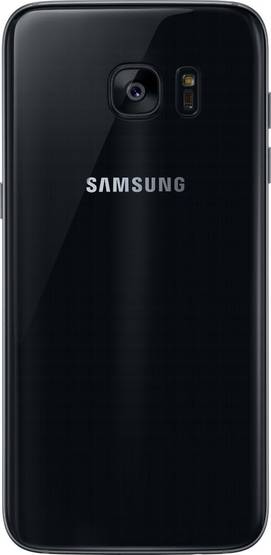
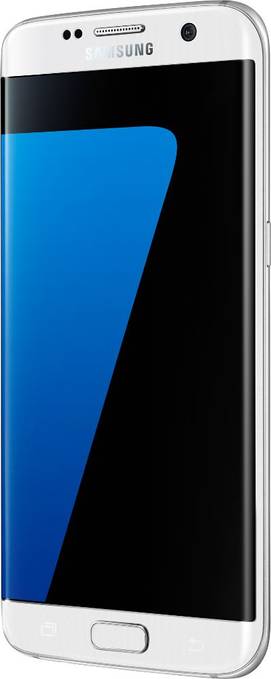
Dimensions: 150.9 x 72.6 x 7.7 mmWeight: 157 gramsAfter facing years of vitriol from fans, enthusiasts and tech reviewers, Samsung adopted a new design language for its premium phones in 2015, and the Galaxy S6 and S6 edge were the first to sport it, followed by the Galaxy S6 edge+ and the Note5 (review). It was pretty much a given that the brand won’t radically change the designs of its flagships this year, and that’s exactly what happened. The Galaxy S7 edge hardly looks any different than the S6 edge / edge+, and while users of the previous models may not have too much here in terms of looks if they want to upgrade, this may not be a bad thing otherwise. You see, we adjudged the S6 edge the sexiest phone of 2015, and the Galaxy S7 edge continues the legacy as it has inherited the same drool-inducing looks.Glass on both sides, held together with a metal frame in the middle – that’s the S7 edge design in a nutshell. The screen that curves on both sides at the front makes the bezels almost non existent, and with a thickness of a mere 7.7mm, the phone feels really slim too. This means the overall size is kept in check, and the phone feels quite compact for its 5.5-inch display.On the flip side, the smooth glass on both sides makes the device extremely slippery, and we had a few heart-stopping moments when it almost slipped through our grasp. The phone’s easy to slip into a pocket, but it slips out quite easily too – something you’d need to keep in mind. Our Onyx black review unit also attracted fingerprints and smudges, much like the proverbial moth to a flame, and we often found ourselves wiping it vigorously to get rid of the ugly marks. A case would obviously take care of both these issues, but that would mean hiding its gorgeous looks. Also worth mentioning that the S7 edge’s slim metal frame makes it a tad uncomfortable to hold, especially in comparison to its S7 cousin that feels more ergonomic and more comfy in terms of handling.Quite notably, the Galaxy S7 edge (along with its S7 sibling), is IP68-certified, which means it can withstand both dust and water.The last time we’d seen a mainstream water-resistant phone from Samsung was the Galaxy S5 (review), and it seemed the brand forgot all about this super-useful feature after that. Better late than never, as they say, so it’s great to see these capabilities back on the company’s latest flagship duo.As per the IP68 rating, you can use the S7 and S7 edge during a sandstorm (as an example) or submerse them into up to 1.5m deep water for up to 30 minutes without fear of damage. However, you should note that a few recent reports have indicated it may not be such a good idea to actually dunk these phones into water (or beer any other liquid for that matter). You should have no reason to worry if you manage to get your S7 or S7 edge drenched in the rain or spill a glass of water on it though.If you recall, the Galaxy S5’s charging and data transfer port (which supported USB 3.0 no less), was covered by an ugly plastic tab to keep water out. No such covers or tabs are present on the S7 edge though, so both the micro-USB port and 3.5mm audio socket (both located at the bottom along with the speaker), are open to the elements. The slim metal frame holds two discrete volume keys on the left, while the power key is on the right. The top is where you’ll find the secondary microphone, along with an ejectable SIM tray that accepts a pair of nano-SIMs. Yep, this is a dual-SIM phone, and interestingly, it’s a hybrid dual-SIM phone… which means you can pop in a microSD card to add more storage if you wish, but at the cost of forsaking the dual-SIM capabilities. The front of the phone is dominated by the screen that curves on both sides, with Samsung branding and the usual earpiece, sensors, front shooter and notification LED on top, and the pill-shaped physical home key at the bottom. This key integrates a fingerprint scanner, and is flanked by a couple of backlit navigation keys on either side.At the rear, you’ll see the rectangular window that covers the camera lens, sitting almost flush with the body… only the protective frame that encircles it juts out slightly. Next to it is the module that contains the flash and the heart rate monitor, with the latter being yet another staple feature we’ve come to expect from Samsung’s flagships.We’ll reiterate… the S7 edge is a gorgeous, gorgeous smartphone, and we won’t be surprised if it runs away with the sexiest phone of the year title this year… and we’re saying this when we’re just a quarter into 2016 and we’re bound to come across some nicely-designed phones later.
Read More
Display: curvy and edgy
+
Size: 5.5 InchResolution: 1440 x 2560 pixelsDisplay Type: Super AMOLEDPixel Density: 534 ppiSamsung makes capable displays and its Super AMOLED panels we saw on its flagships last year bear testimony to that fact. It hasn’t changed the formula much, so with the S7 edge, you get a lovely 5.5-inch screen that’s crammed with 2K goodness and is a visual treat.The 534ppi pixel density, combined with the company’s Super AMOLED tech makes the S7 edge’s screen quite sharp and vivid – the text is crisp, the icons float, the images pop and the videos look great. The viewing angles are really good, and we never faced any issues with sunlight legibility either.The touchscreen sensitivity is fine, and even though there’s no dedicated glove mode, you shouldn’t have any issues. For tweaking the screen output, you can choose between Adaptive display, AMOLED cinema, AMOLED photo and basic modes… options that adjust colour range, saturation and sharpness depending upon what you want. These are available under display settings of course.The S7 edge also offers a night clock option, allowing you to set timings for it to display a clock on the edge screen. Of course, we’ve seen that feature on the Note Edge and the S6 edge earlier, but what’s new is the Always-on display (AOD) feature.This basically shows the time, date, remaining battery level and notification indicators on the screen at all times, except when it senses that the phone is inside your pocket or bag. The clock style can be customised, and you can also change the background image by picking one from the list available. Or you could choose to display the month’s calendar alongside the clock, or just an image from a list of three available. Somewhat similar to the Glance screen feature we’ve seen on Lumia (and even Motorola) phones earlier, the AOD feature is purely informative in nature and doesn’t allow any interaction. We still found it useful, though you can choose to turn it off if you wish. It also consumes some battery, though we don’t think the impact was large enough to compel us to turn it off.What did turn us off though, were a few issues with the edge display. Rarely, we found the S7 edge’s screen unresponsive while holding the phone from the sides. The sides of the phone are too thin to avoid touching the curved sides of the screen completely, and this is exactly what seemed to be the issue. Again, these issues happened only rarely, but seem to bring down the user experience by a few notches. What seems like a bigger issue is that due to the curved screen, using the onscreen keyboard can be a problem sometimes, specifically the virtual keys that appear on the extreme edges, i.e., on the curved sides. Nothing that hitting a few backspaces and typing again can’t sort out, but an issue nonetheless.
Read More
Software: a nice touch(wiz)
+
Operating System: AndroidOS Version: 6.0, MarshmallowRemember the days when Samsung’s Touchwiz used to be so loaded with features and options that the term ‘feature spam’ was coined to describe it? That’s all water under the bridge, and has been since quite a while now. Yeah, you can probably still berate it for its cartoony icons, but otherwise, the UI is pretty lean, at least in terms of the visuals. It keeps most things simple, and the advanced options are tucked away into settings. The Galaxy S7 edge runs Android Marshmallow of course, and we’d have expected nothing less. The newer platform brings with it its own special goodies, such as runtime permissions and the entire shebang, though you won’t probably notice most of it, thanks to the Touchwiz skin it wears. What’s missing is the adoptive storage bit, arguably, one of the best features of Android Marshmallow. In case you aren’t aware, Marshmallow allows you to use microSD card storage as internal memory, which is obviously a really handy feature to have. For some reason, Samsung hasn’t utilised it on the S7 duo, which is a shame. Of course, adoptive storage is infinitely more useful on phones that are low on internal storage and with the 32GB (about 25 gigs accessible) on the S7 edge, it’s not as critical. There are a few hacks that can give you adoptive storage on the S7 and S7 edge, but nothing like having it out of the box. Coming back to Touchwiz on the S7 edge, you get the usual mix – multiple homescreens, dedicated app drawer, the usual bunch of apps from Samsung, Google and even Microsoft thrown in, customisable screen grid, theme support, and the Flipboard-powered news aggregator dubbed Briefing (gets a dedicated space on the side of the home screens). Apps from Samsung include the likes of S Voice, S Planner, Samsung Gear (bloatware if you don’t have one of Samsung’s Gear S2 or other compatible wearables), My Galaxy etc. S Health is also there too, and ties in neatly with the heart rate monitor, the SpO2 sensor etc, also acting as the hub for the data related to your health and fitness - physical activities like running or cycling, and logging weight, blood pressure, sleep, water intake, etc. Samsung still hasn’t taken the gesture route we’ve seen quite a few other brands do… so you don’t get support for screen-off gestures like double tap to wake or that gimmicky way of launching apps by scribbling characters on the screen. You do however, get multi-window (accessible by long pressing the recents key) and pop-up view (floating windows for compatible apps, accessing by swiping downwards diagonally from either corner at the top). Other Samsung features like Smart stay, Smart capture, Direct call, Smart alert etc are all there too… all found under Advanced features in settings. Samsung has also added some more experimental features under a head labelled Galaxy Labs, also found under Advanced features. Here, you’ll find an option to show all apps on the home screens (killing the dedicated app drawer in the process), much like most interfaces found on phones from Chinese brands like Xiaomi, Gionee and OPPO. Another feature is Quick Dial, which lets you make a call by keeping the home button pressed and uttering the name of a contact.A permissions manager and SOS alert feature can also be found under Privacy and safety. For newbies and the elderly, there’s an easy mode as well that switches the launcher to an easy-to-use interface. Also on offer is a DND mode, plus a Smart Manager that integrates a battery manager, storage manager, RAM cleaner and device security. One of the most interesting new features comes in the form of a Game Launcher. This is a feature meant for those who love laying games on their smartphones, and provides some very cool and useful functionality while gaming. For one, you can choose to conserve battery while playing games by restricting frame rate to 30 fps, and reducing screen resolution. There’s also an option to block alerts while gaming for uninterrupted gameplay.You can also enable Game Tools, which makes a small, floating button appear on the side of the screen when you’re gaming, and this button provides options such as locking the recents and back keys, capturing screenshots, recording the gaming sessions as videos and minimising the game. While we used the word ‘interesting’ to describe these, we don’t think these new game-related features would be used by many users, but avid gamers should definitely find them handy. And since we’re talking about the S7 edge, how can we miss its signature Edge screen features? The Edge panels can be accessed by sliding out the handle visible on the right of the screen by default… and the position, size and transparency of this handle can be adjusted as well. Apart from people and apps, the Edge panels now include a Tasks edge as well, plus panels from third-party providers like Yahoo! News. More panels can be downloaded too, and these include free ones like a RAM usage manager and Trends from Twitter, plus paid ones like a call log panel, messages panel, and a file manager panel. To make best use of the available panels, we would recommend sticking to just two or three here (up to nine can be enabled), since having more enabled would mean a lot of swiping to get to the one you need, which kind of defeats the purpose. While we’re at it, a note about the fingerprint sensor on the home button. The device can store a max of four fingerprints, unlike most others that usually store up to five. The S7 edge’s fingerprint scanner works quickly and accurately, though we did need to enter the PIN sometimes when it did fail to recognise our God-given stylus.Suffice to say that the Galaxy S7 edge shouldn’t leave you wanting for more when it comes to software features and functionality, and crams in quite a few things useful for casual users, power users and games alike.
Read More
Camera: murdering the digicam in cold blood
+
Primary camera: 12 MPFlash: LED FlashSecondary camera: 5 MPThe S6 series last year, along with the Note5, all came with 16-meg primary cameras. And they were all exemplary shooters too – pretty much the best and most versatile smartphone cameras. But that was last year. This time, Samsung has changed tact, and defied the norms by actually reducing the megapixel count. However, it has added enough tech wizardry in an attempt to up the ante. Samsung says the S7 and S7 edge feature lenses with f/1.7 apertures and also come with optical image stabilisation and sensors that boast a larger (1.4 microns) pixel size to capture more light. The new flagships also boast Dual Pixel tech that promises great shots, and phase detection autofocus for fast focussing. The available camera modes include the likes of Auto HDR, selective focus, live broadcast, slow mo and hyperlapse. There’s a Pro mode that allow greater creative control, and also allows you to shoot stills in RAW if you wish. The primary cameras are capable of shooting 4K video as well. More shooting modes like Dual Camera, Surround Shot, Beauty face, GIF etc can be downloaded.Coming to the image quality, it seems Samsung has aced it and taken things to a totally new level. The images we captured from the S7 edge are no less than stunning… and we aren’t talking about just daylight shots. Most smartphone cameras can take decent shots if there’s enough light, and with a flagship like this one, it was given that we’ll get to see some great daylight shots. And we did. The focussing speeds are blazing fast, and we were able to get shots without blur even from moving vehicles. Everything from landscapes to close-ups, HDR to long shots, looked pristine. What’s really surprising is the image quality in low light – the shots look quite scrumptious. In that respect, the S7 edge (and we’re also counting the S7 here), blows everything else right out of the water. While it can’t do wonders in pitch dark situations, understandably, it can capture decent shots even if there’s a tiny bit of ambient light available. However, moving subjects do get blurred in low light. Hyperlapse videos turn out nice too, and so do 4K videos. In terms of capturing slo-mo videos, we do find the S7 edge slightly lacking though, especially when compared to the ones we captured using an Apple iPhone 6s Plus. The ones from the iPhone looked much smoother, but other than that, we think Samsung has a winner here. The front 5-meg shooter on the S7 edge takes some nice selfies too, and worth noting that it also has the screen flash feature that brightens up the screen before clicking a low-light selfie – and it works well too. You should check out our detailed camera review of the Galaxy S7 (the S7 edge has the same camera, so the results should be the same). And since we can’t stop sharing the images we captured from the S7 edge, we’ll add some more here.
Read More
Performance: seriously fast
+
CPU: Quad core, 2.3 GHz + Quad cor...GPU: Mali-T880 MP12RAM: 4 GBMemory: 32 GB + Up to 200 GBSIM Slots: Dual SIM , GSM+GSMBattery: 3600 mAHWell, one can’t expect a premium flagship to display sluggishness or lag, and the Samsung Galaxy S7 edge doesn’t disappoint. The model available in India has an octa-core Exynos 8890 chip ticking under the hood (there’s a version powered by Snapdragon 820 too, but that’s not available in India), so you get four cores clocked at 2.3GHz and four more running at 1.6GHz. There’s 4 gigs of RAM (up from 3GB in the S6 and S6 edge), plus Mali-T880 MP12 graphics.And we simply couldn’t get the combination to stutter – believe us, we tried. The S7 edge just breezes through anything thrown at it – from simple, day-to-day apps, to graphics-heavy games. The usage is quite smooth – no signs of any lag whatsoever. The phone does tend to get a little hot when stressed, but it didn’t get too hot to handle.That’s not to say we have no gripes regarding performance at all. We did notice a few random reboots on occasion, and that did kill the high for us. This issue was especially apparent while shooting 4K video and simultaneously clicking stills. Worth mentioning that the issue seemed to disappear when we made more room in the storage by deleting stuff, as the internal memory was a tad low at that point. However, some random restarts were seen otherwise too, when the phone was just sitting idle. We sure hope this was an issue just with our review unit and isn’t a more widespread phenomenon, and we’re willing to give it the benefit of doubt here.The phones are loaded when it comes to connectivity, so you get 4G, NFC, USB OTG, dual-band Wi-Fi (with 802.11 ac), ANT+, Wi-Fi Direct, hotspot, A-GPS, GLONASS, and BDS. Samsung’s Download Booster feature, which combines Wi-Fi and 4G networks to download large files, is there too. As far as storage is concerned, over 24GB can be used out of the 32GB built-in. More can be added via the hybrid SIM slot, and microSD cards up to 200GB in capacity are supported.Talking about the battery life, Samsung has upped the game yet again, especially compared to its previous flagships. The 3,600mAh sealed battery inside the S7 edge lasted us a whopping 18 hours in our battery drain test, wherein we loop a 720p video with screen brightness and volume levels set to 50 percent. In real-life usage though, we consistently returned home with about 40-50 percent juice still left in the tank, but heavier usage saw it last a full day with ease. The battery drain on standby seems slightly higher than normal however. That didn’t seem like a huge issue to us, and unless you really push it, we’d say you’re looking at charging it on a nightly basis to ensure full usage the next day. Speaking about charging, it juices up quite quickly, as fast charging is supported. And if you splurge a tad extra on a compatible wireless charger, you can charge it sans wires too.
Read More
Read full Review

Verdict
:We`re just three months into 2016, and right after the barrage of the new launches at MWC, the Samsung Galaxy S7 edge is one of the first premium flagships to land in India. We`re sure we`ll see lots more coming our way, but for now, it seems that Samsung`s latest doesn`t really have any competition. The LG G5 (first impressions) looks like a sweet contender, and with its semi-modular approach, quite innovative too. We`re sure it`s going to be a scorche
- Looks sexy, survives splashes
- Loaded hardware and software features
- Awesome camera image quality
- Smooth performance and good battery life
Pros
- Slippery as hell
- Heats a tad when stressed
- Random reboots on occasion
- A few issues with the touchscreen
Cons
Specs at a glance
+Display
Read MoreDesign: it’s the same, but different
+Dimensions: 150.9 x 72.6 x 7.7 mmWeight: 157 gramsAfter facing years of vitriol from fans, enthusiasts and tech reviewers, Samsung adopted a new design language for its premium phones in 2015, and the Galaxy S6 and S6 edge were the first to sport it, followed by the Galaxy S6 edge+ and the Note5 (review). It was pretty much a given that the brand won’t radically change the designs of its flagships this year, and that’s exactly what happened. The Galaxy S7 edge hardly looks any different than the S6 edge / edge+, and while users of the previous models may not have too much here in terms of looks if they want to upgrade, this may not be a bad thing otherwise. You see, we adjudged the S6 edge the sexiest phone of 2015, and the Galaxy S7 edge continues the legacy as it has inherited the same drool-inducing looks.Glass on both sides, held together with a metal frame in the middle – that’s the S7 edge design in a nutshell. The screen that curves on both sides at the front makes the bezels almost non existent, and with a thickness of a mere 7.7mm, the phone feels really slim too. This means the overall size is kept in check, and the phone feels quite compact for its 5.5-inch display.On the flip side, the smooth glass on both sides makes the device extremely slippery, and we had a few heart-stopping moments when it almost slipped through our grasp. The phone’s easy to slip into a pocket, but it slips out quite easily too – something you’d need to keep in mind. Our Onyx black review unit also attracted fingerprints and smudges, much like the proverbial moth to a flame, and we often found ourselves wiping it vigorously to get rid of the ugly marks. A case would obviously take care of both these issues, but that would mean hiding its gorgeous looks. Also worth mentioning that the S7 edge’s slim metal frame makes it a tad uncomfortable to hold, especially in comparison to its S7 cousin that feels more ergonomic and more comfy in terms of handling.Quite notably, the Galaxy S7 edge (along with its S7 sibling), is IP68-certified, which means it can withstand both dust and water.The last time we’d seen a mainstream water-resistant phone from Samsung was the Galaxy S5 (review), and it seemed the brand forgot all about this super-useful feature after that. Better late than never, as they say, so it’s great to see these capabilities back on the company’s latest flagship duo.As per the IP68 rating, you can use the S7 and S7 edge during a sandstorm (as an example) or submerse them into up to 1.5m deep water for up to 30 minutes without fear of damage. However, you should note that a few recent reports have indicated it may not be such a good idea to actually dunk these phones into water (or beer any other liquid for that matter). You should have no reason to worry if you manage to get your S7 or S7 edge drenched in the rain or spill a glass of water on it though.If you recall, the Galaxy S5’s charging and data transfer port (which supported USB 3.0 no less), was covered by an ugly plastic tab to keep water out. No such covers or tabs are present on the S7 edge though, so both the micro-USB port and 3.5mm audio socket (both located at the bottom along with the speaker), are open to the elements. The slim metal frame holds two discrete volume keys on the left, while the power key is on the right. The top is where you’ll find the secondary microphone, along with an ejectable SIM tray that accepts a pair of nano-SIMs. Yep, this is a dual-SIM phone, and interestingly, it’s a hybrid dual-SIM phone… which means you can pop in a microSD card to add more storage if you wish, but at the cost of forsaking the dual-SIM capabilities. The front of the phone is dominated by the screen that curves on both sides, with Samsung branding and the usual earpiece, sensors, front shooter and notification LED on top, and the pill-shaped physical home key at the bottom. This key integrates a fingerprint scanner, and is flanked by a couple of backlit navigation keys on either side.At the rear, you’ll see the rectangular window that covers the camera lens, sitting almost flush with the body… only the protective frame that encircles it juts out slightly. Next to it is the module that contains the flash and the heart rate monitor, with the latter being yet another staple feature we’ve come to expect from Samsung’s flagships.We’ll reiterate… the S7 edge is a gorgeous, gorgeous smartphone, and we won’t be surprised if it runs away with the sexiest phone of the year title this year… and we’re saying this when we’re just a quarter into 2016 and we’re bound to come across some nicely-designed phones later.
Read MoreDisplay: curvy and edgy
+Size: 5.5 InchResolution: 1440 x 2560 pixelsDisplay Type: Super AMOLEDPixel Density: 534 ppiSamsung makes capable displays and its Super AMOLED panels we saw on its flagships last year bear testimony to that fact. It hasn’t changed the formula much, so with the S7 edge, you get a lovely 5.5-inch screen that’s crammed with 2K goodness and is a visual treat.The 534ppi pixel density, combined with the company’s Super AMOLED tech makes the S7 edge’s screen quite sharp and vivid – the text is crisp, the icons float, the images pop and the videos look great. The viewing angles are really good, and we never faced any issues with sunlight legibility either.The touchscreen sensitivity is fine, and even though there’s no dedicated glove mode, you shouldn’t have any issues. For tweaking the screen output, you can choose between Adaptive display, AMOLED cinema, AMOLED photo and basic modes… options that adjust colour range, saturation and sharpness depending upon what you want. These are available under display settings of course.The S7 edge also offers a night clock option, allowing you to set timings for it to display a clock on the edge screen. Of course, we’ve seen that feature on the Note Edge and the S6 edge earlier, but what’s new is the Always-on display (AOD) feature.This basically shows the time, date, remaining battery level and notification indicators on the screen at all times, except when it senses that the phone is inside your pocket or bag. The clock style can be customised, and you can also change the background image by picking one from the list available. Or you could choose to display the month’s calendar alongside the clock, or just an image from a list of three available. Somewhat similar to the Glance screen feature we’ve seen on Lumia (and even Motorola) phones earlier, the AOD feature is purely informative in nature and doesn’t allow any interaction. We still found it useful, though you can choose to turn it off if you wish. It also consumes some battery, though we don’t think the impact was large enough to compel us to turn it off.What did turn us off though, were a few issues with the edge display. Rarely, we found the S7 edge’s screen unresponsive while holding the phone from the sides. The sides of the phone are too thin to avoid touching the curved sides of the screen completely, and this is exactly what seemed to be the issue. Again, these issues happened only rarely, but seem to bring down the user experience by a few notches. What seems like a bigger issue is that due to the curved screen, using the onscreen keyboard can be a problem sometimes, specifically the virtual keys that appear on the extreme edges, i.e., on the curved sides. Nothing that hitting a few backspaces and typing again can’t sort out, but an issue nonetheless.
Read MoreSoftware: a nice touch(wiz)
+Operating System: AndroidOS Version: 6.0, MarshmallowRemember the days when Samsung’s Touchwiz used to be so loaded with features and options that the term ‘feature spam’ was coined to describe it? That’s all water under the bridge, and has been since quite a while now. Yeah, you can probably still berate it for its cartoony icons, but otherwise, the UI is pretty lean, at least in terms of the visuals. It keeps most things simple, and the advanced options are tucked away into settings. The Galaxy S7 edge runs Android Marshmallow of course, and we’d have expected nothing less. The newer platform brings with it its own special goodies, such as runtime permissions and the entire shebang, though you won’t probably notice most of it, thanks to the Touchwiz skin it wears. What’s missing is the adoptive storage bit, arguably, one of the best features of Android Marshmallow. In case you aren’t aware, Marshmallow allows you to use microSD card storage as internal memory, which is obviously a really handy feature to have. For some reason, Samsung hasn’t utilised it on the S7 duo, which is a shame. Of course, adoptive storage is infinitely more useful on phones that are low on internal storage and with the 32GB (about 25 gigs accessible) on the S7 edge, it’s not as critical. There are a few hacks that can give you adoptive storage on the S7 and S7 edge, but nothing like having it out of the box. Coming back to Touchwiz on the S7 edge, you get the usual mix – multiple homescreens, dedicated app drawer, the usual bunch of apps from Samsung, Google and even Microsoft thrown in, customisable screen grid, theme support, and the Flipboard-powered news aggregator dubbed Briefing (gets a dedicated space on the side of the home screens). Apps from Samsung include the likes of S Voice, S Planner, Samsung Gear (bloatware if you don’t have one of Samsung’s Gear S2 or other compatible wearables), My Galaxy etc. S Health is also there too, and ties in neatly with the heart rate monitor, the SpO2 sensor etc, also acting as the hub for the data related to your health and fitness - physical activities like running or cycling, and logging weight, blood pressure, sleep, water intake, etc. Samsung still hasn’t taken the gesture route we’ve seen quite a few other brands do… so you don’t get support for screen-off gestures like double tap to wake or that gimmicky way of launching apps by scribbling characters on the screen. You do however, get multi-window (accessible by long pressing the recents key) and pop-up view (floating windows for compatible apps, accessing by swiping downwards diagonally from either corner at the top). Other Samsung features like Smart stay, Smart capture, Direct call, Smart alert etc are all there too… all found under Advanced features in settings. Samsung has also added some more experimental features under a head labelled Galaxy Labs, also found under Advanced features. Here, you’ll find an option to show all apps on the home screens (killing the dedicated app drawer in the process), much like most interfaces found on phones from Chinese brands like Xiaomi, Gionee and OPPO. Another feature is Quick Dial, which lets you make a call by keeping the home button pressed and uttering the name of a contact.A permissions manager and SOS alert feature can also be found under Privacy and safety. For newbies and the elderly, there’s an easy mode as well that switches the launcher to an easy-to-use interface. Also on offer is a DND mode, plus a Smart Manager that integrates a battery manager, storage manager, RAM cleaner and device security. One of the most interesting new features comes in the form of a Game Launcher. This is a feature meant for those who love laying games on their smartphones, and provides some very cool and useful functionality while gaming. For one, you can choose to conserve battery while playing games by restricting frame rate to 30 fps, and reducing screen resolution. There’s also an option to block alerts while gaming for uninterrupted gameplay.You can also enable Game Tools, which makes a small, floating button appear on the side of the screen when you’re gaming, and this button provides options such as locking the recents and back keys, capturing screenshots, recording the gaming sessions as videos and minimising the game. While we used the word ‘interesting’ to describe these, we don’t think these new game-related features would be used by many users, but avid gamers should definitely find them handy. And since we’re talking about the S7 edge, how can we miss its signature Edge screen features? The Edge panels can be accessed by sliding out the handle visible on the right of the screen by default… and the position, size and transparency of this handle can be adjusted as well. Apart from people and apps, the Edge panels now include a Tasks edge as well, plus panels from third-party providers like Yahoo! News. More panels can be downloaded too, and these include free ones like a RAM usage manager and Trends from Twitter, plus paid ones like a call log panel, messages panel, and a file manager panel. To make best use of the available panels, we would recommend sticking to just two or three here (up to nine can be enabled), since having more enabled would mean a lot of swiping to get to the one you need, which kind of defeats the purpose. While we’re at it, a note about the fingerprint sensor on the home button. The device can store a max of four fingerprints, unlike most others that usually store up to five. The S7 edge’s fingerprint scanner works quickly and accurately, though we did need to enter the PIN sometimes when it did fail to recognise our God-given stylus.Suffice to say that the Galaxy S7 edge shouldn’t leave you wanting for more when it comes to software features and functionality, and crams in quite a few things useful for casual users, power users and games alike.
Read MoreCamera: murdering the digicam in cold blood
+Primary camera: 12 MPFlash: LED FlashSecondary camera: 5 MPThe S6 series last year, along with the Note5, all came with 16-meg primary cameras. And they were all exemplary shooters too – pretty much the best and most versatile smartphone cameras. But that was last year. This time, Samsung has changed tact, and defied the norms by actually reducing the megapixel count. However, it has added enough tech wizardry in an attempt to up the ante. Samsung says the S7 and S7 edge feature lenses with f/1.7 apertures and also come with optical image stabilisation and sensors that boast a larger (1.4 microns) pixel size to capture more light. The new flagships also boast Dual Pixel tech that promises great shots, and phase detection autofocus for fast focussing. The available camera modes include the likes of Auto HDR, selective focus, live broadcast, slow mo and hyperlapse. There’s a Pro mode that allow greater creative control, and also allows you to shoot stills in RAW if you wish. The primary cameras are capable of shooting 4K video as well. More shooting modes like Dual Camera, Surround Shot, Beauty face, GIF etc can be downloaded.Coming to the image quality, it seems Samsung has aced it and taken things to a totally new level. The images we captured from the S7 edge are no less than stunning… and we aren’t talking about just daylight shots. Most smartphone cameras can take decent shots if there’s enough light, and with a flagship like this one, it was given that we’ll get to see some great daylight shots. And we did. The focussing speeds are blazing fast, and we were able to get shots without blur even from moving vehicles. Everything from landscapes to close-ups, HDR to long shots, looked pristine. What’s really surprising is the image quality in low light – the shots look quite scrumptious. In that respect, the S7 edge (and we’re also counting the S7 here), blows everything else right out of the water. While it can’t do wonders in pitch dark situations, understandably, it can capture decent shots even if there’s a tiny bit of ambient light available. However, moving subjects do get blurred in low light. Hyperlapse videos turn out nice too, and so do 4K videos. In terms of capturing slo-mo videos, we do find the S7 edge slightly lacking though, especially when compared to the ones we captured using an Apple iPhone 6s Plus. The ones from the iPhone looked much smoother, but other than that, we think Samsung has a winner here. The front 5-meg shooter on the S7 edge takes some nice selfies too, and worth noting that it also has the screen flash feature that brightens up the screen before clicking a low-light selfie – and it works well too. You should check out our detailed camera review of the Galaxy S7 (the S7 edge has the same camera, so the results should be the same). And since we can’t stop sharing the images we captured from the S7 edge, we’ll add some more here.
Read MorePerformance: seriously fast
+CPU: Quad core, 2.3 GHz + Quad cor...GPU: Mali-T880 MP12RAM: 4 GBMemory: 32 GB + Up to 200 GBSIM Slots: Dual SIM , GSM+GSMBattery: 3600 mAHWell, one can’t expect a premium flagship to display sluggishness or lag, and the Samsung Galaxy S7 edge doesn’t disappoint. The model available in India has an octa-core Exynos 8890 chip ticking under the hood (there’s a version powered by Snapdragon 820 too, but that’s not available in India), so you get four cores clocked at 2.3GHz and four more running at 1.6GHz. There’s 4 gigs of RAM (up from 3GB in the S6 and S6 edge), plus Mali-T880 MP12 graphics.And we simply couldn’t get the combination to stutter – believe us, we tried. The S7 edge just breezes through anything thrown at it – from simple, day-to-day apps, to graphics-heavy games. The usage is quite smooth – no signs of any lag whatsoever. The phone does tend to get a little hot when stressed, but it didn’t get too hot to handle.That’s not to say we have no gripes regarding performance at all. We did notice a few random reboots on occasion, and that did kill the high for us. This issue was especially apparent while shooting 4K video and simultaneously clicking stills. Worth mentioning that the issue seemed to disappear when we made more room in the storage by deleting stuff, as the internal memory was a tad low at that point. However, some random restarts were seen otherwise too, when the phone was just sitting idle. We sure hope this was an issue just with our review unit and isn’t a more widespread phenomenon, and we’re willing to give it the benefit of doubt here.The phones are loaded when it comes to connectivity, so you get 4G, NFC, USB OTG, dual-band Wi-Fi (with 802.11 ac), ANT+, Wi-Fi Direct, hotspot, A-GPS, GLONASS, and BDS. Samsung’s Download Booster feature, which combines Wi-Fi and 4G networks to download large files, is there too. As far as storage is concerned, over 24GB can be used out of the 32GB built-in. More can be added via the hybrid SIM slot, and microSD cards up to 200GB in capacity are supported.Talking about the battery life, Samsung has upped the game yet again, especially compared to its previous flagships. The 3,600mAh sealed battery inside the S7 edge lasted us a whopping 18 hours in our battery drain test, wherein we loop a 720p video with screen brightness and volume levels set to 50 percent. In real-life usage though, we consistently returned home with about 40-50 percent juice still left in the tank, but heavier usage saw it last a full day with ease. The battery drain on standby seems slightly higher than normal however. That didn’t seem like a huge issue to us, and unless you really push it, we’d say you’re looking at charging it on a nightly basis to ensure full usage the next day. Speaking about charging, it juices up quite quickly, as fast charging is supported. And if you splurge a tad extra on a compatible wireless charger, you can charge it sans wires too.
Read MorePopular Comparisons

Samsung Galaxy S7 Edge 64GB Specifications
General |
|
|---|---|
| Operating System | Android v6.0 (Marshmallow) |
Performance
(Good)
|
|
|---|---|
| Chipset | Samsung Exynos 8 Octa 8890 |
| Processor | Octa core (2.3 GHz, Quad core, M1 Mongoose + 1.6 GHz, Quad core, Cortex A53) |
| Architecture | 64 bit |
| Fabrication | 14 nm |
| Graphics (GPU) | Mali-T880 MP12 |
| RAM | 4 GB |
| RAM Type | LPDDR4 |
Benchmark Screenshots
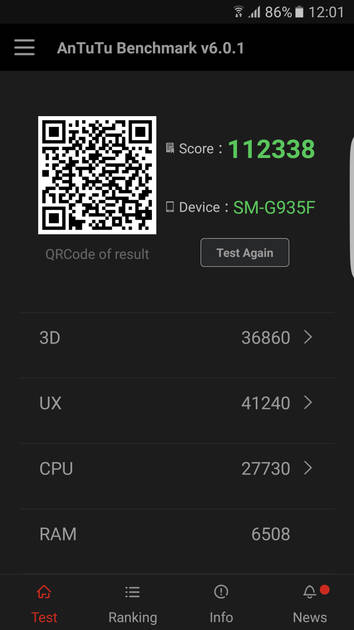
AnTuTu Benchmark
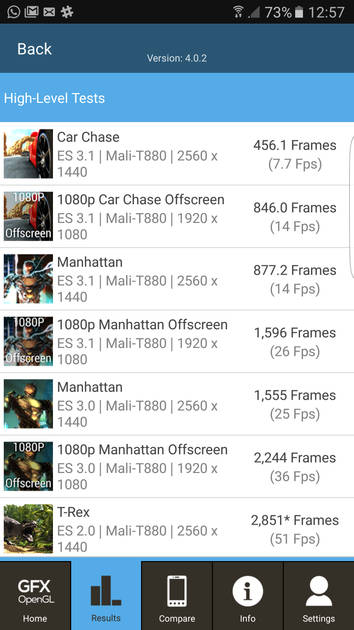
Graphics Benchmark
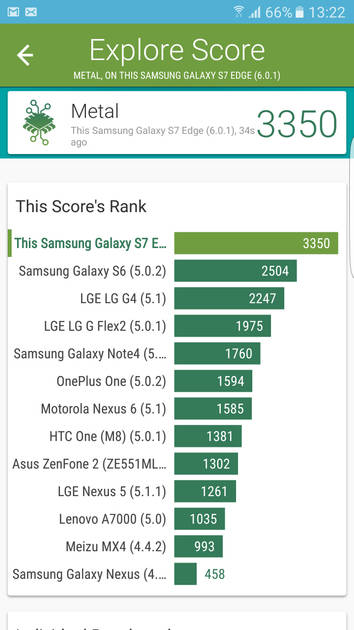
Vellamo Metal Benchmark

Vellamo Multicore Benchmark
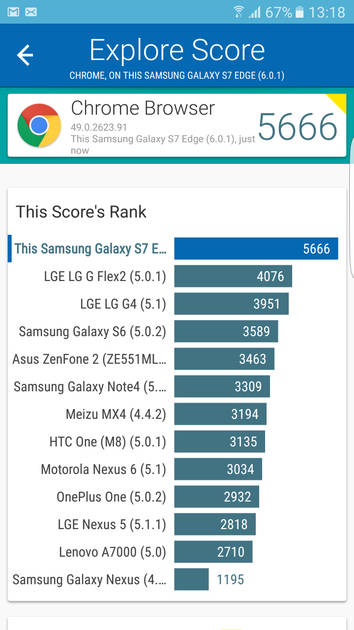
Vellamo Browser Benchmark
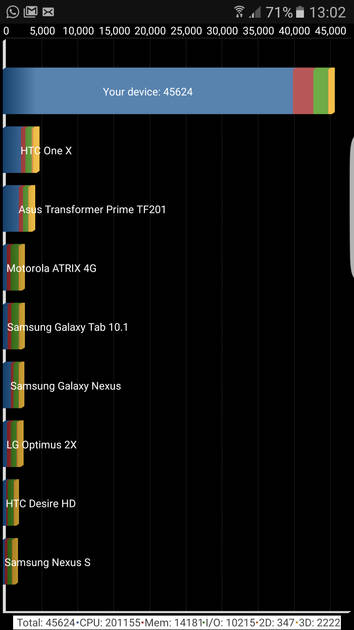
Quadrant Benchmark
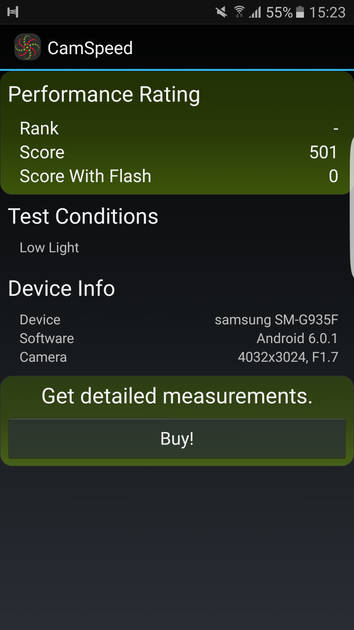
Camera Speed Benchmark
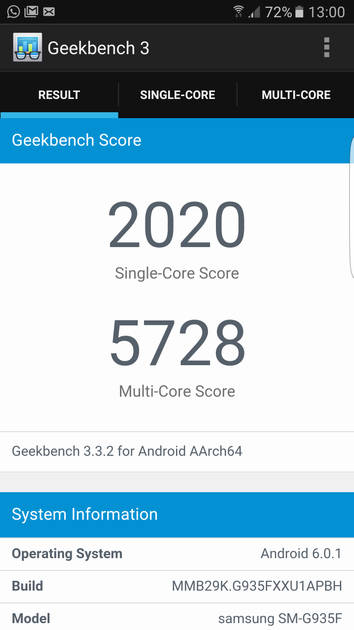
Geekbench3 Benchmark
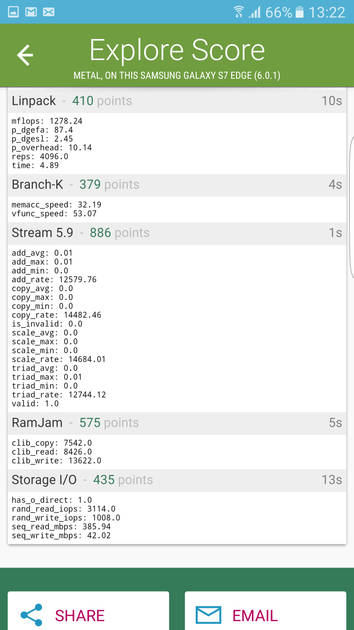
Linpack Benchmark
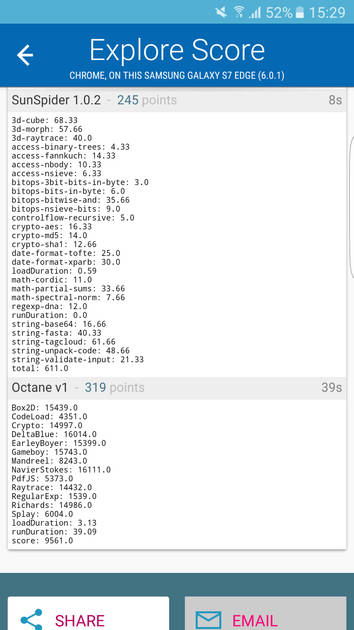
Sunspider Benchmark
|
Display
(Best In Class)
|
|
|---|---|
| Display Type | Super AMOLED (Curved Display) |
| Screen Size | 5.5 inches (13.97 cm) |
| Resolution | 1440x2560 px (QHD (2k)) |
| Aspect Ratio | 16:9 |
| Pixel Density | 534 ppi |
| Screen to Body Ratio (calculated) | 75.94 % |
| Screen Protection | Corning Gorilla Glass v4, Scratch-resistant glass |
UI Screenshots
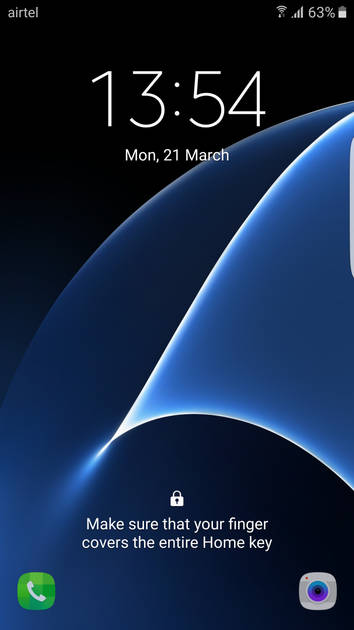
Lock Screen
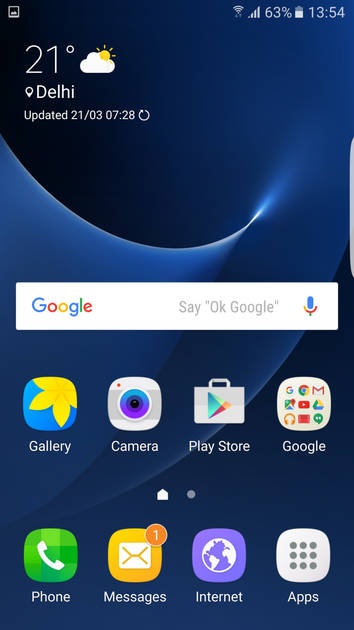
Home Screen
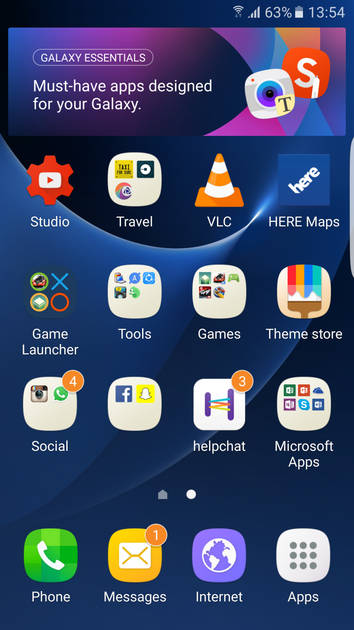
Screen With Widgets
Dialer Screen
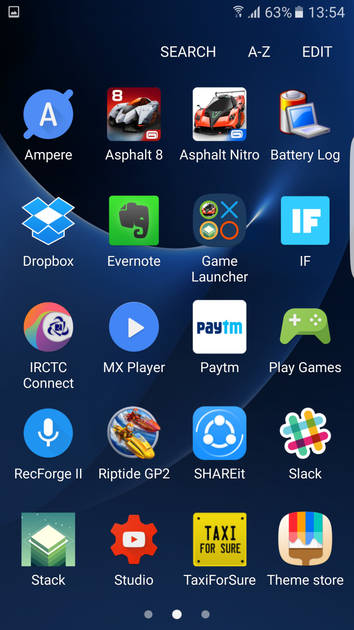
App Drawer
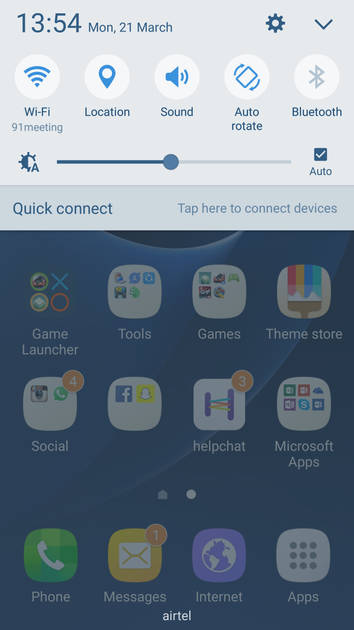
Notification Panel
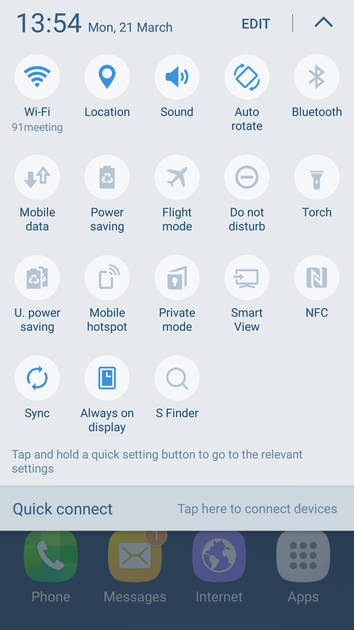
Quick Settings Panel
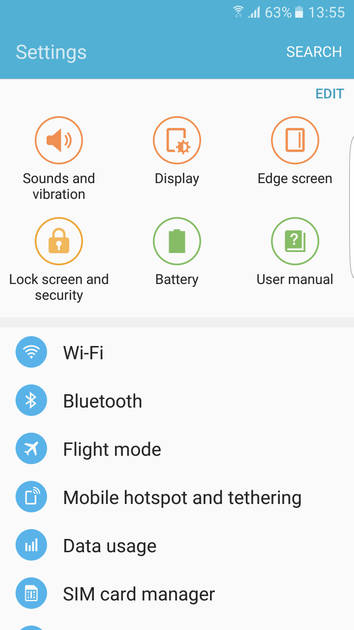
Settings Screen
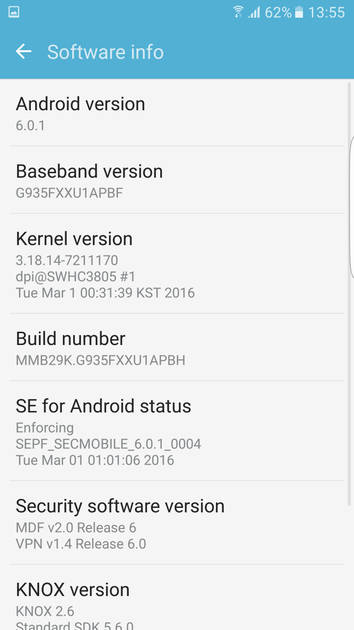
OS Version
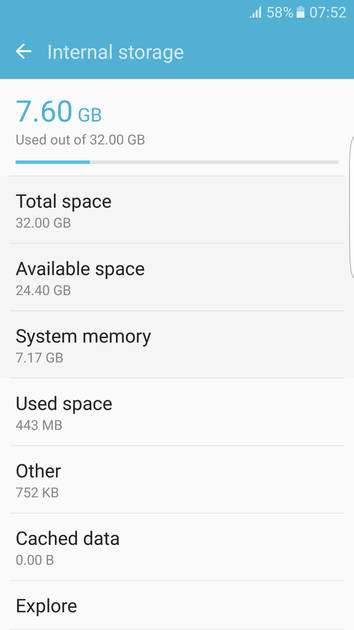
Storage
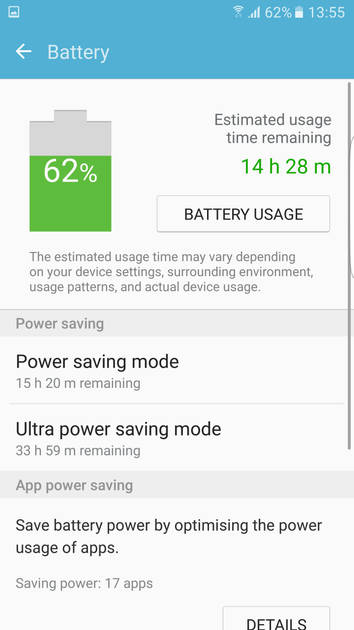
Battery

Camera On
Camera Options
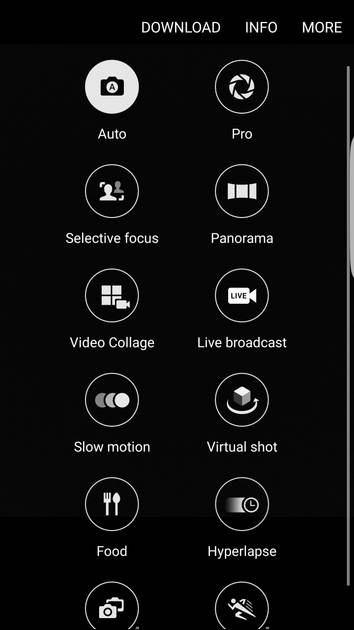
Camera Modes
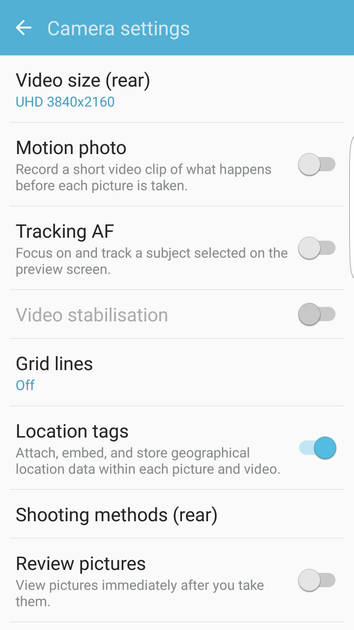
Camera Settings
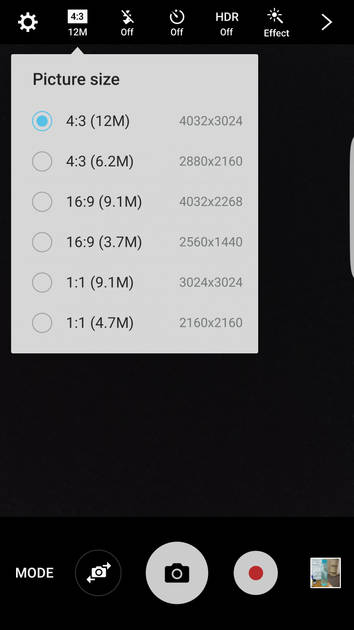
Picture Size Options
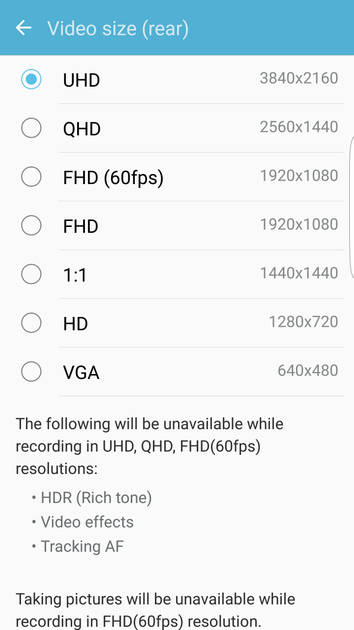
Video Size Options
|
Design |
|
|---|---|
| Height | 150.9 mm |
| Width | 72.6 mm |
| Thickness | 7.7 mm |
| Weight | 157 grams |
| Build Material |
Frame: Metal Back: Metal |
| Water Resistance | Yes, Water resistant, IP68, (up to 30 minutes in a depth of 1 meter) |
| Ruggedness | Dust proof |
|
Click to View

|
Rear Camera
(Very Good)
|
||||||||||||||||
|---|---|---|---|---|---|---|---|---|---|---|---|---|---|---|---|---|
| Resolution | ||||||||||||||||
|
||||||||||||||||
| Autofocus | Yes, Phase Detection Autofocus | |||||||||||||||
| OIS | Yes | |||||||||||||||
| Flash | Yes, LED Flash | |||||||||||||||
| Image Resolution | 4000 x 3000 Pixels | |||||||||||||||
| Settings | Exposure compensation, ISO control | |||||||||||||||
| Shooting Modes |
Continuous Shooting High Dynamic Range mode (HDR) |
|||||||||||||||
| Camera Features |
Digital Zoom Auto Flash Digital image stabilization Face detection Smile detection Touch to focus |
|||||||||||||||
| Video Recording |
3840x2160 @ 30 fps 1920x1080 @ 60 fps 1280x720 @ 240 fps |
|||||||||||||||
| Video Recording Features |
Dual Video Recording Video HDR |
|||||||||||||||
Rear Camera Samples
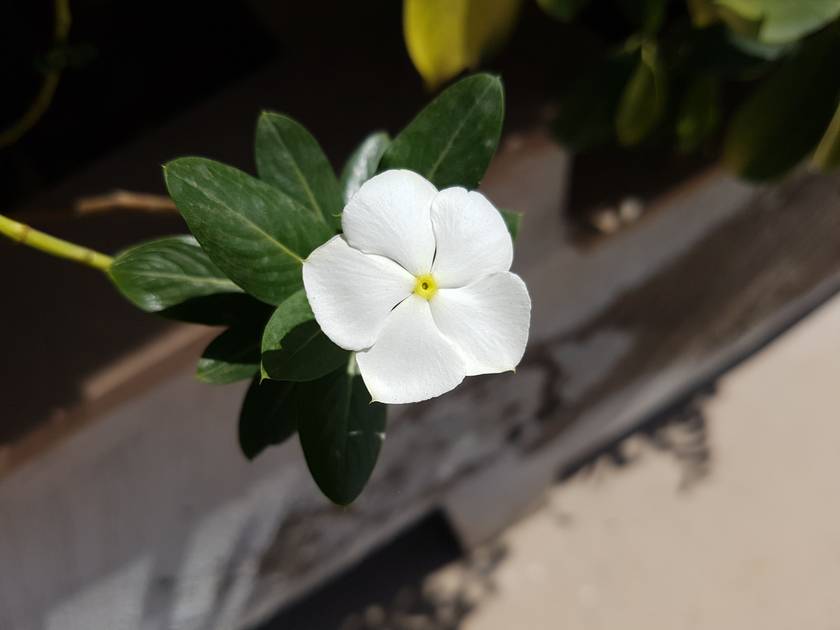
Close Up

Low Light

Low Light With Flash
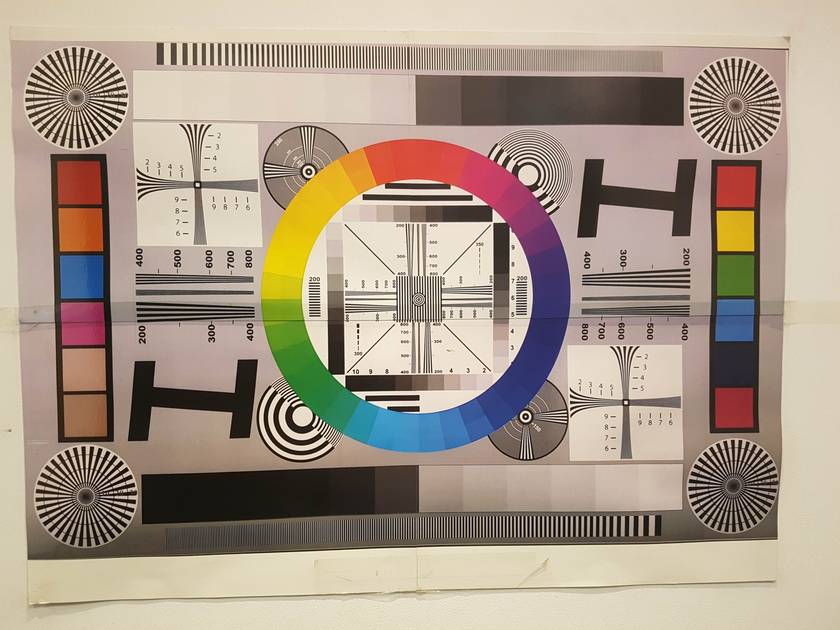
Colour Variance
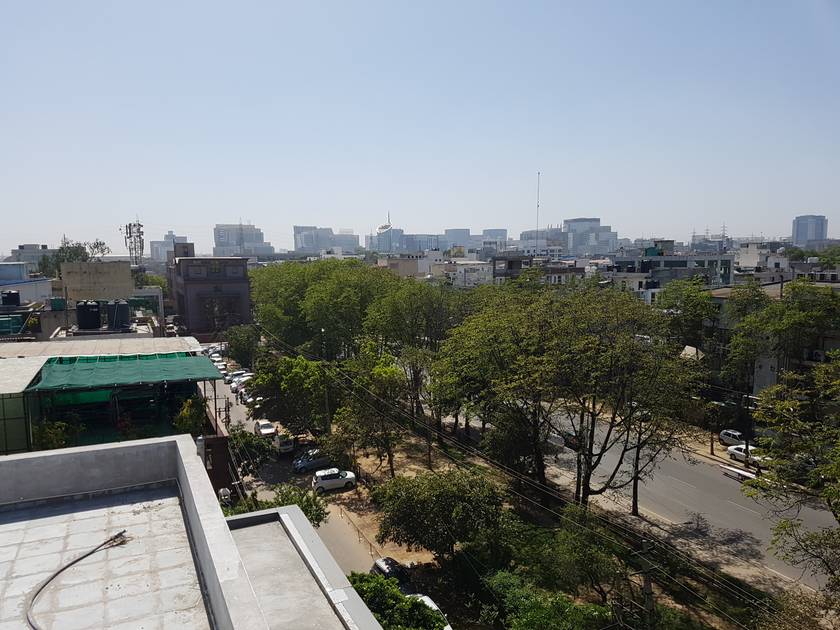
Long Shot
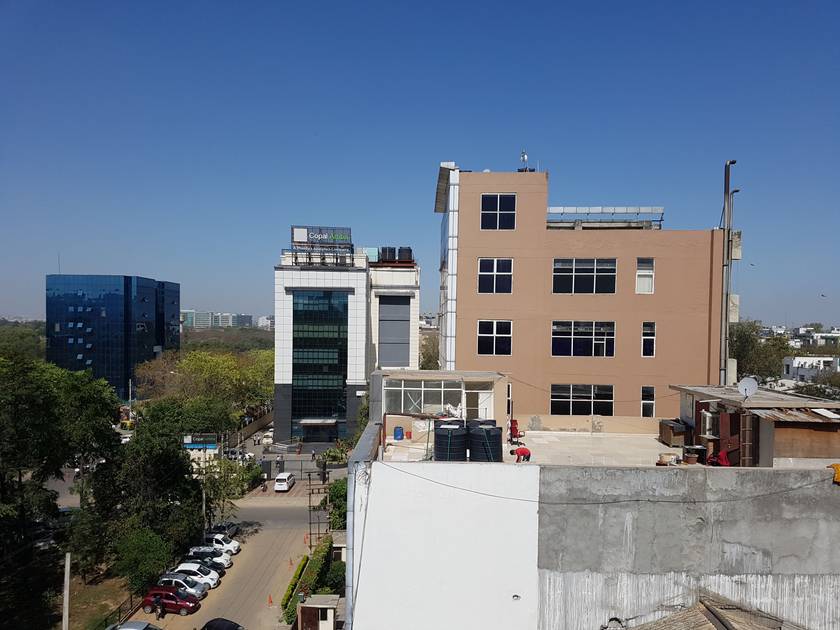
HDR Off
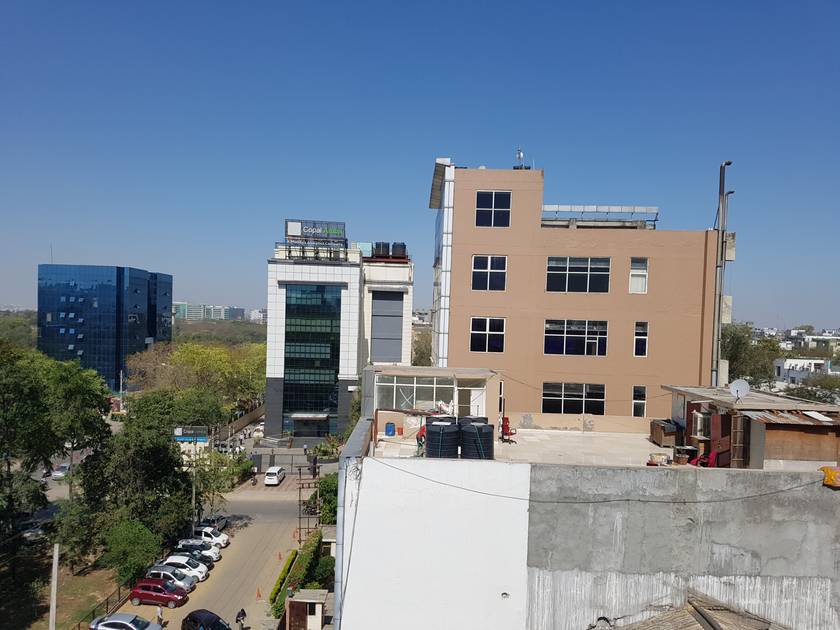
HDR On

Front Shot
|
Front Camera
(Very Good)
|
||||||||||||||
|---|---|---|---|---|---|---|---|---|---|---|---|---|---|---|
| Resolution | ||||||||||||||
|
||||||||||||||
| Flash | No | |||||||||||||
| Video Recording | 1920x1080 @ 30 fps |
Battery
(Very Good)
|
|
|---|---|
| Capacity | 3600 mAh |
| Battery Type | Li-ion |
| TalkTime | Up to 27 Hours(3G) |
| Quick Charging | Yes Fast Charging |
| Wireless Charging | Yes |
Storage |
|
|---|---|
| Internal Storage | 32 GB / 64 GB / 128 GB |
| Storage Type | UFS 2.0 |
| Expandable Storage | Yes, Up to 200 GB |
Network & Connectivity |
|
|---|---|
| SIM Slot(s) | Dual SIM |
| SIM Type | SIM1: Nano, SIM2: Nano (Hybrid) |
| Network Support | 5G Not Supported, 4G |
| SIM 1 |
4G bands, 4G Speed
Expand
|
| SIM 2 |
4G bands, 4G Speed
Expand
|
| SAR Value | Head: 0.296 W/kg |
| Wi-Fi | Yes, Wi-Fi 5 (802.11 a/b/g/n/ac) 5GHz |
| Wi-Fi Features | Wi-Fi Direct, Mobile Hotspot |
| Bluetooth | Yes, v4.2 |
| GPS | Yes with A-GPS, Glonass |
| NFC | Yes |
Multimedia |
|
|---|---|
| Audio Jack | 3.5 mm |
Sensors |
|
|---|---|
| Fingerprint Sensor | Yes |
| Fingerprint Sensor Position | Front |
| Heart Rate Monitor | Yes |
| Other Sensors | Light sensor, Proximity sensor, Accelerometer, Barometer, Compass, Gyroscope |
Samsung Galaxy S7 Edge 64GB User Reviews
Samsung Galaxy S7 Edge 64GB Key Highlights
| Processor | Samsung Exynos 8 Octa 8890 |
| RAM & Storage | 4 GB RAM + 32 GB 4 GB RAM + 64 GB 4 GB RAM + 128 GB |
| Display | 5.5", 1440 x 2560 Resolution |
| Rear Camera | 12 MP |
| Front Camera | 5 MP |
| Battery | 3600 mAh |











Popular Links
- All Upcoming Phones
- Upcoming Samsung Phones
- Samsung phones under 10k
- Samsung phones under 20k
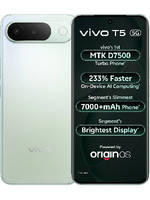
- vivo V80 5G
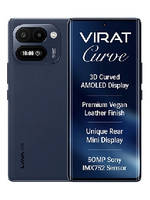
- Lava Virat Curve 5G
- OPPO F35 Pro
- Xiaomi Redmi Note 17 Pro Max 5G
- OPPO F35
- Samsung Mobiles
- Motorola Mobiles
- vivo Mobiles
- OPPO Mobiles
- Tecno Mobiles
- realme Mobiles
- Xiaomi Mobiles