
vivo V1 Max
+ Compare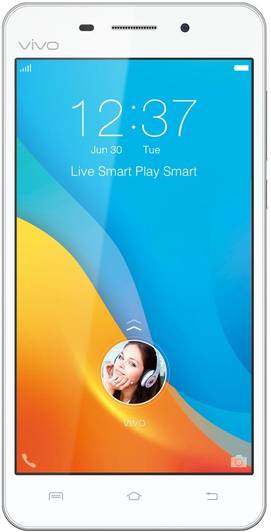
Key Specs
Performance
-
Qualcomm Snapdragon 615 -
Octa Core, 1.4 GHz -
2 GB RAM
Display
-
5.5 inches (13.97 cm); IPS LCD -
1080x1920 px (FULL HD)
Rear Camera
-
Single Camera Setup - 13 MP Primary Camera
-
LED Flash -
Full HD @30fps Video Recording
Front Camera
-
5 MP
Battery
-
2720 mAh
General
-
SIM1: Micro, SIM2: Micro -
5G Not Supported -
16 GB internal storage, Expandable upto 128 GB
vivo V1 Max Expert Review Summary
Expert Rating:
![Ketaki Bhojnagarwala]()
Verdict
Don t get us wrong, the vivo V1Max is a great smartphone. You get a roomy screen, a (mostly) metal body, good cameras and decent performance – but, there s no one feature that makes it really stand out. Sure, the Hi-Fi sound is a nice touch, but we re willing to bet it won t be a deal maker for most users. Plus, vivo, like its counterpart OPPO, hasn t gone down the affordable pricing route, and the asking price of Rs 21,980 feels too expensive for what you get. Just to give you an idea, yo
Pros
- Metal frame
- Good cameras
- Great audio
Cons
- Funtouch UI is too complicated
- Average battery life
- Overpriced
Specs At A Glance
+
5.5-inch, 1,280 x 720 pixel display (267ppi)64-bit octa-core (1.4GHz + 1.0GHz) Qualcomm Snapdragon 615 processor2GB RAM, Adreno 405 GPU13-megapixel primary camera, 5MP front camera16GB internal storage (expandable up to 128GB)4G, hybrid dual-SIM, Wi-Fi, Wi-Fi Direct, Bluetooth 4.0, GPS, USB OTGAndroid 5.0.2 Lollipop with Funtouch OS 2.12,7200mAh battery
Read More
Recycled design
+
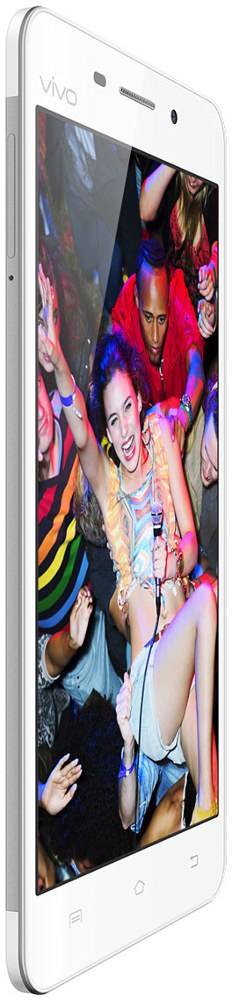
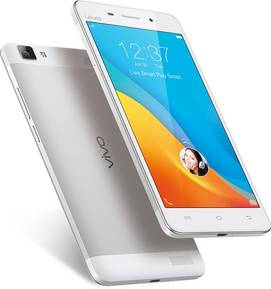
If you've seen other vivo smartphones like the X5Max, X3S and V1, you'll instantly notice the design elements they share with the V1Max. You'll find the same thick bezels around the screen, the silver-tipped navigation keys, and the dual-tone magnesium alloy and white plastic finish at the rear. While the 5.5-inch screen makes it a large device by default, the ample bezels add unnecessary bulk. In comparison, the OPPO R7 Plus (review), which sports a gargantuan 6-inch display, feels only marginally larger in the hand. Above the screen is located the front 5MP camera, sensors, earpiece, vivo branding and notification LED. The aformentioned Android navigation keys sit below the display, but unfortunately miss out on LED backlighting. Around the edges, you’ll see the volume rocker and power button on the right, and an ejectable tray on the left. This contains two SIM card slots, with the latter doubling up as a microSD card slot when required. On the bottom you’ll find the micro-USB port and primary microphone, while the top features the 3.5mm audio jack. On either end of the back panel, you’ll find vivo’s dual-speakers that are equipped with a Hi-Fi chip that promises low sound distortion. You’ll also find the primary 13MP camera, LED flash and vivo branding. Despite its large size and weight of 169g, the V1Max is pretty thin at 6.79mm, making it easy to handle. And while it can get slippery after extended periods of use, vivo’s bundled clear case adds both grip and protection from scratches and minor knocks.
Read More
Roomy display
+
The 5.5-inch IPS display of the V1Max is equipped with HD resolution, resulting in a pixel density of 267ppi. The display is sharp, with good contrast and high brightness levels. The viewing angles are good, although sunlight legibility isn't its strongest point. It was smooth and responsive during our usage, and fine for both typing and gaming alike. The display is protected by Gorilla Glass 3.
Read More
Photo friendly
+
The V1Max is equipped with a 13MP primary camera with LED flash, as well as a 5MP front camera. The camera app is neat and intuitive, with a spacious viewfinder flanked by two bezels holding the various controls. When viewed in landscape mode, you’ll find shortcuts for the gallery, the shutter button and the video mode on one end. On the other end are the flash controls, camera switch toggle and settings. Apart from Normal (full auto), Face Beauty, Panorama, HDR, Bokeh and Night, there are a couple of innovative modes as well. The first is a Children mode, which lets you play a variety of sounds to capture your child’s attention, and quickly snap a photo. Then there's a PPT mode which lets you capture an image of a blackboard, whiteboard, PPT slide or paper, and then automatically crops and corrects the image. Lastly, there's a Fun mode which lets you choose from a few watermarking options, as well as apply various filters. In settings, there’s an option called Palm capture, which starts a three-second countdown timer when you wave your palm in front of the camera. This feature worked flawlessly in our experience, and is great for selfies. Speaking of the front camera, apart from full auto, you get access to the Fun and Face Beauty modes mentioned above.When it comes to image quality, we found that most images taken in daylight display rich, natural colours with good detail. The camera lets you get nearly two inches away from the subject to capture great macro shots, and the autofocus is zippy too. The HDR mode is effective, creating a balanced dynamic range without oversharpening or washing out colours. Low light images are predictably dark and grainy, but are usable. The selfie camera churns out profile picture worthy photos when there’s ample lighting, but you’ll get noisy results in low light.To give you an idea of what to expect, here are some images taken with the primary camera in full auto mode.
Read More
A not-so Fun take on Android
+
The V1Max runs Android 5.0.2 Lollipop, layered with vivo’s proprietary Funtouch OS 2.1. While the interface adds in several features you won't find on stock Android, it's still pretty heavy and complicated as far as custom UI's go, and might not appeal to all users. Chinese companies are big fans of UI customisations, and Funtouch is no different. The interface sports modified, if rather cartoony icons, removes the app drawer and adds tons of extra gestures and features in settings. Even the lockscreen hasn't been spared, with the ability add avatars, a signature, shortcuts, and more. Unlike most Android smartphones which feature the notification and quick settings pane as a drop down menu from the top, on Funtouch only the former is accessible this way. To bring up the quick settings menu, you’ll need to swipe up from the bottom – iOS style. This menu also displays your recent apps, which you can close individually by flicking up, or all at once using the ‘Speed up’ option. This feature also means that the recents key is rendered redundant, and instead is replaced by the archaic menu button. On the homescreen, the menu button lets you add widgets and sliding effects, as well as hide icons, whereas within app it brings up the regular settings menu, which is basically a repetition since Android apps give you access to individual settings via the action bar. However, it is subjective, and we did find ourselves using the button for quick access to app settings on more than one occassion. vivo's Apple obsession doesn't just end with the iOS-inspired Control Center, but also filters down into its native apps. To start with, you'll find a familiar naming scheme like i Theme, i Manager and i Music. Some of the native apps, such as Calendar, Clock, Calculator and i Music are also very similar to their iOS counterparts in terms of icons and interface. The i Manager app is one of those all-in-one security apps that are a standard feature on most Chinese smartphones. It's actually pretty useful, with options to clean up your phone, a data monitor, app manager, power manager, blacklist and a privacy manager. The i Theme app gives you access to a bunch of local and downloadable themes, wallpapers, fonts and unlock modes which you can mix and match. There’s also a vivoCloud app, where you can back up your contacts, messages and web bookmarks. Gesture controls are pretty popular these days, and there's no dearth of them on Funtouch. The Smart wake feature lets you cold access preset apps and functions from the lockscreen using gestures or by tracing letters. Unlike several other UIs where you can only use specific gestures, on Funtouch you can create custom gestures to open apps as well. There's a feature called Air Operation which is similar to Moto Display. When activated, you can wave your hand above the display to view a black screen with just the current status like date and time. You can also wave your palm above the display to unlock the smartphone. Other popular gestures like double tap to wake, smart call, smart answer, etc are also available. To make use of the 5.5-inch display, vivo has added a feature called Multitask Window. This lets you open floating windows of the notes, video, music and messages app, and run them over any other app. Another phablet-friendly feature is the one-handed mode. This lets you shrink and dock the screen, keyboard or screen lock PIN/ pattern to one side. While we're not sure how many users would find this useful, vivo has a complete section dedicated to screenshots, and it terms this Super Screenshot. You can take various types of screenshots when this mode is enabled. By tapping S-capture in the quick settings menu, you'll get access to a floating menu. The long screenshot option lets you capture more than just what you see on the screen, by scrolling down to the end of the page you want to capture. This is useful for taking screenshots of a WhatsApp conversation or a long web article, for instance. The Pattern screenshot lets you take a screen grab in a range of patterns (although we're not entirely sure why you would want to), while Doodle lets you select a particular area of the screen and then draw all over it. There's even a Lasso screenshot, which lets you draw a custom shape and grab that portion of the screen. There is one feature in this section we did find useful though, and that's the screen recording. Apart from recording your actions on the screen, you can also choose to record your voice - a feature that is again niche, but might appeal to a select few.
Read More
Hits and misses
+
The vivo V1Max is powered by an octa-core Snapdragon 615 processor, consisting of two quad-core clusters clocked at 1.4GHz and 1.0GHz respectively. It gets 2GB of RAM and an Adreno 405 GPU to work with. During our few weeks of usage, the smartphone didn't have any major meltdowns, but there were noticeable lags when opening apps. And while it continues to chug on even with 10-12 apps running in the background, there is a general sluggishness to the interface which we're attributing more to the heavy Funtouch interface. The gaming performance is pretty decent, with richer titles like Riptide GP2 handled well. We did notice the occasional frame drop and mild overheating, but nothing that left us concerned. For your strage needs, the V1Max gives you 16GB to work with, out of which the system leaves just 9.6GB out-of-the-box. The microSD card supports expansion by an additional 128GB.Fuelling the V1Max is a 2,720mAh sealed battery. On a day comprising of regular use such as an hour or two of phone calls, social media,WhatsApp and camera usage, we found that the battery indicator turned red by the evening. On days with lighter usage, we managed to eke out a couple of extra hours from the battery. In our video loop battery drain test, the device lasted for just under 11 hours, which is a decent result.
Read More
Read full Review

Verdict
Don t get us wrong, the vivo V1Max is a great smartphone. You get a roomy screen, a (mostly) metal body, good cameras and decent performance – but, there s no one feature that makes it really stand out. Sure, the Hi-Fi sound is a nice touch, but we re willing to bet it won t be a deal maker for most users. Plus, vivo, like its counterpart OPPO, hasn t gone down the affordable pricing route, and the asking price of Rs 21,980 feels too expensive for what you get. Just to give you an idea, yo
- Metal frame
- Good cameras
- Great audio
Pros
- Funtouch UI is too complicated
- Average battery life
- Overpriced
Cons
Specs At A Glance
+5.5-inch, 1,280 x 720 pixel display (267ppi)64-bit octa-core (1.4GHz + 1.0GHz) Qualcomm Snapdragon 615 processor2GB RAM, Adreno 405 GPU13-megapixel primary camera, 5MP front camera16GB internal storage (expandable up to 128GB)4G, hybrid dual-SIM, Wi-Fi, Wi-Fi Direct, Bluetooth 4.0, GPS, USB OTGAndroid 5.0.2 Lollipop with Funtouch OS 2.12,7200mAh battery
Read MoreRecycled design
+If you've seen other vivo smartphones like the X5Max, X3S and V1, you'll instantly notice the design elements they share with the V1Max. You'll find the same thick bezels around the screen, the silver-tipped navigation keys, and the dual-tone magnesium alloy and white plastic finish at the rear. While the 5.5-inch screen makes it a large device by default, the ample bezels add unnecessary bulk. In comparison, the OPPO R7 Plus (review), which sports a gargantuan 6-inch display, feels only marginally larger in the hand. Above the screen is located the front 5MP camera, sensors, earpiece, vivo branding and notification LED. The aformentioned Android navigation keys sit below the display, but unfortunately miss out on LED backlighting. Around the edges, you’ll see the volume rocker and power button on the right, and an ejectable tray on the left. This contains two SIM card slots, with the latter doubling up as a microSD card slot when required. On the bottom you’ll find the micro-USB port and primary microphone, while the top features the 3.5mm audio jack. On either end of the back panel, you’ll find vivo’s dual-speakers that are equipped with a Hi-Fi chip that promises low sound distortion. You’ll also find the primary 13MP camera, LED flash and vivo branding. Despite its large size and weight of 169g, the V1Max is pretty thin at 6.79mm, making it easy to handle. And while it can get slippery after extended periods of use, vivo’s bundled clear case adds both grip and protection from scratches and minor knocks.
Read MoreRoomy display
+The 5.5-inch IPS display of the V1Max is equipped with HD resolution, resulting in a pixel density of 267ppi. The display is sharp, with good contrast and high brightness levels. The viewing angles are good, although sunlight legibility isn't its strongest point. It was smooth and responsive during our usage, and fine for both typing and gaming alike. The display is protected by Gorilla Glass 3.
Read MorePhoto friendly
+The V1Max is equipped with a 13MP primary camera with LED flash, as well as a 5MP front camera. The camera app is neat and intuitive, with a spacious viewfinder flanked by two bezels holding the various controls. When viewed in landscape mode, you’ll find shortcuts for the gallery, the shutter button and the video mode on one end. On the other end are the flash controls, camera switch toggle and settings. Apart from Normal (full auto), Face Beauty, Panorama, HDR, Bokeh and Night, there are a couple of innovative modes as well. The first is a Children mode, which lets you play a variety of sounds to capture your child’s attention, and quickly snap a photo. Then there's a PPT mode which lets you capture an image of a blackboard, whiteboard, PPT slide or paper, and then automatically crops and corrects the image. Lastly, there's a Fun mode which lets you choose from a few watermarking options, as well as apply various filters. In settings, there’s an option called Palm capture, which starts a three-second countdown timer when you wave your palm in front of the camera. This feature worked flawlessly in our experience, and is great for selfies. Speaking of the front camera, apart from full auto, you get access to the Fun and Face Beauty modes mentioned above.When it comes to image quality, we found that most images taken in daylight display rich, natural colours with good detail. The camera lets you get nearly two inches away from the subject to capture great macro shots, and the autofocus is zippy too. The HDR mode is effective, creating a balanced dynamic range without oversharpening or washing out colours. Low light images are predictably dark and grainy, but are usable. The selfie camera churns out profile picture worthy photos when there’s ample lighting, but you’ll get noisy results in low light.To give you an idea of what to expect, here are some images taken with the primary camera in full auto mode.
Read MoreA not-so Fun take on Android
+The V1Max runs Android 5.0.2 Lollipop, layered with vivo’s proprietary Funtouch OS 2.1. While the interface adds in several features you won't find on stock Android, it's still pretty heavy and complicated as far as custom UI's go, and might not appeal to all users. Chinese companies are big fans of UI customisations, and Funtouch is no different. The interface sports modified, if rather cartoony icons, removes the app drawer and adds tons of extra gestures and features in settings. Even the lockscreen hasn't been spared, with the ability add avatars, a signature, shortcuts, and more. Unlike most Android smartphones which feature the notification and quick settings pane as a drop down menu from the top, on Funtouch only the former is accessible this way. To bring up the quick settings menu, you’ll need to swipe up from the bottom – iOS style. This menu also displays your recent apps, which you can close individually by flicking up, or all at once using the ‘Speed up’ option. This feature also means that the recents key is rendered redundant, and instead is replaced by the archaic menu button. On the homescreen, the menu button lets you add widgets and sliding effects, as well as hide icons, whereas within app it brings up the regular settings menu, which is basically a repetition since Android apps give you access to individual settings via the action bar. However, it is subjective, and we did find ourselves using the button for quick access to app settings on more than one occassion. vivo's Apple obsession doesn't just end with the iOS-inspired Control Center, but also filters down into its native apps. To start with, you'll find a familiar naming scheme like i Theme, i Manager and i Music. Some of the native apps, such as Calendar, Clock, Calculator and i Music are also very similar to their iOS counterparts in terms of icons and interface. The i Manager app is one of those all-in-one security apps that are a standard feature on most Chinese smartphones. It's actually pretty useful, with options to clean up your phone, a data monitor, app manager, power manager, blacklist and a privacy manager. The i Theme app gives you access to a bunch of local and downloadable themes, wallpapers, fonts and unlock modes which you can mix and match. There’s also a vivoCloud app, where you can back up your contacts, messages and web bookmarks. Gesture controls are pretty popular these days, and there's no dearth of them on Funtouch. The Smart wake feature lets you cold access preset apps and functions from the lockscreen using gestures or by tracing letters. Unlike several other UIs where you can only use specific gestures, on Funtouch you can create custom gestures to open apps as well. There's a feature called Air Operation which is similar to Moto Display. When activated, you can wave your hand above the display to view a black screen with just the current status like date and time. You can also wave your palm above the display to unlock the smartphone. Other popular gestures like double tap to wake, smart call, smart answer, etc are also available. To make use of the 5.5-inch display, vivo has added a feature called Multitask Window. This lets you open floating windows of the notes, video, music and messages app, and run them over any other app. Another phablet-friendly feature is the one-handed mode. This lets you shrink and dock the screen, keyboard or screen lock PIN/ pattern to one side. While we're not sure how many users would find this useful, vivo has a complete section dedicated to screenshots, and it terms this Super Screenshot. You can take various types of screenshots when this mode is enabled. By tapping S-capture in the quick settings menu, you'll get access to a floating menu. The long screenshot option lets you capture more than just what you see on the screen, by scrolling down to the end of the page you want to capture. This is useful for taking screenshots of a WhatsApp conversation or a long web article, for instance. The Pattern screenshot lets you take a screen grab in a range of patterns (although we're not entirely sure why you would want to), while Doodle lets you select a particular area of the screen and then draw all over it. There's even a Lasso screenshot, which lets you draw a custom shape and grab that portion of the screen. There is one feature in this section we did find useful though, and that's the screen recording. Apart from recording your actions on the screen, you can also choose to record your voice - a feature that is again niche, but might appeal to a select few.
Read MoreHits and misses
+The vivo V1Max is powered by an octa-core Snapdragon 615 processor, consisting of two quad-core clusters clocked at 1.4GHz and 1.0GHz respectively. It gets 2GB of RAM and an Adreno 405 GPU to work with. During our few weeks of usage, the smartphone didn't have any major meltdowns, but there were noticeable lags when opening apps. And while it continues to chug on even with 10-12 apps running in the background, there is a general sluggishness to the interface which we're attributing more to the heavy Funtouch interface. The gaming performance is pretty decent, with richer titles like Riptide GP2 handled well. We did notice the occasional frame drop and mild overheating, but nothing that left us concerned. For your strage needs, the V1Max gives you 16GB to work with, out of which the system leaves just 9.6GB out-of-the-box. The microSD card supports expansion by an additional 128GB.Fuelling the V1Max is a 2,720mAh sealed battery. On a day comprising of regular use such as an hour or two of phone calls, social media,WhatsApp and camera usage, we found that the battery indicator turned red by the evening. On days with lighter usage, we managed to eke out a couple of extra hours from the battery. In our video loop battery drain test, the device lasted for just under 11 hours, which is a decent result.
Read MorePopular Comparisons


vivo V1 Max Specifications
General |
|
|---|---|
| Operating System | Android v5.0 (Lollipop) |
Performance
(Avg)
|
|
|---|---|
| Chipset | Qualcomm Snapdragon 615 MSM8939 |
| Processor | Octa core, 1.4 GHz, Cortex A53 |
| Architecture | 64 bit |
| Graphics (GPU) | Adreno 405 |
| RAM | 2 GB |
Display
(Excellent)
|
|
|---|---|
| Display Type | IPS LCD |
| Screen Size | 5.5 inches (13.97 cm) |
| Resolution | 1080x1920 px (FULL HD) |
| Pixel Density | 401 ppi |
| Screen to Body Ratio (calculated) | 70.16 % |
| Screen Protection | No |
Design |
|
|---|---|
| Height | 154 mm |
| Width | 77 mm |
| Thickness | 6.7 mm |
| Weight | 169 grams |
| Build Material |
Frame: Metal Back: Metal |
|
Click to View

|
Rear Camera
(Avg)
|
||||
|---|---|---|---|---|
| Resolution | ||||
|
||||
| Autofocus | Yes | |||
| Flash | Yes, LED Flash | |||
| Image Resolution | 4128 x 3096 Pixels | |||
| Settings | Exposure compensation | |||
| Shooting Modes |
Continuous Shooting High Dynamic Range mode (HDR) |
|||
| Camera Features |
Digital Zoom Auto Flash Digital image stabilization Face detection Touch to focus |
|||
| Video Recording | 1920x1080 @ 30 fps |
Front Camera
(Avg)
|
||||
|---|---|---|---|---|
| Resolution | ||||
|
Battery
(Very Good)
|
|
|---|---|
| Capacity | 2720 mAh |
| Battery Type | Li-Polymer |
Storage |
|
|---|---|
| Internal Storage | 16 GB |
| Expandable Storage | Yes, Up to 128 GB |
Network & Connectivity |
|
|---|---|
| SIM Slot(s) | Dual SIM |
| SIM Type | SIM1: Micro, SIM2: Micro |
| Network Support | 5G Not Supported, 4G |
| SIM 1 |
4G bands
Expand
|
| Wi-Fi | Yes, Wi-Fi 4 (802.11 b/g/n) |
| Wi-Fi Features | Mobile Hotspot |
| Bluetooth | Yes, v4.0 |
| GPS | Yes with A-GPS |
| NFC | No |
Multimedia |
|
|---|---|
| Audio Jack | 3.5 mm |
Sensors |
|
|---|---|
| Fingerprint Sensor | No |
| Other Sensors | Light sensor, Proximity sensor, Accelerometer, Compass |
vivo V1 Max User Reviews
vivo V1 Max Key Highlights
| Processor | Qualcomm Snapdragon 615 MSM8939 |
| RAM & Storage | 2 GB + 16 GB |
| Display | 5.5", 1080 x 1920 Resolution |
| Rear Camera | 13 MP |
| Front Camera | 5 MP |
| Battery | 2720 mAh |















Popular Links
- All Upcoming Phones
- Upcoming vivo Phones
- vivo phones under 10k
- vivo phones under 20k
- Samsung Galaxy F70 5G
- OPPO Find X10
- OPPO Find X10 Pro Max
- Infinix GT 50 Pro
- Nothing Phone 4a
- Samsung Mobiles
- Motorola Mobiles
- vivo Mobiles
- OPPO Mobiles
- Tecno Mobiles
- realme Mobiles
- OnePlus Mobiles