Having used XOS 15 on the Infinix GT 30 series last year, I was impressed by the software’s fluidity, responsiveness, and subtle yet positive shift in design language over XOS 14. Now, just a month into 2026, Infinix has unveiled the next iteration of its custom skin, XOS 16, with major emphasis on a revamped design, customisability, and AI.
Courtesy of Infinix, we got to try an early preview of XOS 16, which let us explore all the new changes, improvements, and features in the software. After using the firmware for a week and diving deep into various aspects, along with comparing it with XOS 15 to find the visual differences, here’s what the Android 16-based XOS 16 has to offer.
Table of Contents
A new “Glow Space” design makes its debut
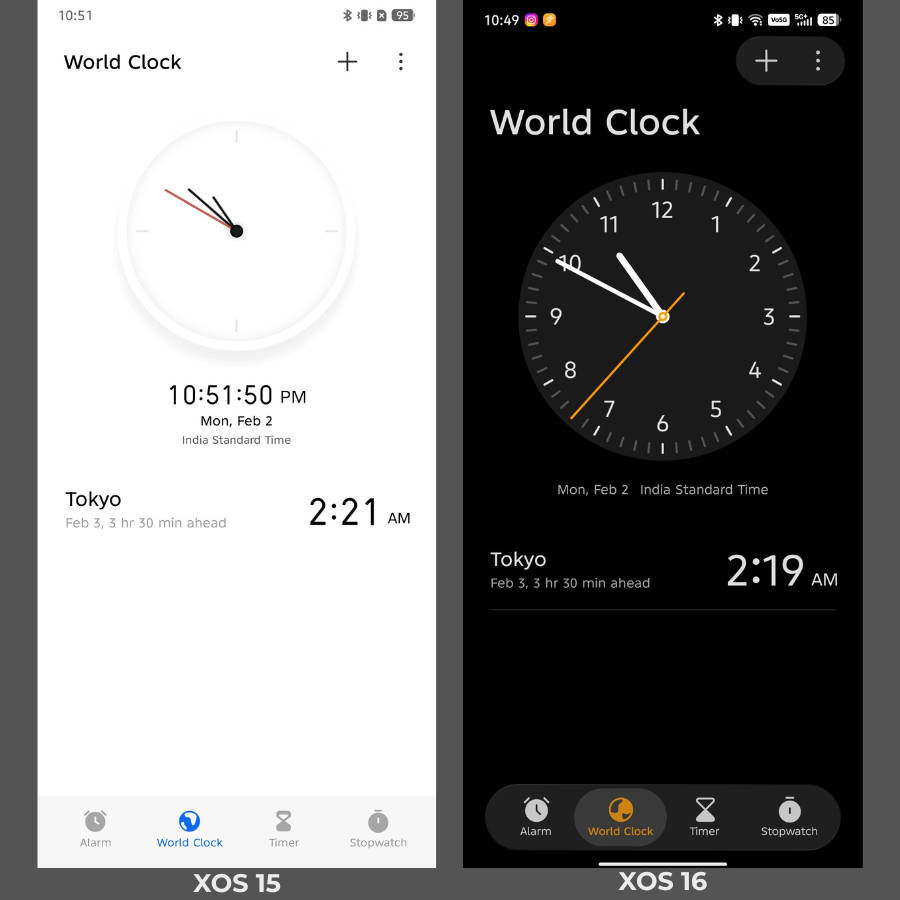
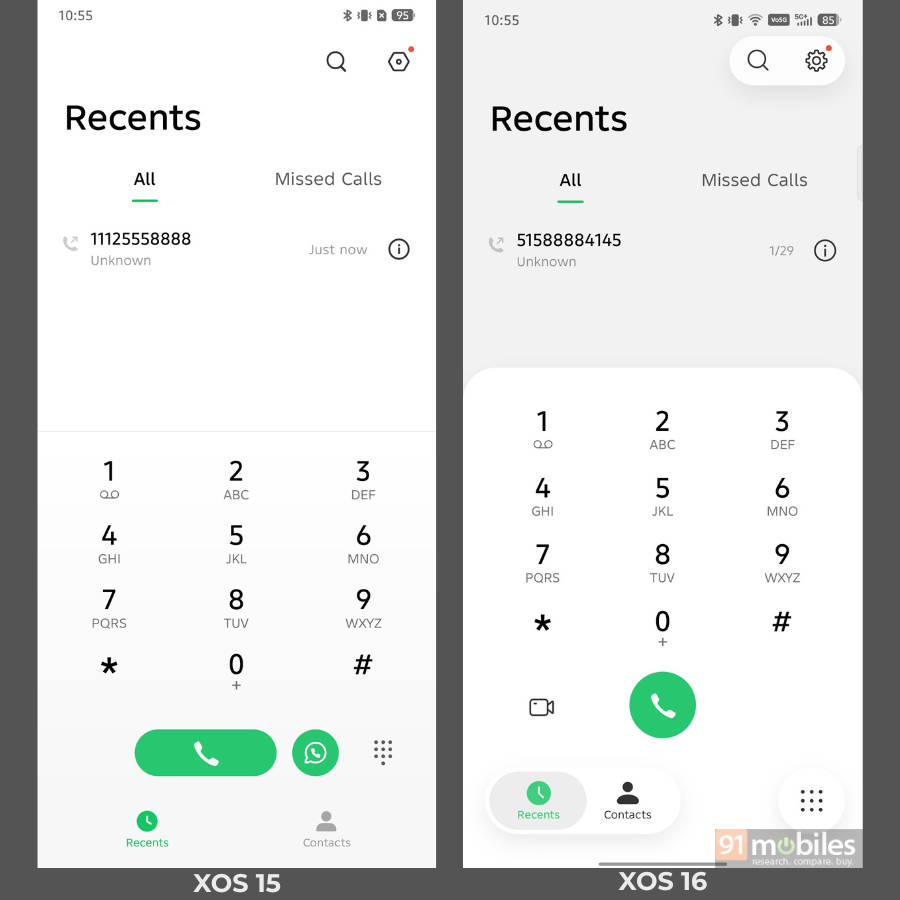
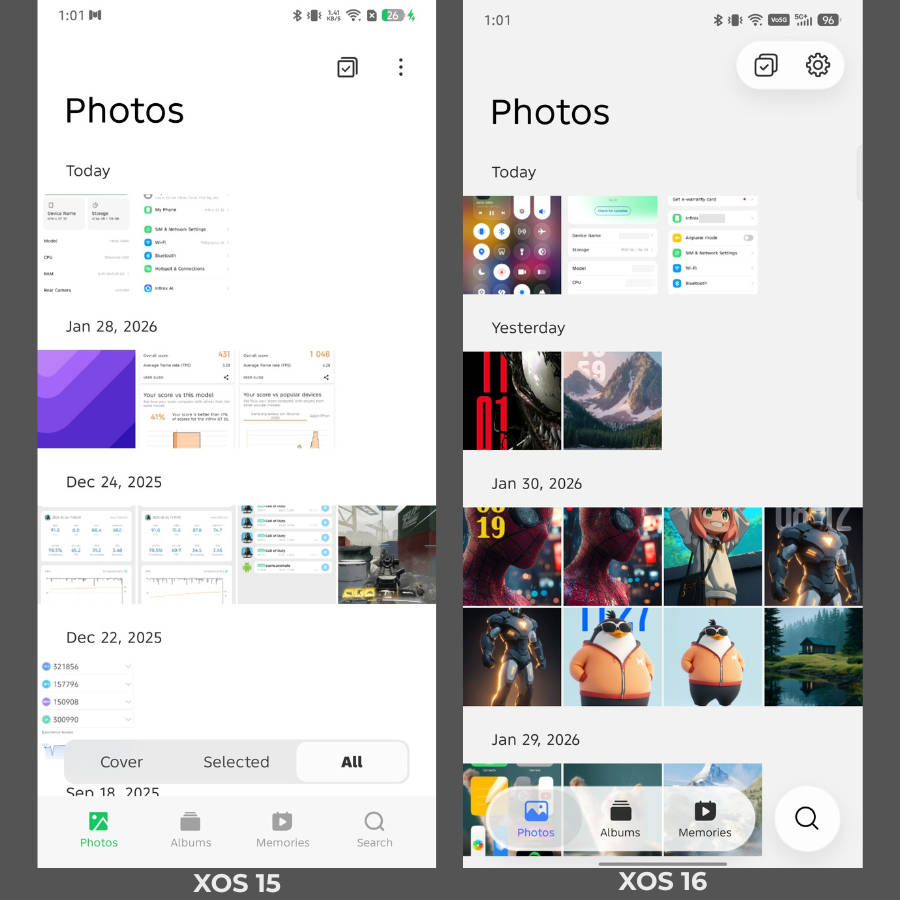
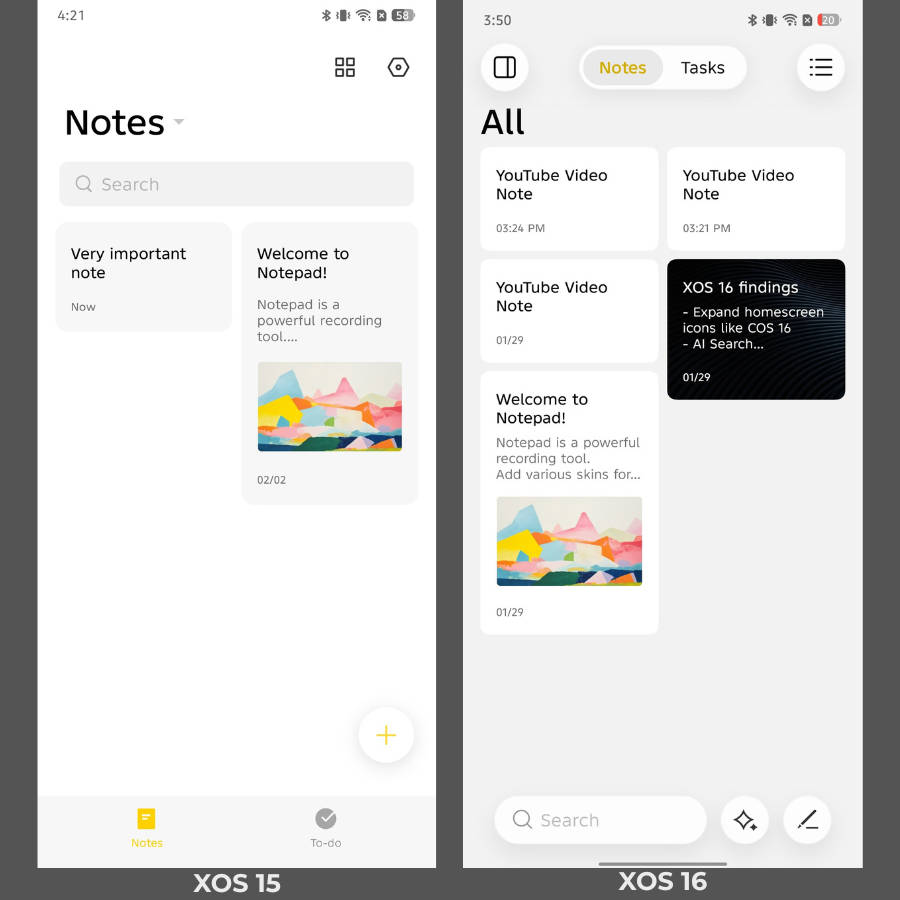
As noted in the intro, XOS 16 places a heavy emphasis on a refreshed visual appearance in the form of “Glow Space” design. As part of this change, several key areas of the software have undergone a notable revamp. Infinix states that this new design is inspired by light and space, bringing a sense of depth to various elements. Here are the key areas where the Glow Space design makes its appearance:
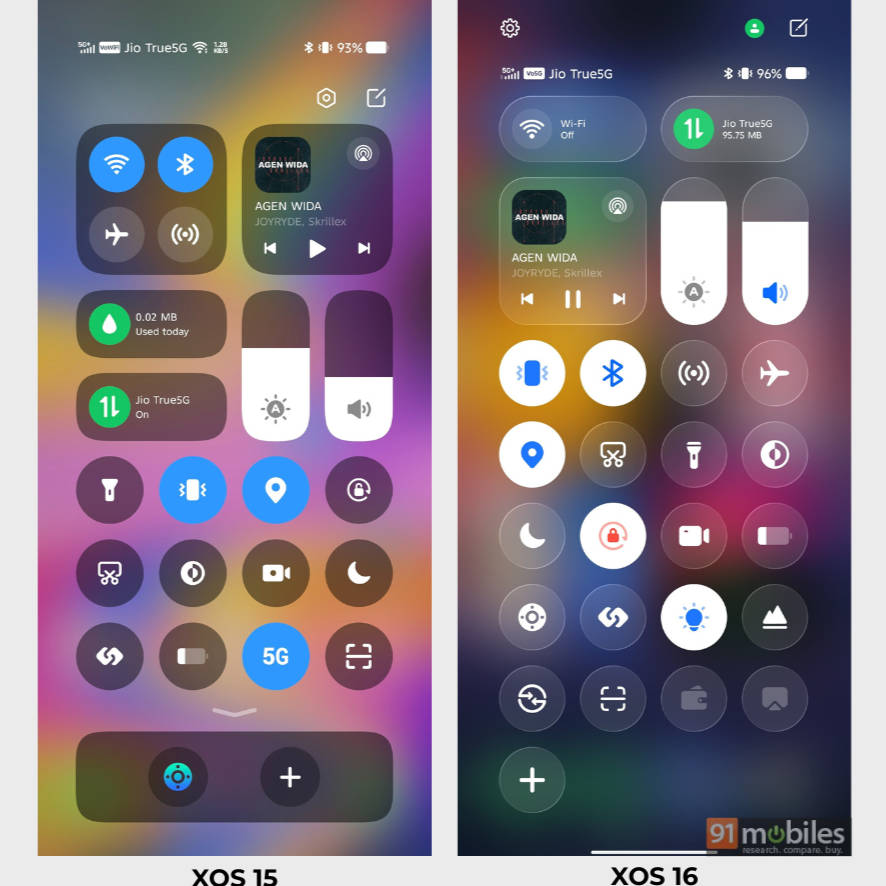
Quick settings panel: Glow Space is most prominent in the quick settings panel. Not only are the transparency and light effects deeply etched onto the toggles, but the entire panel’s layout has been switched up. Compared to XOS 15, the WiFi and mobile data toggles sit at the top within pill-shaped buttons, while the volume and brightness sliders have also adopted a pill form.
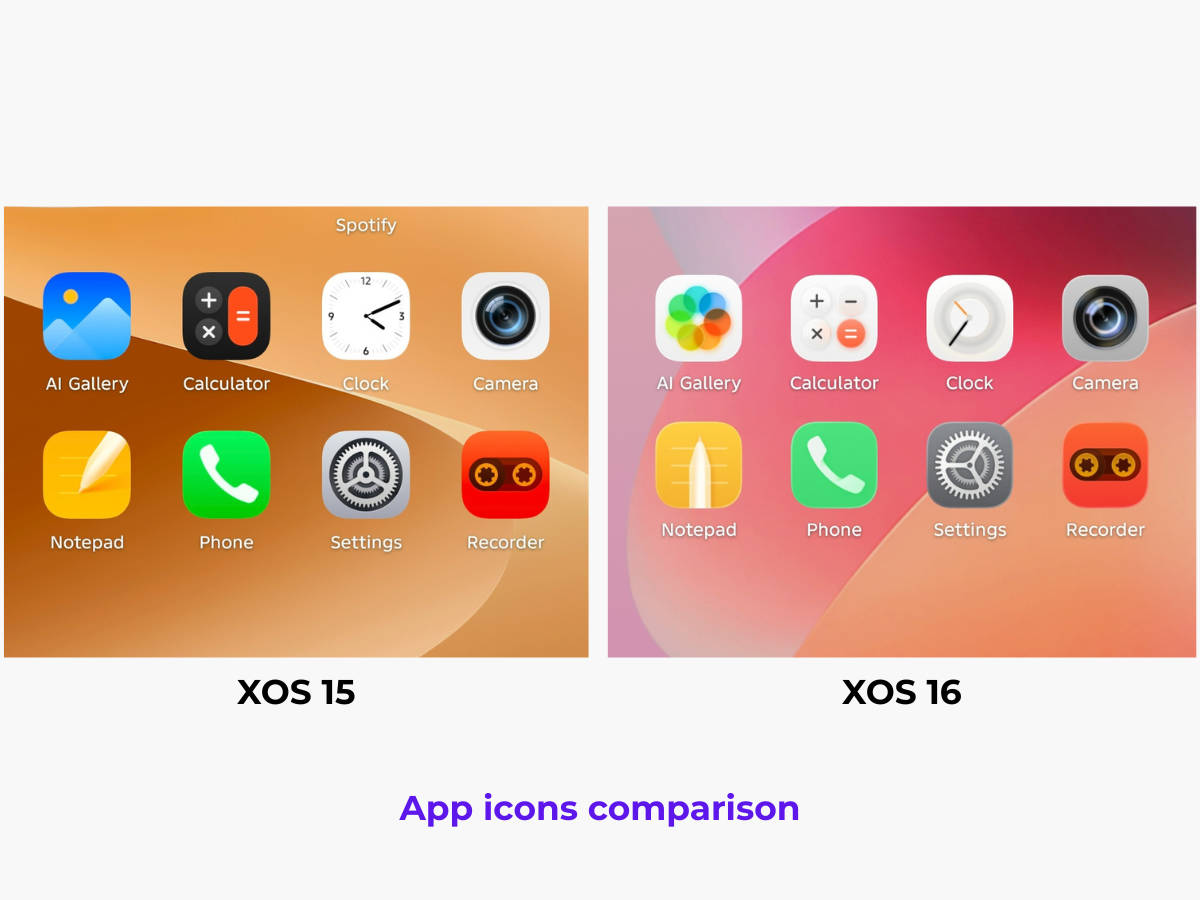
Homescreen icons: As part of the Glow Space design, all first-party app icons on the homescreen feature a subtle glass-like border. Similarly, the actual icons have also refreshed to sport a new look.
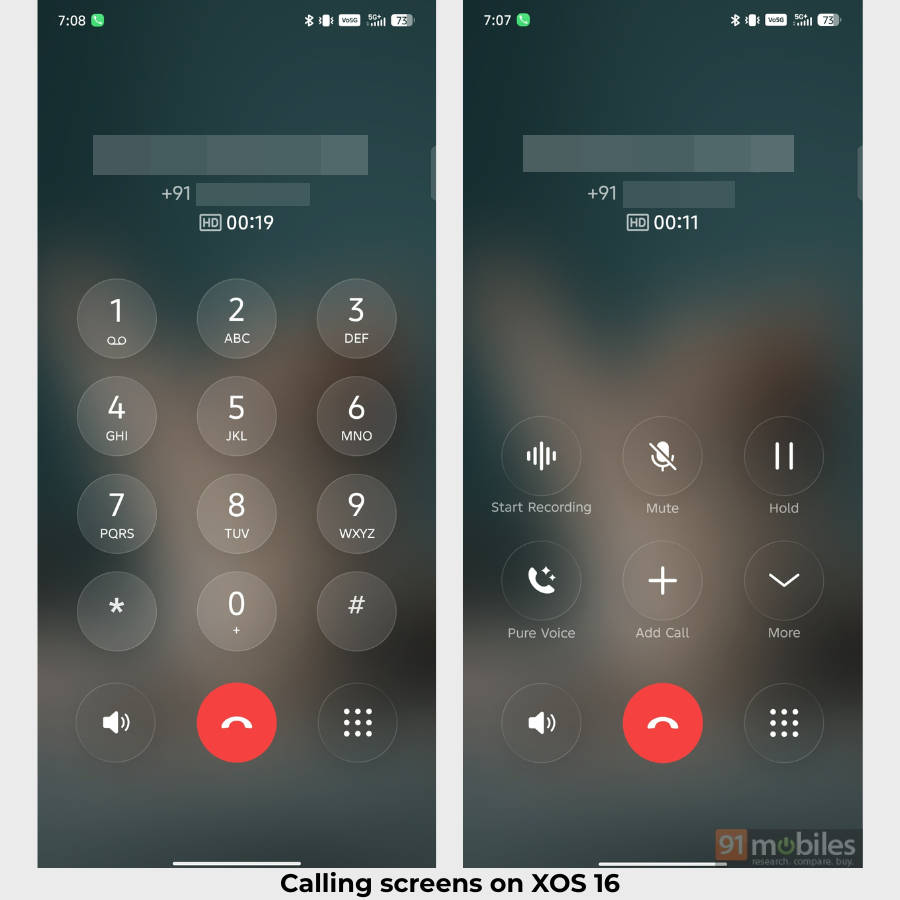
Incoming and ongoing call screens: Another prominent area where Glow Space design is noticeable is in the incoming and ongoing call screens. They offer a full-screen blur along with minute light effects on the borders of the buttons.
Prime focus on customisation and one-handed usage
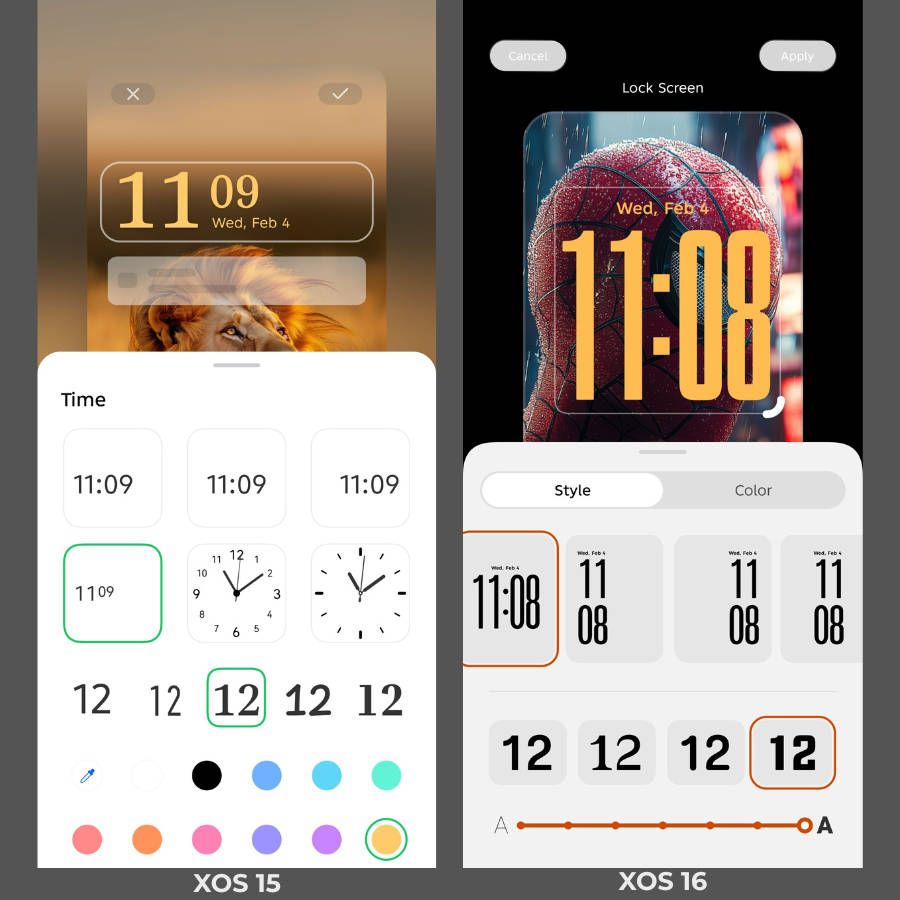
Tons of additions to the lockscreen: In my opinion, the biggest customisation improvement on XOS 16 comes in the form of new lockscreen clock styles. While the clock styling options on XOS 15 were not limited by any means, its successor brings tons of distinct themes specifically for the clock.

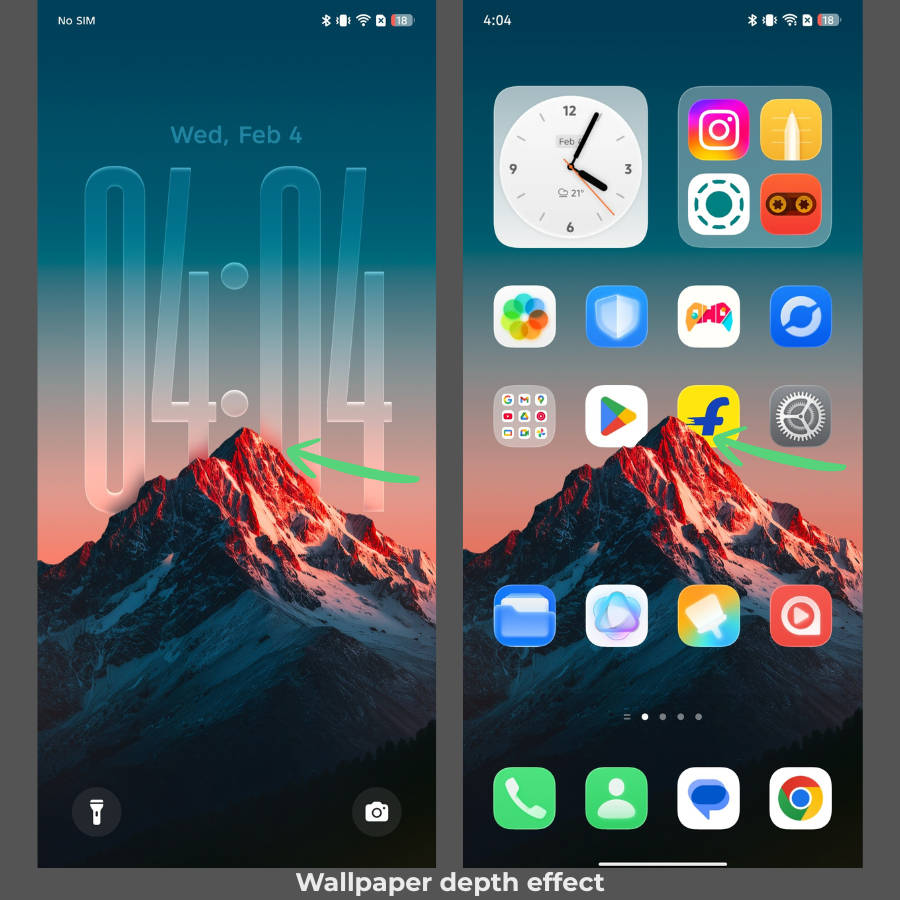
Just like most custom skins, XOS 16 finally adds support to place the clock behind a subject in a wallpaper to create a depth of field effect. Apart from that, all the newly introduced large-sized clocks can be personalised to display glass, blurred, and coloured visuals. Lastly, the new theme styles include Doodle Notes, Anime Portrait, and Interactive Wallpapers, which, as expected, are highly customisable.
Wallpaper depth effect on homescreen: XOS 16 goes a step further by allowing users to add depth effects even on the homescreen. Meaning, the icons and widgets stay behind the wallpaper to prioritise its appearance. While I liked the fact that Infinix tried to come up with something unique, I didn’t find myself using this feature much.
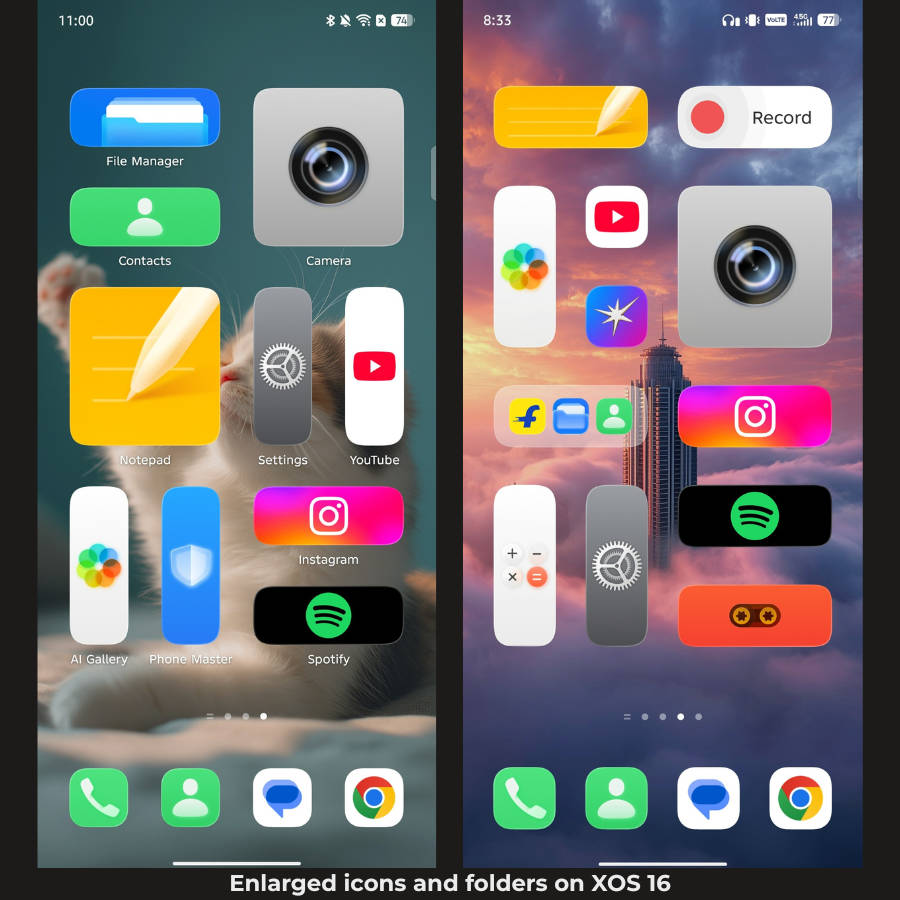
Enlarged icons and folders: As previously seen on ColorOS and HyperOS, XOS 16 offers the ability to enlarge most homescreen icons and folders into 1×2, 2×1, and 2×2 layouts, making them easier to tap and helping fill vacant spaces on the homescreen.
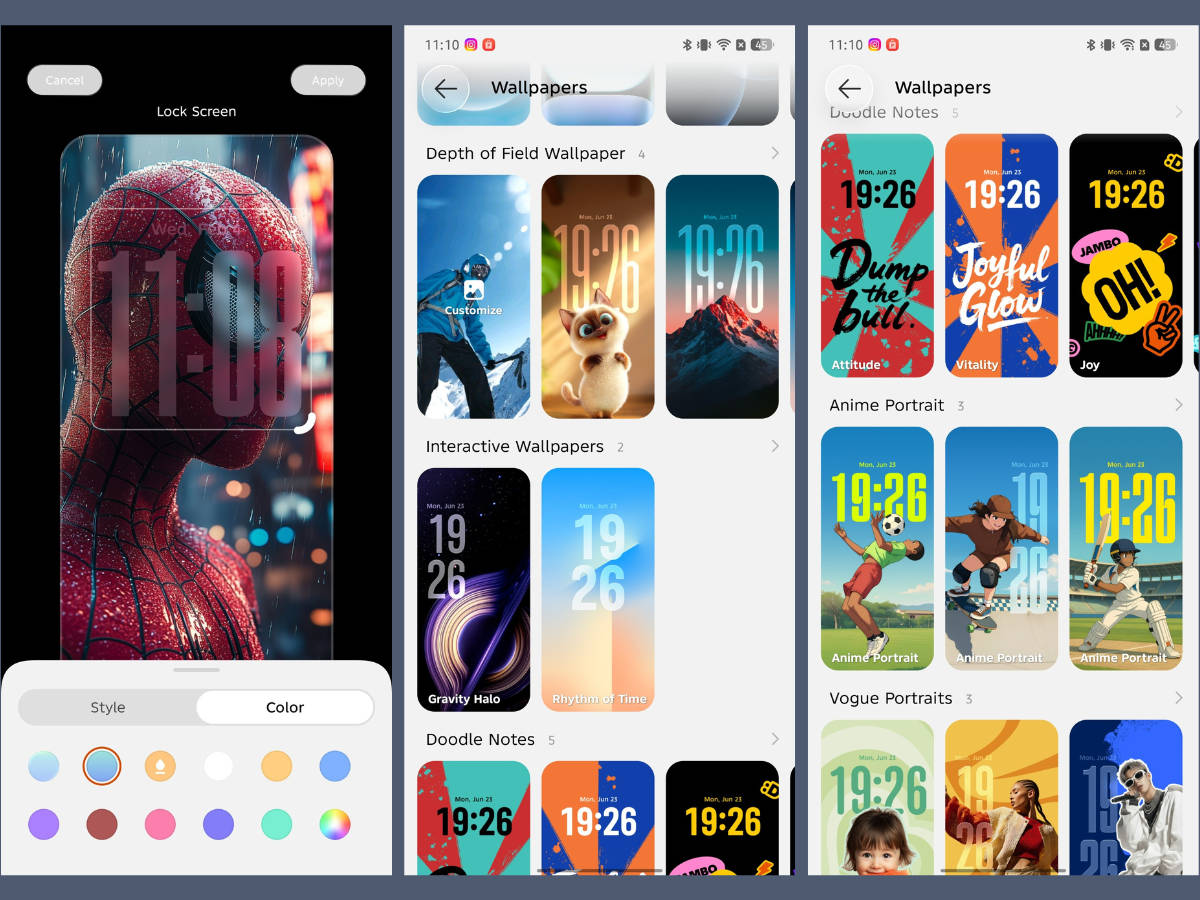
AI Theme Generator: With the help of AI, XOS 16 can adapt to the colours of a given image and apply them across the system for a cohesive look and feel. During my hands-on, the feature delivered precisely as promised, producing visually polished final outputs.
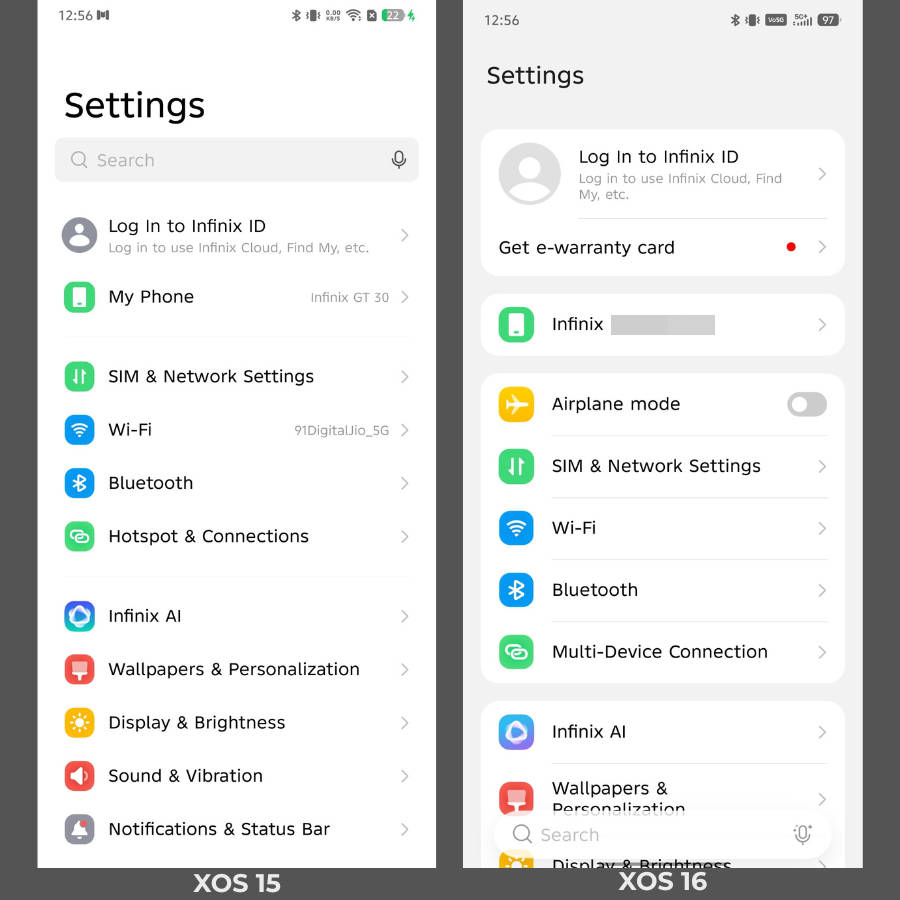
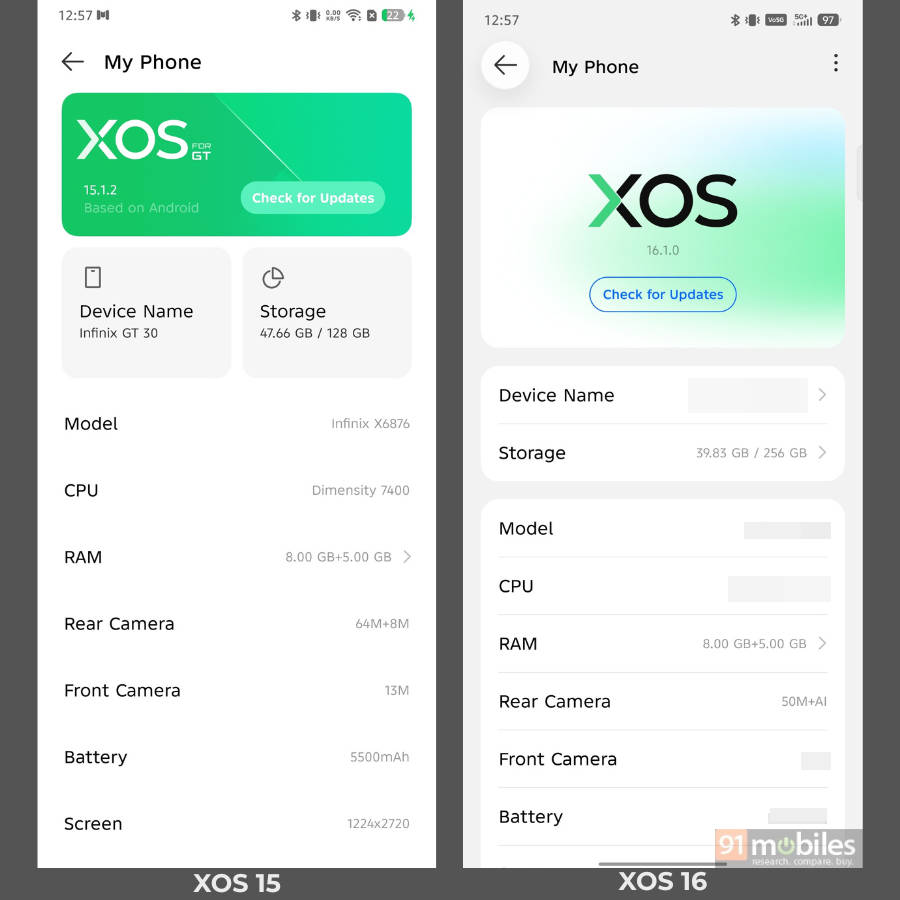
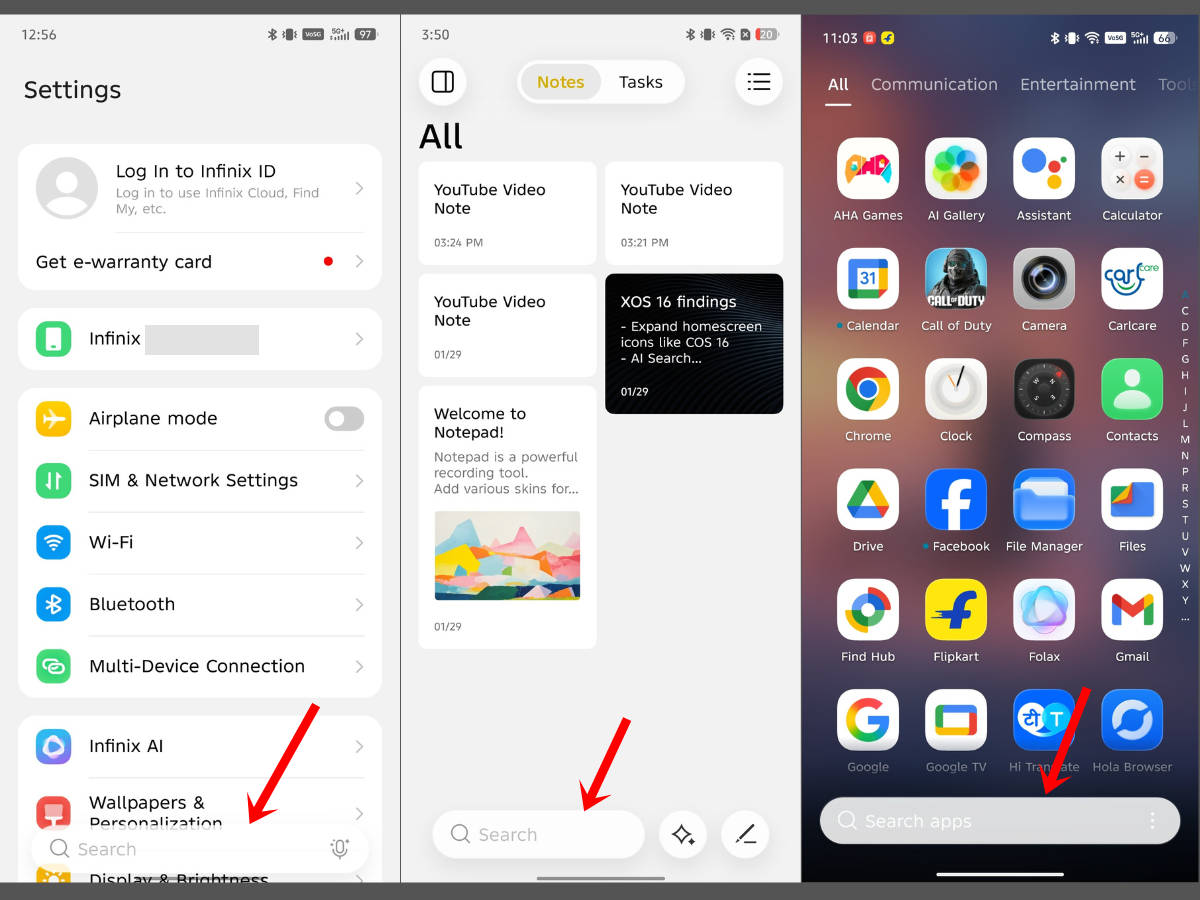
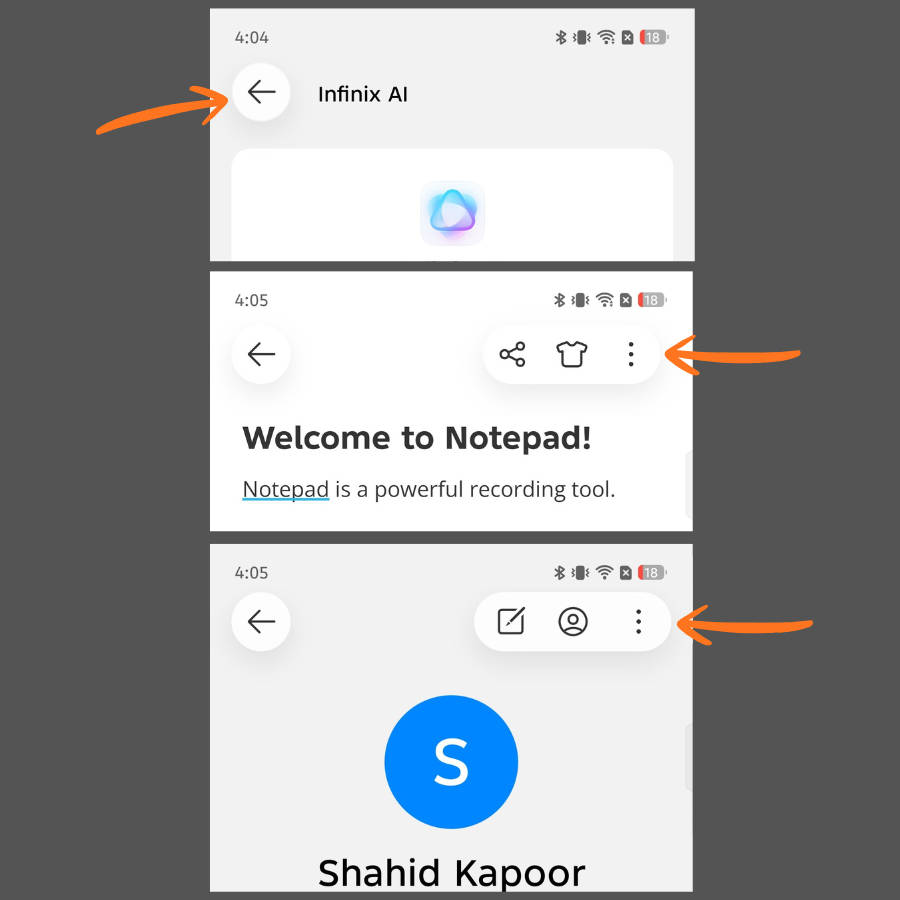
Easy reachability of certain elements: Throughout the software, the ‘search bar’ on most first-party apps has been re-positioned towards the bottom for easy accessibility. These apps include Settings, Notes, and even the app drawer. Similarly, the ‘Back’ button sits inside a circular button separate from the header, providing a wider tap area.
Deeper AI integration
On XOS 15 itself, the software had a bunch of good AI features scattered throughout the system, many of which executed the prompts and commands really well, as noted in our dedicated Infinix AI review. The new XOS 16 software not only brings new AI additions. but also refines and polishes the existing AI feature set.
AI Subtitles: The stock video player app called “Visha Player” can generate subtitles in real-time using AI when it detects speech or voice in ongoing content.
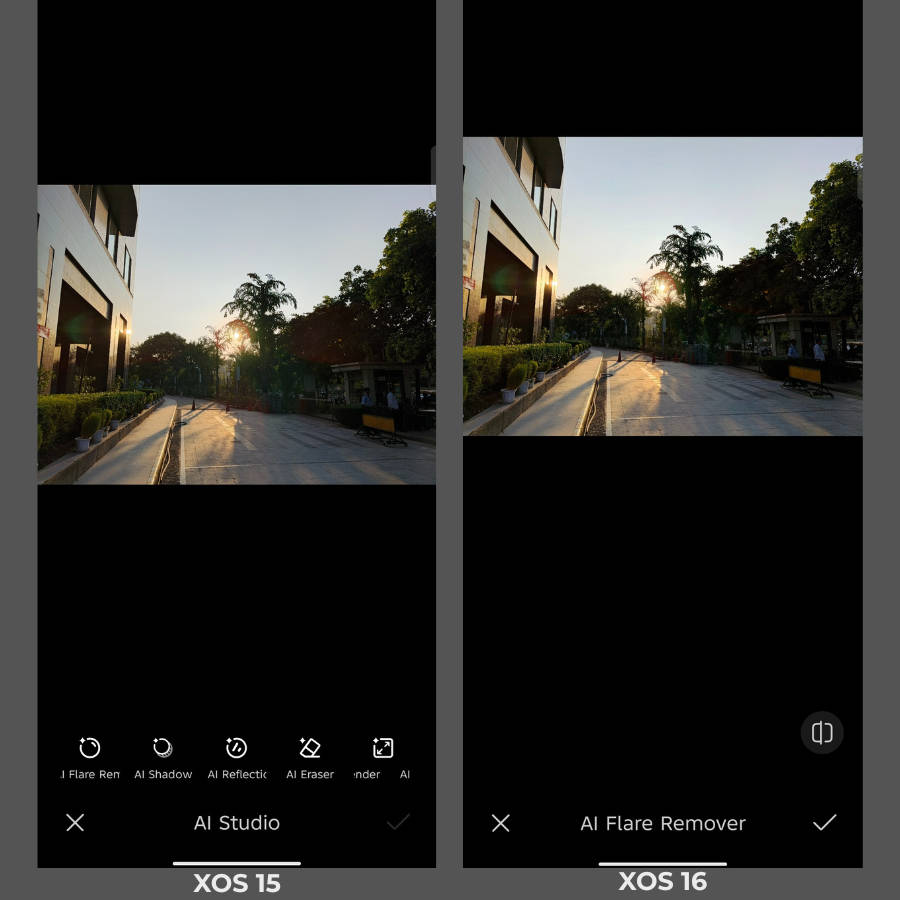
New AI features in Gallery: The Gallery app sees a boost in AI imaging features through the addition of AI Flare Remover, AI Shadow Remover, and AI Reflection Remover, joining the likes of AI Eraser and AI Extender. We tried using the AI Flare Remover, and the final output was serviceable.
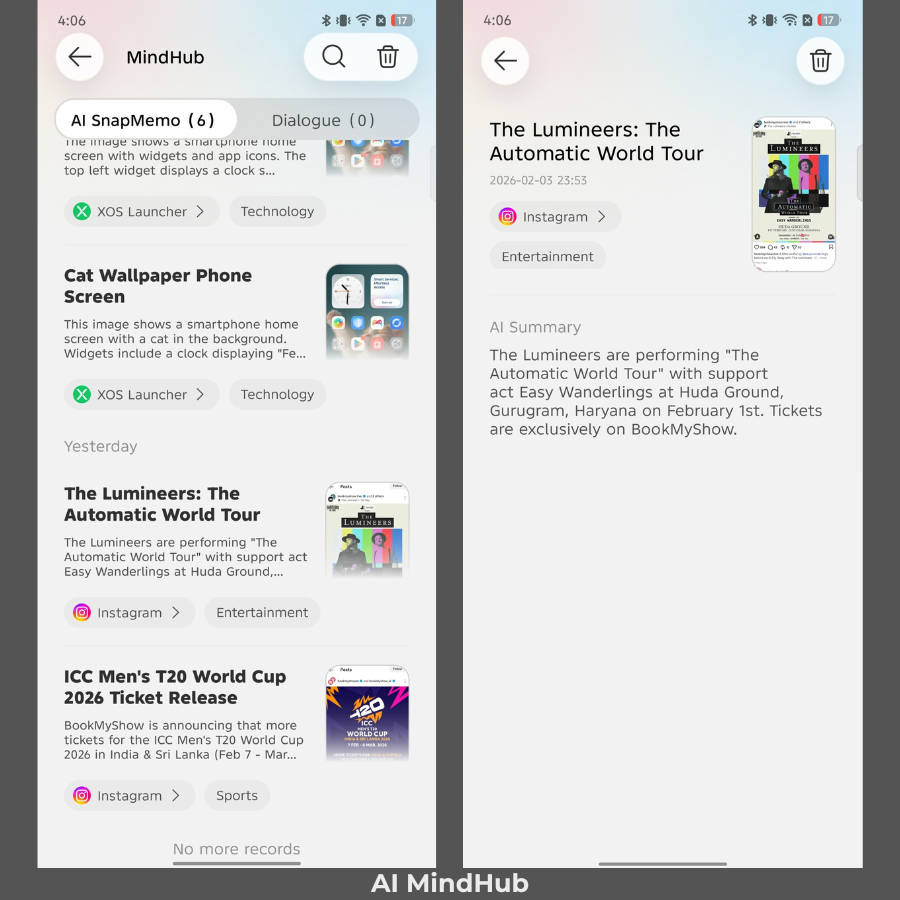
AI MindHub and SnapMemo: XOS 16 brings a brand new function called SnapMemo to Infinix phones with a dedicated “One-Tap” button on the side. When assigning the long-press action to SnapMemo, the system analyses the on-screen content and saves it into a portal called MindHub. Users can visit this portal later to view the key information from the screenshots in a curated manner.
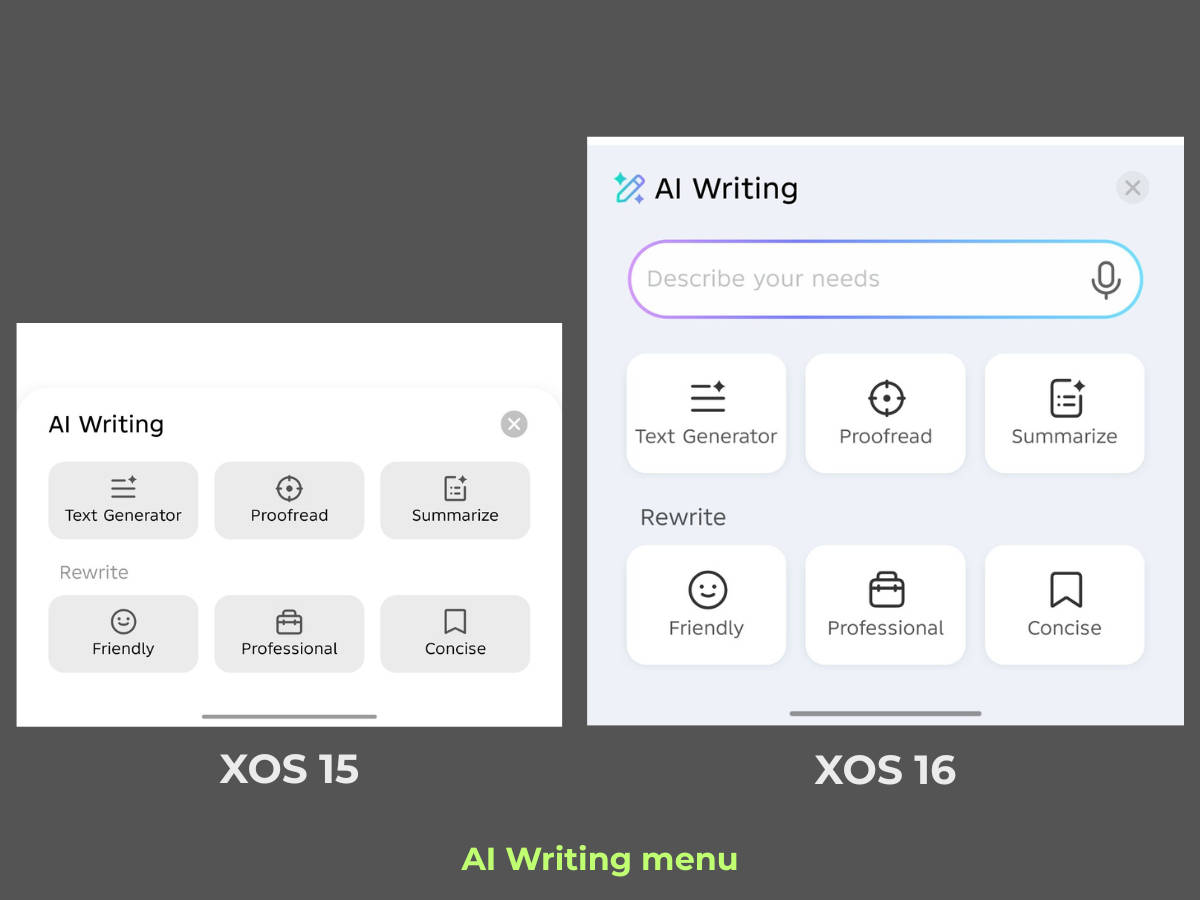
Refreshed AI Writing layout: The AI Writing menu has been polished to sport bigger buttons and icons, giving it a modern look and feel. Now, it also supports voice input, providing users with the convenience of voicing prompts instead of typing them.
It’s good to see Infinix expanding and polishing its AI feature suite. Since the brand competes prominently in the Rs 30,000 segment, it has strong potential to carve out its own identity with a slew of AI features tailored for budget and mid-range devices, something not all brands have prioritised.
Some nifty new features and changes for everyday use
Changes to Dynamic Bar
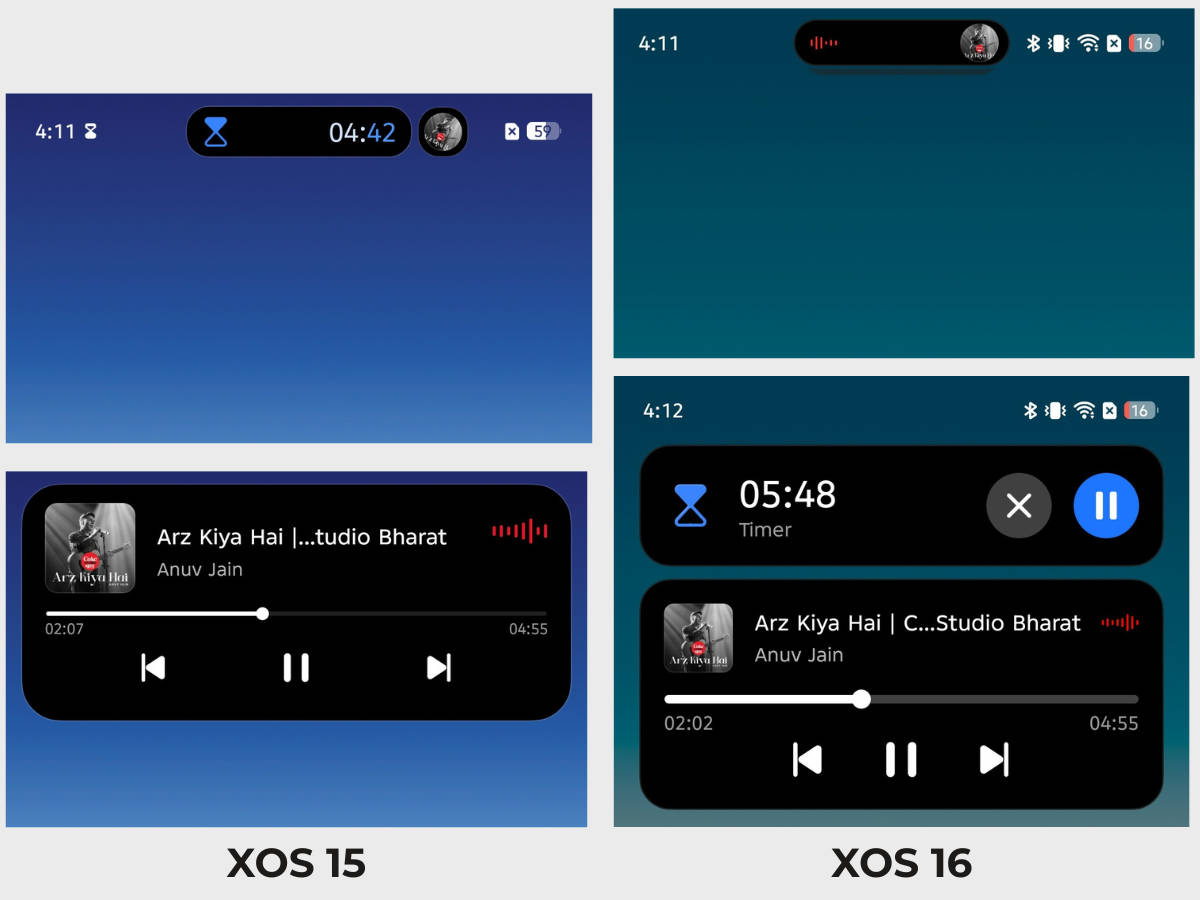
The Dynamic Bar, which displays real-time information from certain apps in a pill-shaped window, has been slightly altered on XOS 16. When running two Dynamic Bar tasks at the same time, they are now stacked on top of each other instead of running side-by-side, as was the case on XOS 15. To switch between these tasks, you can swipe left or right.
YouTube summary
Integrated within the Notes app, pasting a link into the “YouTube Video Note” section will generate a summary of the given YouTube video. Unfortunately, during our time with XOS 16, we couldn’t get the feature to work, possibly due to the software’s early beta nature.
A new gaming feature
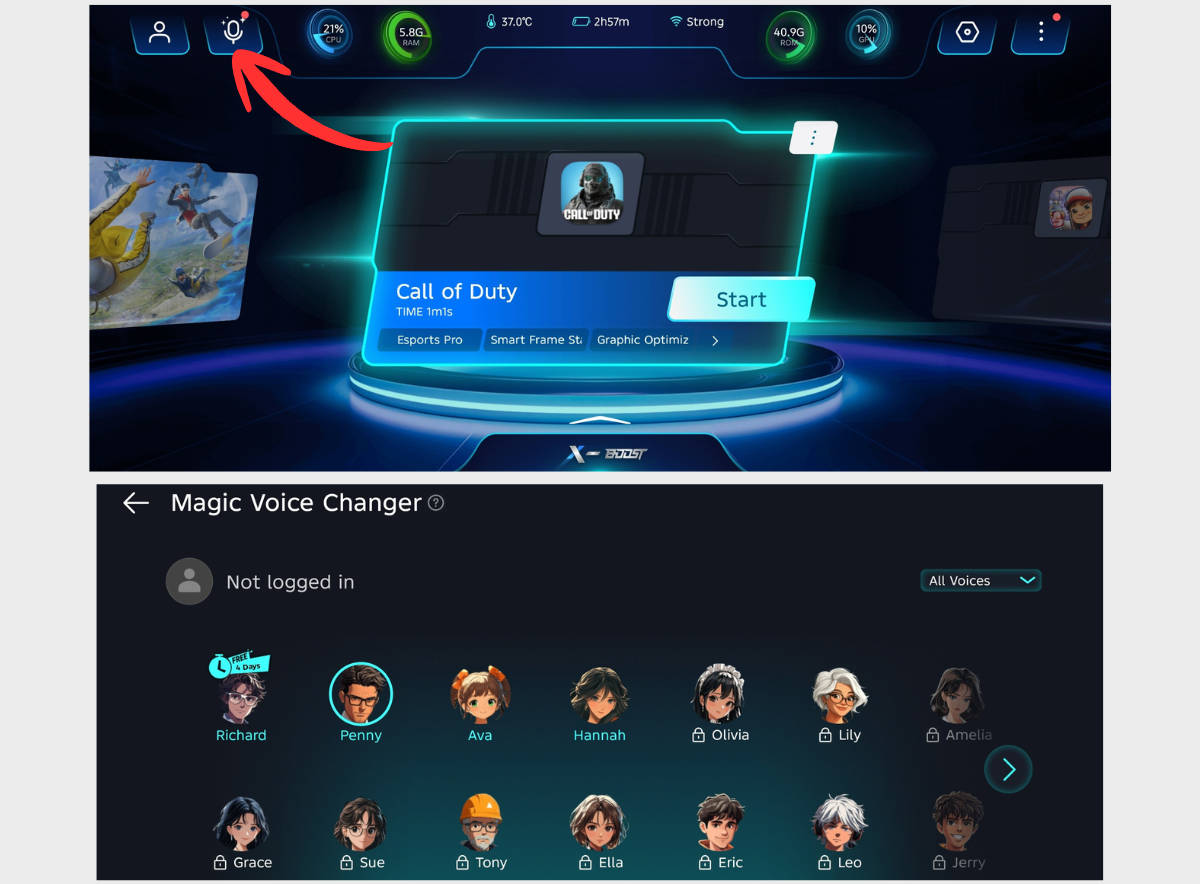
In the XArena app, a ‘Magic Voice Changer’ feature has been added, which, as the name suggests, can alter a person’s voice completely in games that support voice chat, such as BGMI and Call of Duty: Mobile. While there are over 15 voices to choose from, only a few are available to use for free.
Addition of Phone Master
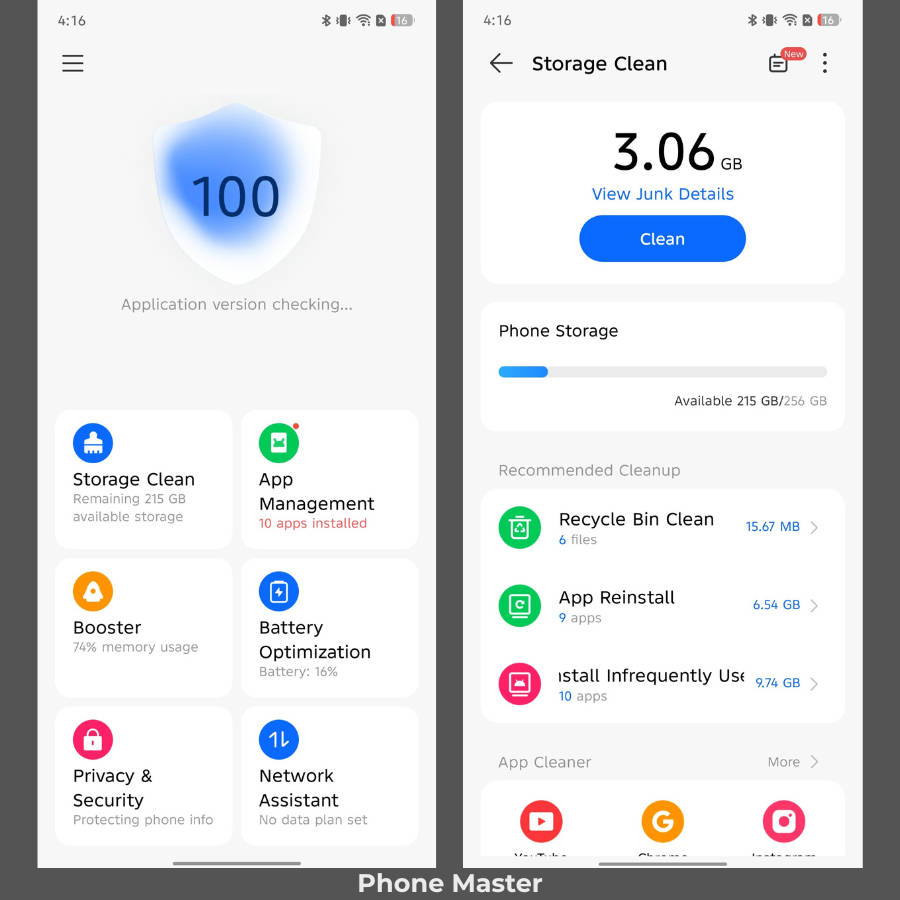
A new ‘Phone Master’ app has been added to XOS 16, something which is currently not present on the Infinix GT 30 and GT 30 Pro running on XOS 15. It’s an all-in-one hub to remove cache and unwanted files, change privacy and security settings, boost memory, and more.
Final thoughts
After experiencing XOS 16 for a few days, Infinix’s intention with XOS 16 is clear: to offer comprehensive software that caters to most demands and use cases. The broad customisation options for the homescreen and lockscreen stand out as the biggest positive, while the new AI enhancements build on the already extensive AI feature set.
The design language of certain elements may appear familiar to other skins and software, but it does end up giving XOS a modern appearance, keeping things fresh despite not rocking a completely distinct feel. Simultaneously, XOS 16 does improve the animations and responsiveness throughout the system, allowing users to experience a fluid interface.
Speaking of design, while many first-party apps incorporate the Glow Space design, certain apps have been omitted, such as Calculator and File Manager. Although this isn’t necessarily bad, it lacks cohesiveness when you regularly switch between the apps. Similarly, the redesigned quick settings panel doesn’t offer any customisation options like repositioning or resizing of the quick toggles, which we recently saw on skins like ColorOS 16 and OxygenOS 16. If Infinix works on ironing out such quirks in future builds, XOS would be much more enjoyable to use day-to-day.