Thanks to TP-Link’s Tapo, I might have finally found my ideal smart home setup


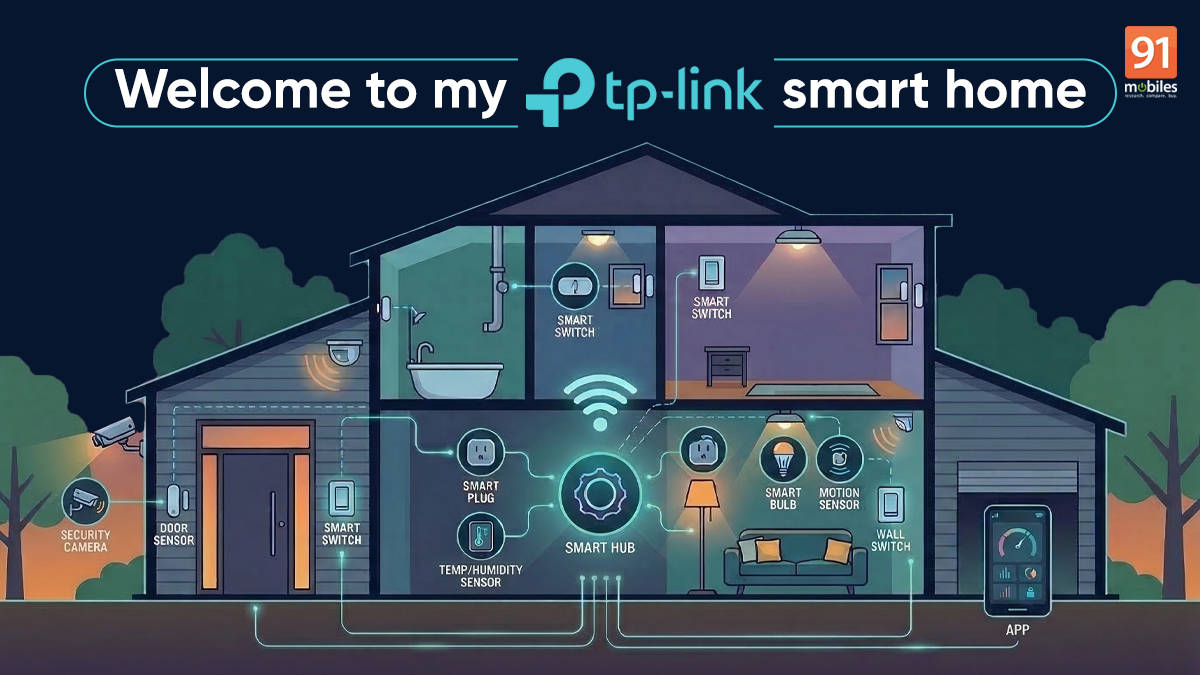
A smart home is all about security and convenience, and getting things done without any effort. I’ve been a fan of smart home devices for a long time, and over the years, have invested in an assortment of different gadgets — plugs, lights, sensors, cameras, and more. They’re all from different brands and offer different capabilities, with Alexa or Google Assistant being the common thread that ties them and makes them work together. I find the whole DIY experience of setting them up and using routines to automate their interplay a whole lot of fun, though truthfully, it’s actually a bit of a hit-and-miss. And then I stumbled upon TP-Link’s Tapo range. This is one brand that offers a wide variety of smart home devices, with a single app tying them all together, unifying the experience and promising seamless usage across the board. So I went ahead and dived right in, in an effort to experience it for myself and see if TP-Link lives up to the promise.
Table of Contents
The components


Below is the list of components I used for my smart home setup. Let me touch upon them one by one, and then give you a rundown of how they work together. The Tapo app, which is available on both Android and iOS, is all you need to set them up, configure them and get them to work their magic. I’ll also mention the pricing of each, as listed on Amazon India on the date of publishing.
- Tapo C425 Smart Wire-free Security Camera: Rs 12,999
- Tapo P110 Wi-fi Smart Plug: Rs 949
- Tapo L530B Smart Bulb: Rs 1,399 (for a pack of two)
- Tapo H200 Smart Hub: Rs 2,499
- Tapo S200D dimmer switch: Rs 1,349
- Tapo S200B smart button: Rs 1,249
- Tapo T100 Smart motion sensor: Rs 1,349
- Tapo T110 Smart Door/Window contact sensor: Rs 1,149
- Tapo T315 temperature & humidity sensor: Rs 2,299
- T310 temperature & humidity sensor: Rs 1,249
Tapo C425 Smart Wire-free Security Camera

A security camera is a vital component of a smart home, and the TP-Link Tapo C425 is an easy recommendation. Not only is it quite capable and feature-rich, it also doesn’t require any wiring since it has a built-in rechargeable battery. And there’s even an option to power it using a solar panel, which could (theoretically) keep it powered indefinitely.
Here are some of its key specs and features:
- 2K QHD 4MP (2,560 × 1,440) live view
- Colour night vision
- 10,000mAh battery, rated for up to 300 days of use
- 150-degree FoV
- Customisable activity zones
- AI detection (motion, person, pet, vehicle)
- IP66 weatherproof, suitable for both outdoor and indoor use
- Built-in microphone and speaker, two-way audio
- MicroSD slot (up to 512GB cards supported), Tapo Care cloud storage (subscription required)
- Support for Amazon Alexa and Google Assistant

I didn’t get the solar panel to try out, but TP-Link does include appropriate mounting hardware in the pack. I used the included magnetic base to mount the camera, and I think it is one of the best things in the camera’s favour. It makes mounting super simple, and very flexible too — since I can move the camera around within the house without hassle, and also remove it for charging when it’s out of juice. The magnetic base attached directly to the door panel on my balcony, making mounting a 2-second process for me. The camera was securely attached to that base, pointed outward towards the street below, monitoring it 24/7 for any signs of movement. For a portion of my testing period, I removed the camera and the base and attached it to a small metal table kept on the side in a corridor within the house. Setting up the camera and configuring it via the Tapo app is quite simple as well.


The Tapo app displays all connected devices in an easy-to-understand card-style layout, and when you tap on the card for the camera display the live feed along with a few other options. You can click a still photo, record a video, make a two-way call, enable privacy mode (this effectively puts the camera on standby mode and switches off recording and alerts), arm the camera to trigger an alarm on motion detection, and view recorded clips. Diving into settings lets you set detection zones and choose detection types (motion, person, pet and vehicle), so the camera will only trigger an alert if it detects the specified type of object within the specified zone. You can also set recording schedules. And under an option labelled “Smart Actions”, you can configure automations that can perform actions and secure your home without you having to do anything. More on that later.

In terms of usage and performance, the C425 works brilliantly. Do note that it doesn’t have any continuous recording option (like a CCTV), and is primarily meant to be a security camera that records clips when it detects motion. I found it to be very responsive and quick in terms of throwing up alerts, and the AI-based detection works well, too. The footage is crisp and clear, and in low light, it gives you the option to record in full colour or fall back to IR-based detection (which is black and white but works in very low light). It does take a long time to charge fully, and comes with a micro-USB port. I would’ve preferred the newer Type-C standard here, but on the positive side, it delivers extremely good battery life. It would vary greatly depending upon the features, alerts, schedules, and level of activity it monitors, but in my case, I got more than three weeks out of it before I received a low-battery notification.
Tapo P110 Wi-Fi Smart Plug

A 16A smart plug, this device can work with high-power appliances like kettles and geysers, and since it can connect to Wi-Fi directly, it doesn’t require a hub. Here are some key features you should know:
- Works with Alexa and Google Assistant, allowing you to operate it with voice commands
- Use it to automate devices or appliances that aren’t smart — works best for lamps, geysers, chargers etc.
- You can set schedules to make connected appliances turn on and off as per your requirements

While the above features are typical and fairly standard for most smart plugs, there are a couple of aspects that make the Tapo P110 stand out. One, its energy monitoring feature allows you to track the power consumption of the attached appliance, and observing trends over longer time periods could be helpful if you’re trying to decipher high power bills. Secondly, there’s an “Away’ mode, which, when enabled, turns the socket on and off randomly at different times. So if you have a bright lamp connected to the smart plug, enabling Away mode would turn it on and off randomly at different times, giving the appearance that someone is at home, while you’re away enjoying a vacation. It’s a small feature, but I think every smart plug and smart bulb should have it. I have used smart plugs and bulbs for this exact use case previously, too, using the scheduling feature, which turned them on/off at specified times. But thanks to the Away mode, it’s much simpler and more useful — since the devices turn on/off randomly.
Tapo L530B Smart Bulb

An 8.7W smart bulb with a standard B22 base, this is Wi-Fi enabled and features changeable colours and brightness. It supports voice assistants and can be remotely operated via the Tapo app. You can also set schedules, save presets, or set it to operate based on sunrise and sunset modes. Just like the P110 smart plug, it also lets you track every usage, and features an “Away” mode that turns the bulb on and off randomly to make it seem like someone is at home.
Tapo H200 Smart Hub

As is apparent from the name, this device is a hub that serves as a bridge for many of TP-Link’s smaller smart home devices that can’t connect to Wi-Fi directly. In my case, I needed it for the motion sensor, contact sensor, temperature and humidity sensors, and the smart buttons. Without the hub, these devices have no way of contacting TP-Link’s servers and won’t work. But apart from just serving as a bridge, it has a few other tricks up its sleeve. It features a built-in chime which can serve as an audible alert when motion is detected by the C425 camera or the T100 motion sensor (more on this later). It also has a microSD card slot, which can serve as centralised storage for multiple TP-Link cameras, as long as the devices are on the same Wi-Fi network. This basically means that if you have multiple TP-Link security cameras, you could just use a single, high-capacity microSD card inserted in the hub (with the hub and the cameras connected to the same Wi-Fi network) as centralised storage instead of buying individual memory cards for each camera. Even if you have just one camera, using the H200 Smart Hub’s microSD card slot could be more convenient in case your camera is installed at a hard-to-access location.

Tapo S200D Dimmer Switch and S200B Smart Button

These devices need the hub to work and offer four different “triggers” that can be configured via the Tapo app to perform actions on other devices. The triggers include single press, double press, rotate clockwise, and rotate anticlockwise. The most straightforward use cases of these would be to switch the L530B smart bulb on or off when the button is pressed, and to turn the bulb’s brightness up or down depending on the direction the buttons are rotated. Designed like circular knobs, these buttons can be mounted magnetically or using double-sided tape on your bed stand or any other convenient location.

Tapo T100 Smart motion sensor
A tiny device that can be mounted on a wall using double-sided tape, the one and only function of the T100 is to detect motion. It needs the hub to work, and by itself, all it can do is alert you if it detects any motion, using the Tapo app, of course.
Based on the motion-detected trigger, though, it can be set to perform other actions — such as making the H200 smart hub’s alarm go off. This effectively converts the T100 motion sensor and H200 hub combo into a burglar alarm. But that’s not the only way you can use the motion sensor. More later.
Tapo T110 Smart Door/Window contact sensor

The T110 contact sensor includes two small pieces which can trigger alerts each time they’re separated from each other and when they’re brought close together. The two pieces can be stuck on a door or a window using the double-sided tape provided, and then function as sensors that alert you when the door or window is opened or closed. I have it installed on the main door in my house, and I’ve set it up to alert me via notification on my phone each time the door is opened or closed. I do have a Qubo smart door lock installed, but unfortunately, it doesn’t have a notification feature, so the T110 does come in quite handy.
Tapo 315 and 310 temperature and humidity sensors

Both these devices also require the hub to function and, once set up, provide temperature and humidity readings of the room they’re placed in. These figures can be viewed in the Tapo app. The Tapo 315, however, has an e-ink display that shows these numbers right up front. Apart from the information itself, another key use case would be to set up smart actions that automate and control other devices, based on temperature and humidity. I’ll mention some examples in the last section when I talk about the interconnectivity.

Putting it all together, just like pieces of a puzzle
Think of all the above components and devices as music instruments. They can all create notes when played individually, but when they come together, an orchestra is formed and makes sweet music. How’s that for an analogy? But I’m not saying that just for the heck of it.
Once you have all these devices set up in your Tapo app, here’s a look at some things you can do. Most of these are accomplished via Smart Actions, which is the automation feature found in the Tapo app. You can access these via a dedicated button labelled “Smart” in the app, or via the dedicated device cards too. And if that feels overwhelming, you should know that the Tapo app even offers readymade automations which you can enable and use directly.

- The H200 smart hub can sound an alarm if motion is detected by the T100 motion sensor or the C425 camera.
- It can also sound an alarm if the door or window where the T110 contact sensor is installed is opened. Of course, these smart actions make sense only if there’s no one at home and you want to “arm” your burglar alarm. You can do that manually via the app or set up geolocation, wherein the automation gets activated automatically when your phone exits a specified location perimeter.
- Based on geolocation, you can set all smart lights and smart plugs to turn off, and put them in “away” mode so they keep turning on and off randomly in your absence to make it seem like someone is at home.
- The T100 motion sensor can be set to turn on the L530B smart bulb when it detects motion, and turn it off when no motion is detected for a specific period of time. That’s exactly how I’ve set it up — placing the mention sensor behind my bathroom door and installing the bulb inside. That way, the bulb turns on automatically when I use the bathroom and turns off on its own within 10 minutes if no motion is detected.
- The Tapo 315 and 310 temperature and humidity sensors can be set to turn on the Tapo P110 Wi-Fi Smart Plug when humidity exceeds a certain level, which makes sense if you have a dehumidifier connected to the plug. In case you have an external wiring for your AC, with an external plug, you could create a smart action that turns the plug on if the temperature rises above a certain level (with the AC plug connected to the smart plug).
- The L530B can be set to come on automatically at sunset.
- The T110 contact sensor can remind you if the door/window is left open for more than a set time.
- You can create shortcuts that control multiple devices with a single tap. For instance, you could create a shortcut that turns off all your TP-Link smart bulbs and smart bulbs with one tap.
- Custom automations can be created using multiple triggers, based on specific conditions, resulting in different actions.
- You can also nest various automations and shortcuts under a new shortcut, creating complex smart actions to accomplish something specific based on your requirements.
To conclude
Many of the capabilities, automations, device functions, etc., I described above aren’t new for me, and I’ve been trying and using many of them for a while now, using devices of different brands. Just to give you some more context, I have smart bulbs from Xiaomi and Philips, security cameras from Xiaomi and Realme, smart plugs from Realme, Amazon and Sonoff, smart switches from Sonoff, a smart button from Shelly, and a bunch of others. They’re all good devices, and I’ve been using Alexa Routines to tie them up together and automate a few things. However, as I mentioned before, things aren’t as smooth as I’d like.

Using TP-Link’s smart home device does make the overall experience much smoother and seamless… with automations, triggers and alerts working quickly and reliably across the board. Not to mention the fact that the TP-Link Tapo range is quite extensive, with devices that are capable and feature-rich. So if you’re planning to set up a smart home, I’d say the TP-Link Tapo range is worth exploring. You could start with a few of these devices and keep adding more as per your needs and requirements, making your smart home even smarter.