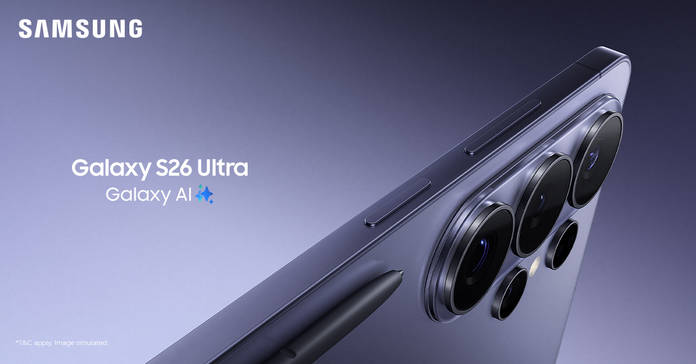
The Samsung Galaxy S26 Ultra had no shortage of attention when it launched earlier in March. Between the buzz around the world-first Privacy Display and the upgraded 200MP camera system, some new, useful Galaxy AI features did not quite get the spotlight they deserved.
If you plan to use this phone as your main device, it is worth looking at how One UI uses AI to make everyday stuff like editing photos, searching, or getting through your day a little easier. In this article, we’ll walk you through seven Galaxy AI features on the S26 Ultra that actually change how you use the phone on a day-to-day basis.
What is Galaxy AI on the Galaxy S26 Ultra?
Galaxy AI is Samsung’s built-in AI layer on the S26 Ultra that works quietly across your apps, camera, lock screen, and home screen. It is not one single feature but a set of tools designed to reduce the number of steps between what you want to do and actually doing it, without asking you to change how you already use your phone.
How does AI help in daily usage?
Your phone is your camera, planner, search tool, and content editor all at once. The more you use it, the more time you spend switching between apps and repeating the same steps. When AI is built into the apps you already use, it quietly handles the repetitive parts so you can focus on what actually matters, whether that is getting a photo right, finding something quickly, or keeping track of your day
How does the Galaxy S26 Ultra simplify AI usage?
The S26 Ultra does not ask you to go looking for AI features. The photo editing features are inside the gallery, your daily summary is on the lock screen, search is on the home screen, and routine automation runs in the background. Here is a look at the seven Galaxy AI features that best show how this plays out in everyday use:
What is Photo Assist on the Galaxy S26 Ultra?
Most of us take a photo, spot something wrong in it, and either ignore it or try to fix it in a separate app. Photo Assist is Samsung’s way of solving that pain point on the Galaxy S26 Ultra. It lives inside the Gallery app and lets you edit photos using short text prompts instead of juggling sliders and tools. You tell the phone what you want to change, and it does the heavy lifting in the background.
What can Photo Assist actually do?
Photo Assist focuses on fixes you would realistically want to make after a shot. You can remove unwanted objects, and the AI fills in the background so the edit does not appear odd. You can expand the frame or move the subject slightly if the composition feels off.
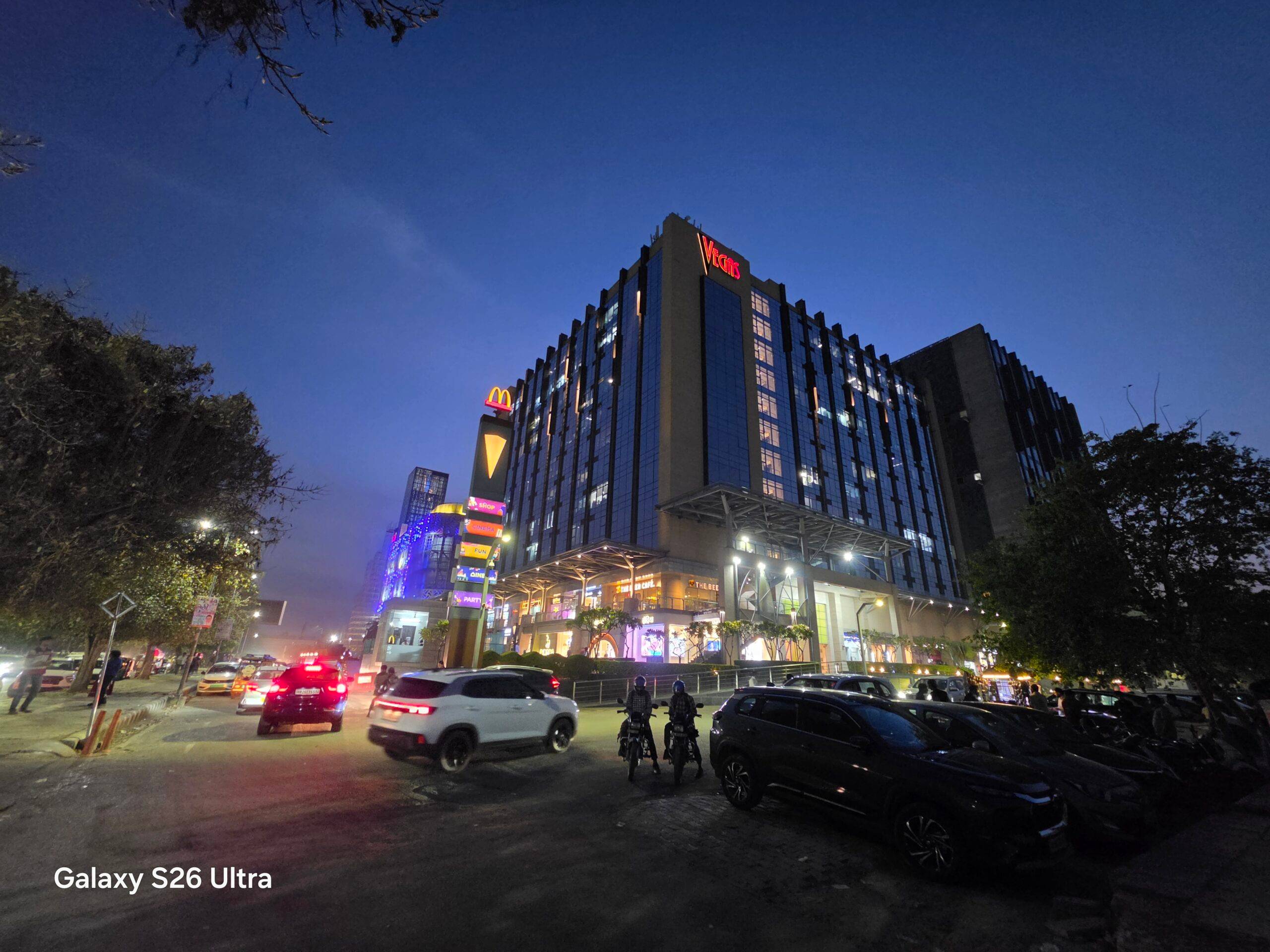
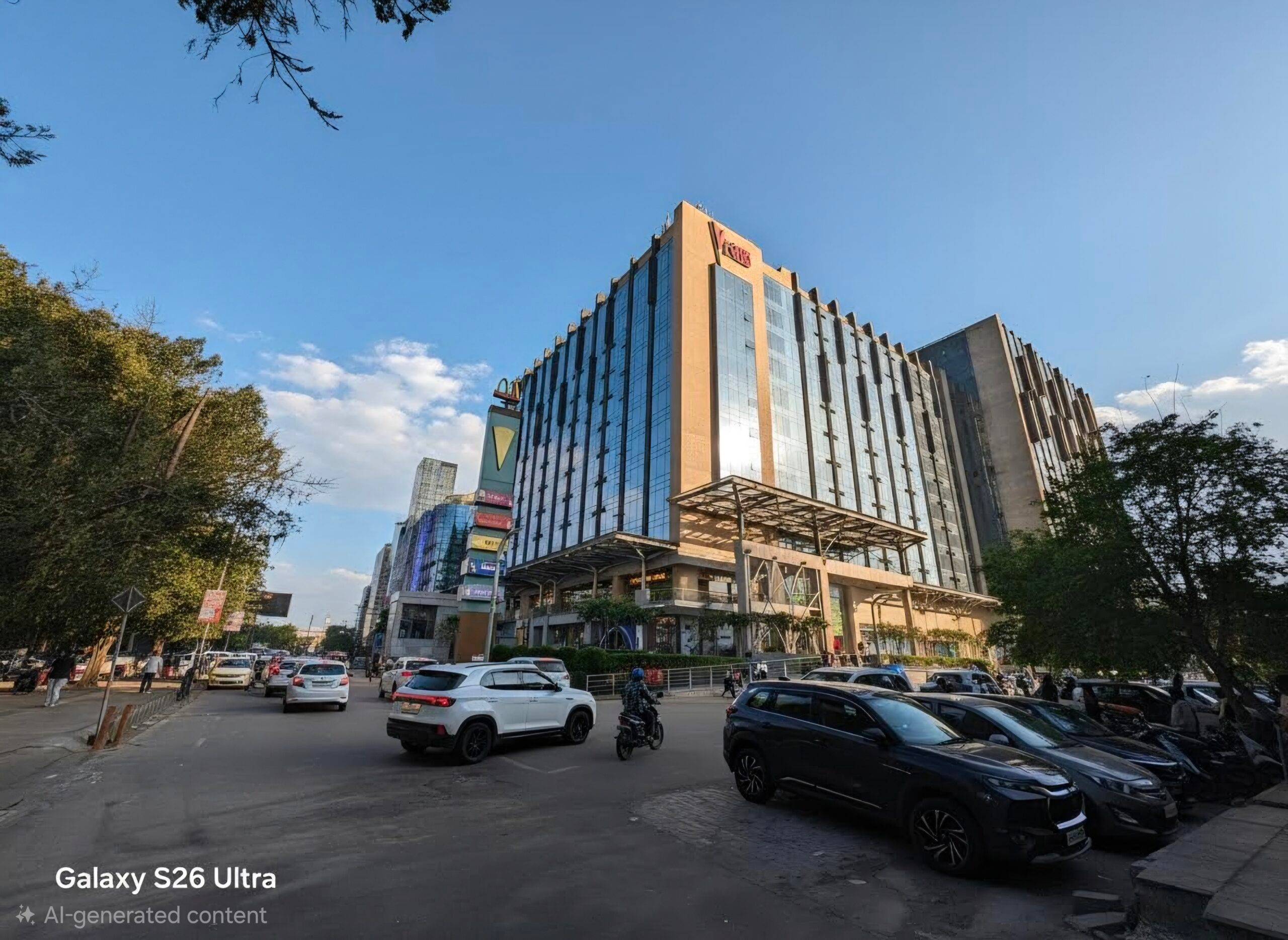
It can even change the time of day in a photo, turning a night shot into a daytime scene while adjusting lighting and shadows to match. If you want to get creative, you can sketch a rough shape on the image, and the phone turns it into a realistic object that blends into the scene.
Who actually needs Photo Assist?
This feature mainly targets people who edit photos often but do not want to learn full-blown editing software. If you post travel content, you can fix cluttered backgrounds or fix a dull sky in a few taps. For food and lifestyle shots, you can remove stray objects or tweak the crop without leaving the Gallery app.
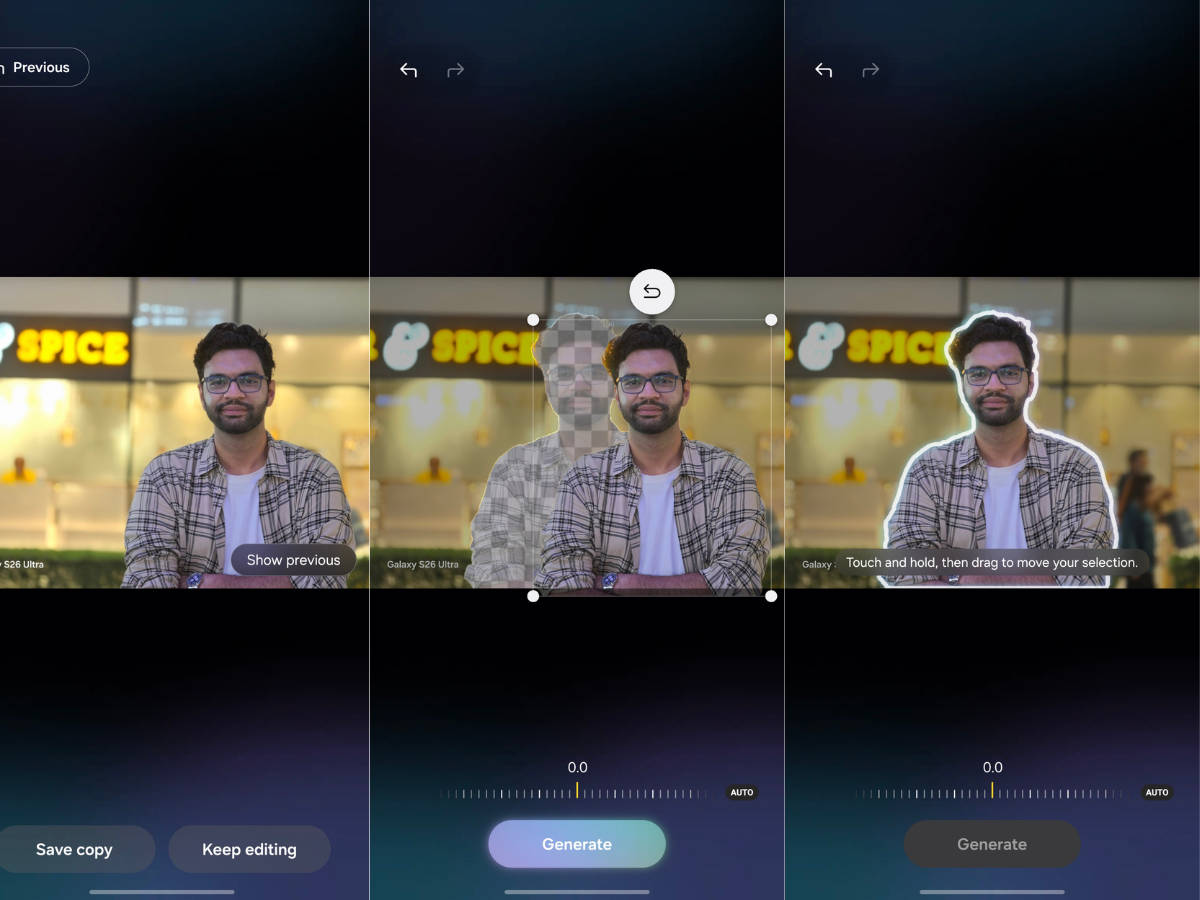
Even if you just take casual photos, it helps with simple fixes like removing a stranger from the background or nudging the subject into a better spot, and you can do all of that without any editing knowledge.
What is the Now Bar on the Galaxy S26 Ultra?
The Now Bar is a dynamic strip at the bottom of the lock screen on the Galaxy S26 Ultra that aims to make your “glance time” more useful instead of just pretty. It brings two Galaxy AI features, Now Brief and Now Nudge, into one shared space so you do not have to dig through widgets or apps. Now Brief gives you a quick AI summary of your day by pulling from your calendar, weather, and reminders, so you know what is coming up as soon as you pick up the phone. Now Nudge sits next to it and suggests actions in context, like telling you when to leave for a meeting based on traffic or reminding you to reply to a message you left hanging.
How is Now Bar different from regular notifications?
Regular notifications simply tell you that something happened and leave the rest to you. The Now Bar tries to reduce that mental load by grouping what is important and pairing it with an obvious next step. Instead of scrolling through a crowded notification shade to figure out what to do first, you see a small, focused set of cards that highlight what matters at that moment. You can act on most of it directly from the lock screen, which is especially handy if you have a packed schedule or you tend to forget smaller tasks like follow-ups and reminders.
What is Circle to Search’s multi-item feature?
Circle to Search has been around for a while, but the Galaxy S26 Ultra makes it more useful by letting you search for multiple items in the same image at once. Earlier, you had to circle one object at a time and repeat the gesture for each new item. Now, you can select several things in a single frame and get results for all of them together, which cuts down a lot of back-and-forth in real use.
The most obvious use case is shopping. If you see a well-styled outfit on social media or in a show, you can circle the jacket, shoes, and bag in one go and find similar options for each of them in a single search. It also helps with travel photos that have multiple landmarks or a packed tech desk setup where you want to identify more than one product at once. In all these cases, what earlier meant running three or four separate searches now takes just one step.
What is Creative Studio and what can you do with it?
Creative Studio is a Galaxy AI tool on the S26 Ultra that helps you turn quick ideas into visuals directly on the phone. You can start from a sketch, a photo, or a short text prompt and let the phone handle most of the heavy lifting. It can turn rough doodles into stylised artwork, generate stickers from your own images, or put together simple designs like wallpapers, greeting cards, and invites.
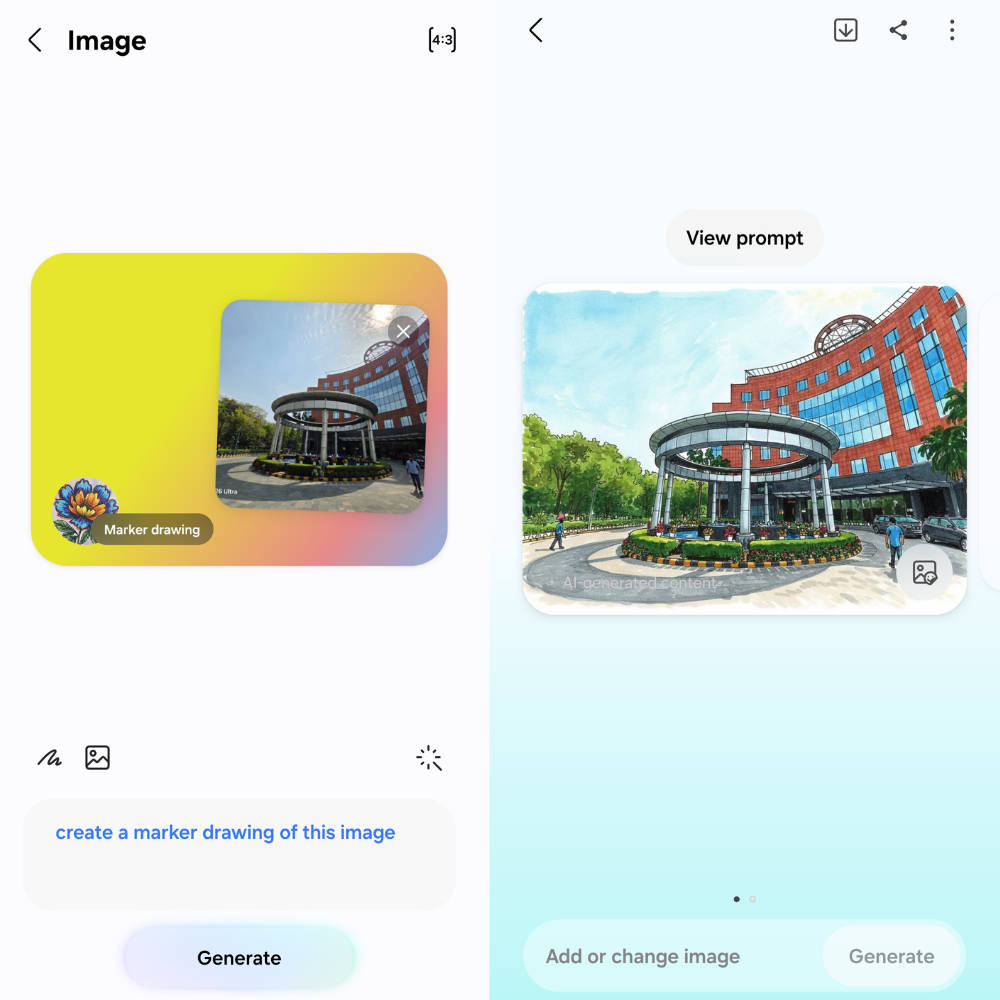
The Marker Drawing Style feature is a good example here. You draw something rough on screen, and the phone converts it into a cleaner, more polished version. It works best when you keep things simple, and the output is mainly useful for personalisation and quick, shareable visuals.
Creative Studio is aimed at casual users who want decent-looking graphics without opening a proper design tool. If you post on social media, like sending personalised stickers in chats, or prefer wallpapers that feel a bit more “yours” than a stock image, this is the feature for you.
Automated App Action
Automated App Action is designed to handle small, repetitive tasks on your phone by compressing them into a single step. Instead of tapping through the same screens every time you want to order your usual coffee, book a cab, or open a specific playlist before your commute, Gemini can run them for you automatically.
Indian users, however, should keep their expectations in check for now. The Gemini-powered automation that makes all of this work is currently in preview and only available in select markets like the US and South Korea. A wider rollout that includes India is expected but does not have a confirmed timeline yet.
Finder on the home screen
Samsung has moved the Finder search button to the home screen on the Galaxy S26 Ultra, which means you no longer have to swipe into the app drawer just to track something down. You can search for apps, contacts, files, and settings all from one place, and it pulls in web results too if what you are looking for is not on the device.
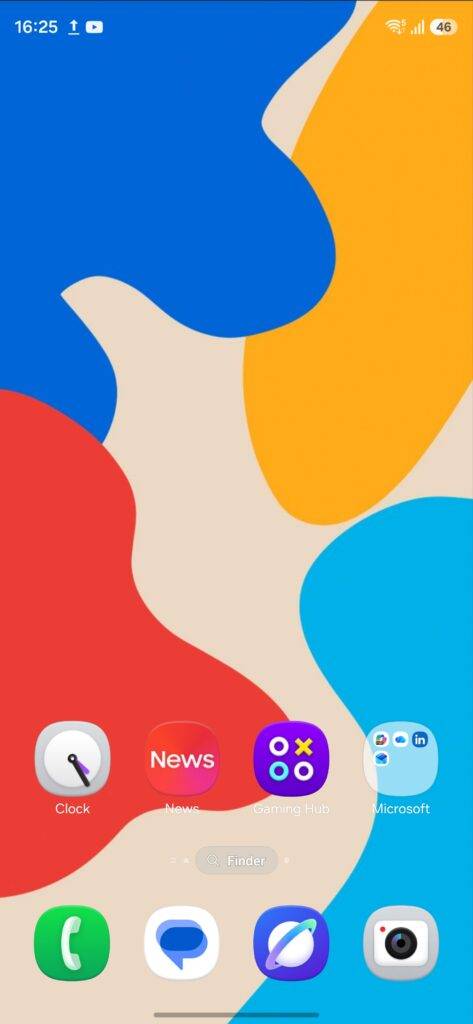
It is a small change, but if you have a lot of apps installed or regularly hunt for settings you only visit once in a while, having search right on the home screen makes the phone a lot quicker to get around.