How to check battery health of your Android mobile phone
Keep an eye on your phone's battery health to avoid inconvenience


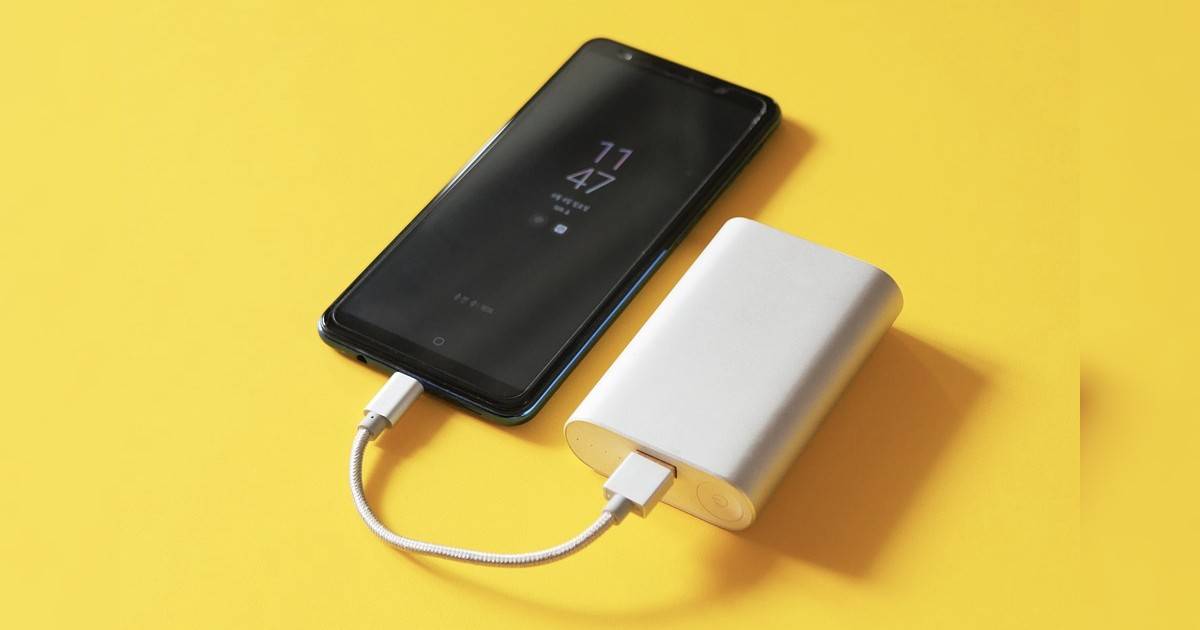
Smartphone batteries degrade naturally with routine charging, and after a while, they discharge faster than when they were new. So, keeping an eye on your phone’s battery health and knowing how much battery capacity it has will allow you to make changes on how you charge and discharge the battery. It would help you to plan your phone usage and ensure it remains powered throughout the day. You can also implement proper charging practices. But first, let’s learn what battery health, battery capacity and degradation are.
Battery health refers to how well a battery is performing compared to its original condition when it was new and is often expressed as a percentage. Battery capacity is the amount of energy a battery can store, usually measured in milliampere-hours (mAh). You can think of it like a water tank, and the capacity is how much water it can hold. On the other hand, degradation is the gradual loss of a battery’s capacity after regular daily use. With degradation, your phone might need to be charged more often, or it might not last a full day on a single charge like it used to.
On that note, here’s how to check battery health in Android phones from various popular brands:
Table of Contents
Check battery health on a Samsung phone
Samsung lets you check the phone’s battery health on One UI 7 or later devices, showing an exact percentage. Here’s how to check
Step 1: Open the Settings app on your phone and go to the Battery section.


Step 2: Under the Battery section, scroll down until you see Battery information. Select it


Step 3: This screen will show the remaining health of your Samsung phone along with the charge cycles


Note: The battery health percentage is only available to view on the Galaxy S25 series, and that too is not in all regions. For instance, the Indian variants of the Galaxy S25 series don’t display the battery health
How to view battery health on Google Pixel
Starting with Android 16 on the Google Pixel 8 series and above, users can view their device’s battery health in just a few taps. Here’s how:
Step 1: Go ahead and launch the Settings app on your Pixel
Step 2: Now select the Battery menu


Step 3: On the next screen, tap on Battery health


If you have a Pixel 7 series smartphone or an older-generation Pixel phone, you can try several third-party solutions listed at the end of this article to check the battery health.
Step 4: The Battery capacity section will display the remaining battery health of your Pixel smartphone


Know the battery health of OnePlus, OPPO, Realme phones
Since OnePlus, OPPO, and Realme phones share the same ColorOS codebase, the steps to check battery health are the same across these brands. You can check battery health on your Android 13 or later device from any of the brands mentioned above using the following steps.
Step 1: Firstly, open the Settings app on your OnePlus, OPPO, or Realme phone
Step 2: Now scroll down and select Battery


Step 3: On the next page, select Battery health


Step 4: The Maximum capacity percentage will indicate your battery health


Note: Older OnePlus phones may not show the battery health. This feature has been available since the OnePlus 11 series. Also, many OPPO and OnePlus phones launched in late 2025 do not show battery health. These phones include the OnePlus 13s, OPPO Reno 14 series, and others.
Monitor the battery health of your Xiaomi or POCO phone
Phones from Xiaomi (including Redmi) and POCO run on the same custom software called HyperOS. Hence, the process to check the battery health on these phones is the same.
Step 1: Open the Settings app on your Xiaomi or POCO smartphone
Step 2: Now scroll down and select Battery


Step 3: Go ahead and select Battery protection


Step 4: You can now view the battery health of your Xiaomi or POCO phone. This page also shows the charge cycles completed and the phone’s manufacturing date.


Note: Older Xiaomi or POCO phones may not show the battery health.
Since Xiaomi started displaying battery health on phones launched towards the end of 2021 and later, you may find the battery health section starting with MIUI 12.5, continuing through HyperOS 2 (MIUI 14 was succeeded by HyperOS 1).
Here’s how to check battery health on Vivo or iQOO phone
With the latest OriginOS 6 update for Vivo and iQOO smartphones, the Settings app’s layout has changed; however, the steps to view battery health remain largely the same.
Therefore, if your Vivo or iQOO smartphone is running Funtouch OS 14, Funtouch OS 15, or OriginOS 6, here’s how to navigate the Settings app to check battery health.
Step 1: Open the Settings app on your iQOO or Vivo phone
Step 2: Once opened, scroll down and select the Battery section


Step 3: On the next page, select Battery health and charging

Step 4: The Maximum battery capacity section will indicate your battery health

Note: Older iQOO and Vivo phones may not show the battery health.
Check battery health on an Infinix phone
Infinix has also added the option to check battery health on its latest smartphones running Android 15-based XOS 15, such as the Infinix Note 50s, Note 50x, Hot 60, and others.
Step 1: Open the Settings app on your Vivo phone
Step 2: After that, go to the Battery & Power saving section

Step 3: On the next page, select Battery health & charging

Step 4: Now select Battery Health

Step 4: On this page, the Maximum Battery Capacity percentage will display your battery health


Note: Not all Infinix phones may show the battery health.
Know the battery health of Nothing and Motorola smartphones
As of Android 16, neither Nothing nor Motorola smartphones have a dedicated Settings section to view the battery health percentage, unlike other manufacturers. However, using a third-party app called “CPU-X“, you can know the battery charge cycles your phone has gone through.
In short, the more battery charge cycles the app displays, the lower the remaining lifespan of your phone’s battery. Suppose your device has achieved 22 charging cycles. This indicates the battery is close to new. On the other hand, charge cycles over 500 indicate the cell has undergone significant wear and tear, but it is still capable of lasting several more years.


While this doesn’t provide a precise estimate of remaining battery health, you can monitor this unit to assess how long the battery will last before replacement. Most Android brands typically claim that their smartphones are tuned to last over 1,600 charge cycles before the battery health drops below 80 percent.
Check phone’s battery health using a dial code
Little do people know that you can access a hidden diagnostic menu on Android phones by dialling a secret code consisting of numbers, asterisks, and hashes. Here’s how to use the Phone app to check your Android phone’s battery information.
Step 1: Open the Phone app on your smartphone and input *#*#4636#*#* in the dial pad.

Step 2: In the testing menu that pops up, look for Battery Information for details like charge level, battery temperature and health.
Note: In case you don’t see the Battery Information option, then unfortunately, it means that this secret dial code method doesn’t work on your Android mobile phone.
Check phone’s battery health via third-party apps
If the above solutions don’t work, or you want more comprehensive information about your phone’s battery health, you’re better off installing a third-party app like AccuBattery on your Android device. It will show you details like usage information, battery capacity, temperature, and more. To check the phone’s battery health via a third-party app, follow these steps:


Step 2: Once you open the app, you’ll find four tabs: Charging, Discharging, Health & History. Go to the Health tab at the bottom.


Step 3: In this section, you’ll see your battery health as a percentage. Other information, such as battery capacity and wear, is also available under Battery Health.
Note: When you first use the app, it may not display any battery history because Android doesn’t provide historical battery data to third-party apps. The only info that the app can read would be the battery’s design capacity. It is with each charge cycle that the app will record your battery’s estimated capacity and, over time, determine its health.
Here are a few other apps that let you see the Battery Health:
Tips to maintain phone’s battery health in the long run
If you want to maintain your phone’s battery health, there are several ways to do so. Firstly, avoid pushing the phone to its peak performance when using the device in high temperatures, such as under direct sunlight. High heat tends to accelerate battery degradation. After that, changing the charging habits can help extend the battery’s health. If possible, avoid overcharging after 100 percent and use slow charging, unless your phone has a smart charging feature that automatically slows down the charging speed per your usage patterns.
FAQs
How frequently should I monitor battery health in my phone?
You do not need to monitor the battery’s health frequently. It may be required only if you notice the phone is discharging faster than usual. You can check battery health if you notice abnormal battery drain, overheating, or if the device isn’t charging properly.
Why does my phone drain quickly even after having good battery health?
The phone battery could drain quickly despite good battery health due to factors such as frequent push notifications, too many background apps, too many location services running, high brightness, phone getting warm due to warm weather, the screen staying on for too long, poor cell reception, or an outdated operating system with associated optimisation issues.
When should I consider replacing my Android phone battery?
Most Android phone manufacturers recommend that once your battery capacity has fallen below 80 percent due to too many charge cycles, it is best to replace it with a new one. If the aforementioned battery health checkers indicate poor battery health, it’s time to have the phone’s battery checked or replaced.
What should I do if my phone doesn’t have a Battery Health option in Settings?
You can use third-party apps such as DevCheck, Battery Monitor, or Battery Guru to get this status. On a Samsung phone, you can use the Samsung Members app to get the battery life status.
What does a low battery health percentage mean in Android?
If the battery health percentage is low or poor, it means you need to take the phone to your smartphone brand’s customer care. They will diagnose and tell you if you need to change the battery. If so, pay and have the battery replaced.
How to reset my Android battery cycle?
As per Google support, you have to charge the phone to 100 percent and continue charging for another one or two hours. Don’t stop charging or using the device during this period. After these two hours, unplug the charger and use the device until it reaches 0 per cent charge and shuts down. Now charge the device again to 100 percent. That’s it. This should reset the Android battery cycle.