A new phone can impress you in an hour. An operating system has to prove itself over weeks. The first few hours are about discovery: setting up the phone, testing the camera, and trying out the features everyone talked about at launch. However, a few weeks later, I noticed how the OS is part of the little things I do every day.
How quickly can I move between apps? Can I find that screenshot I saved three weeks ago? What happens when I need something from my phone while working on my laptop? Even a good photograph can survive someone walking into the frame. These were some of the things I noticed while living with OPPO’s ColorOS 16. Somehow, they just fit into my life like Lego.
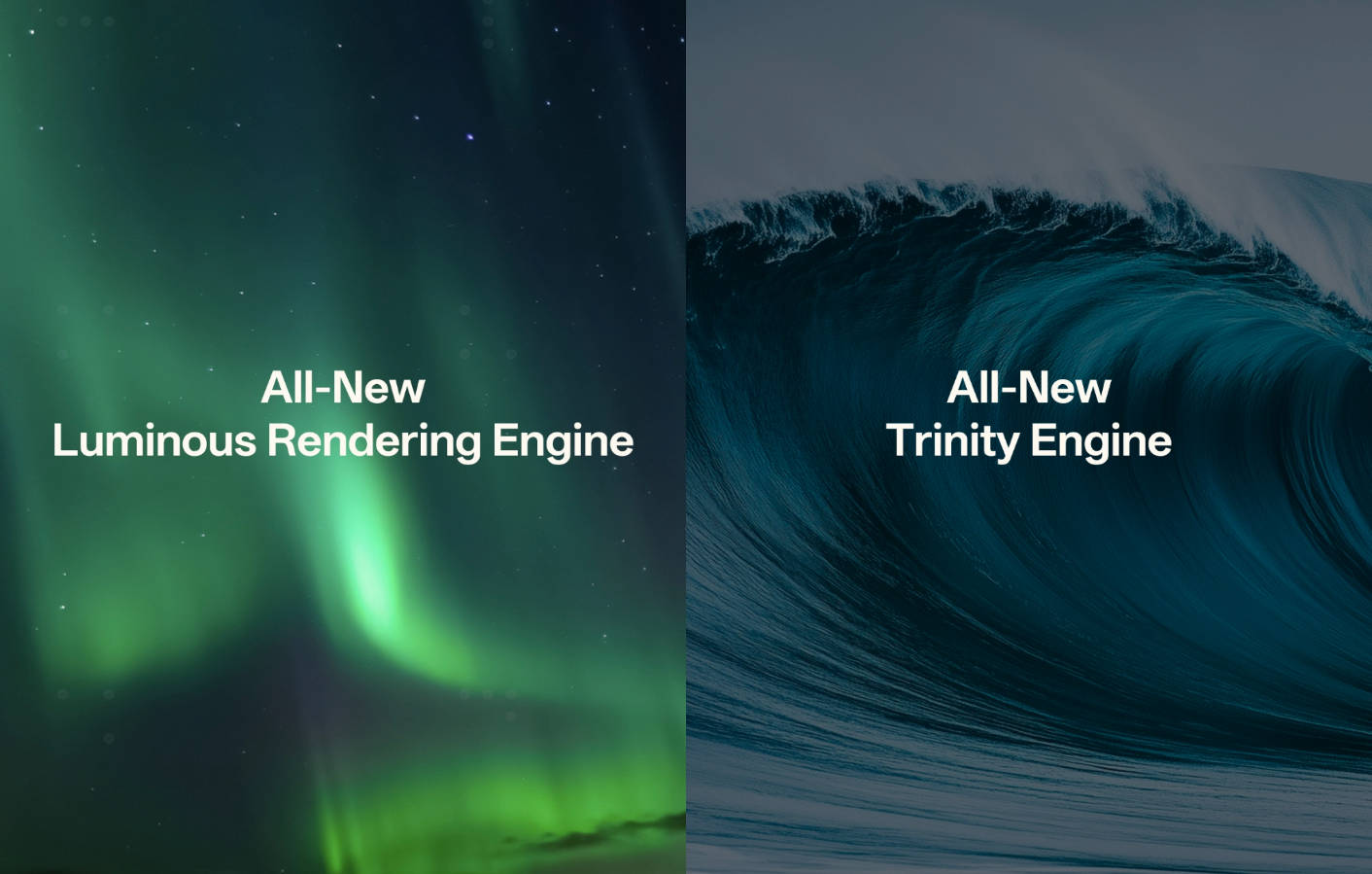
Table of Contents
The real difference showed up in the moments I didn’t plan for
I didn’t notice ColorOS 16’s smoothness at first. I was simply using my phone as usual: replying to messages, opening documents, checking something online, and switching to the camera. A few weeks in, those transitions just felt effortless. I could move between apps and multitask without the small pauses that interrupt the workflow.
Behind the experience are the Luminous Rendering Engine and Trinity Engine, which work under the hood to keep animations, app switching, and overall performance responsive and stable.
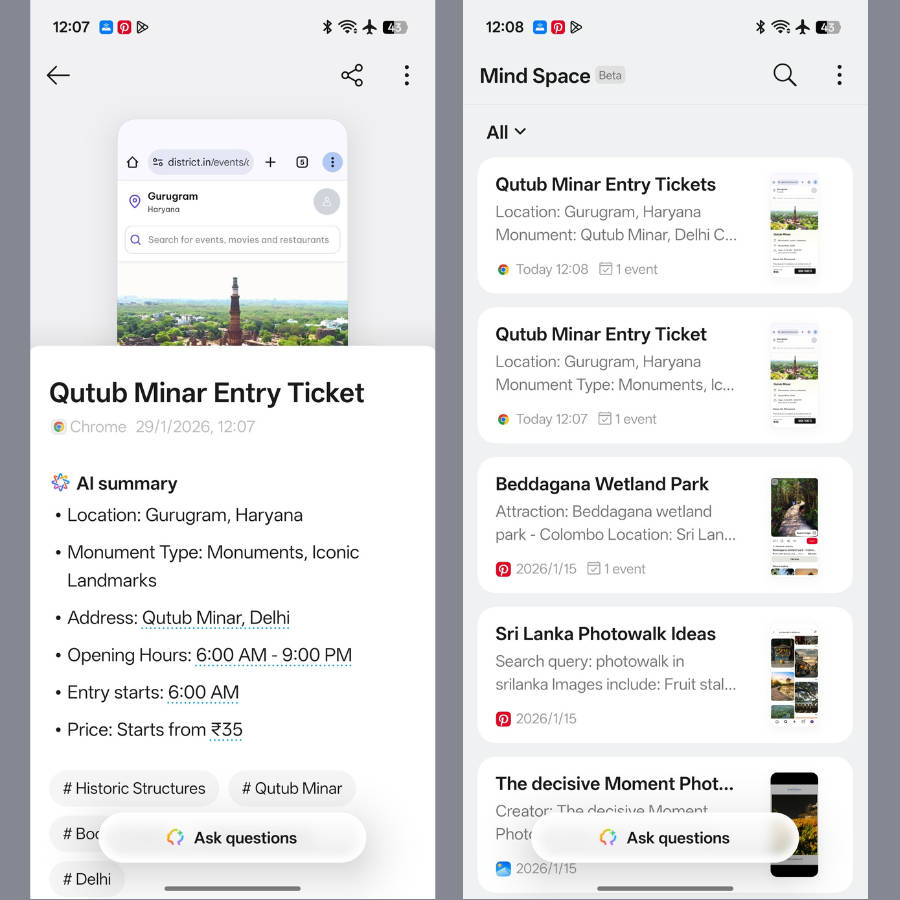
I didn’t realise how much of my life was sitting in screenshots – until I tried AI Mind Space
I screenshot almost everything I might need later: a restaurant, a product, a recipe, or something for work. The problem is finding it again when I need it.
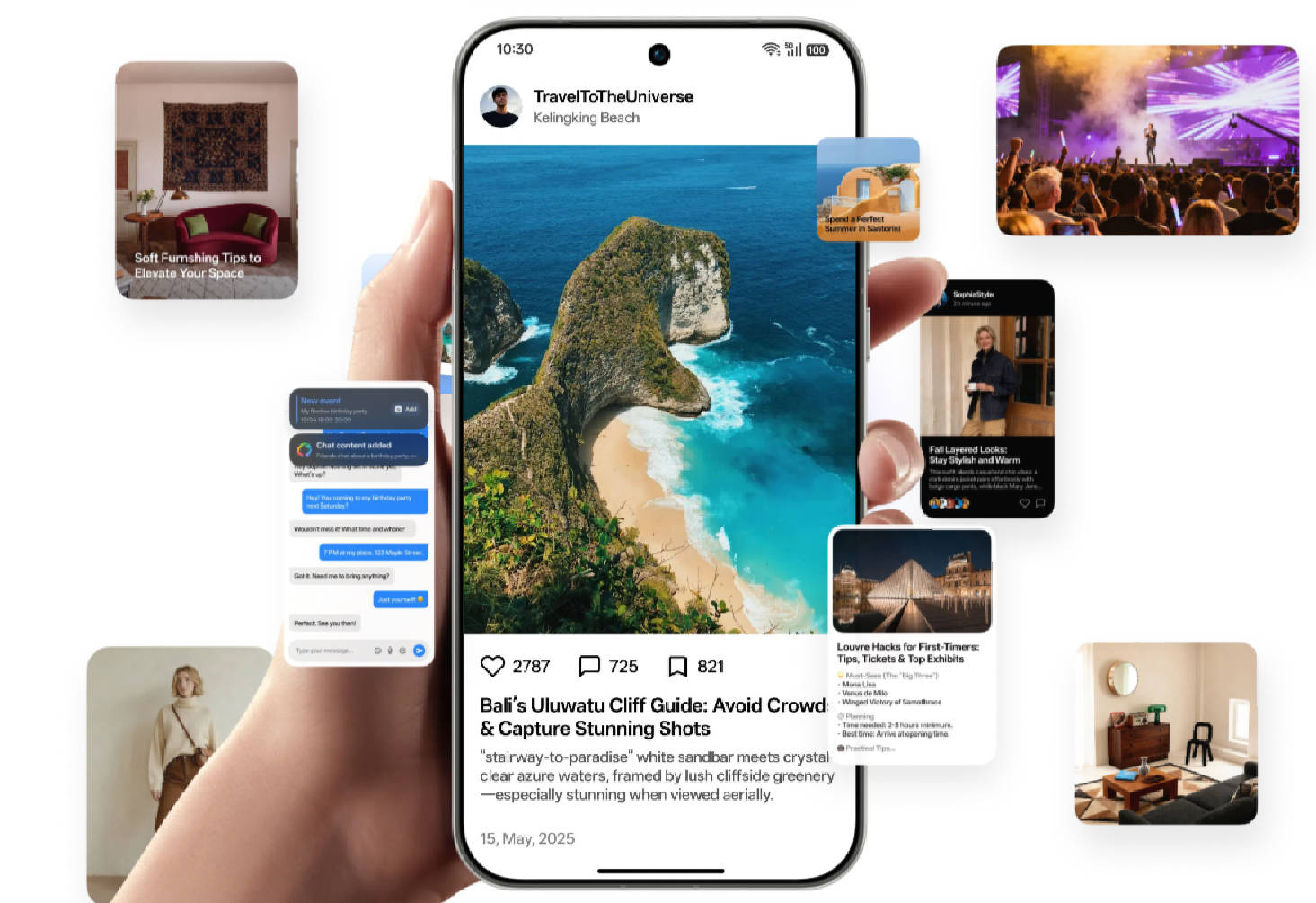
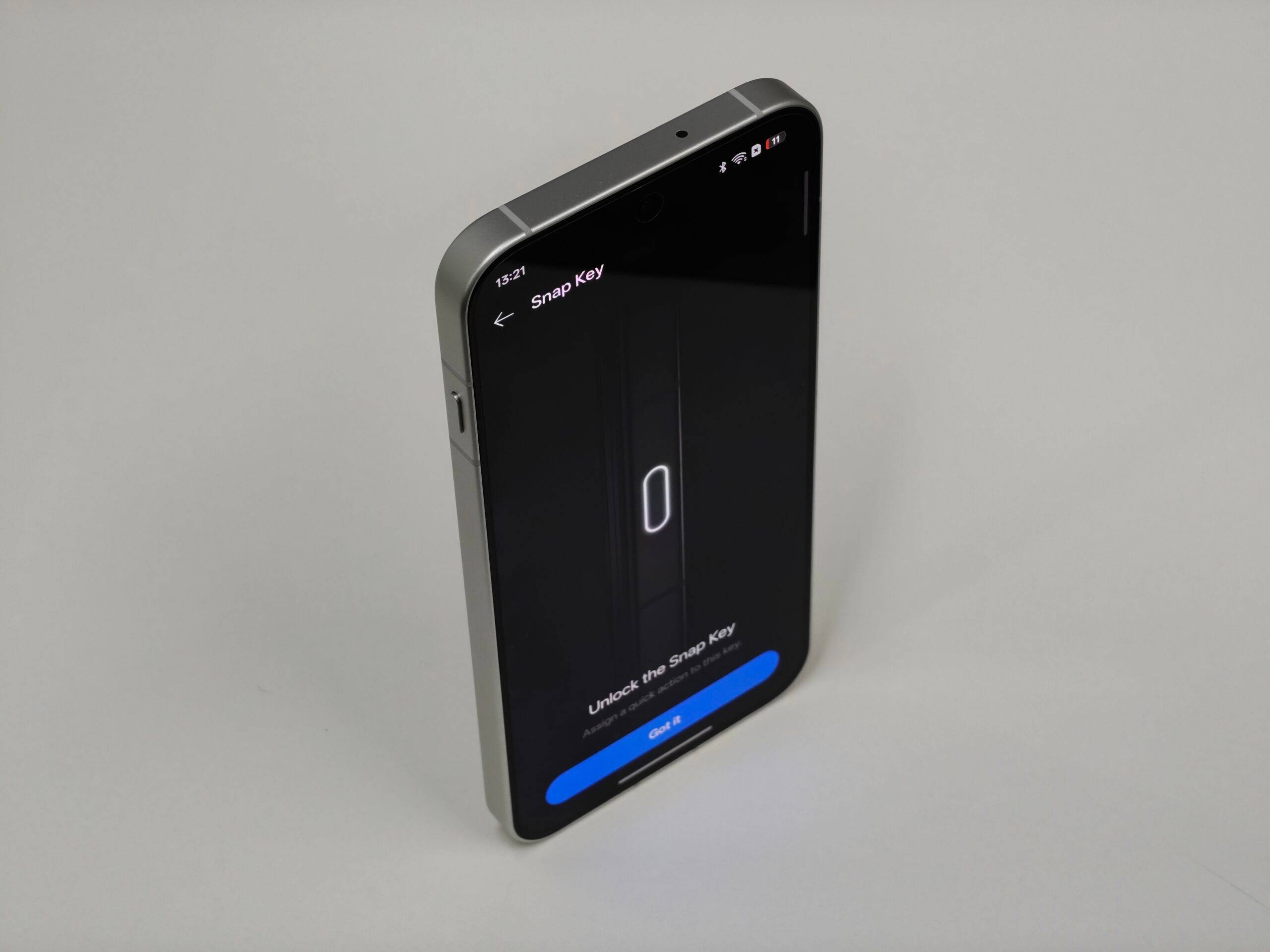
With AI Mind Space, I can save something with the customizable Snap Key (available on the OPPO Find X9 series and OPPO Reno16 series), add a voice note when I need context, and find it through Smart Collections.
I was still going to screenshot everything. That habit was not going anywhere. AI Mind Space just made sure I did not have to spend ten minutes looking for it later.
AI Mind Pilot made me rethink what I needed an assistant for
Some days, my work is a loop of researching, writing, and checking sources. Before I know it, I have multiple AI tabs open, each helping with a different part of the job.
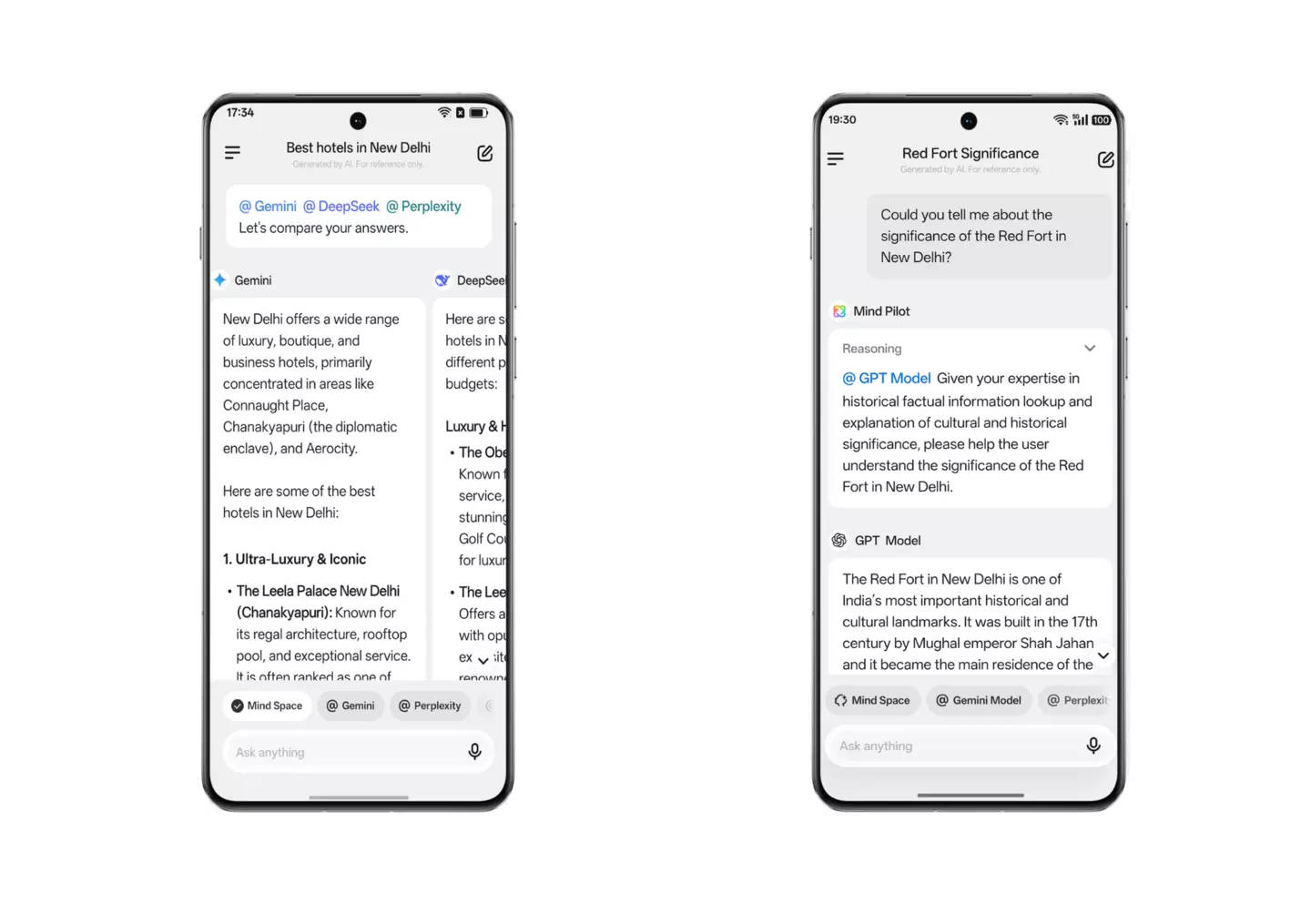
AI Mind Pilot made this a lot simpler. If I’m working on a piece, I can use Gemini to build on an idea, Perplexity to check the information, and ChatGPT to help pull it together all from one place. I can pick the useful parts from each and combine them into a single output, instead of constantly switching tabs and starting over.
I was not doing anything different. I just wasn’t spending time switching from one tab to another.
I never thought finding a payment again would be a feature I cared about
I have lost count of the times I have gone looking for an old payment. I might remember the amount, but not where the receipt is.
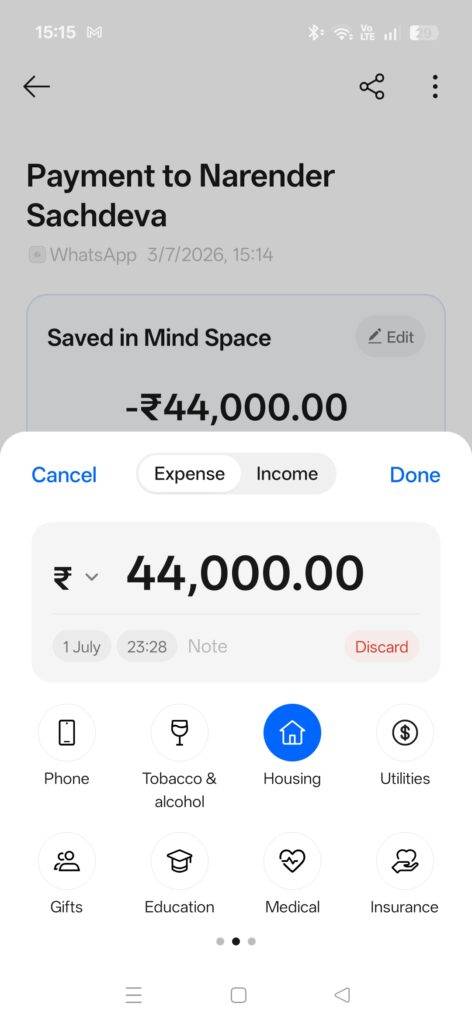
I would check my UPI history, messages, email, and gallery. The AI Bill Manager made this easier. By saving payment details in AI Mind Space, I can return to them without retracing the transaction.
I stopped thinking about where my files were with O+ Connect & Quick Share
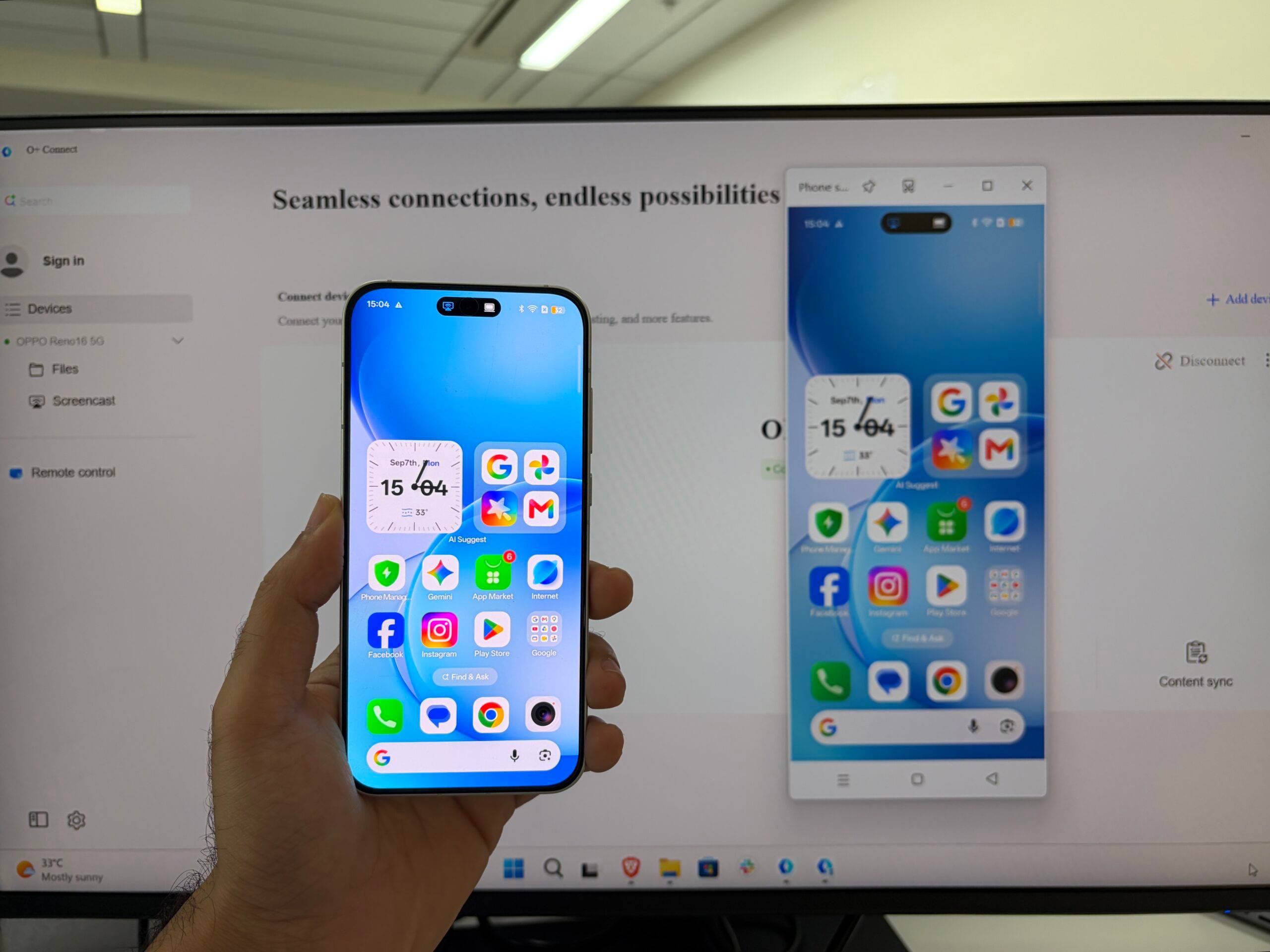
Most of my work happens on my laptop, but a lot of what I need is still sitting on my phone: a photo for a presentation, a document I saved on WhatsApp, or a file I suddenly need while I am already in the middle of something.
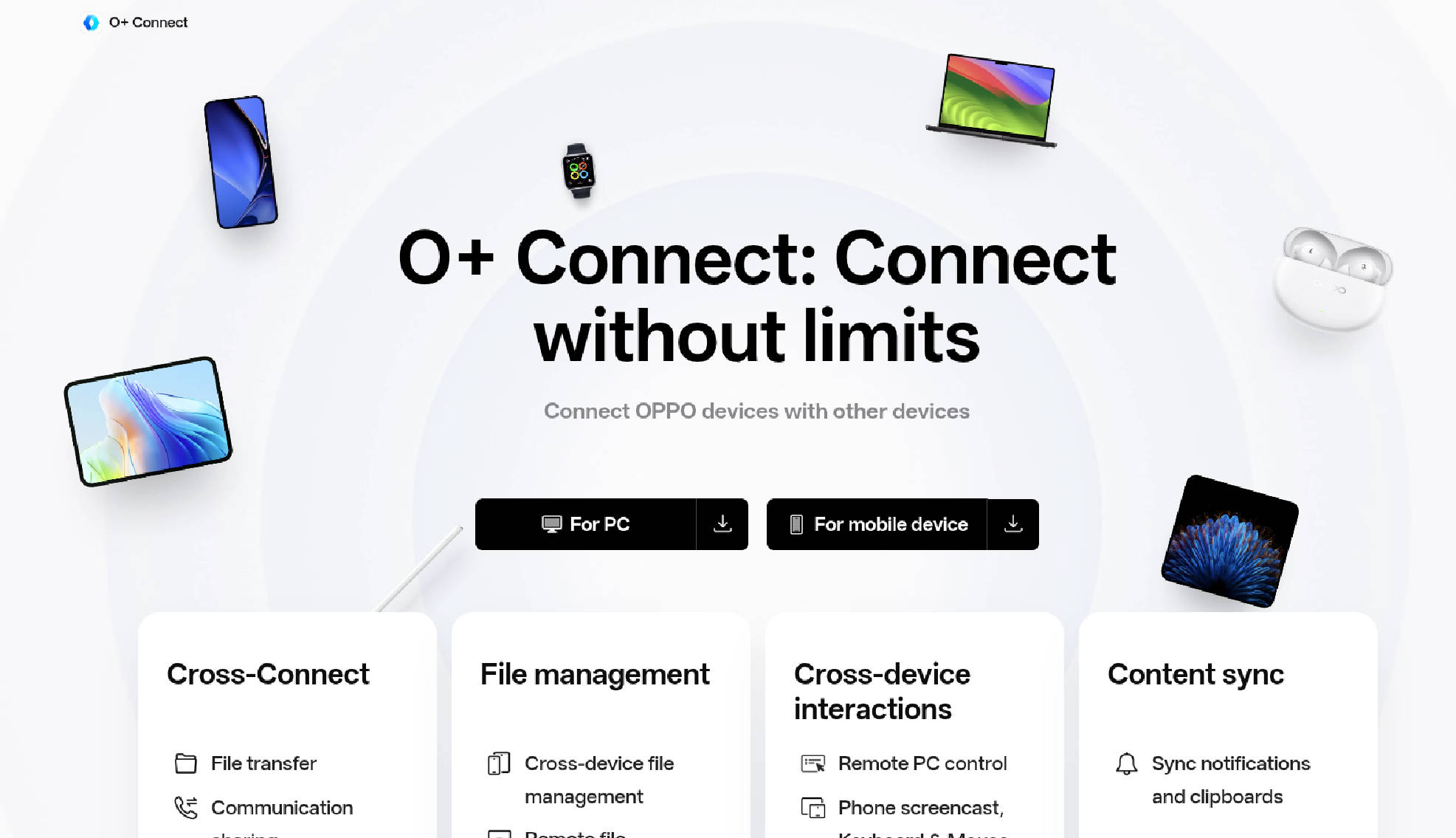
Earlier, moving between the two meant stopping to send something to myself, looking for a cable, or figuring out the quickest way to transfer files. With O+ Connect, I can access my phone from my PC or Mac, transfer files, and use my phone’s apps on the larger screen. Sharing across supported devices, including iPhone and Mac workflows, is also easier.
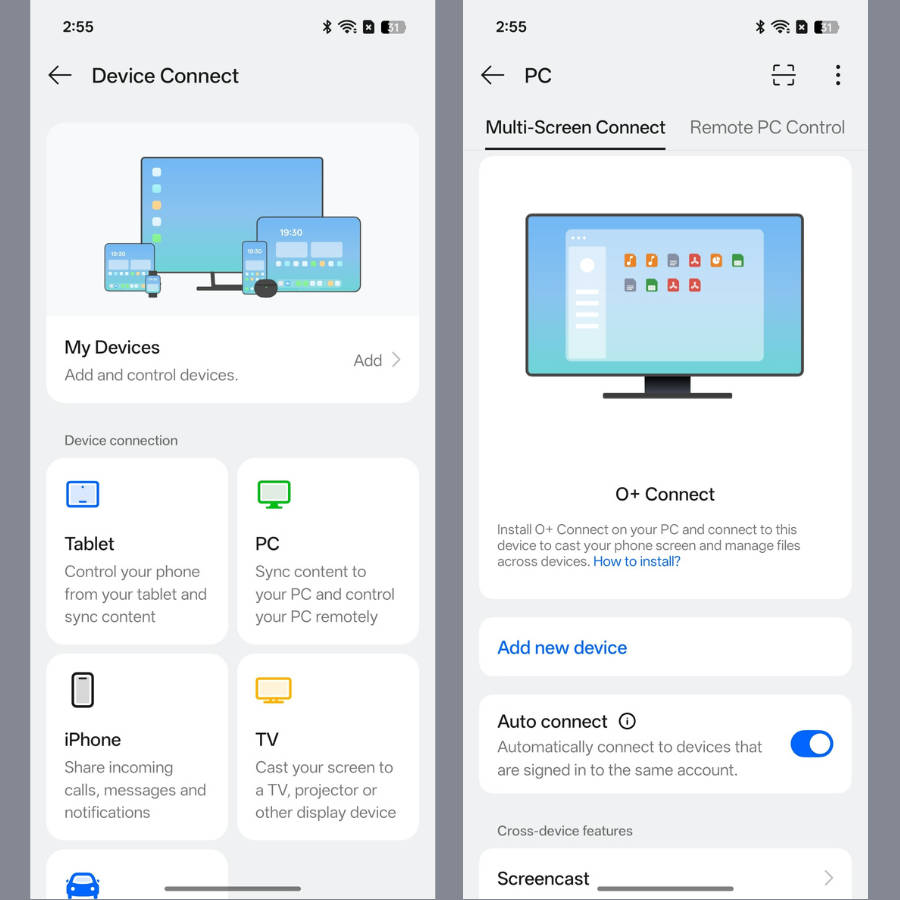
The change for me was simple: I stopped thinking about where the file was. If it was on my phone, I could get it onto my laptop and keep going.
I stopped chasing the perfect shot once AI Editor gave me the freedom to fix the errors
I am not the best photographer in town, but I still want my photos to look good. AI Eraser removes unwanted people or objects. AI Reflection Remover cleans up reflections; AI Portrait Glow adds a little polish to portraits; AI Popout 2.0 lets you share a collage of your pictures where the images literally pop out; and AI Perfect Shot helps you pick the best expression from multiple shots.


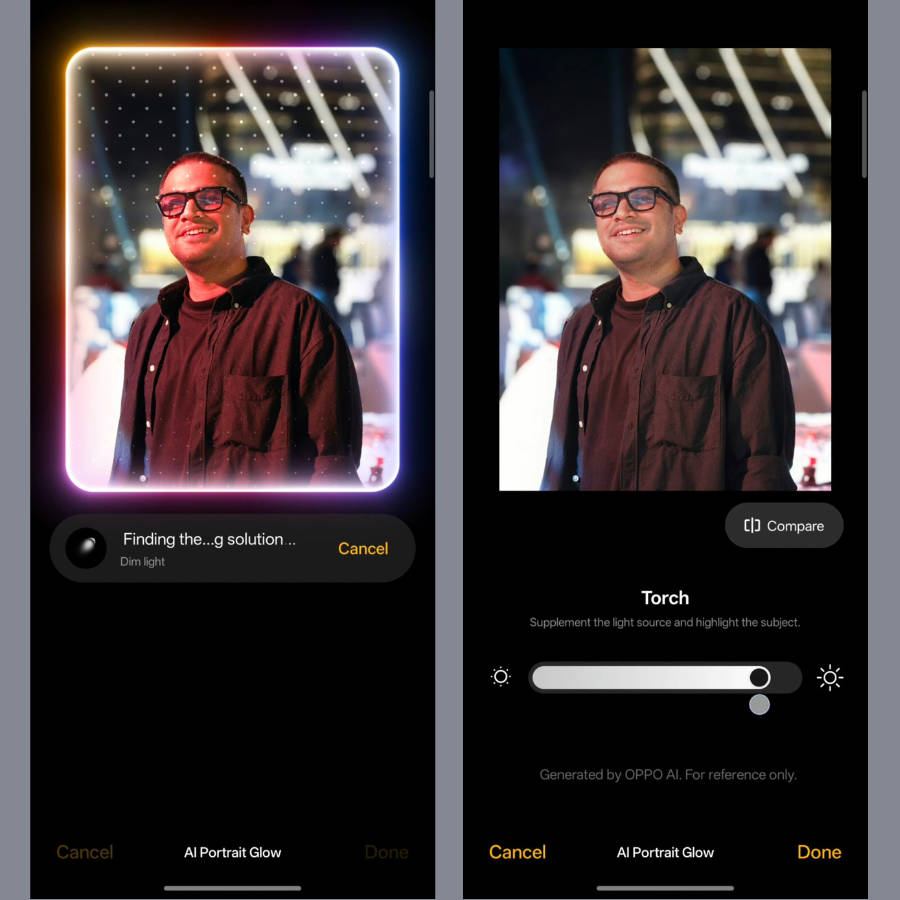
The best part is I don’t need professional editing skills to use any of it. Everything happens right in the Gallery, making it feel like I have a mini photo studio in my phone.
There’s More to the Story
When I started using ColorOS 16, I was looking for what was new. A few weeks in, I started noticing the smaller details that made my smartphone experience seamless.
The Flux Home Screen lets me arrange icons and folders the way I want, while Live Space keeps things like deliveries, cabs, and other updates visible without constantly opening different apps. Even the fluid animations made everyday interactions feel natural and smooth.
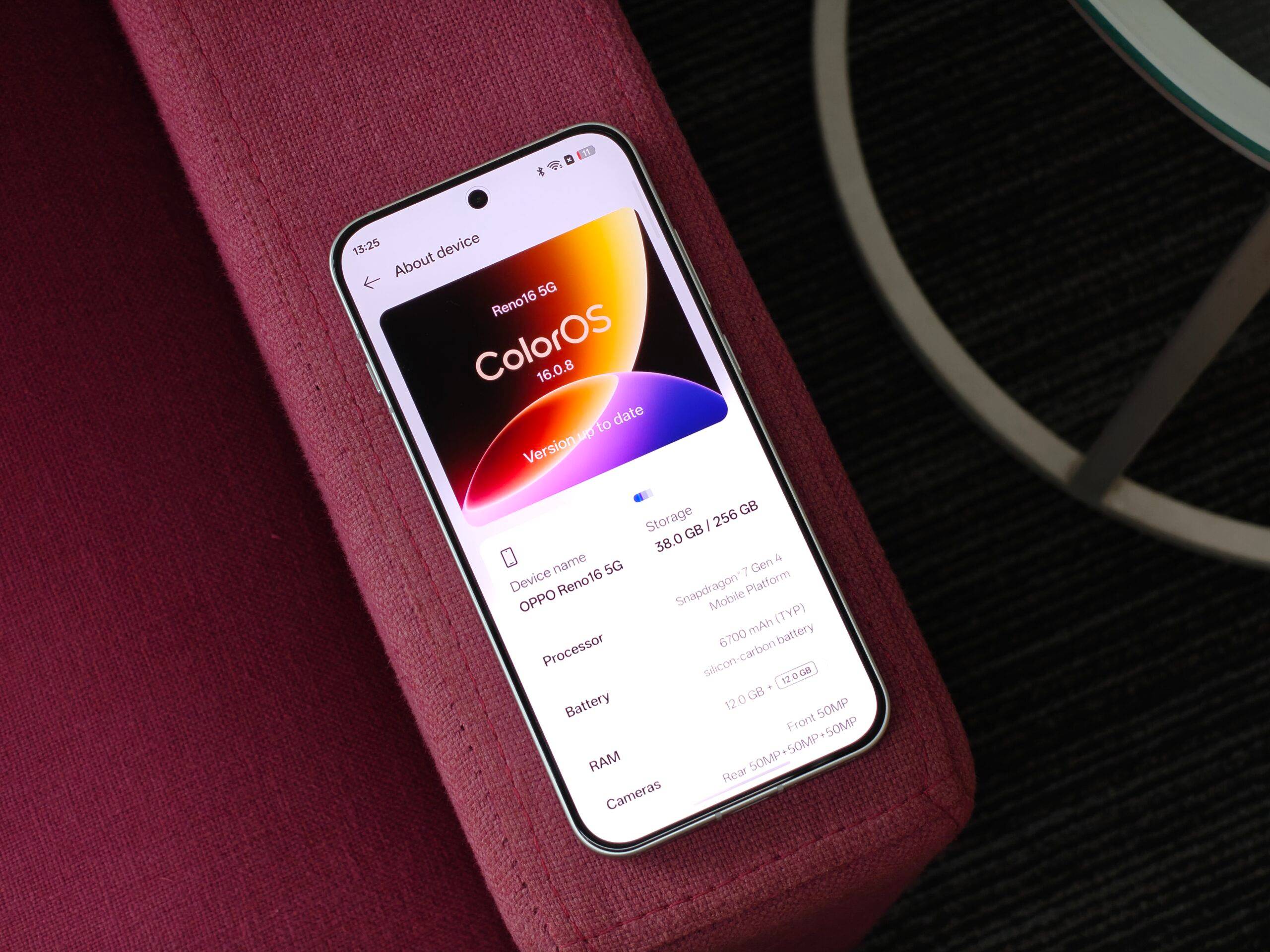
Security is another aspect I’ve come to appreciate over time. OPPO Lock gave me more control over sensitive apps and information, while Private Computing Cloud adds another layer of protection for personal data.
Individually, these were small features. But after using them for a few weeks, I started to see the difference they made to the way I use my phone. That, to me, is where OPPO’s approach with ColorOS 16 stood out.
This is a promotional post done as part of a brand collaboration.