Best Laptops for Programming and Coding in India (2026): Tested Picks for Every Kind of Developer


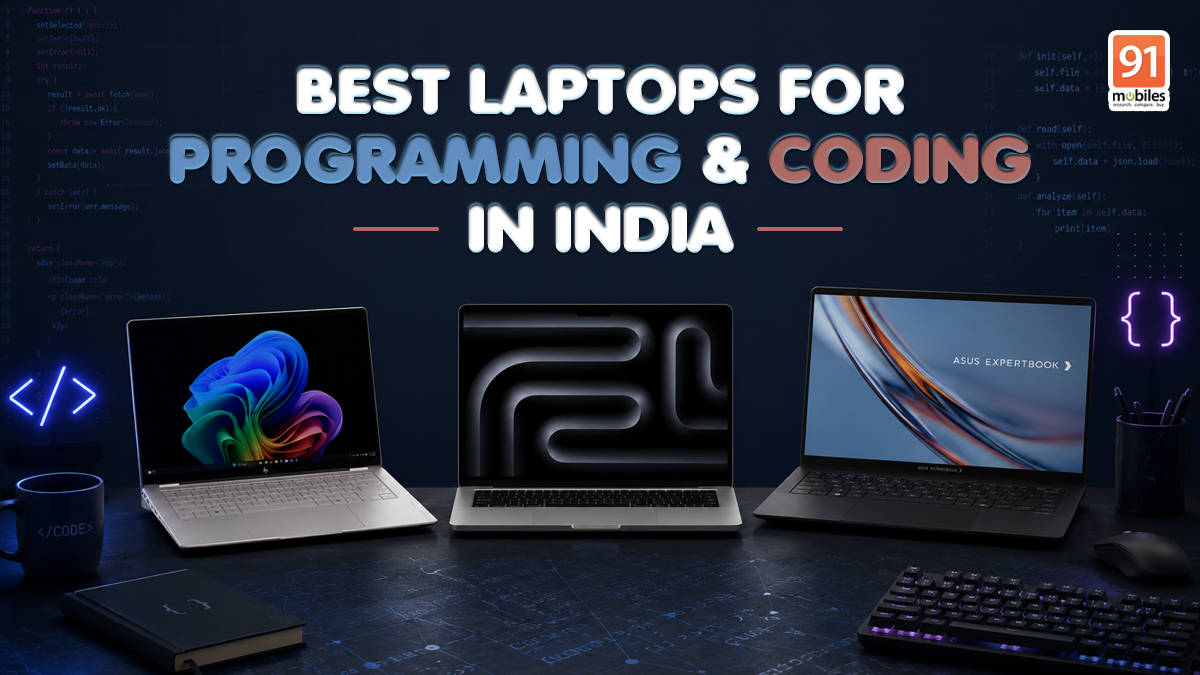
Ask ten developers what matters in a laptop, and you will get ten answers, most of them wrong. It is not the processor, at least not on its own. A compile that takes ninety seconds instead of two minutes changes very little about your day. What changes your day is whether the machine can hold your whole toolchain in memory, whether the keyboard is still comfortable at hour six, and whether you can see enough of your codebase without constantly scrolling.
Then there is the newer question, the one that did not exist three years ago: can it run a model locally, or are you renting a GPU by the hour?
Seven machines below, all tested in our lab on the same suite. They cover very different kinds of developers, from someone shipping React on a train to someone training models in a studio. Every number here is ours.
The ASUS ExpertBook Ultra is the overall pick, the ASUS Zenbook Duo suits web and app work, the Dell Pro Max 16 Plus handles data science, and the Apple MacBook Pro M5 Max is built for LLM work. The MacBook Pro M5 is the sensible Mac, the Samsung Galaxy Book6 Pro is the value pick, and the HP OmniBook Ultra 14 is the one to put Linux on. Updated for July 2026.
A note on pricing: all prices are what each machine cost when we tested it. Memory and storage costs have moved sharply through 2026, so check before buying.
How we tested
The suite is the same across every laptop we review. Cinebench 2026, R24 and R23 for multi-threaded throughput, which is the closest synthetic proxy for compile and build times. Geekbench 6 for cross-platform comparison. PCMark 10 and PCMark 10 Extended for real productivity, CrossMark for responsiveness, the 3DMark stack for graphics, PugetBench for DaVinci Resolve, and CrystalDiskMark for storage speeds, which decide how quickly a large repository indexes or a Docker image builds. Battery is the PCMark 10 video loop test at 80% brightness.
Benchmarks do not cover the rest of it, so every machine here spent weeks being worked on. Long typing sessions to judge the keyboard. Twenty-plus browser tabs alongside an IDE, a terminal and a video call, because that is the actual load. Sustained builds to see whether clocks hold or the fans give up first. Where a machine felt different in daily use, we have said so.
ASUS ExpertBook Ultra — Best Laptop for Programming Overall


Price at time of review: Rs 3,49,990
Why we picked it
The ASUS ExpertBook Ultra (review) gets more of the developer checklist right than anything else we have tested, and it does it in a machine that weighs roughly 1.1kg.
Storage is the part that will surprise you thanks to the 2TB Gen 5 drive, which posted 11,378MB/s sequential reads and 9,548MB/s writes, and that number could resonate more to a developer than almost anything else on the spec sheet. Cloning a large monorepo, indexing it in your IDE, building a container image, restoring a database dump: all of it is storage-bound before it is CPU-bound. Nothing else on this list except the Dell workstation comes close.
The 64GB of memory is the other half of it. Running Docker alongside a language server, a local database, a browser with thirty tabs, and a couple of VMs is where 16GB machines start swapping, and 32GB machines get tight. This does not. Behind it, the Core Ultra X7 358H scored 17,199 in Cinebench R23 multi-core, 4,246 in Cinebench 2026 multi-core and 10,105 in PCMark 10, consistently ahead of the Dell XPS 14 running the identical processor because the extra memory and faster drive do real work.
Then there is the display, which is the reason to buy this over rivals. It is a Tandem OLED with Corning Gorilla Matte coating, and the anti-glare finish means you can read code beside a window or under overhead office lighting without hunting for an angle. Text stays sharp, the 120Hz refresh keeps scrolling smooth, and the keyboard is genuinely comfortable across a long session. Battery ran 13 hours 47 minutes.
The trade is that everything is soldered, and the matte layer softens OLED’s blacks a little. Neither is likely to bother you. It scored 9.3/10.
| Pros | Cons |
| Stunning matte OLED panel | Matte finish reduces OLED’s cinematic feel |
| Premium lightweight yet durable build | Brand perception is still catching up |
| Excellent keyboard and haptic touchpad | |
| Exceptional performance for an ultralight laptop |
Key specs:
- Processor: Intel Core Ultra X7 358H (25W)
- GPU: Intel Arc B390
- Display: 14-inch Tandem OLED, 120Hz, Gorilla Matte with Gorilla Glass Victus
- RAM/Storage: 64GB LPDDR5x / 2TB Gen 5 SSD
- Battery: 70Wh, 13 hours 47 minutes (PCMark 10 video loop), 90W USB-C PD
- Build: Around 1.1kg, Ceraluminum finish
- Rating: 9.3/10
ASUS Zenbook Duo — Best for Web and App Development


Price at time of review: Rs 2,39,990 (currently around Rs 2,29,990)
Why we picked it
Two screens, no monitor, no desk. That is the entire pitch of the ASUS Zenbook Duo UX8406MA-QL971WS (review), and for front-end work it lands better than any accessory ever has.
The workflow is something very few, if any, can offer. Editor on the top panel, browser and dev tools on the bottom. Or terminal below, code above. Or a running app on one screen while you edit the source on the other, watching it hot-reload in real time without alt-tabbing. Both panels are 14-inch OLEDs, and the Bluetooth keyboard detaches and sits over the lower screen when you want a conventional laptop, or comes off entirely when you want the full stacked layout with the kickstand out. It is the rare gimmick that survives contact with actual work.
Both panels are 2,880 x 1,800 OLEDs at 120Hz, and they are vibrant enough that dense text stays comfortable across a long session. The detachable keyboard runs over Bluetooth when it is off the machine and reattaches magnetically over the lower screen, charging through pogo pins, with a separate Type-C port if you want to top it up directly. The keys are backlit, spacious and have ample travel, which makes for genuinely comfortable typing rather than the compromise these designs usually force. A bundled ASUS Pen 2.0 with 4,096 pressure levels handles diagramming and design markup.
The internals hold up. The Core Ultra 9 285H scored 18,699 in Cinebench R23 multi-core and 16,038 in Geekbench 6 multi-core, with 7,893 in PCMark 10 and 8,281 in Extended, which comfortably covers the Node, Python and JavaScript toolchains most web and app developers live in. Storage runs 6,385MB/s reads on a 1TB Gen 4 drive, and 32GB of memory holds a dev server, a database and a full browser without swapping. Battery is the real surprise for a dual-OLED machine: 13 hours 38 minutes in our video loop test from a 75Whr cell, with a compact 65W Type-C charger barely bigger than a phone brick.
Ports are the weak spot, with two Thunderbolt 4 Type-C, one USB-A, HDMI and an audio jack but no Ethernet. It is also a tad heavy, and Intel Arc graphics mean this is not a machine for serious gaming. Our review scored it 7.5/10 and framed it clearly: this is for serious multitaskers and creative users who genuinely want a dual-monitor setup everywhere they work.
| Pros | Cons |
| Solid build | Limited port selection |
| Lovely OLED displays | Tad heavy |
| Flexible usage | |
| Smooth performance |
Key specs:
- Processor: Intel Core Ultra 9 185H (35W)
- GPU: Intel Arc
- Display: Dual 14-inch OLED, 60Hz, touchscreen with detachable Bluetooth keyboard
- RAM/Storage: 32GB LPDDR5x / 2TB Gen 4 SSD
- Battery: 75Wh, 8 hours 13 minutes (PCMark 10 video loop)
- Review: 7.5
Dell Pro Max 16 Plus — Best for Data Science and ML

Price at time of review: Rs 9,00,000
Why we picked it
Data science hits a wall that other development work does not. Your notebook runs fine until the dataset does not fit in memory, and then nothing runs at all. The Dell Pro Max 16 Plus MB16250 (review) is built specifically so you do not hit it.
There is 128GB of CAMM2 memory here, and unusually for 2026, it is upgradeable rather than soldered. Behind that sits an RTX Pro 5000 Blackwell with 24GB of VRAM and full CUDA support, which is what actually matters when you move from exploratory analysis to training. Model training, batch inference, and GPU-accelerated libraries like RAPIDS all want VRAM, and 24GB is enough to work with real models rather than toy ones.
The raw throughput backs it. Cinebench R23 multi-core came in at 36,274, Geekbench 6 multi-core at 20,962, and Geekbench OpenCL at 239,234. On the AI runs, it scored 15,678 in OpenVINO quantized and 11,368 in ONNX quantized. Storage hit 16,037MB/s sequential reads, so loading a hundred-gigabyte dataset off local disk stops being the bottleneck it usually is. The 16-inch 4K Tandem OLED gives you room for a notebook, a terminal and a visualisation side by side.
Worth noting is the CPU side too, since a lot of data work never touches the GPU at all. The 24-core Core Ultra 9 285HX handles parallel preprocessing, feature engineering and anything scikit-learn throws at it, and 128GB means you can hold a dataset in memory while a training run occupies the GPU.
It is also serviceable in a way almost nothing is now, i.e. memory, storage, even the GPU on a modular DGFF board and the USB-C ports individually, all replaceable. The chassis meets MIL-STD-810H for durability, and the battery ran 7 hours 7 minutes.
Rs 9 lakh puts this in lab and studio territory, and it runs hot under sustained load. It scored 9.5/10.
| Pros | Cons |
| Exceptional CPU and GPU performance | Runs extremely hot under load |
| Modular RAM, GPU, and even ports | Battery life is short for a machine this size |
| Stunning 4K Tandem OLED display | GPU capped at 125W, below its 175W rating |
| Enterprise-grade durability and build |
Key specs:
- Processor: Intel Core Ultra 9 285HX (55W)
- GPU: NVIDIA RTX Pro 5000 Blackwell, 24GB
- Display: 16-inch 4K Tandem OLED, 120Hz
- RAM/Storage: 128GB CAMM2 / 2TB Gen 5 SSD
- Battery: 96Wh, 7 hours 7 minutes (PCMark 10 video loop)
- Rating: 9.5/10
Apple MacBook Pro M5 Max — Best for LLM and AI Development


Why we picked it
Configure a MacBook Pro M5 Max with 64GB of unified memory, and you get something no Windows laptop can currently offer: a single memory pool that both the CPU and GPU address directly, with nothing to copy between them.
For anyone running large language models locally, that architecture can become the whole argument. A discrete GPU with 24GB of VRAM hits a hard ceiling on model size regardless of how much system memory sits alongside it, because weights have to fit in VRAM. Unified memory removes that boundary, and the consensus among developers working with local models on Apple silicon has been consistent for two generations now: the memory pool is what determines which models you can run, and Apple sells the largest one available in a laptop.
The M5 Max pairs an 18-core CPU with a 32-core GPU, and a 40-core version sits above it. This generation puts a Neural Accelerator inside every GPU core, so inference scales with graphics horsepower rather than competing with it. Reviewers who have run extended workloads on these chips report the same thing about the 16-inch chassis specifically: it has the thermal headroom to hold clocks through multi-hour jobs rather than tapering after twenty minutes.
The supporting hardware is Apple’s best. Liquid Retina XDR with 120Hz ProMotion, Thunderbolt 5, Wi-Fi 7, up to 4TB of storage, and up to a 100Wh battery with 96W charging.
The friction is tooling. A great deal of the ML ecosystem still assumes CUDA, and while MLX and Metal have improved fast, anyone whose stack depends on NVIDIA-specific libraries will spend time working around it. It is also very expensive, and the M5 Pro finishes most jobs for considerably less.
| Pros | Cons |
| Unified memory up to 64GB suits large local models | Expensive, and configurations climb quickly |
| Neural Accelerators in every GPU core | Much of the ML ecosystem still assumes CUDA |
| Holds clocks through long, sustained workloads | The 16-inch model is heavy at 2.15kg |
| Thunderbolt 5, Wi-Fi 7 and up to 100Wh battery | Overkill for most development work |
Key specs:
- Chip: Apple M5 Max (18-core CPU, 32-core or 40-core GPU with per-core Neural Accelerators)
- Display: 14.2-inch or 16.2-inch Liquid Retina XDR, up to 120Hz ProMotion
- Memory/Storage: 36GB unified, up to 64GB / 2TB SSD, up to 4TB
- Battery: Up to 100Wh, up to 96W charging
- Connectivity: Thunderbolt 5, Wi-Fi 7
Apple MacBook Pro M5 — Best MacBook for Developers


Why we picked it
Most developers who want a Mac do not need an M5 Max. They need a Unix-based machine that compiles quickly, runs all day, and does not sound like a hairdryer during a build. The 14-inch MacBook Pro with M5 is that machine, and it costs less than half what the Max does.
The base M5 is a 10-core CPU and 10-core GPU with Neural Accelerators built into each graphics core, and Apple quotes roughly double the SSD speed of the previous generation, which shows up in package installs and build times more than in benchmark charts. Sixteen gigabytes of unified memory is the entry configuration, and for iOS and macOS development specifically, Xcode, a simulator, and a browser all run comfortably within it. Anyone running heavier container workloads should step to 24GB or 32GB.
What makes it the sensible developer Mac is the fundamentals. The 14.2-inch Liquid Retina XDR panel with 120Hz ProMotion is easy to read code on for long stretches. The battery is rated up to 24 hours. The keyboard is good, the six-speaker system handles calls, and the port selection covers HDMI, SDXC, MagSafe and Thunderbolt without a dongle. If your work is native Apple development, this is not a compromise pick, it is the correct one.
The limits are worth knowing. This model gets Thunderbolt 4 rather than the Thunderbolt 5 on the Pro and Max chips, wireless trails the newer models, and the fans do become audible under sustained full load. Nothing is upgradeable, so buy the memory you will need for the machine’s whole life.
| Pros | Cons |
| Excellent single-core performance for builds | Thunderbolt 4, not Thunderbolt 5 |
| Superb Liquid Retina XDR display for long sessions | Base 16GB memory is tight for containers |
| Rated up to 24 hours of battery | Fans become audible under sustained load |
| Best price-to-capability ratio in the Pro family | No upgradeable memory or storage |
Key specs:
- Chip: Apple M5 (10-core CPU, 10-core GPU with Neural Accelerator per core)
- Display: 14.2-inch Liquid Retina XDR, 120Hz ProMotion, nano-texture option
- Memory/Storage: 16GB unified, up to 32GB / 512GB SSD, up to 4TB
- Battery: Rated up to 24 hours
- Ports: Thunderbolt 4, HDMI, SDXC, MagSafe 3
Samsung Galaxy Book6 Pro — Best Value

Price at time of review: Rs 1,90,000
Why we picked it
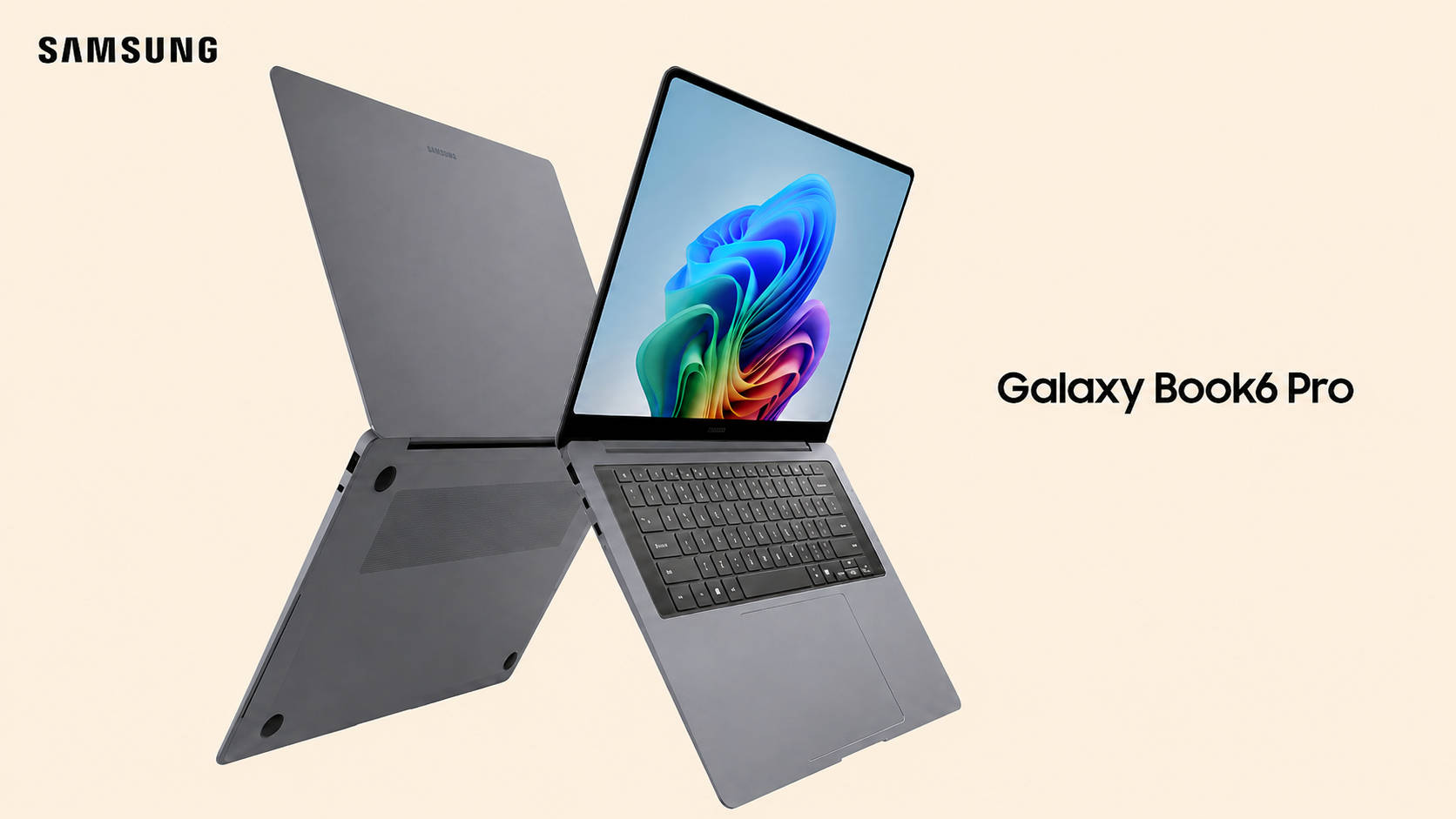
The Galaxy Book6 Pro is the cheapest machine on this list and the one that lasts longest away from a socket, which for a developer who codes on trains and in coffee shops is a combination worth more than another few thousand points in Cinebench.
It runs close to a day and a half unplugged, the longest of any x86 machine we have tested. That comes from a Core Ultra X7 358H, the same Panther Lake silicon Dell puts in the XPS 14 at Rs 67,000 more, paired with Intel Arc B390 graphics and 32GB of memory with a 1TB drive. In our testing, it sat comfortably alongside the XPS across productivity workloads and pulled ahead on graphics, which matters if you are doing anything with GPU-accelerated tooling or driving external monitors.
32GB is the right amount of memory for most development work. It holds a container stack, a language server and a browser without swapping, and it is what the machines costing Rs 3 lakh and up on this list ship with too. The 14-inch AMOLED panel is bright and high contrast, which makes small text easier to live with across a long day, and the whole thing stays slim enough to carry without thinking about it.
The known irritations are consistent: Samsung ships a lot of pre-installed software you will want to remove, the port selection is thinner than rivals offer, and pricing has climbed noticeably over the previous generation.
| Pros | Cons |
| Powerful Panther Lake performance | Samsung bloatware |
| Gorgeous Dynamic AMOLED 2X display | Steep price increase over the previous generation |
| Slim, premium design | Limited port selection |
| Excellent battery life |
Key specs:
- Processor: Intel Core Ultra X7 358H (25W, Panther Lake)
- GPU: Intel Arc B390
- Display: 14-inch AMOLED
- RAM/Storage: 32GB LPDDR5x / 1TB Gen 4 SSD
- Battery: 67Wh, longest-running x86 laptop we have tested
HP OmniBook Ultra 14 — Best Linux-Friendly Laptop

Price at time of review: Rs 2,21,999
Why we picked it
If you are going to wipe Windows and install Fedora or Ubuntu, the hardware underneath needs to support the software on top. The HP OmniBook Ultra 14 (review) is a straightforward Intel machine with no exotic silicon to fight, which is exactly what you want.
ARM-based Windows laptops still have patchy Linux support, and machines with discrete NVIDIA graphics bring their own driver questions. An Intel processor with Intel Arc graphics runs on mainline kernel drivers that have been maintained for years, which means Wi-Fi, sleep, brightness keys and external displays tend to work on first boot rather than after a weekend of forum posts.
The hardware itself is well suited to development. Storage is Gen 5 rather than Gen 4, posting 10,341MB/s sequential reads and 8,691MB/s writes, second only to the ExpertBook here, so package installs and repository operations are quick. The Core Ultra 7 356H scored 14,096 in Cinebench R23 multi-core, 8,349 in PCMark 10 and 14,428 in Geekbench 6 multi-core, which handles builds and containers comfortably. Battery ran 14 hours 39 minutes, the longest of any Intel machine here with a published review.
The 3K OLED at 120Hz with variable refresh gives you real estate and sharpness for dense text, and the 65W GaN charger is small enough to leave in a bag permanently. Sixteen gigabytes of memory is the one specification to think about: fine for most work, tight if you run several containers at once.
The chassis edges are sharp enough to notice against your wrists during long sessions, and the port selection is limited. It scored 8.5/10.
| Pros | Cons |
| Premium aluminum design | Sharp edges |
| Sharp, vibrant 3K OLED with 120Hz VRR | Limited ports |
| Portable 65W GaN charger | |
| Speedy PCIe Gen 5 SSD |
Key specs:
- Processor: Intel Core Ultra 7 356H (25W)
- Display: 14-inch 3K OLED, 120Hz with variable refresh rate
- RAM/Storage: 16GB LPDDR5x / 1TB Gen 5 SSD
- Battery: 70Wh, 14 hours 39 minutes (PCMark 10 video loop), 65W GaN charger
- Storage speeds: 10,341MB/s read, 8,691MB/s write
- Rating: 8.5/10
Winners at a glance
Prices are as of the time each machine was tested and are subject to change.
| Laptop | Category win | Processor | Graphics | Memory/Storage | Battery | Rating | Price |
| ASUS ExpertBook Ultra | Best overall | Core Ultra X7 358H | 64GB / 2TB Gen 5 | 14-inch Tandem OLED, 120Hz | 13:47 | 9.3/10 | Rs 3,49,990 |
| ASUS Zenbook Duo | Best for web and app dev | Core Ultra 9 185H | 32GB / 2TB | Dual 14-inch OLED | 8:13 | — | Rs 2,39,990 |
| Dell Pro Max 16 Plus | Best for data science and ML | Core Ultra 9 285HX + RTX Pro 5000 | 128GB / 2TB Gen 5 | 16-inch 4K Tandem OLED | 7:07 | 9.5/10 | Rs 9,00,000 |
| Apple MacBook Pro M5 Max | Best for LLM and AI dev | Apple M5 Max | 36GB / 2TB | 14.2 or 16.2-inch XDR | Up to 100Wh | — | From Rs 3,66,900 |
| Apple MacBook Pro M5 | Best MacBook for developers | Apple M5 | 16GB / 512GB | 14.2-inch XDR, 120Hz | Rated 24 hrs | — | Rs 1,69,900 |
| Samsung Galaxy Book6 Pro | Best value | Core Ultra X7 358H | 32GB / 1TB | 14-inch AMOLED | Longest x86 result on test | — | Rs 1,90,000 |
| HP OmniBook Ultra 14 | Best Linux-friendly | Core Ultra 7 356H | 16GB / 1TB Gen 5 | 14-inch 3K OLED, 120Hz | 14:39 | 8.5/10 | Rs 2,21,999 |
FAQs
Which is the best laptop for programming in India?
The ASUS ExpertBook Ultra. It combines 64GB of memory, the second-fastest storage we have tested at 11,378MB/s reads, a matte OLED display that stays readable in bright rooms, and 13 hours 47 minutes of battery in a 1.1kg body. It scored 9.3/10 in our review.
How much RAM do I need for coding?
Sixteen gigabytes handles most web development, scripting and general programming comfortably. Thirty-two is the sensible target if you run Docker containers, virtual machines or heavy IDEs alongside a browser, which is what the Galaxy Book6 Pro and Zenbook Duo provide. Sixty-four and above, as on the ExpertBook Ultra, is for data science and large-scale work.
Is a MacBook good for programming?
Yes, particularly for anything Unix-based, and it is the only option for native iOS and macOS development. The MacBook Pro M5 at Rs 1,69,900 covers most development work with excellent single-core performance and a rated 24 hours of battery. Step up to the M5 Max only if you are running large models locally.
Which laptop is best for machine learning and data science?
The Dell Pro Max 16 Plus, with 128GB of upgradeable memory and an RTX Pro 5000 carrying 24GB of VRAM with full CUDA support. Dataset size and VRAM are the constraints in this work far more often than processor speed.
Do I need a dedicated GPU for programming?
For most development, no. Web, app, backend and general software work are bound by memory, storage speed and single-core performance. A dedicated GPU becomes necessary for machine learning, local model inference, game development and GPU-accelerated data work.
Which laptop is best for running Linux?
The HP OmniBook Ultra 14. Its Intel processor and Intel Arc graphics run on long-maintained mainline kernel drivers, so Wi-Fi, sleep, display brightness and external monitors tend to work without configuration. ARM Windows machines and laptops with discrete NVIDIA graphics both require more setup.
Which programming laptop has the best battery life?
The Samsung Galaxy Book6 Pro is the longest-running x86 machine we have tested. The HP OmniBook Ultra 14 managed 14 hours 39 minutes and the ASUS ExpertBook Ultra 13 hours 47 minutes, both enough for a full day away from a socket.
Are dual-screen laptops worth it for developers?
For front-end and full-stack work, genuinely yes. The ASUS Zenbook Duo lets you keep an editor on one panel and a browser with dev tools on the other, watching changes hot-reload without switching windows. The cost is battery life, which drops considerably with both screens running.